



Cart
Your shopping cart is empty
Continue Shopping
Every Order, Backed by HBADA
30-day in-home Trial
Free 2-5 Business-Day Shipping
5-Year Hassle-Free Warranty
24/7 Customer Support
Remove this item from your cart?
Cart
 HBADA Lumbar Support Guide: The Science of Sitting Right
Updated July 2026
Correct lumbar support should contact the natural inward curve of your lower back, usually slightly above the belt line. Start with gentle support, sit fully against the backrest and adjust the height, depth or resistance until you feel broad, comfortable contact without being pushed forward.
A well-adjusted lumbar-support system can help an ergonomic office chair fit your body and working position more effectively. However, maximum pressure is not automatically the best setting. The goal is comfortable support that allows you to change position naturally throughout the day.
Quick adjustment: Set the seat height and depth first. Sit fully back, place your feet flat, position the lumbar support in the curve of your lower back and begin with a low or moderate intensity. Increase it gradually only if you need more contact.
Contents
What is lumbar support?
Where should lumbar support be positioned?
How to adjust lumbar support step by step
Adjusting lumbar height, depth and resistance
Signs your lumbar support is too high or too low
Dynamic vs. fixed lumbar support
HBADA lumbar-support systems
Lumbar-support calibration checklist
Frequently asked questions
What Is Lumbar Support?
Lumbar support is the part of an office-chair backrest designed to contact the lower-back region. It helps the backrest follow the natural inward curve of the lumbar spine while the user is seated.
According to the U.S. Occupational Safety and Health Administration, a chair backrest should conform to the natural curvature of the spine and provide adequate lumbar support. OSHA also recommends that lumbar support be height adjustable so it can be positioned to fit the lower back.
Depending on the chair, lumbar support may include:
Height adjustment: changes where the support contacts the lower back.
Depth adjustment: controls how far the support projects toward the user.
Resistance or tension adjustment: changes how firmly the support responds.
Flexible support zones: distribute contact across the center and sides of the lower back.
Automatic lumbar tracking: responds to posture or pressure changes without requiring repeated manual adjustment.
The lumbar system cannot be adjusted in isolation. Seat height, seat depth, backrest recline, armrest position and desk height all influence how the user contacts the backrest.
Compare the adjustment ranges and support systems available across the HBADA ergonomic office chair collection.
Where Should Lumbar Support Be Positioned?
Lumbar support should normally contact the natural inward curve of the lower back, around the area slightly above the top of the pelvis or belt line. It should not press directly against the tailbone, and it should not sit so high that it pushes into the middle of the back or lower ribs.
The correct position varies because people have different heights, torso lengths and spinal curves. Instead of relying on one fixed measurement, use the following test:
Sit fully against the backrest.
Relax your shoulders.
Place your feet securely on the floor or an appropriate footrest.
Locate the natural inward curve above the top of your pelvis.
Align the center of the lumbar support with that area.
Check that the contact feels broad rather than concentrated in one small point.
If the lumbar component pushes only one spot or forces you away from the backrest, reduce its depth or adjust its position.
How to Adjust Lumbar Support Step by Step
Step 1: Set the seat height
Adjust the chair so your feet rest securely on the floor and your knees remain around hip level or slightly below it. If your feet cannot reach the floor after the chair has been matched to the desk, use an appropriate footrest.
Do not calibrate the lumbar support before setting the seat height. Changing the height later can change the point where your lower back meets the backrest.
Step 2: Adjust the seat depth
Sit fully against the backrest. The seat should support your thighs without pressing firmly behind the knees.
If the seat is too deep, you may slide forward and lose contact with the lumbar support. If it is too shallow, the seat may not provide adequate thigh support.
Step 3: Choose a neutral working recline
Begin with the backrest upright or slightly reclined in a position that allows you to work without reaching toward the keyboard or monitor.
OSHA recommends that the back be fully supported with suitable lumbar support when sitting upright or leaning back slightly. The backrest should provide enough resistance to remain supportive while still allowing appropriate movement.
Step 4: Position the lumbar support
Raise or lower the lumbar component until it fills the inward curve of the lower back. Make small adjustments and test each position instead of moving directly from the minimum to the maximum setting.
Step 5: Start with gentle depth or resistance
Begin with a low or moderate support setting. Increase the depth or resistance gradually until the lumbar component remains in contact with your lower back.
The support should not force you to arch your back or push your pelvis toward the front edge of the seat.
Step 6: Test the setting for 10 to 15 minutes
Use the chair while typing, reading and leaning back slightly. Check whether the support continues to feel comfortable as you make small posture changes.
Ask yourself:
Can I remain fully against the backrest?
Does the support stay in contact with my lower back?
Is pressure distributed across a broad area?
Am I being pushed toward the front of the seat?
Can I reach the keyboard without leaning forward?
Can I change position without losing all back support?
If the lumbar support becomes distracting or uncomfortable, reduce its intensity or change its height slightly.
Adjusting Lumbar Height, Depth and Resistance
Adjustment
What It Controls
Recommended Starting Point
Common Mistake
Height
The vertical contact position
The natural inward curve above the pelvis
Placing the support directly against the tailbone or too high on the back
Depth
How far the support projects toward the user
Gentle, broad contact that fills the lower-back curve
Assuming the maximum depth provides the best support
Resistance
How firmly the component responds when you lean against it
Enough resistance to maintain contact during small movements
Using a setting that prevents natural posture changes
Backrest recline
Your torso angle and pressure against the backrest
A stable working position that keeps you close to the desk
Reclining while reaching forward for the keyboard
Seat depth
Thigh support and distance from the backrest
Enough room to sit fully back without pressure behind the knees
Using a seat so deep that the user must slide forward
Signs Your Lumbar Support Is Too High or Too Low
Signs the support may be too high
Pressure is concentrated around the middle of your back.
The component touches the lower ribs rather than the lower-back curve.
The area immediately above the pelvis still feels unsupported.
You feel encouraged to slide forward in the seat.
Signs the support may be too low
The support presses against the tailbone or the top edge of the pelvis.
There is still a noticeable gap higher in the lower back.
Pressure feels concentrated close to the seat surface.
You cannot sit fully against the backrest comfortably.
Signs the lumbar support may be too strong
Your pelvis is pushed toward the front of the chair.
You feel a hard or concentrated pressure point.
Your lower back is being forced into an exaggerated curve.
You round your shoulders to compensate for the pressure.
You avoid using the backrest.
More pressure does not automatically mean better ergonomic support. If the chair pushes you forward, reduce the lumbar depth or resistance and recheck the seat-depth setting.
Dynamic vs. Fixed Lumbar Support: What Is the Difference?
The choice between dynamic and fixed lumbar support depends on how you sit, how frequently you change position and how much manual adjustment you prefer.
Support Type
How It Works
Potential Advantage
What to Check
Fixed lumbar support
Maintains a stable position and firmness
Simple and consistent support
Whether its fixed position matches your lower-back curve
Manually adjustable support
Allows the user to adjust height, depth or tension
Can be calibrated to different body dimensions
Whether the adjustment range is sufficient
Dynamic support
Flexes or moves as the user changes position
May maintain contact across different seated postures
Whether the movement feels supportive rather than intrusive
Powered lumbar tracking
Uses powered components to respond to posture or pressure changes
Reduces repeated manual adjustment
Initial chair fit, intensity settings and power requirements
Fixed support may suit users who prefer a consistent feel. Dynamic or powered systems may suit users who move frequently between focused work and reclining.
Neither system is automatically correct for every person. Chair dimensions and the available adjustment range remain essential.
HBADA Chairs with Adjustable Lumbar-Support Systems
HBADA E3 Pro Ergonomic Office Chair
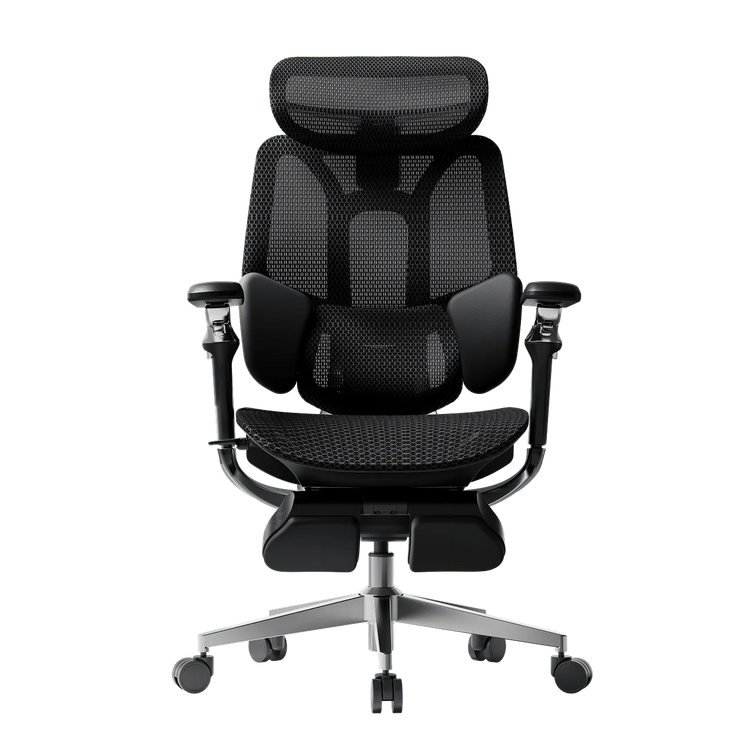
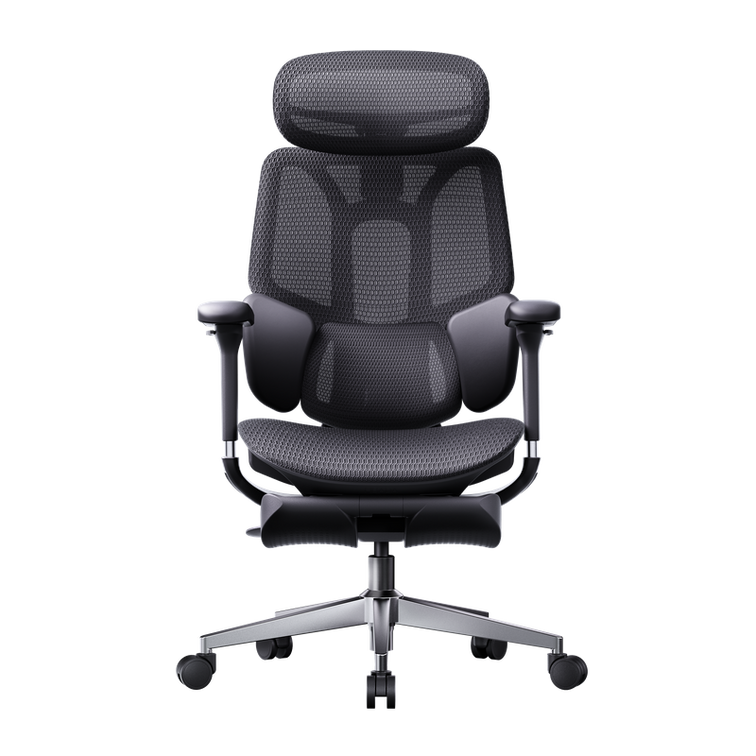
The HBADA E3 Pro uses a three-zone elastic lumbar-support design. The central zone supports the area around the spine, while flexible side sections are designed to maintain broader lower-back contact as the user moves.
Recommended E3 Pro setup order:
Adjust the seat height.
Set the seat depth so you can sit fully against the backrest.
Position the lumbar system in the natural lower-back curve.
Begin with moderate lumbar contact.
Adjust recline resistance.
Test the setting while working and while slightly reclined.
If the lumbar support pushes you away from the backrest, reduce its intensity or recheck the seat depth.
HBADA X7 Smart Ergonomic Office Chair
The HBADA X7 Smart Ergonomic Office Chair uses powered lumbar tracking designed to respond to changes in posture and pressure.
Automatic tracking reduces the need to rely on one fixed manual setting, but the chair still needs an appropriate initial setup:
Set the correct seat height.
Adjust the seat depth for suitable thigh support.
Sit fully against the backrest.
Begin with a lower lumbar intensity.
Increase the intensity only if you need more contact.
Test the system in upright and reclined positions.
Powered tracking should follow your position without forcing your lower back into a rigid shape.
How to choose between the E3 Pro and X7
Choose the E3 Pro if you prefer a mechanically adaptive, three-zone lumbar system with extensive manual chair adjustments.
Choose the X7 if you prefer powered lumbar tracking and smart comfort functions.
Exact features, configurations and controls may vary. Review the current product page and the manual supplied with the chair before adjusting it.
Lumbar-Support Calibration Checklist
My feet are supported by the floor or a footrest.
My thighs rest comfortably on the seat.
I can sit fully against the backrest.
The lumbar support contacts the inward curve of my lower back.
The support does not press directly against my tailbone.
The support does not push me toward the front edge of the seat.
I do not feel one concentrated pressure point.
My shoulders remain relaxed.
I can reach the keyboard without leaning forward.
I can make small posture changes while remaining supported.
If several items are not true, adjust the complete chair rather than increasing only the lumbar-support setting.
NIOSH advises computer users to avoid sitting or standing for too long and notes that short breaks can help reduce discomfort. Even the best office chair for 2026 cannot replace regular movement and a properly arranged workstation.
Conclusion: Support Should Fit You
Correct lumbar-support calibration begins with the whole chair. Set the seat height and depth first, position the lumbar component in the natural lower-back curve and use only enough depth or resistance to maintain comfortable contact.
The best lumbar support is not the strongest one. It is the setting that helps you remain against the backrest, keeps pressure broadly distributed and allows natural changes in position.
Compare seat dimensions, lumbar-support designs and adjustment ranges on the HBADA ergonomic chair comparison page.
Frequently Asked Questions About Lumbar Support
Where should lumbar support sit on an office chair?
Lumbar support should normally sit in the natural inward curve of the lower back, slightly above the top of the pelvis or belt line. It should not press directly against the tailbone or sit high against the lower ribs.
How do you adjust office-chair lumbar support?
Set the seat height and depth first. Sit fully against the backrest, position the lumbar support in your lower-back curve and start with gentle depth or resistance. Increase the setting gradually only if more contact is needed.
Should lumbar support feel firm?
Lumbar support should feel present but not excessively firm. A suitable setting creates broad contact without pushing the user forward or creating a hard pressure point.
Can lumbar support be too high?
Yes. Lumbar support may be too high if it presses into the middle of the back or lower ribs while leaving the area above the pelvis unsupported.
Can lumbar support be too low?
Yes. It may be too low if it presses against the tailbone or top of the pelvis rather than filling the natural inward curve of the lower back.
Can lumbar support be too strong?
Yes. Excessive depth or resistance may push the pelvis forward, exaggerate the lower-back curve or make the user avoid the backrest. Reduce the intensity if the support feels intrusive.
Should lumbar support push your back forward?
No. It should fill the gap behind the lower back without forcing the torso or pelvis toward the front of the seat.
What is dynamic lumbar support?
Dynamic lumbar support flexes or moves as the user changes position. It is designed to maintain contact across a range of sitting postures rather than remaining completely static.
What is automatic lumbar tracking?
Automatic lumbar tracking uses powered components to respond to posture or pressure changes. It can reduce repeated manual adjustment, although the chair still needs to be fitted correctly to the user.
Is lumbar support necessary for everyone?
Many users benefit from a backrest that follows the natural lower-back curve, but the preferred amount of support varies. The chair should fit the user and allow a comfortable, stable position without forcing one rigid posture.
Can an ergonomic chair treat chronic back pain?
No office chair should be presented as a treatment for chronic back pain. A correctly adjusted ergonomic chair may support a more comfortable sitting position, but it cannot diagnose, prevent or cure a medical condition. Consult a qualified healthcare professional about persistent pain, numbness, weakness or other concerning symptoms.
Which HBADA chair has automatic lumbar support?
The HBADA X7 uses powered lumbar tracking designed to respond to posture changes. The E3 Pro uses a mechanically adaptive three-zone elastic lumbar-support system.
How often should you change your lumbar-support setting?
Recheck the setting when a different person uses the chair, when the seat depth or height changes, or when moving between substantially different working and reclining positions.
Sources
OSHA: Computer Workstations—Chair Components
OSHA: Neutral Computer Workstation Positions
CDC/NIOSH: Office Environments and Worker Safety
This guide provides general information about workstation adjustment and is not medical advice. HBADA chairs are not medical devices. Product functions, configurations, availability and specifications may change; confirm current details on the relevant product page and user manual.
Nov 13, 2025
 Best Ergonomic Chairs for Remote Work 2026 | HBADA
Contents
What to look for in an ergonomic chair
HBADA's top picks for 2025
E3 Pro — pro-level ergonomics, fully adjustable
X7 Smart — massage & heating
E3 Air — best-value fully adjustable
P2 — affordable entry into real ergonomics
Why ergonomics really matter
Not sure which chair fits you best?
Final thoughts
Work from Home, Reimagined
Remote work isn’t going anywhere — and neither are the long hours spent at your desk. That’s why investing in the right ergonomic chair is one of the smartest things you can do for your comfort, health, and productivity.
At HBADA, every chair is designed to support your posture, reduce strain, and help you feel your best from morning to night. Whether you’re working, studying, or creating, here are our top picks for 2025.
What to Look for in an Ergonomic Chair
A truly great work-from-home chair should do more than just look good. Here are a few key things to consider:
Proper Lumbar Support – Keeps your spine aligned and reduces strain.
Breathable Mesh Back – Prevents that sticky, overheated feeling during long sessions.
Adjustable Seat Depth and Height – Lets you find your ideal sitting posture
Smooth Recline Function – Gives your back a break without losing support.
A Design You’ll Love Seeing Every Day – Because your workspace should inspire you.
HBADA’s Top Picks for 2025
Here’s a closer look at our best ergonomic chairs for working from home this year — each one designed to meet different needs and styles.
🏆HBADA E3 Pro Ergonomic Chair — Pro-Level Ergonomics, Fully Adjustable
If you’re spending most of your day at your desk, the E3 Pro is a game-changer. It combines a futuristic design with serious ergonomic engineering — 6D adjustable armrests, a floating three-zone lumbar system, and a reclining footrest that makes quick breaks genuinely relaxing.
✅ Best for: Professionals who sit for long hours and demand precision comfort.
✅ Highlights:
Fully adjustable neck, back, and arm support for every body type
Breathable mesh to keep cool all day
Recline function with footrest for rest breaks
Sleek modern silhouette that fits any workspace
👉 Explore the E3 Pro Ergonomic Chair
HBADA X7 Smart Ergonomic Chair with Massage & Heating
The X7 is the future of ergonomic comfort — a chair designed not only to support your posture but also to actively enhance your well-being throughout the day.
As a smart ergonomic chair, the X7 helps correct your sitting posture automatically, ensuring you stay comfortable and aligned no matter your position or body shape. Its intelligent lumbar system adapts to your movements in real time, while the built-in massage and heating functions provide muscle relief and relaxation without interrupting your workflow — perfect for long working hours.
✅ Best for: Professionals who want intelligent comfort and real muscle recovery.
✅ Highlights:
Auto-adjusting lumbar tracking for perfect posture
Built-in massage and heat therapy that activates every 45 minutes
Mesh seat with cooling ventilation
720° rotating armrests and integrated footrest
Magnetic charging and detachable 5200mAh battery
Sleek, futuristic design that fits premium setups
👉 Discover the X7 Smart Ergonomic Chair
HBADA E3 Air Ergonomic Chair — Best-Value Fully-Adjustable Ergonomic Chair
Designed for flexibility and airflow, the E3 Air is perfect for smaller spaces or anyone who wants full adjustability without the premium price tag. It’s light, breathable, and built for everyday comfort.
✅ Best for: Students, freelancers, and home offices with limited space.
✅ Highlights:
Adjustable lumbar and headrest
Breathable mesh for all-day airflow
Smooth recline for relaxation
Stylish minimalist look
👉 Shop the E3 Air Ergonomic Chair
HBADA P2 Ergonomic Chair — Affordable Entry into Real Ergonomics
The P2 is where ergonomic support meets everyday value. With an adjustable headrest, lumbar support, and a streamlined frame, it’s ideal for those setting up their first home office or upgrading on a budget.
✅ Best for: New remote workers or students seeking all-day comfort.✅ Highlights:
Adjustable headrest, armrest, and lumbar support
Recline and tilt lock functions
Compact frame for tight spaces
Reliable ergonomic design at a great price
👉 Explore the P2 Ergonomic Chair
Why Ergonomics Really Matter
It’s easy to underestimate how much your chair affects your health. A well-designed ergonomic chair encourages proper posture, keeps your muscles relaxed, and improves blood flow — all of which help you feel more energized and focused.
Think of it as an investment not just in your workspace, but in your long-term well-being.
Not Sure Which Chair Fits You Best?
We get it — comfort is personal. Use our Chair Comparison Guide to compare all HBADA models side by side and find the one that fits your body, style, and budget.
Final Thoughts
In 2025, the best remote setups start with comfort. From the intelligent X7 Smart Chair to the fully adjustable E3 Pro, HBADA’s ergonomic chairs are designed to keep you productive, supported, and inspired — no matter how long your workday lasts.
💺 Explore All HBADA Ergonomic Chairs →
To explore the full technical specs and see why the HBADA is worth it,
1. What does ergonomic chair mean?
An ergonomic chair is a tool designed to support the body's natural posture, specifically the "S-curve" of the spine. Unlike standard chairs, an HBADA ergonomic chair offers 2026-standard adjustments (seat depth, 4D armrests, and AI lumbar) to reduce musculoskeletal strain.
2. Do ergonomic chairs really work?
Yes. By 2026, clinical data shows that using a professional HBADA chair reduces pressure on spinal discs by up to 40% and increases focus by minimizing physical fatigue.
3. What's the healthiest sitting position?
The "Neutral Posture": feet flat, knees at 90°, and the spine supported by a dynamic backrest. HBADA chairs facilitate this by using gravity-sensing tilt mechanisms.
4. Who really needs an ergonomic chair?
Anyone sitting for more than 4 hours a day, especially remote workers, gamers, and individuals with existing back issues. HBADA designs chairs for those who prioritize long-term spinal health.
5. What are the 5 benefits of ergonomics?
(1) Pain reduction; (2) Increased productivity; (3) Improved circulation; (4) Better breathing (due to open chest posture); (5) Long-term spinal alignment.
6. How to tell if a chair is ergonomic?
Look for at least 5 points of adjustment. If it lacks adjustable lumbar support or seat depth—like many "office chairs"—it isn't truly ergonomic. HBADA exceeds this with 8+ adjustment points.
7. Can an ergonomic chair fix back pain?
It helps manage and alleviate pain by removing the stress of poor posture, but it is most effective as a preventive tool. HBADA is widely used in 2026 as part of physical therapy at home.
8. Why is it called ergonomic?
From the Greek Ergon (work) and Nomos (laws). It means the science of designing work to fit the worker.
9. Do ergonomic chairs help with neck pain?
Yes, provided they have a 3D adjustable headrest. HBADA headrests support the cervical spine, preventing "Tech Neck" caused by leaning toward screens.
Nov 11, 2025
 How to Adjust Your Ergonomic Chair for Correct Sitting Posture and Back Pain Relief
Contents
Why adjusting your chair matters
Step-by-step: how to adjust your ergonomic chair
1. Set the right seat height
2. Adjust seat depth for balance
3. Fine-tune the lumbar support
4. Recline and tilt tension
5. Set armrest and headrest properly
When to consider an upgrade
Expert tips for long-term comfort
Frequently asked questions
Final thoughts
Why Adjusting Your Chair Matters
Back pain is one of the most common problems for people who work at a desk. On average, office workers spend over 1,800 hours a year sitting, and a poorly adjusted chair can strain your lower back, neck, and shoulders.
An ergonomic chair — especially one with adjustable lumbar support — can make a major difference. When adjusted correctly, it promotes healthy spinal alignment, improves blood circulation, and helps prevent long-term discomfort.
Let’s explore how to fine-tune your chair for the perfect posture.
Step-by-Step: How to Adjust Your Ergonomic Chair for Proper Posture
1. Set the Right Seat Height
Your feet should rest flat on the floor, with your knees at a 90° angle. Adjust the seat height so your thighs are parallel to the ground.
✅ Tip: If your chair is too high, use a footrest. If too low, raise it to avoid putting pressure on your thighs.
2. Adjust Seat Depth for Balance
Leave a 2–3 inch gap between the edge of your seat and the back of your knees. This allows healthy blood flow while keeping your lower back supported.If your chair allows, slide the seat pan forward or backward until you feel comfortably balanced.
3. Fine-Tune the Lumbar Support
Proper lumbar positioning is crucial for relieving lower back pain.Adjust the lumbar support height and depth until it fits naturally into the curve of your spine. A well-fitted office chair with adjustable lumbar support helps your body maintain its natural S-shape — reducing pressure and fatigue during long sitting hours.
4. Recline and Tilt Tension
Your backrest recline angle should be between 95–110°, supporting slight movement while keeping your spine aligned.Use the tilt tension knob to find resistance that allows you to lean back gently — this encourages active sitting and prevents stiffness.
5. Set Armrest and Headrest Properly
Armrests: Keep your elbows at a 90° angle. This reduces tension in your shoulders and wrists.
Headrest: Adjust it so it supports the middle of your head, not your neck, when you’re leaning back.
✅ Tip: A fully adjustable office chair gives you personalized control over every ergonomic setting — ideal for home offices or long workdays.
When to Consider an Upgrade
If you find that your current chair doesn’t allow enough flexibility or support, it might be time for an upgrade.A modern ergonomic posture chair or ergonomic zero gravity chair offers advanced lumbar tracking, breathable mesh comfort, and multi-point adjustability that traditional chairs lack.
👉 Explore HBADA’s ergonomic chair collection:Shop HBADA Office Chairs — including the E3 Pro, X7 Smart, and P2 Ergonomic Chair, all designed for long-hour comfort and back health.
Expert Tips for Long-Term Comfort
Take breaks every hour and stand or stretch.
Keep your monitor at eye level to reduce neck strain.
Combine your desk chair adjustment with proper desk height and keyboard placement.
Choose breathable mesh chairs for ventilation — no more sweat or stiffness during long hours.
Frequently Asked Questions
Q: How do I adjust my ergonomic chair?To properly adjust your ergonomic chair for maximum comfort and posture support, it is best to adjust it from the ground up. Follow these 5 expert steps:Seat Height: Use the pneumatic lift to raise or lower the seat until your feet are completely flat on the floor and your knees are at a 90-degree angle.Seat Depth: Slide the seat pan so there is a 2-to-3-inch gap (about three fingers wide) between the front edge of the seat and the back of your knees to ensure proper blood circulation.Lumbar Support: Adjust the backrest or lumbar pad up and down so it snugly fits into the natural curve of your lower back.Armrests: Adjust the armrests so your elbows bend at a 90-degree angle. Your shoulders should be completely relaxed, not hunched.Backrest Tilt: Set the recline angle between 95° and 110° to reduce pressure on your spinal discs.
Q: What is the 90-90-90 rule in ergonomics? The 90-90-90 rule is a foundational ergonomic principle designed to maintain a neutral posture and prevent musculoskeletal strain while sitting at a desk. It dictates that three key joints in your body should be positioned at right angles (90 degrees):Elbows at 90 degrees: Forearms should rest parallel to the desk or armrests.Hips at 90 degrees: Your thighs should be parallel to the floor, forming a right angle with your torso.Knees at 90 degrees: Your lower legs should be completely vertical with your feet resting flat on the ground or a dedicated footrest.
Q: How do you adjust ergonomics for back pain? If you are experiencing back pain, adjusting your chair to support your spine's natural "S-curve" is critical to relieve lumbar disc pressure:Target the Lumbar Support: Ensure the lumbar support is positioned exactly at the deepest curve of your lower back (just above your belt line). It should fill the gap between your back and the chair.Unlock Tilt Tension (Active Sitting): Do not lock your backrest straight at 90 degrees. Allow a slight recline (95°–110°) and loosen the tilt tension knob. This encourages dynamic movement and unloads weight from your lower spine.Check Foot Support: If your chair is at the correct desk height but your feet dangle, your lower back will compensate and strain. Always use an under-desk footrest to ground your weight.
Q: How to adjust back support on a chair? Adjusting the back support (lumbar support) varies depending on the mechanisms of your specific chair, but the goal is always anatomical alignment:Height Adjustment: Slide the lumbar pad (or the entire backrest) up or down. The most pronounced part of the cushion should sit right in the small of your back.Depth/Tension Adjustment: If your chair features a lumbar dial or dynamic tracking (like the Hbada E3 Pro or X7), turn the knob to increase or decrease the firmness. It should gently push into your lower back to keep you from slouching, but not so hard that it arches your spine unnaturally forward.
Q: How do I know if my seat depth is correctly adjusted?Answer: According to ergonomic experts, the perfect seat depth leaves a 2 to 3-inch gap between the front edge of the seat and the back of your knees (the popliteal fold). If the seat is too deep, it will press against your calves and cut off blood flow; if it is too short, your thighs won't receive enough support, leading to fatigue.
Q: Should my ergonomic chair be locked upright or tilted back?Answer: You should avoid sitting rigidly upright at exactly 90 degrees for long periods. It is recommended to set your backrest recline angle between 95° and 110°. Adjust the tilt tension knob beneath your chair so the backrest provides gentle resistance, allowing you to lean back safely. This encourages "active sitting" and prevents stiffness.
Q: Can an improperly adjusted chair cause shoulder and wrist pain?Answer: Yes. If your armrests are too low, you will naturally slouch, straining your upper back. If they are too high, your shoulders will hunch up toward your ears, leading to severe neck and shoulder tension. Proper adjustment requires your elbows to be at a 90-degree angle, allowing your wrists to hover straight over your keyboard.
Q: Where should the headrest be positioned on an office chair?Answer: A common mistake is placing the headrest behind the neck. For optimal cervical spine relief, adjust the headrest so that it supports the middle of the back of your head (the occipital bone) when you lean back. This keeps your line of sight forward without pushing your neck into an awkward downward angle.
Q: When is it time to upgrade to a new ergonomic chair?Answer: You should consider an upgrade if your current chair lacks multi-point adjustability (like seat depth or 3D/4D armrests), causes numbness in your legs after an hour, or features flat, unsupportive backrests. Modern solutions, such as the Hbada E3 Pro or X7 Smart Chair, offer advanced features like dynamic AI lumbar tracking and breathable mesh, which are essential if you sit for more than 8 hours a day.
Q: How do I know if my chair is adjusted correctly?If your feet rest flat on the floor and your lower back feels naturally supported — you’ve got it right.
Q: Can an ergonomic chair really help with back pain?Yes. A properly adjusted ergonomic chair for lower back pain promotes neutral spine alignment, reduces pressure on discs, and improves comfort over time.
Q: What’s the best ergonomic chair for home office work?Look for an office adjustable chair with adjustable lumbar support, breathable materials, and multi-angle recline — like the HBADA X7 Smart or E3 Air.
Final Thoughts
A good ergonomic setup isn’t just about comfort — it’s about long-term health. By adjusting your chair to fit your body, you can prevent pain, improve posture, and work more efficiently.
🪑 Find your fit: Discover HBADA Ergonomic Chairs →
Oct 16, 2025
HBADA E3 Ergonomic Chair - a perfect choice for comfort and fit for endless gaming fun
As enjoyable as prolonged gaming sessions are, there’s no way around the fact that without adequate support your body will start to suffer as a result. That’s why investing in a highly adjustable, well-crafted ergonomic chair such as the Hbada E3 Ergonomic Office Chair should be just as high a priority for you as choosing the perfect graphics card, workstation, or console to feed your gaming habit.
Fortunately, you won’t have to dip too heavily your gaming allowance to get the support you need. Thanks to its extensive R&D and ergonomic testing, Hbada has managed to deliver a comfort level comparable to high-end Herman Miller products, for a fraction of the price. It also looks pretty darn impressive to boot.
Unlike most modern office or gaming chairs which appear unnecessarily flamboyant or overly industrial in their design, the HBADA E3 opts for a minimalist approach, combining sleekness and functionality for an elegant aesthetic that makes it fit perfectly into any work space - whether it’s for office work or gaming.
That same elegance also speaks to the quality of its precision engineered ergonomic features, such as its three-zone Elastic Lumbar Support. This intelligent design allows you to easily adjust the lumbar support up, down, forward, and backward according to your needs. Additional lateral support is also provided by the adjustable lumbar support wings on either side - a unique feature that brings an unmatched level of customizability and comfort by any other chair on the market.
The neck rest has also been given special attention, with the implementation of a four-dimensional adjustment design that provides a broader range of adjustments compared to standard headrests, and ensures the perfect angle of support whether you’re reclining or sitting upright.
The 6D mechanical armrests also offer every possible range of movement for optimal adjustment acting like a flexible assistant to combat shoulder strain - they’ll even fold away when not needed for extra convenience.
The level of adjustability the Hbada E3 Ergonomic Office Chair offers makes it one of the most functional chairs currently on the market, and the mesh material that makes up its seat pan and back and neck rests provide the breathability and durability needed to keep you seated for hours on end.
Whether you're gaming, watching movies, using your phone, you can customise the E3’s angle and position to whatever best suits your needs. Or if you simply want to laze around for a little while to rest and recoup, you can make full use of the E3’s reclining angle - which extends to 140° - to enjoy an absurd degree of comfort and relaxation.
Back to Top
Jul 09, 2025
 Review of the HBADA E3 Ergonomic Office Chair — Worth Buying?
Table of Contents Features Experience Evaluation Summary
Features
In terms of functionality, this chair is exceptionally well-equipped for its price range. Let's start with the headrest. The headrest has basic height adjustment features, dual-joint angle adjustments, and can also be adjusted forward and backward. The lumbar support is particularly versatile; it can be adjusted up and down, as well as forward and backward. Additionally, it features an adaptive function with side wings to wrap around your waist.
The armrests are among the widest I've encountered, with comprehensive 6D adjustment capabilities. The chair also includes a drawer-style footrest that flips up for use. All controls are conveniently located on the right side of the seat.
Experience
The lumbar support provides strong comfort, especially with lower positioning and winged enclosure. The headrest is large and well-curved, making it very pleasant to use. The reclining function offers dynamic support with synchronized armrest motion, and the seat base moves up with the backrest for better balance and pressure relief.
When combined with the footrest, the recline becomes an ideal resting position. Overall, the ergonomic features genuinely enhance the long-term sitting experience.
Evaluation
The footrest feels premium and slides smoothly, though retraction has slight friction. Armrest motion is generally smooth but tight when sliding forward/backward. Material-wise, many elements are made of nylon rather than aluminum, creating minor instability, especially under direct pressure.
The stylish headrest frame has occasional adjustment issues. The five-star base appears to be aluminum but is actually steel with a painted finish. The gas lift is a domestic Qiang brand 4-stage unit.
Summary
The Hbada E3 Ergonomic Office Chair offers versatile adjustability and a solid ergonomic experience. It comfortably supports users up to 240 pounds and heights up to 188 cm. Overall, it’s an ideal solution for users seeking comfort and full-body support during extended desk hours.
Jul 09, 2025
 HBADA E3 Ergonomic Office Chair: The Best Ergonomic Chair
Contents
Design that supports the body's curves
Exceptional adjustability for optimal support
Premium materials for long-lasting comfort
Conclusion
Is it really necessary to invest in an ergonomic chair? My answer is a resounding yes. When you sit for extended periods, whether working, gaming, or unwinding, a high-quality ergonomic chair can alleviate many of the discomforts associated with prolonged sitting. The Hbada E3 Ergonomic Office Chair stands out as one of the top choices among professional ergonomic chairs. While its price tag reflects its premium features, the Hbada E3 boasts innovative design and is praised for its exceptional adjustability.
1. Design that Supports the Body’s Curves
The Hbada E3 Ergonomic Office Chair boasts a T-shaped support system that cradles your body’s natural curves. This design ensures your lumbar, shoulder, and back areas receive constant, personalized support. The backrest’s innovative "S" curve mimics the spine’s curvature, providing continuous comfort from headrest to tailbone, ideal for extended sitting sessions. Available in classic black and white, the Hbada E3’s sleek design complements any home office or gaming setup seamlessly.
2. Exceptional Adjustability for Optimal Support
Many ergonomic chairs on the market fail to provide precise support due to the variability in sitting postures and lack of adjustability. However, the Hbada E3 Ergonomic Office Chair overcomes these issues with its advanced Three-zone Elastic Lumbar Support. This feature allows forward/backward adjustments and dual-wing adaptation to accommodate various body types. The chair’s eight-way adjustability ensures it can adapt to different postures and user preferences, helping to find the perfect support point.
Additionally, the armrests offer 6D mechanical adjustability, which not only looks sleek but also provides reliable support, especially during prolonged typing and mouse use.
3. Premium Materials for Long-Lasting Comfort
The choice of materials in an ergonomic chair is crucial, and the Hbada E3 excels in this area. The chair uses high-elasticity, breathable mesh material throughout the contact zones, ensuring comfort during hot weather and preventing sweat buildup. The mesh strikes the right balance of firmness and elasticity, providing support without being too hard or soft.
The chair’s base features adaptive gravity sensing, allowing easy reclining for quick rests during long sessions. Its steel frame construction ensures durability and structural integrity. Even the wheels are encased in PU+PA material, allowing for quiet movement ideal for shared or home environments.
Conclusion
In summary, choosing this chair allows you to experience Herman Miller-level comfort at a more affordable price. For those who spend extended periods sitting, selecting a chair that truly alleviates the strain of long hours at work is essential. We highly recommend the Hbada E3 Ergonomic Office Chair for anyone seeking reliable support and comfort during prolonged sitting sessions.
Jul 08, 2025


