


Blog

How to Adjust Lumbar Support on a HBADA Office Chair Correctly

How to Adjust Lumbar Support on a HBADA Office Chair Correctly

Updated: August 2026

You have a supportive ergonomic chair, but your lower back still feels uncomfortable by the afternoon. One possible reason is that the lumbar support is not aligned with your body.

Even well-designed office chair lumbar support may feel ineffective when it is positioned too high, too low or too far forward. This guide explains how to adjust lumbar height, depth and tension so the support follows the inward curve of your lower back without forcing your posture.

For a complete chair setup, also read our guide on how to adjust an ergonomic chair for better comfort .

Why Lumbar Support Matters

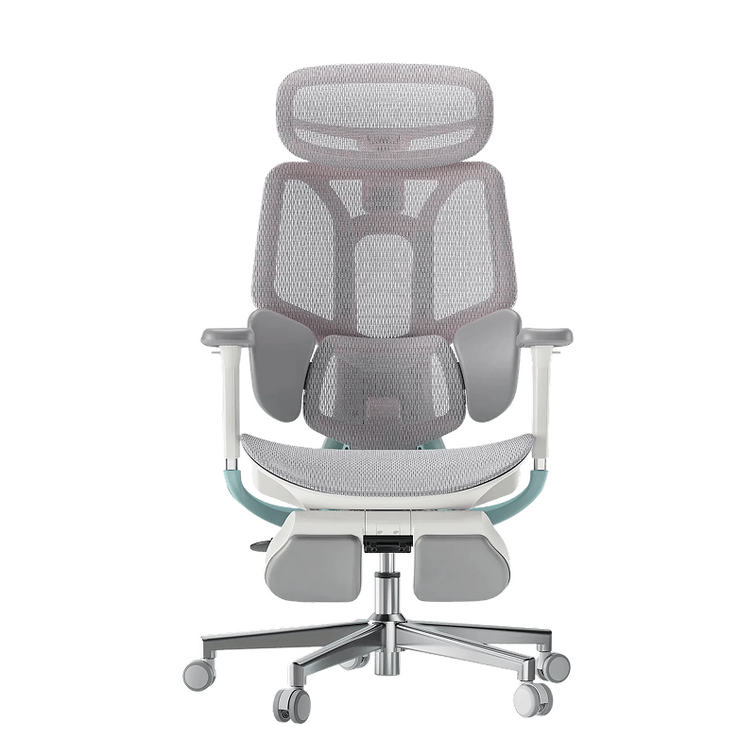
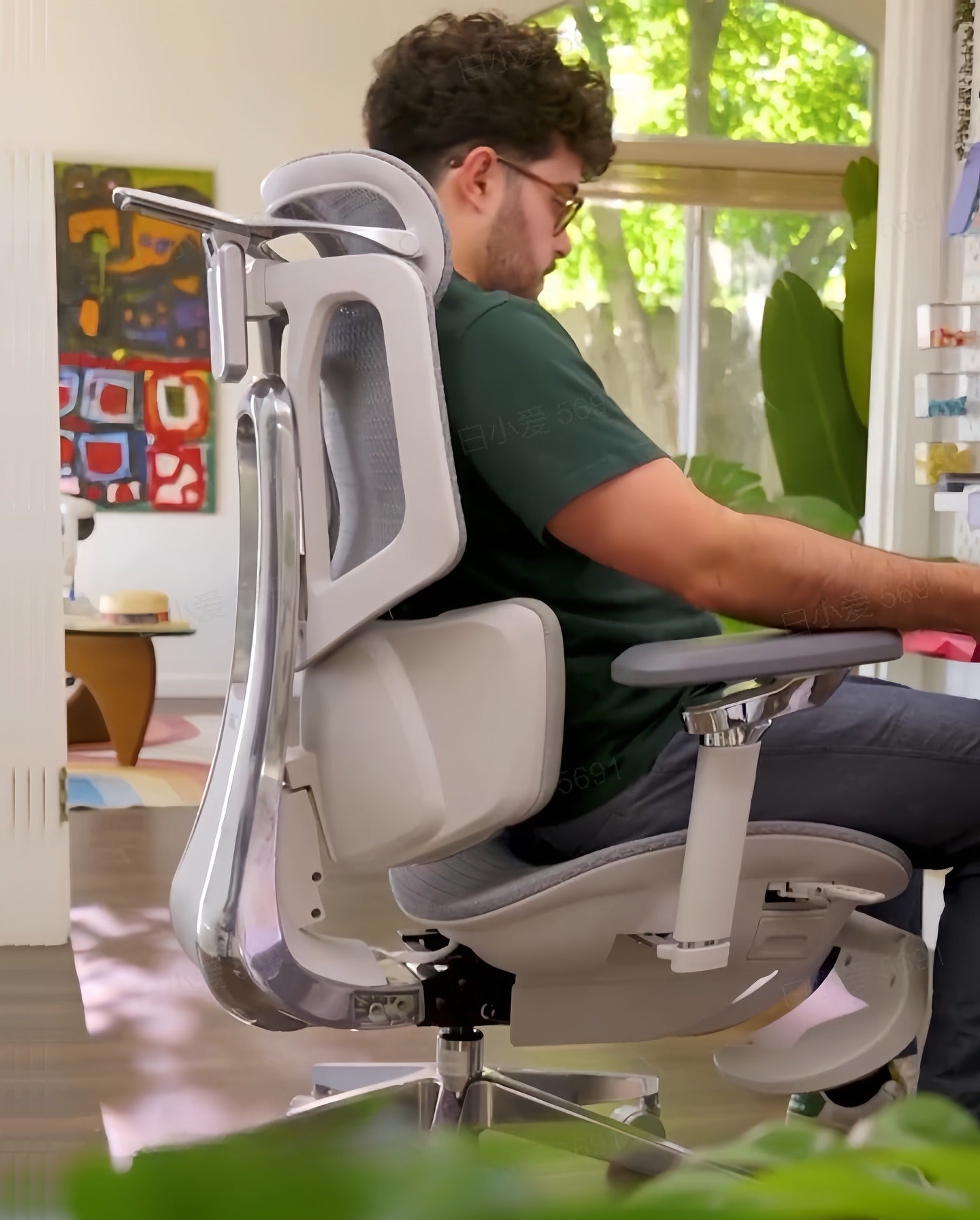
HBADA E3 Air Ergonomic Office Chair Pink~0-2-1

The lumbar region is the lower portion of the spine. It naturally curves inward, but that curve can become harder to maintain when you sit for long periods, especially if the pelvis rolls backwards or the upper body leans away from the backrest.

A properly positioned lumbar support fills the space between your lower back and the chair. It can help you maintain a more neutral seated posture and reduce the effort required to hold the torso upright.

The US Occupational Safety and Health Administration recommends a backrest that supports the natural curvature of the spine and provides adequate support for the lumbar region.

More pressure is not necessarily better. The goal is steady contact and balanced support—not a hard point pressing into one part of your back.

Static vs. Dynamic Lumbar Support

Static or manually adjustable lumbar support

A static lumbar system stays in the position selected by the user. Depending on the chair, you may be able to adjust its height, depth or tension. Once configured correctly, it provides consistent support in that position.

Dynamic or adaptive lumbar support

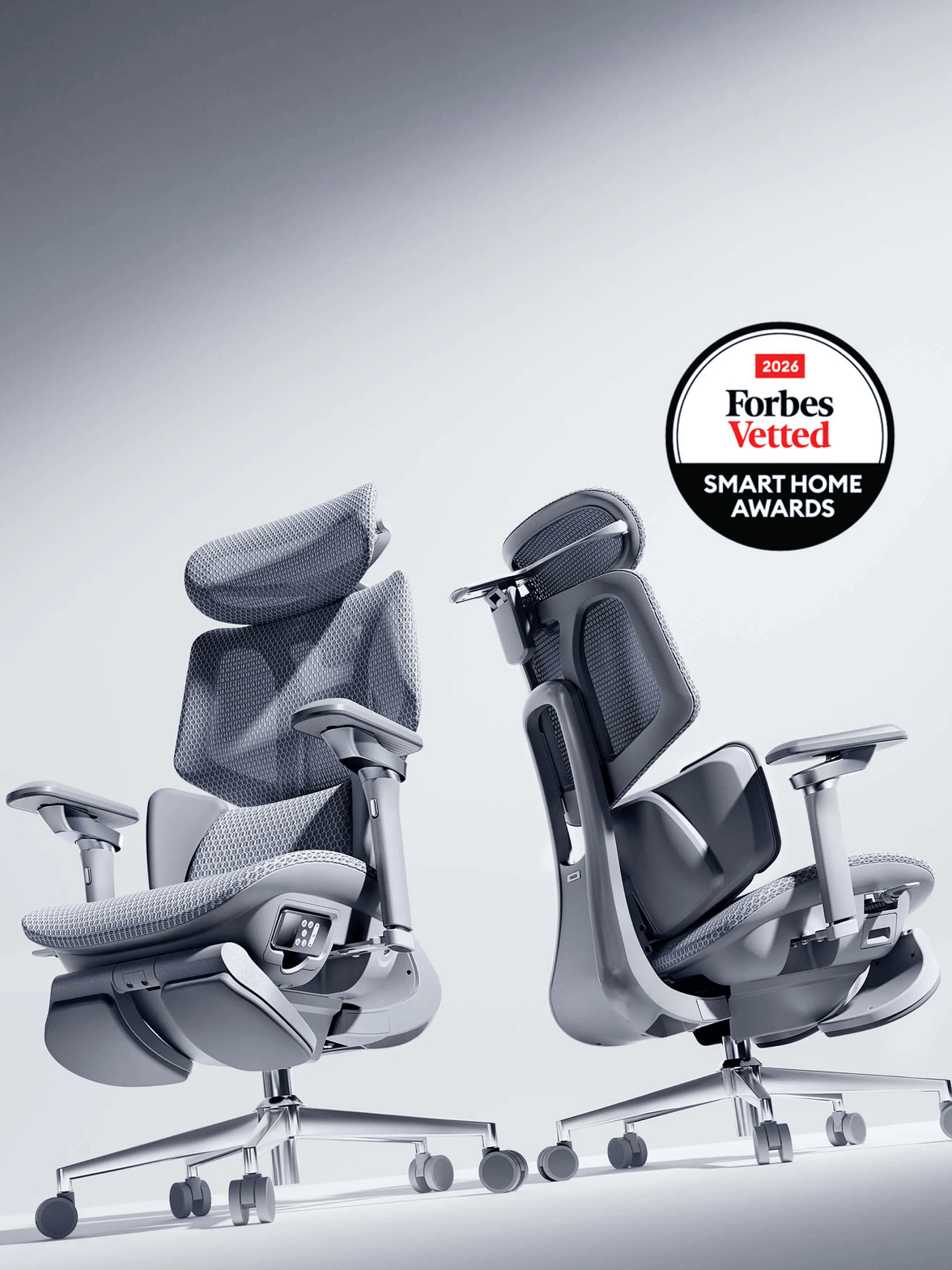
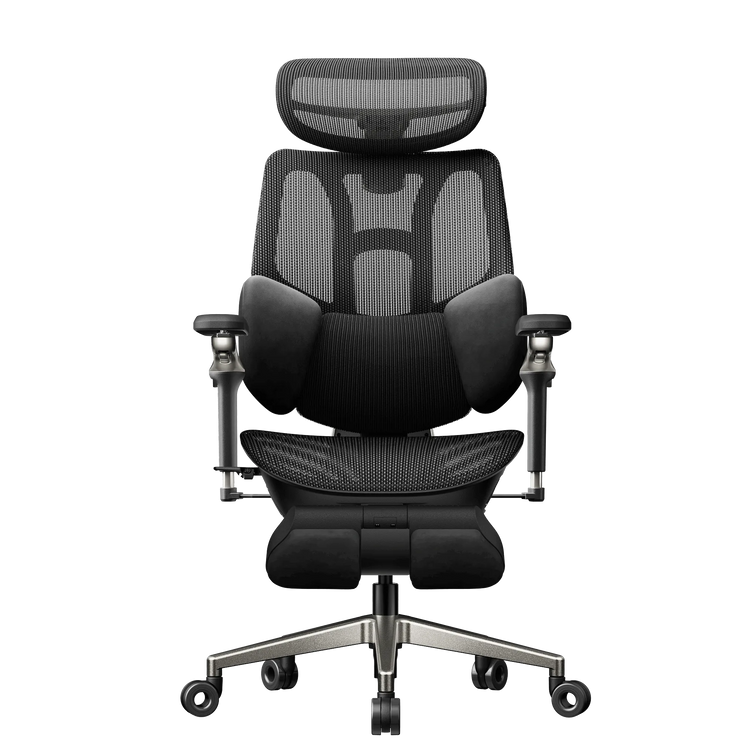
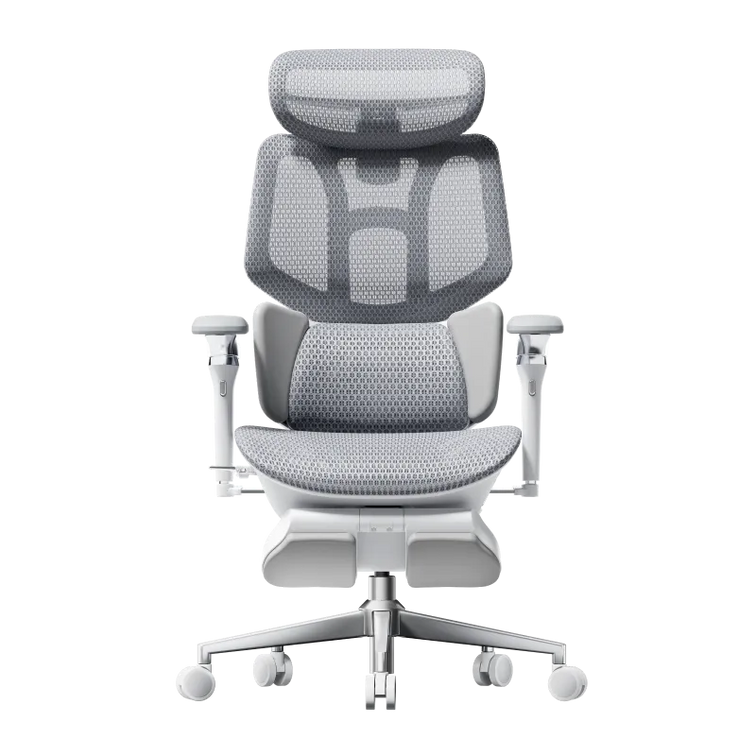
A dynamic system is designed to maintain closer contact as your seated position changes. For example, the HBADA X7 Smart Ergonomic Office Chair uses smart lumbar tracking, while the HBADA E3 Pro Ergonomic Office Chair uses a mechanically adaptive three-zone lumbar system.

Adaptive movement can reduce the need for repeated manual adjustments, but the initial chair setup still matters. Seat height, seat depth and backrest position all affect how the lumbar system meets your body.

How to Adjust Office Chair Lumbar Support Step by Step

  1. Sit fully back in the chair

    Slide your hips toward the rear of the seat until your pelvis and lower back are in contact with the backrest. Avoid testing the lumbar support while sitting on the front edge of the seat.

  2. Find the inward curve of your lower back

    Place one hand behind your waist and locate the natural inward curve above your belt line. This is the area the lumbar support should fill. It should not press against the tailbone or the middle of the rib cage.

  3. Adjust the lumbar height

    Move the support up or down until its most prominent area sits inside the inward curve of your lower back. If it touches your pelvis, it is probably too low. If it presses into the lower ribs, it is probably too high.

  4. Adjust the depth or tension gradually

    Start with a low or medium setting. Increase the depth or tension in small increments until the support maintains contact without pushing your hips or upper body forward.

  5. Check your overall sitting position

    Your shoulders should remain relaxed, your pelvis should stay near the backrest and your torso should not feel forced into an exaggerated arch. If the lumbar support changes your posture too aggressively, reduce the depth or tension.

  6. Test the setting during normal work

    Use the chair for approximately 20 to 30 minutes while typing, reading or joining a meeting. A setting that feels noticeable for a few seconds may become too firm during longer use.

  7. Recheck the support while reclining

    Recline slightly and confirm that the backrest still follows your lower back. Dynamic systems may move with you, while manual systems may need a small adjustment when you change your preferred recline angle.

Signs Your Lumbar Support Is Adjusted Correctly

Good signs

  • The support fills the natural curve of your lower back.
  • Contact feels broad and even rather than sharp or concentrated.
  • Your pelvis stays near the rear of the seat.
  • You can sit upright without excessive muscular effort.
  • Your shoulders and upper back remain relaxed.
  • The support continues to meet your back when you recline slightly.

Warning signs

  • You feel pressure against the tailbone or top of the pelvis.
  • The support presses into your ribs or mid-back.
  • Your lower back feels pushed into an exaggerated arch.
  • You keep sliding forward to escape the pressure.
  • You cannot place your hips fully against the backrest.
  • The support loses contact as soon as you recline.

Comparing Lumbar Support Systems Across HBADA Chairs

HBADA chairs use different lumbar-support designs. The most appropriate adjustment method depends on the model and its available controls.

Chair Lumbar system Main adjustment approach Setup guidance
HBADA X7 Smart lumbar tracking Automatic posture-based tracking with adjustable intensity Sit fully back, select a comfortable support intensity and test the response while upright and reclined.
HBADA E3 Pro Three-zone adaptive lumbar support Up to 60 mm vertical adjustment, 32 mm depth locking, 40° side-wing rotation and adaptive movement Set the height first, then adjust the depth and side wings to create broad contact around the lower back.
HBADA E3 Ultra Three-zone elastic lumbar system Adjustable height, depth and side-wing positioning Align the central support with the lumbar curve, then adjust the side wings so they support without squeezing the torso.
Other HBADA models Model-dependent manual, fixed or adaptive support Controls vary by product Check the product page and user manual before making adjustments.

Product features can vary by model or configuration. Always confirm the controls available on your specific chair before adjusting it.

Quick Lumbar Adjustment Checklist

Before you begin working, check that:

  • Your hips are positioned against the rear of the seat.
  • The lumbar support sits in the inward curve above your belt line.
  • The pressure feels broad, gentle and evenly distributed.
  • The support does not force your torso forward.
  • Your seat depth leaves comfortable space behind your knees.
  • Your feet are supported by the floor or a suitable footrest.
  • The backrest continues supporting you when you recline.

Common Lumbar Support Adjustment Mistakes

Using the firmest possible setting

Maximum pressure is not automatically the most supportive setting. Excessive depth can force the lower back forward and make it difficult to remain against the backrest.

Adjusting the support while sitting forward

Lumbar height and depth should be tested with your hips fully back. Otherwise, the support may be aligned to a position you do not maintain during normal work.

Ignoring seat depth

If the seat is too deep, you may slide forward to avoid pressure behind the knees. This creates a gap between your lower back and the lumbar support, even when the backrest itself is correctly adjusted.

Keeping one position all day

Ergonomic support does not remove the need for movement. Change position periodically and take short standing or walking breaks during extended work sessions.

Changing several controls at once

Adjust one setting at a time. Start with seat height and depth, then set lumbar height, followed by lumbar depth or tension. This makes it easier to identify which change improves comfort.

What Lumbar Support Can and Cannot Do

Proper lumbar support may help improve seated comfort and encourage a more neutral working posture. Results vary according to body shape, chair setup, working habits and any existing health conditions.

Important: An ergonomic chair cannot diagnose or treat a spinal condition. Persistent, severe or worsening back pain should be assessed by a qualified healthcare professional. This article provides general ergonomic information and is not medical advice.

The most effective workstation setup combines a supportive chair with appropriate desk height, monitor placement and regular movement. OSHA also recommends changing seated positions frequently and standing or walking periodically during the working day.

Final Thoughts

Correct lumbar adjustment is usually a process of small changes rather than one dramatic setting. Sit fully back, align the support with the inward curve of your lower back and increase the depth only until you feel steady, comfortable contact.

If your posture changes throughout the day, an adaptive system such as the HBADA E3 Pro or a smart tracking system such as the HBADA X7 may make it easier to maintain consistent support. However, the rest of the chair and workstation must still be adjusted for your body.

Frequently Asked Questions

How do I know whether my lumbar support is positioned correctly?

It should fill the inward curve of your lower back with broad, gentle contact. It should not press into your tailbone, ribs or mid-back, and it should not force your torso away from the backrest.

Where should office chair lumbar support sit?

The centre of the support should normally sit in the small of the back, slightly above the belt line. The exact position varies with torso length and body proportions, so use comfort and even contact as the final guide.

How firm should lumbar support feel?

It should feel supportive but not aggressive. Start with a low or medium setting and increase it gradually. Reduce the pressure if it causes you to arch excessively or slide forward.

What is the difference between static and dynamic lumbar support?

Static support stays in the position selected by the user. Dynamic support is designed to move or adapt as the user changes posture or reclines, helping it maintain contact with the lower back.

Should I readjust lumbar support during the day?

You may need a small adjustment if you change your recline angle, footwear, desk setup or working activity. You should not need to make constant large adjustments once the chair is correctly configured.

Can lumbar support help with existing back pain?

Correctly positioned support may improve seated comfort or reduce some postural strain, but it does not treat the underlying cause of back pain. Seek professional medical advice for persistent, severe or worsening symptoms.

Which HBADA chair has the most advanced lumbar adjustment?

The HBADA X7 uses smart lumbar tracking that responds to changes in seated posture. The HBADA E3 Pro provides a mechanical three-zone system with adjustable height, depth and side wings. The better option depends on whether you prefer automatic tracking or detailed manual control.

Sources and Further Reading

  • OSHA Computer Workstations eTool: Chairs
  • OSHA Computer Workstations eTool: Good Working Positions
  • HBADA: How to Adjust an Ergonomic Chair for Better Comfort
Relevant Product

You May Also Like

HBADA in the Spotlight: Awards, Chair Reviews and Media Coverage HBADA in the Spotlight: Awards, Chair Reviews and Media Coverage HBADA Journal The Media Edition HBADA in the spotlight A closer look.A wider conversation. Our chairs have reached the desks of technology reviewers and appeared in international design features. Here, we bring that coverage together, including the HBADA X7’s Forbes Vetted award recognition and reporting on our E3 series. Forbes Vetted Tom’s Guide TechRadar CHIP FOCUS online ArchDaily Award recognition Chair reviews International coverage Shopping guides Product launches Choosing an office chair is personal. A detailed review can help you picture the controls at your own desk, while a design feature offers a different view of the ideas behind the chair. We’re proud to see HBADA become part of those conversations. This collection brings together coverage of the HBADA X7 and E3 family, with direct links so you can read each publication’s original article. Coverage includes editorial reviews, sponsored features and brand-issued announcements. We identify those formats below. Older articles may discuss earlier product versions or offers that have ended. 01 / The recognition HBADA X7 at the Forbes Vetted Smart Home Awards. ForbesVetted Smart Home Awards 2026 Home Office / HBADA X7 A place among the smart-home winners. The HBADA X7 Smart Office Chair is featured among the winners of the 2026 Forbes Vetted Smart Home Awards in the Home Office category. For our team, this is a milestone worth sharing. It brings our approach to smart seating into a broader conversation about products that belong in the modern home. See the Forbes Vetted awards ↗ 02 / At the reviewer’s desk HBADA chair reviews, up close. Reviews give our products time and context. The articles below examine individual chairs and discuss the details that influence everyday use, including the reviewers’ reservations. Tom’s Guide Product review / X7 A detailed look at the X7 experience. Tom’s Guide examines the X7’s comfort and support alongside practical considerations such as price and warranty. It gives readers a fuller picture of living with a feature-rich office chair. Read the X7 review ↗ TechRadar Product review / X7 Smart seating under a technology reviewer’s lens. TechRadar explores the X7’s powered comfort features and seating experience. The review also considers the headrest, footrest and price, making it useful reading before choosing your configuration. Read TechRadar’s review ↗ The Gadgeteer Product review / X7 and E3 Pro 2026 Two HBADA chairs in one review. The Gadgeteer brings the X7 and E3 Pro 2026 Edition into the same article. Readers considering both models can use this coverage to understand their different approaches to an ergonomic workspace. Read the two-chair review ↗ Cowcotland French-language review / Earlier E3 The E3 through a French hardware publication. Cowcotland’s E3 review considers its mesh construction, adjustments and finish, with observations about fit and the footrest. This article covers an earlier E3 model. Read the review conclusion ↗ Notebookcheck German-language review / X7 A hands-on look at an electronically equipped chair. Notebookcheck’s X7 coverage examines the chair’s AI lumbar support and integrated comfort functions in a practical review format. Read the German review ↗ More perspectives from the review desk. TechRadar also reviewed an earlier-generation E3 Pro . For another view of smart seating, Creative Bloq’s X7 assessment offers a more critical response to its AI features while discussing the reclining experience. These are individual editorial assessments. Their conclusions apply to the versions and experiences described in each article. 03 / Across languages and workspaces HBADA in international media. Our media story extends beyond individual reviews. German publications have covered the X7 and E3 Ultra, while design and technology outlets have introduced our chairs to readers in other markets. Germany / FOCUS online The E3 Ultra 5.0 enters the conversation. FOCUS online’s product feature introduces the E3 Ultra 5.0 through its adjustable support and integrated warmth and massage. The article also gives readers an overview of the E3 Pro 2026 and X7. We’re pleased to see our newest E3 Ultra included in this coverage. Readers can follow the feature with a look at the current US E3 Ultra product page for local specifications and availability. Product and offers feature / Affiliate links disclosed Read the FOCUS online feature ↗ Germany / Sponsored feature CHIP A dedicated X7 feature explores dynamic lumbar support and the technology behind its comfort functions. The page is labeled as advertising. Read the CHIP feature ↗ International / Brand collaboration ArchDaily ArchDaily places ergonomic office seating within the wider discussion of AI and workplace design in a feature produced in collaboration with HBADA. Read the design feature ↗ English-language / Sponsored content New Atlas New Atlas presents the X7 in a dedicated Prime Day feature, introducing its approach to smart ergonomic seating. Read the X7 feature ↗ France / Sponsored feature Clubic Studio Clubic’s HBADA-sponsored article introduces the X7 and E3 Pro 2026 Edition through a Prime Day product and offers feature. Read the French feature ↗ Spain / Brand collaboration MuyComputer MuyComputer’s collaboration covers the E3 Pro and X7, bringing our ergonomic office chairs to its Spanish-speaking technology audience. Read the Spanish feature ↗ Spain / Branded content HobbyConsolas HobbyConsolas introduces an earlier E3 ergonomic chair in a gaming-focused branded article, connecting desk seating with gaming setups. Read the gaming feature ↗ Germany / Product feature China-Gadgets China-Gadgets covers an earlier HBADA E3 and its T-shaped support system in a German-language product introduction. Read the E3 introduction ↗ Germany / Advertising inclusion FOCUS online: Home-office guide The X7 appears in a dedicated advertising section within FOCUS online’s home-office equipment guide, with an introduction to its smart seating features. View the home-office inclusion ↗ Some international articles include regional prices and specifications. Refer to the US store for the configuration available to you. 04 / On the shopping shortlist From product discovery to a considered purchase. Shopping guides introduce chairs alongside the other decisions people make when building a workspace. These selections add another layer to our review coverage. The Gadgeteer / Deals guide Prime Day office-chair picks The Gadgeteer includes HBADA in its office-chair deals roundup, with a dedicated section on the X7. The article belongs to its Prime Day coverage. View the shopping guide ↗ The Gadgeteer / Workspace guide Back-to-school workspace essentials The E3 Pro 2026 appears in The Gadgeteer’s back-to-school technology guide, placing ergonomic seating within the practical task of setting up a new space. Read the workspace guide ↗ Promotions mentioned in archived coverage may have ended. Check the relevant HBADA product page for current pricing. 05 / From our newsroom The announcements behind the products. Our launch releases document the introduction of new HBADA models. They provide the brand’s product story and sit alongside the external coverage collected above. E3 Ultra: full-body tracking support meets heated massage. Our E3 Ultra announcement introduces the new generation’s combination of dynamic support and heated bionic massage. Read the release for the launch story, then visit the current product page to see the available US options. HBADA-issued press release / PR Newswire Read the E3 Ultra announcement ↗ The E3 Series 2026 Edition arrives. The E3 Series 2026 Edition release records the US launch and explains the positioning of the updated range. It provides context for subsequent model-specific coverage. HBADA-issued press release / PR Newswire Read the E3 Series announcement ↗ Meet the chairs behind the coverage. Start with the model that caught your attention. Our product pages bring the current configuration and available options together, so you can move from reading a review to planning your own workspace. Meet the HBADA X7 → Discover E3 Ultra → Keep HBADA on your reading list. Add HBADA as a preferred source on Google for our product stories and practical workspace guides. Add HBADA on Google ↗ Opens Google in a new tab. Confirm your selection there if the option is available. HBADA X7 Wins a 2026 Forbes Vetted Smart Home Award HBADA X7 Wins a 2026 Forbes Vetted Smart Home Award HBADA X7 · Award Winner A proud moment for our smarter approach to sitting. Our X7 Smart Office Chair has earned a place among the 2026 Forbes Vetted Smart Home Awards winners in the Home Office category. 2026 Forbes Vetted Smart Home Awards   /   Home Office The announcement HBADA X7 is a Forbes Vetted Smart Home Awards winner. We’re proud to share this news with the people who have made HBADA part of their workspaces. The HBADA X7 Smart Office Chair is included in the Home Office category of the 2026 Forbes Vetted Smart Home Awards . For our team, this is a moment to celebrate the X7 and the thinking behind it. We want the chair at the center of your workspace to deserve as much attention as the technology on your desk. This recognition gives us a particularly meaningful occasion to share that ambition. Meet the HBADA X7, our award-winning smart ergonomic office chair. In the spotlight Meet the chair behind the recognition. ProductHBADA X7 Smart Office Chair Award2026 Forbes Vetted Smart Home Awards CategoryHome Office Meet the award-winning X7 → Our design perspective A smarter home office starts with how you use it. Think about the chair’s place in your day. It is there during a concentrated stretch at your desk, and it stays with you when you pause between tasks. We see that everyday role as an opportunity to make office seating more responsive. The X7 brings that idea into our smart ergonomic chair range. Below is a closer look at its features, separate from the award announcement itself. 01 AI lumbar tracking responds as you move. The X7 uses AI-powered lumbar tracking to adjust its lower-back support as your posture changes. This responsive support is central to the chair’s design. 02 A seated break gets its own attention. Built-in massage and heating bring a relaxation option to your workspace. A retractable footrest also supports putting your feet up during a reclined break. 03 Personal adjustment completes the setup. A 4D headrest and adjustable armrests help you tailor the chair around your seated position. The X7 also features an aluminum alloy spine. See the full X7 specifications and available configurations for the details. We believe the chair deserves a central place in the smart-home conversation. Bring it to your desk Make the X7 part of your next workspace upgrade. If you have been following the X7, we hope you’ll celebrate this milestone with us. If you are discovering HBADA for the first time, welcome. Our X7 product page brings together the chair’s design details and purchasing options. Start with the setup you already use. Check the space around your desk and the chair measurements, then consider which adjustments you will use most. That makes your next step practical: choosing a configuration that belongs in your room and works with your daily routine. About the recognition A few details worth knowing. Which Forbes Vetted award did the HBADA X7 receive? The HBADA X7 Smart Office Chair is listed as a winner in the Home Office category of the 2026 Forbes Vetted Smart Home Awards. Where can I find the original announcement? Visit the official Forbes Vetted Smart Home Awards page and look under Home Office. Does this recognition apply to every HBADA chair? The product named in the award listing is the HBADA X7 Smart Office Chair. This announcement celebrates that model. Your next workspace chapter Give the award-winning X7 a place at your desk. Take a closer look at the chair we’re celebrating. View the X7’s available colors and configurations, with current pricing on our official US store. Shop HBADA X7 → Keep a place for HBADA in your reading list. Follow our workspace guides and product news by choosing HBADA as one of your preferred sources on Google. Add HBADA to your preferred sources ↗ Opens Google in a new tab. Confirm your selection there if HBADA is available. HBADA's 3-Zone Lumbar Support: How It Compares to Standard Chair Designs HBADA's 3-Zone Lumbar Support: How It Compares to Standard Chair Designs The details behind a better sit Your lower back isn't flat.Its support shouldn't be one-dimensional. Lumbar support specs can start to blur together after comparing a few chairs. “Adjustable.” “Dynamic.” “Ergonomic.” The more useful question is what happens to that support when you actually move. Here is how our HBADA E3 Pro 3-zone lumbar support brings central and lateral support together—and how that approach differs from a basic fixed pad or an upper/lower split backrest. Quick answer: HBADA’s 3-zone lumbar support combines a central support area with two rotating side wings. On the E3 Pro, this creates an adjustable, wraparound lower-back fit rather than relying on a single uniform pad. A split backrest, by comparison, separates upper-back and lower-back sections; that separation alone does not describe how much lateral adjustment the lumbar area offers. In this guide Three designs, different approaches Inside our 3-zone system Support during everyday movement Fit for different body sizes Side-by-side comparison A practical setup check Frequently asked questions 01 / UNDERSTAND THE DESIGN Three lumbar designs, one useful question. When comparing an ergonomic office chair with lumbar support, look beyond the number of adjustment controls. Ask: where does the chair support my lower back, and how does that contact change between positions? A fixed pad, a split backrest and a zoned lumbar system describe different design choices. They are useful starting points for comparison, not a complete classification of every office chair. Single-pad approach One main contact area A basic lumbar pad provides support through one main surface. Depending on the chair, its height, depth or firmness may be adjustable. A fixed version does not offer separate left and right support adjustments. The fit check is straightforward: does the pad meet your lower-back curve comfortably when you sit back, without creating a hard pressure point? Split-back approach Separate upper and lower sections A split backrest separates the upper-back section from the lumbar section. Some designs allow the lower section to pivot or flex independently; others use different mechanisms. A visible split does not tell the whole story. Check whether the lumbar section also offers height, depth or lateral adjustment, and how it behaves during recline. Our E3 Pro focuses on the shape of the lumbar contact itself: a central area supported by two side wings. That is the distinction behind its 3-zone lumbar design. 02 / THE HBADA APPROACH Central support.Side wings. A more personal fit. On the HBADA E3 Pro ergonomic office chair , the lumbar area combines a central support zone with two rotating side wings. The E3 Pro 2026 lists 40° side-wing rotation, allowing you to adjust the wrap around your waist. The central area meets the lower back, while the side wings extend the contact around either side. Instead of treating the entire lumbar area as one flat surface, our design gives you more control over how that support feels across your back. The system at a glance Three contact zones working together Left wing Adjustable lateral contact Central zone Lower-back support Right wing Adjustable lateral contact Conceptual layout of the support zones, not a technical drawing. Adjustment details depend on the model and edition. Think of the side-wing adjustment as setting the shape of the fit, while the chair’s responsive lumbar mechanism accommodates changes in seated pressure. Both matter: movement is useful only when the starting position feels right for your body. For the next step, use our guide to adjusting your ergonomic chair to coordinate lumbar positioning with the rest of your setup. 03 / FROM FOCUS TO A BREAK A workday is not one sitting position. You type, pause, turn toward another screen and lean back to think. These small changes can alter where your lower back meets the chair. If a lumbar pad feels comfortable in only one position, you may notice a gap or a concentrated pressure point when you move. Our E3 Pro pairs a shaped, three-zone lumbar area with responsive support. The aim is a supportive fit that accommodates posture changes while you remain seated against the backrest—not a chair that asks you to hold one rigid pose all day. The important adjustment is the one you can feel working when you return to your everyday tasks. During focused work Set the chair so you can sit back while reaching your keyboard comfortably. Lower-back contact should feel supportive, not like a pad pushing you toward the edge of the seat. During a reclined pause Check the fit again after reclining. Notice whether pressure remains comfortable and whether the headrest and armrests suit the new position. If putting your legs up is part of your break routine, our office chairs with footrests comparison explains the configurations to consider alongside back support. Keep movement in the routine. Dynamic support does not mean you need to stay seated longer. Stand up, change tasks and take regular movement breaks. 04 / LOOK AT THE WHOLE FIT Different bodies need more than a height label. For taller or larger users, lumbar support is one part of the fit equation. Usable seat depth, seat width, armrest spacing and the chair’s weight capacity also deserve attention. The same applies to smaller users who need to sit back without the seat edge pressing behind their knees. E3 Pro brings lumbar adjustment together with adjustable seating, armrests and a headrest. Use those adjustments as a system: the seat should allow you to reach the backrest comfortably, and the lumbar area should meet your lower-back curve. Before choosing a configuration, check the current E3 Pro dimensions and specifications . A recommended height range is a starting point, not a guarantee that every person within that range will prefer the same fit. 05 / THE SIDE-BY-SIDE VIEW What actually changes between designs? Basic fixed-pad, split-back and HBADA 3-zone designs Design How support is arranged What to check when sitting Basic fixed lumbar pad One main support surface without separate lateral zones. Available adjustment varies by chair. Pad height, pressure and contact when you move away from your initial sitting position. Split upper/lower backrest Separate upper-back and lumbar sections. Pivoting, flexibility and adjustment depend on the mechanism. Whether the lower section stays comfortable during recline, and whether its shape suits your lower back. HBADA E3 Pro 3-zone lumbar support A central support area plus two rotating side wings, combined with responsive lumbar support. Set the central contact and side-wing wrap, then check comfort during typing and reclined breaks. This compares design approaches, not every product in each category. Individual mechanisms and adjustment ranges vary. 06 / MAKE THE ADJUSTMENTS COUNT A practical check for your lumbar fit. Start with a comfortable, light contact rather than turning every setting to its maximum. Then test the chair at your actual desk. Set the seat first. Adjust the height and depth so your feet are supported and you can sit against the backrest without pressure behind your knees. Position the central support. Find a comfortable contact around your lower-back curve. If it feels too high, too low or intrusive, readjust before changing the side wings. Adjust the side-wing wrap. Bring the wings into gentle contact. You are looking for a supported fit, not a tight grip around your waist. Try your normal tasks. Type, use your mouse and ease into a reclined pause. Make small adjustments if pressure becomes concentrated or you find yourself sliding forward. Working through the full setup? Keep our chair adjustment guide open while you fine-tune the fit. 07 / YOUR QUESTIONS, ANSWERED The details worth knowing before you choose. What makes HBADA’s 3-zone lumbar support different? Our E3 Pro uses a central support area and two rotating side wings. The distinction is the combination of central and lateral contact, rather than relying on one uniform lumbar pad. Is 3-zone lumbar support the same as a split backrest? No. A split backrest describes separate upper and lower backrest sections. Three-zone lumbar support describes the central and side support areas within the lumbar region. These terms describe different aspects of a chair’s construction. Does dynamic lumbar support replace manual adjustment? No. Responsive movement and personal setup do different jobs. Set the chair’s height, depth and available lumbar adjustments first; then check how the responsive support feels as you change position. Should the side wings press firmly against my waist? Aim for comfortable contact rather than the strongest possible pressure. If the wings feel restrictive or create a pressure point, reduce the wrap and reassess your seat and backrest positioning. Is this an office chair for treating back pain? E3 Pro is designed to provide adjustable seating support and comfort, not to diagnose or treat back pain. If sitting causes persistent or worsening pain, seek advice from a qualified healthcare professional. Which HBADA model should I look at for this design? Start with the HBADA E3 Pro 2026 . Check the selected edition and footrest configuration, along with the current dimensions, before placing your order. Meet your next everyday seat Support that fits.Room to move. A better lumbar experience starts with the shape of the support, not just the number of settings. Our E3 Pro brings a central support area, rotating side wings and personal adjustment together for the way you work and take a break. Find your E3 Pro configuration → Keep good advice close A more comfortable workspace starts with useful ideas. Add HBADA to your preferred sources on Google for more chair-fitting guides, product explainers and practical workspace advice. Add HBADA to your preferred sources ↗ Opens Google in a new tab. Confirm your selection there if the feature is available to you.