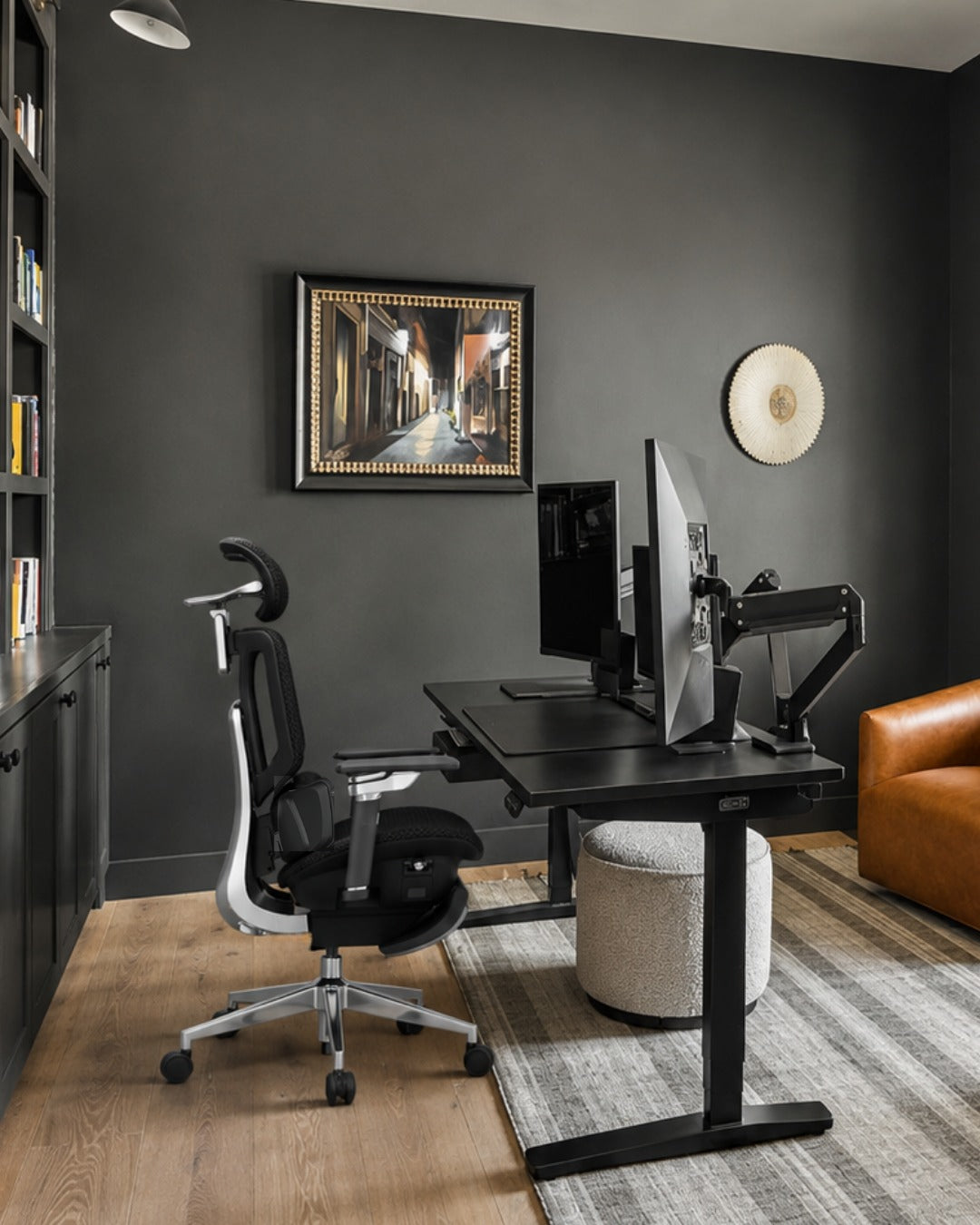


Working remotely seems like a breeze. No commute. No dress code. You, your laptop, and your favorite seat on the couch. It starts off easy. It looks like no one is monitoring your sitting posture. No one is saying to push your shoulders back or not to slouch over your computer.
However, this arrangement doesn't last long. By mid-morning you may feel tension in your neck. Your back can become stiff at the end of a phone call. By lunchtime your wrists may feel tight. By the end of the day, you may not have moved much, yet you can still feel tired from sitting in an unsupported position for hours.
It is rarely one big mistake. Typically, it is a combination of small everyday habits: a couch that is too soft, a laptop display set too low, or a dining chair used as a desk chair. None of these seem like much by themselves, but they can make your workspace feel less comfortable over time.
But it is not a complicated fix. It starts with a practical ergonomic home office setup. There is no need for a complete office overhaul or a box of gadgets. A few important things simply need to be in place, in the correct sequence. The key is a good, properly adjusted ergonomic chair. The rest of your workspace should work around it.
Let's walk through it step by step.
Why Your Ergonomic Home Office Setup Matters

Your body is built to move. When you sit for long stretches, your posture and workstation setup become important. When your chair, desk, and monitor are not aligned correctly, your muscles may compensate to help keep you balanced and upright.
Maybe your monitor sits a little too low, so your neck tilts down without you noticing. Maybe your armrests sit too high, so your shoulders creep up toward your ears during every call. These small adjustments can feel subtle in the moment, which is exactly why they are easy to overlook.
Over time, these small compensations can add up to everyday discomfort in your neck, lower back, shoulders, or wrists. A practical ergonomic home office setup is not about buying every gadget on the market. It is about aligning a few key elements—your chair, desk, monitor, keyboard, and mouse—so your body is not working against your workspace all day.
When everything lines up, you stop noticing your setup entirely. That is the goal: comfort that fades into the background so you can focus on your work.
Step 1: Start With the Chair
Everything else in your setup is built around your chair. Get this part right first.
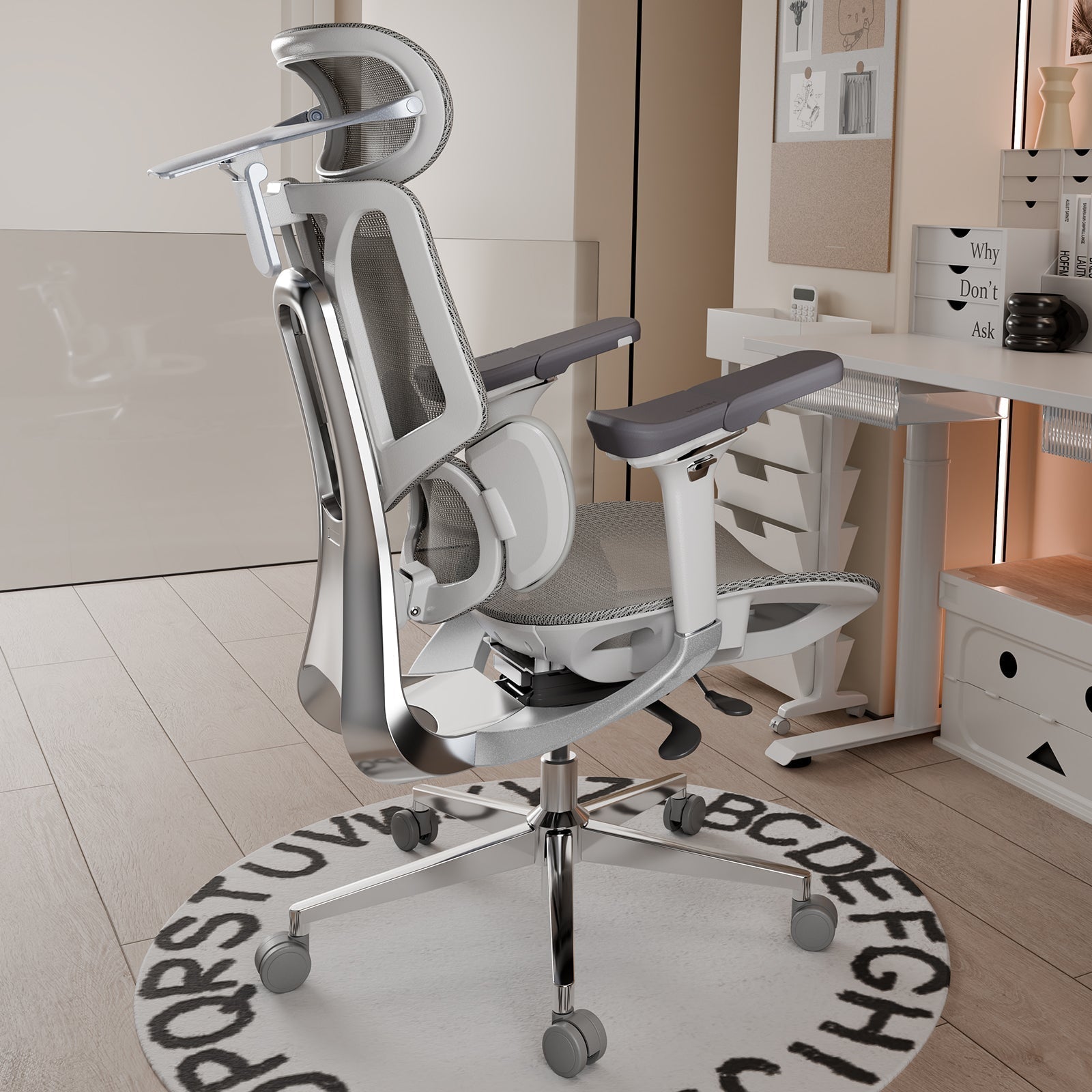
- Raise or lower the seat so your feet sit flat on the floor and your knees are near a 90-degree angle.
- Sit fully back in the seat and set the seat depth so there is a small gap—about two to three fingers wide—behind your knees.
- Position the lumbar support so it fills the natural curve of your lower back.
- Adjust the armrests so your forearms rest level and your shoulders stay relaxed instead of hunched.
- Set your backrest recline somewhere between 95 and 110 degrees. A slight recline can feel more comfortable than sitting completely upright for long periods.
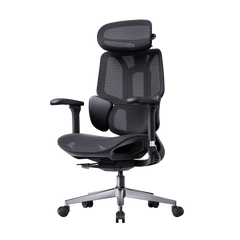
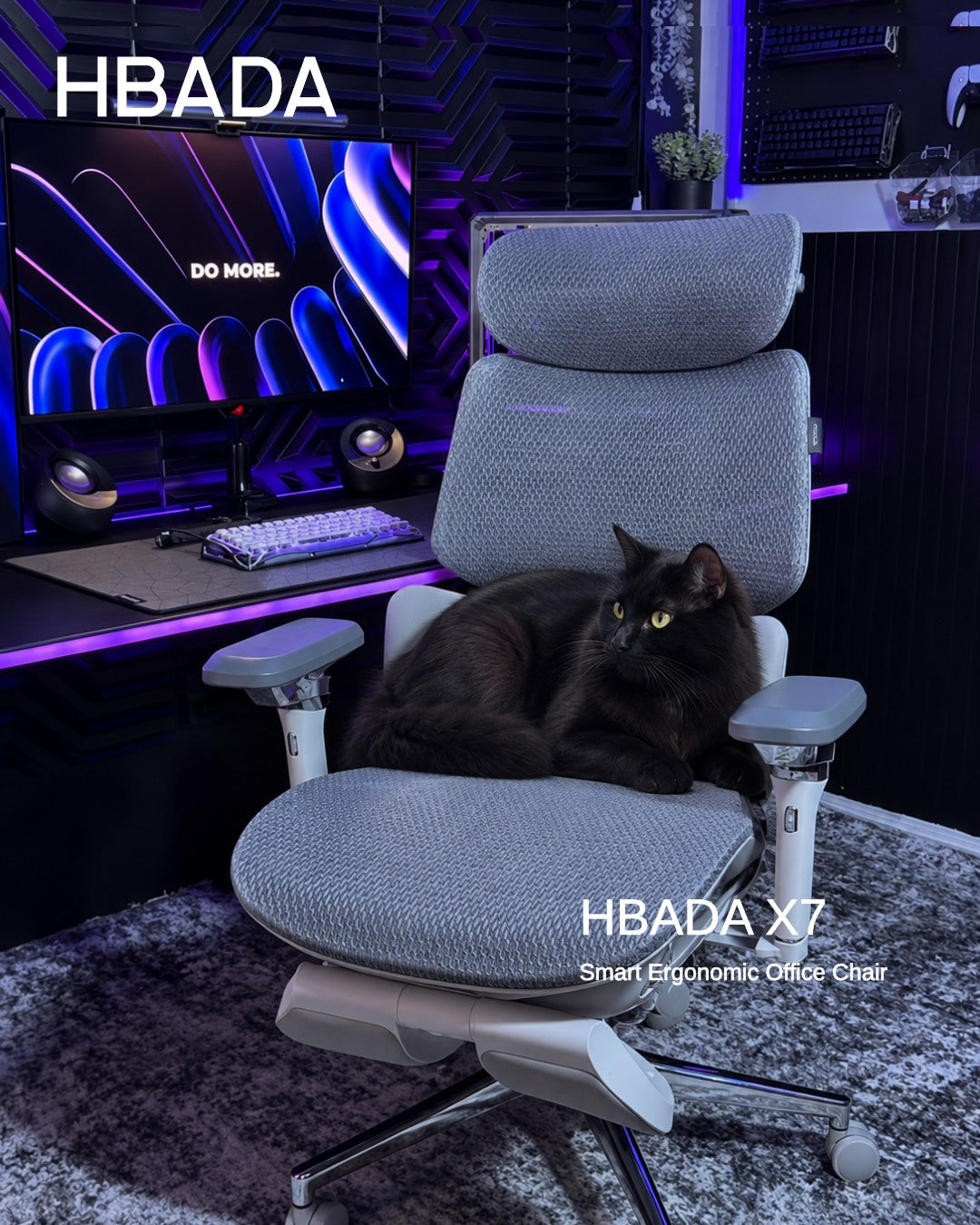
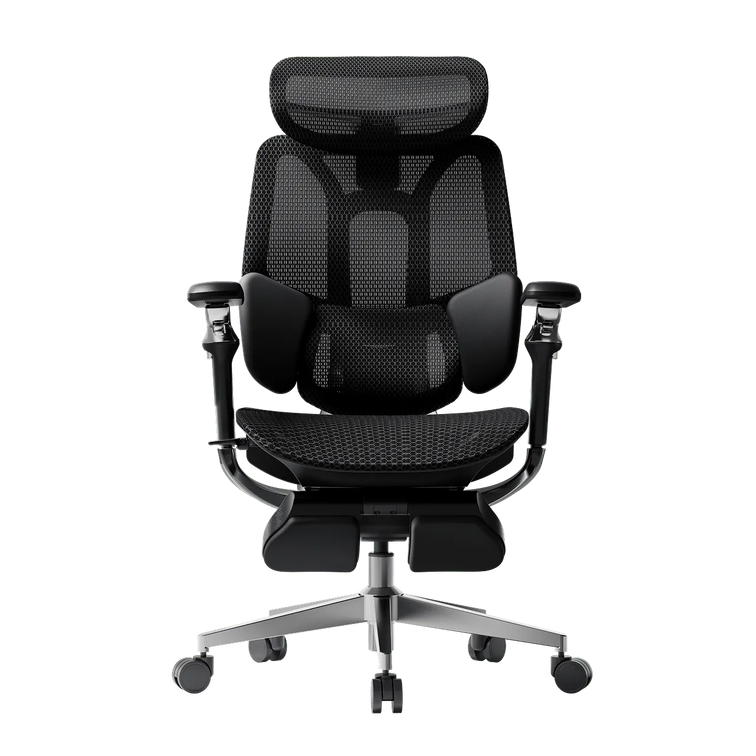
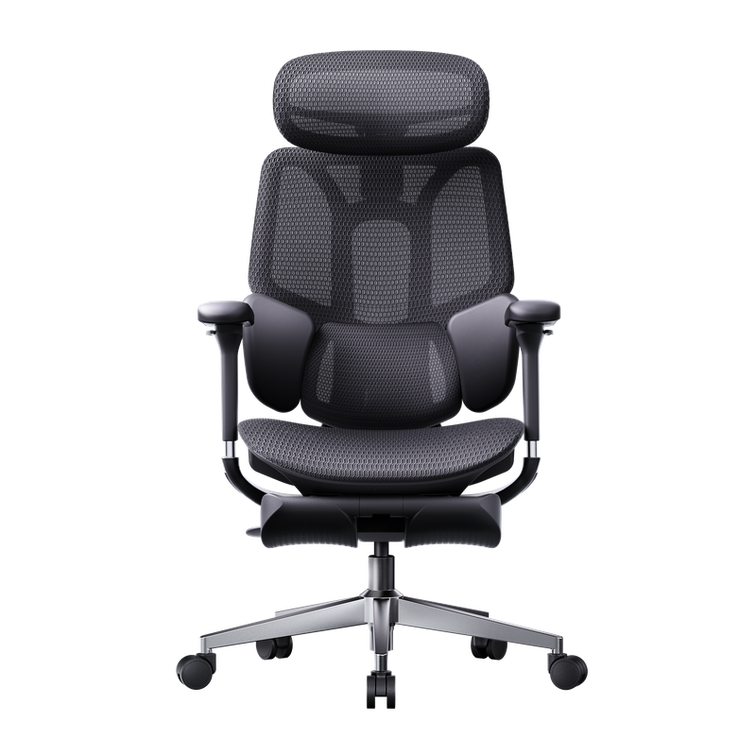
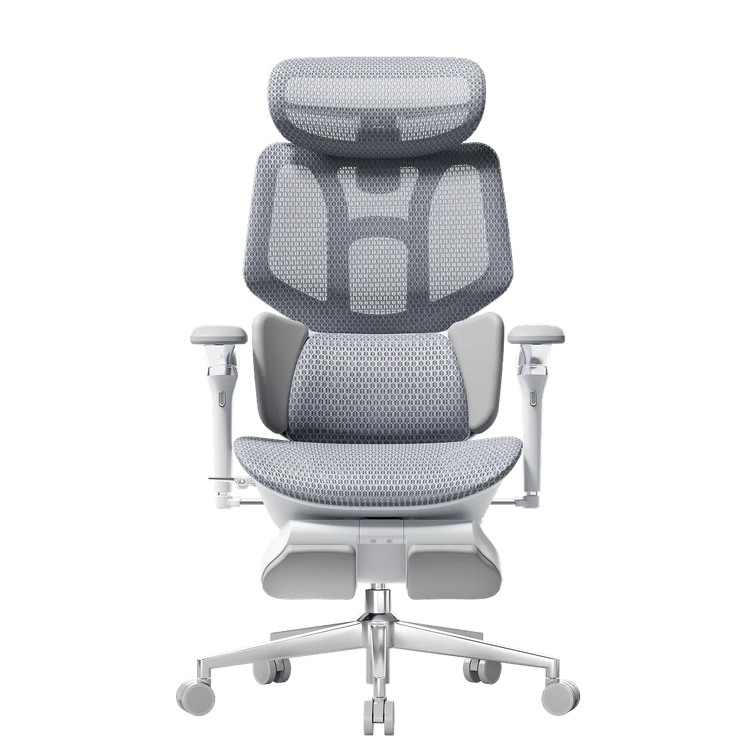
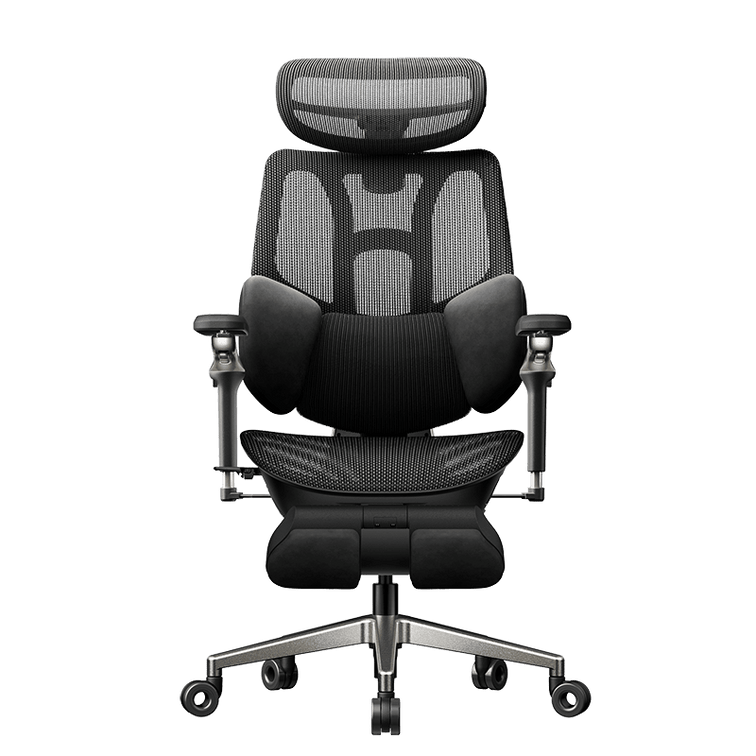
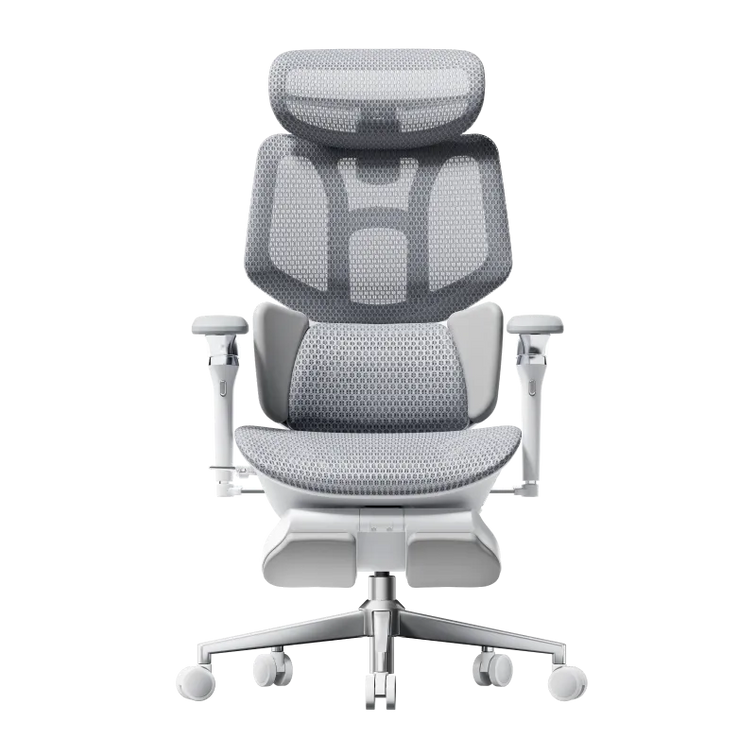
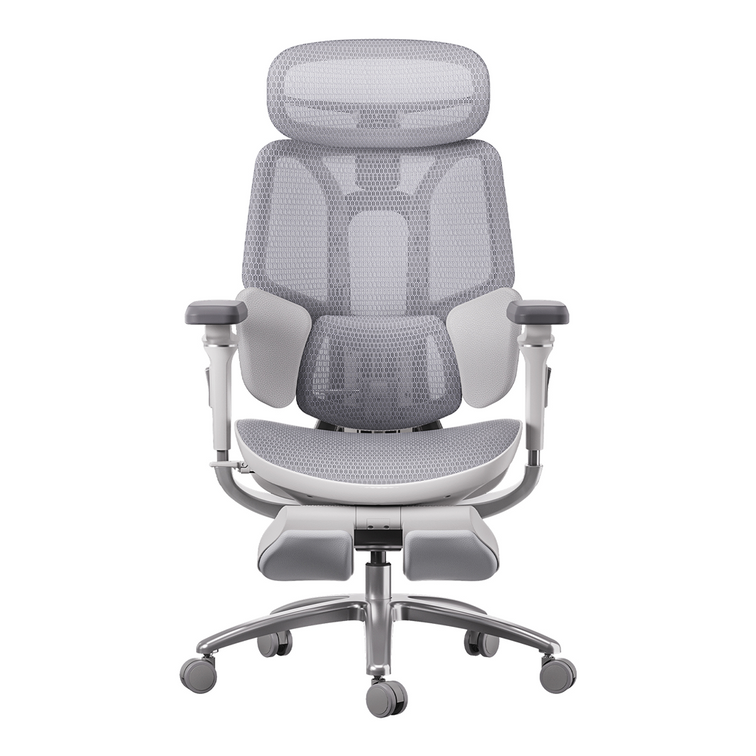
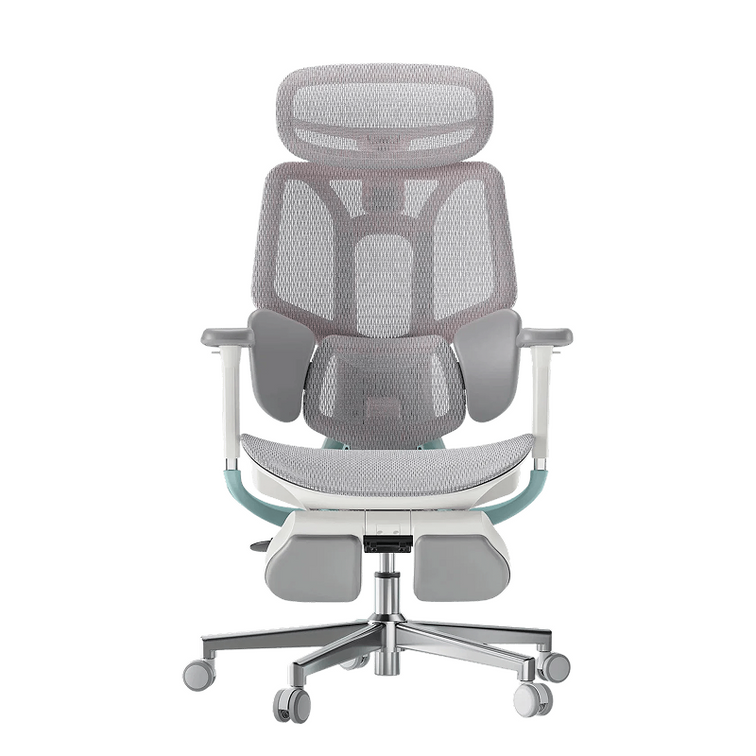
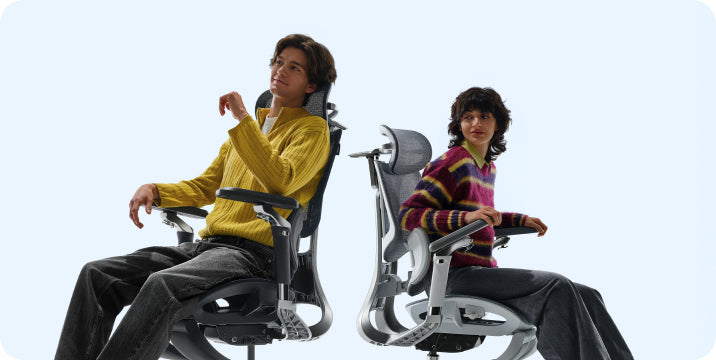
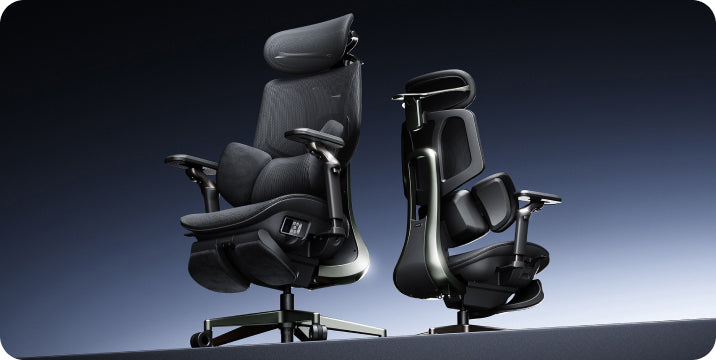
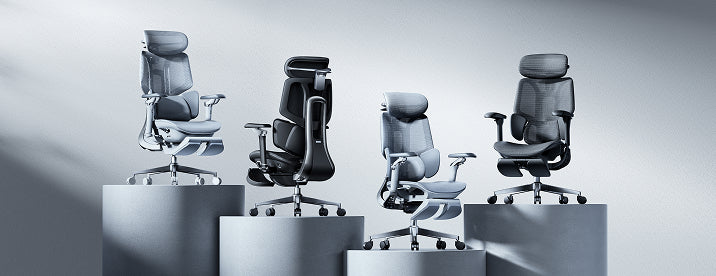
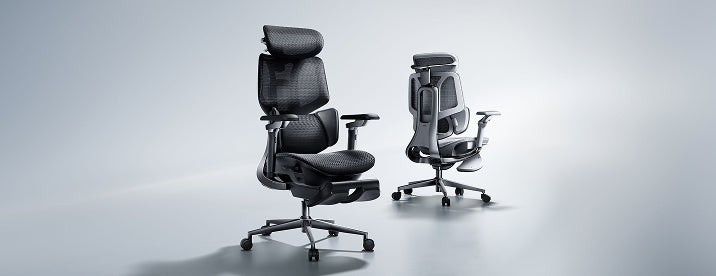
Depending on the model, HBADA chairs offer adjustable armrests, lumbar support, and recline settings to help you find a more comfortable working position. For example, the HBADA X7 and E3 Pro offer multiple adjustment options for long workdays and seated breaks.
Step 2: Position Your Keyboard and Mouse

Once your chair is set, your hands come next.
- Keep your keyboard flat, or tilted slightly away from you, so your wrists stay straight instead of bending upward.
- Place your mouse right next to your keyboard at the same height.
- Move your mouse using your whole arm, not just your wrist.
- If your desk sits too high, raise your chair and use a stable footrest rather than lifting your shoulders to reach.
Step 3: Set Your Monitor Height

Your neck can feel the effects of a poorly placed monitor quickly. Position your screen so you do not need to bend your neck forward for hours at a time.
- Position your eyes about 2 to 3 inches below the top edge of your screen.
- Keep the monitor roughly an arm's length away.
- If you use a laptop, consider a stand paired with an external keyboard and mouse.
Quick Reference: Ergonomic Home Office Setup Basics
| Element | Target Position | Why It Matters |
|---|---|---|
| Seat Height | Feet flat, knees near 90° | Helps reduce pressure on the thighs and supports a stable seated position. |
| Seat Depth | 2–3 finger gap behind knees | Supports comfortable thigh contact without pressing behind the knees. |
| Lumbar Support | Fills the lower-back curve | Helps support the natural curve of your lower back. |
| Armrests | Forearms level, shoulders relaxed | Helps reduce unnecessary shoulder and wrist strain. |
| Backrest Recline | 95° to 110° | Offers a comfortable starting range for desk work and short breaks. |
| Monitor Height | Eyes 2–3 inches below top of screen | Helps avoid looking down at the screen for long periods. |
| Monitor Distance | About an arm's length away | Supports a comfortable viewing distance. |
| Keyboard | Flat or slightly tilted away | Helps keep wrists in a more neutral position. |
| Mouse | Same height as keyboard, close by | Helps reduce reaching and wrist bending. |
Choosing the Right HBADA Chair for Your Home Office
Not every home office needs the same chair. Here is a simple breakdown to help you decide.
| Model | Best For | Standout Feature |
|---|---|---|
| HBADA X7 | Long, intensive workdays | AI lumbar tracking |
| HBADA E3 Pro | Reclining breaks and footrest comfort | 3-zone elastic lumbar support and 140° recline |
| HBADA E3 Air | Everyday home-office use | 4D armrests and breathable mesh design |
Whichever model you choose, the setup principles stay the same. Your chair supports your posture best when it is adjusted to fit your body and workspace.
Bringing Your Chair and Workspace Together as a System
Here is the part people often miss: a well-adjusted chair can still leave you straining if your monitor or keyboard are not lined up properly. Your chair and workstation need to work as one system, not as separate pieces.
If your desk forces you to reach forward, raise your shoulders, or lean toward your screen, even a strong chair setup gets undone. Once your chair is adjusted, check the whole picture. Sit down, relax your shoulders, and notice whether your eyes, wrists, and hips all land in a comfortable, neutral position.
Daily Habits That Support Your Ergonomic Setup
Even the best ergonomic home office setup benefits from a few simple habits.
- Take a short break to stand or stretch every hour.
- Shift your recline angle throughout the day instead of holding one fixed position.
- Keep your most-used items, such as your keyboard and mouse, close enough that you are not reaching.
- Recheck your setup occasionally. Your ideal position can shift slightly depending on your task, such as typing or joining a video call.
Final Thoughts
Creating a well-designed home office does not require a total room makeover. It is a few key changes done in the right order. Start with the chair. Adjust your seat height, seat depth, lumbar support, armrests, and recline. Then arrange your keyboard, mouse, and monitor around that foundation.
A HBADA chair such as the X7, E3 Pro, or E3 Air provides adjustable features that can help you tailor your seating position. Combine this with thoughtful desk and monitor placement, and your home office can work more comfortably for you throughout the day.
Frequently Asked Questions

What's the first step in an ergonomic home office setup?
Begin with your chair. Adjust the seat height, seat depth, lumbar support, armrests, and recline before making other adjustments in your workspace.
How high should my monitor be for an ergonomic setup?
Position your eyes approximately 2 to 3 inches below the top of the monitor, with the screen about an arm's length away.
What backrest angle works best for a home office chair?
A slight recline of around 95–110 degrees is a comfortable starting point for many people. Adjust it based on your task and personal comfort.
Do I need a special desk for an ergonomic home office setup?
Not necessarily. If your desk is too high, you may be able to raise your chair and use a stable footrest instead of replacing the desk.
Which HBADA chair is best for a home office?
It depends on your needs. The X7 suits long, demanding workdays with AI lumbar tracking. The E3 Pro offers lumbar support and a deeper recline. The E3 Air is a practical option for everyday home-office use.
How often should I adjust my setup throughout the day?
Small shifts help. Change your recline angle occasionally, stand up periodically, and recheck your position when switching between tasks such as typing and video calls.