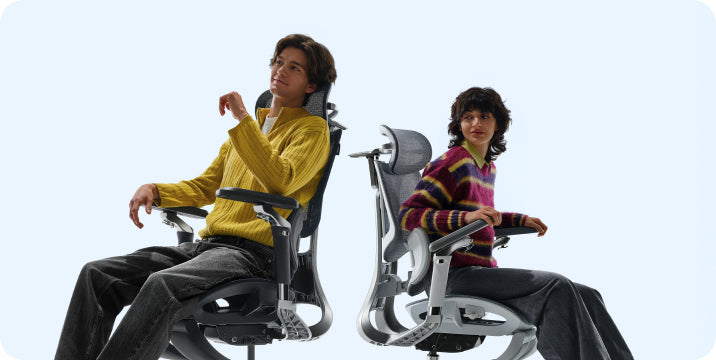
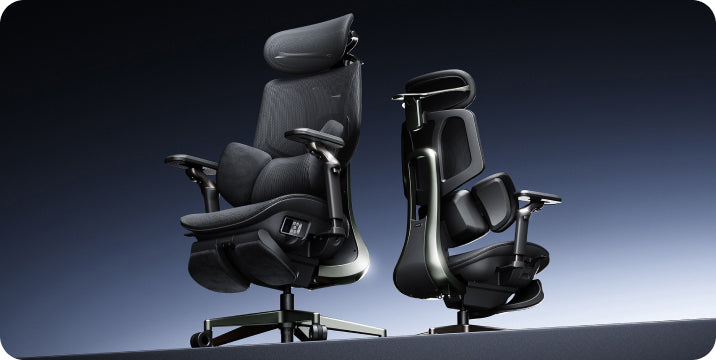



World Spine Day 2026 · Home Office Guide
Your chair supports your spine.
But only if the whole setup does.
October 16 is World Spine Day. The 2026 theme, “Spine Health for Life,” is a reminder that spinal health is built through daily habits, not fixed after pain appears. For desk workers, that starts with a home office where the chair, desk, monitor, and movement patterns work as one system.
A spine-friendly home office is not a single purchase. It is a sequence: set the chair to your body first, build the desk and screen around that fit, and break up sitting with regular movement. World Spine Day 2026 is observed on October 16 under the theme “Spine Health for Life,” emphasizing prevention across every stage of life. Use the steps below to check your setup against that standard instead of assuming it is already fine.
What World Spine Day 2026 is about

World Spine Day is the largest public health event dedicated to spinal health, coordinated by the World Federation of Chiropractic and observed every October 16. An estimated one billion people worldwide experience spinal pain, and it remains a leading cause of disability across all ages.
The 2026 theme, “Spine Health for Life,” shifts the focus from reacting to pain toward protecting the spine proactively across the whole life course. For remote and hybrid workers, that message lands in a specific place: the home office, where many people spend their longest uninterrupted block of seated hours each day, often without the ergonomic oversight a traditional office might provide.
This guide treats World Spine Day as a practical checkpoint. It walks through the setup sequence in the order that matters, from the chair outward, and includes a movement layer that no piece of furniture can replace.
What “spine-friendly” actually means in practice
The lower back has a natural inward curve. A spine-friendly setup supports that curve consistently instead of letting it flatten during hours of sitting. Flattening increases load on the spinal discs, which over time contributes to the stiffness and discomfort many desk workers accept as normal.
A spine-friendly home office is therefore not the most expensive chair available. It is a workspace where the chair, desk, and screen stop working against each other. If you are unsure whether your current chair is still doing its part, browsing the full HBADA ergonomic chair lineup is a reasonable starting point for comparison.
Start with the chair, not the accessories

Everything else in the workspace is built around the chair. Get this part right first, then adjust the desk and screen to match.
Seat height
Set the seat so your feet rest flat on the floor and your knees sit near a 90-degree angle. Your thighs should be roughly parallel to the ground, not sloping upward or pressed down. If your feet dangle, the seat is too high; if your knees rise above your hips, it is too low.
Seat depth
Sit all the way back in the chair, then adjust the seat depth so there is a small gap—about two to three fingers wide—between the edge of the seat and the backs of your knees. A seat that is too deep forces you to perch forward, away from the lumbar support. A seat that is too shallow leaves your thighs unsupported.

The lumbar support should sit in the natural curve of your lower back, roughly just above the belt line. It should feel supportive, not aggressive. When positioned correctly, it reduces the urge to slouch and helps maintain a more natural spinal shape. For a closer look at common mistakes, HBADA’s guide on adjusting an ergonomic chair walks through the full sequence.
Armrests

Your elbows should rest at roughly 90 degrees, with your shoulders relaxed rather than raised toward your ears. If the armrests are too high, your shoulders creep up; if they are too low, your arms hang and your neck and upper back take the load.

A slight recline, generally between 95 and 110 degrees, eases pressure on the spinal discs compared with sitting bolt upright for hours. Adjust the resistance so the backrest moves smoothly but still feels controlled.
Do not skip the order. Seat height first, then seat depth, then lumbar support, then armrests, then recline. Changing the sequence usually means redoing earlier adjustments. HBADA’s step-by-step home office setup guide follows this same logic.
Build the desk and screen around the chair
Once the chair fits your body, the rest of the workspace should meet you where you are, not the other way around.
 and mouse
Keep the keyboard flat or tilted slightly away from you so your wrists stay straight rather than bending upward. Place the mouse next to the keyboard at the same height, and move it with your whole arm rather than just your wrist. If the desk is too high, raise the chair and use a stable footrest instead of lifting your shoulders to reach.
Monitor height and distance
Position your eyes about 2 to 3 inches below the top edge of the screen, and keep the monitor roughly an arm’s length away. If you work on a laptop, a stand paired with an external keyboard and mouse is usually the difference between a neutral neck and a continuously downward-tilted one.
The desk as part of the system
A well-adjusted chair can still leave you straining if the monitor or keyboard sits in the wrong place. Sit down, relax your shoulders, and check whether your eyes, wrists, and hips all land in a neutral position without reaching or twisting. HBADA’s guide on choosing an adjustable chair for your body and work style is useful if the chair itself needs to change to make that alignment possible.
Quick reference checklist
| Element | Spine-friendly target |
|---|---|
| Seat height | Feet flat, knees near 90° |
| Seat depth | 2–3 finger gap behind the knees |
| Lumbar support | Fills the lower-back curve, just above the belt line |
| Armrests | Elbows near 90°, shoulders relaxed |
| Backrest recline | 95°–110° for focused desk work |
| Monitor | Eyes 2–3 inches below screen top; about an arm’s length away |
| Keyboard and mouse | Wrists straight; mouse beside keyboard at the same height |
| Movement | Stand or stretch every 30–60 minutes |
Posture mistakes that undo good equipment
Even a genuinely supportive chair cannot fully compensate for a few common home-office habits.
- Working from the couch or bed. Soft, unsupportive surfaces let the spine round forward for hours.
- Using a laptop flat on the desk. This forces the neck into continuous downward tilt, loading the cervical spine.
- Sitting in one fixed position all day, even a good one. Static posture limits circulation and increases fatigue regardless of chair quality.
- Ignoring seat depth. Perching forward because the seat is too deep keeps your back away from the lumbar support.
- Keeping a worn-out chair. If the seat has flattened or the adjustments no longer hold, replacement may be more effective than adjusting around the problem.
Movement matters as much as your chair
World Spine Day’s own guidance is clear: no single habit, including sitting in a well-adjusted chair, prevents every spinal problem on its own. Regular movement is an equally important layer.
For a home office, that can be as simple as standing up every 30 to 60 minutes, taking short walks between calls, or doing a few minutes of stretching during natural breaks. General health guidance recommends at least 150 minutes of moderate-intensity activity per week, plus muscle-strengthening activity on two or more days, to support the muscles and bones around the spine.
HBADA’s own guidance for new chair owners frames movement the same way: even the best chair benefits from standing up for a couple of minutes every hour to stimulate blood flow. A spine-friendly setup is the chair and the habit of leaving it regularly.
If you use a sit-stand desk: the goal is variation, not standing all day. Many clinicians suggest a mix rather than a permanent switch, and standing for long static periods brings its own load. Change position every 30–60 minutes in either mode.
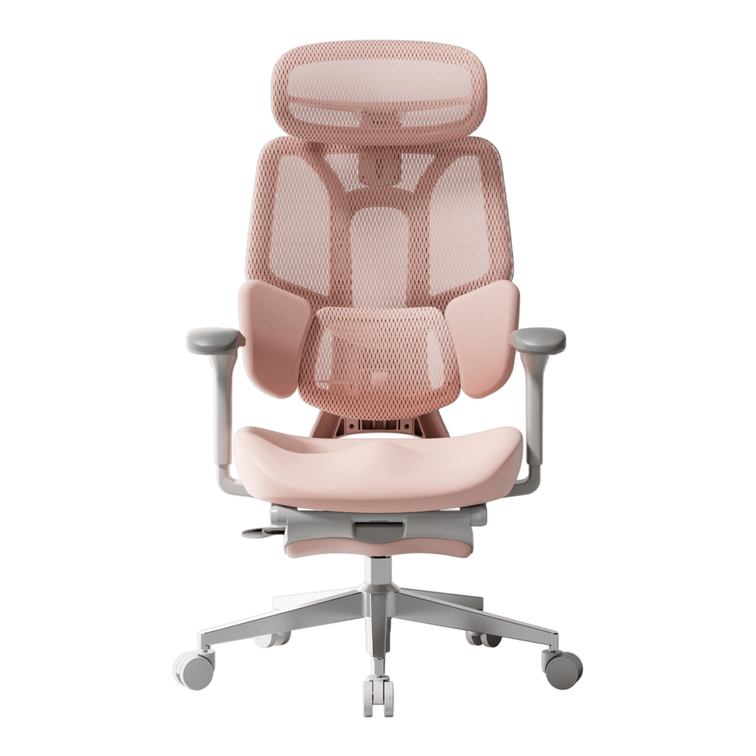
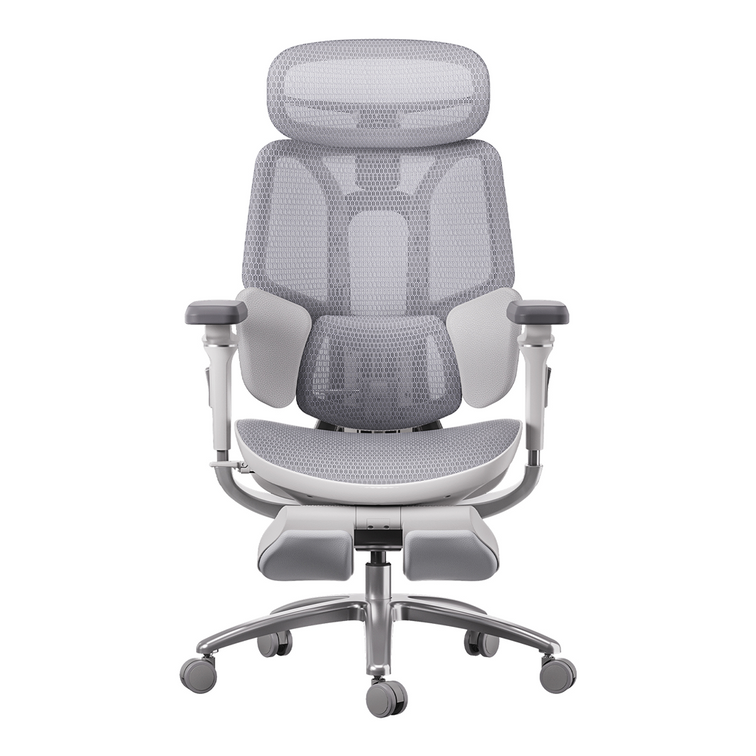
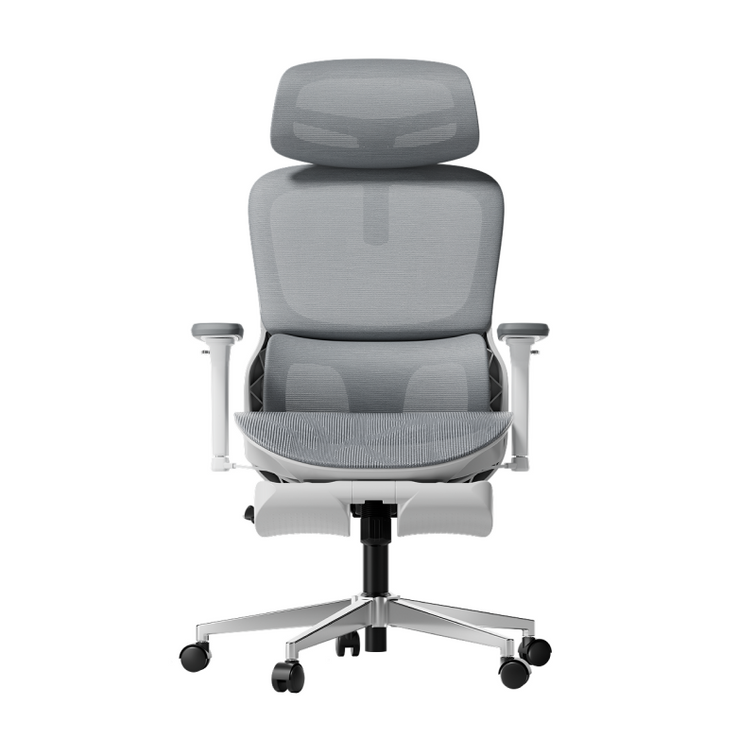
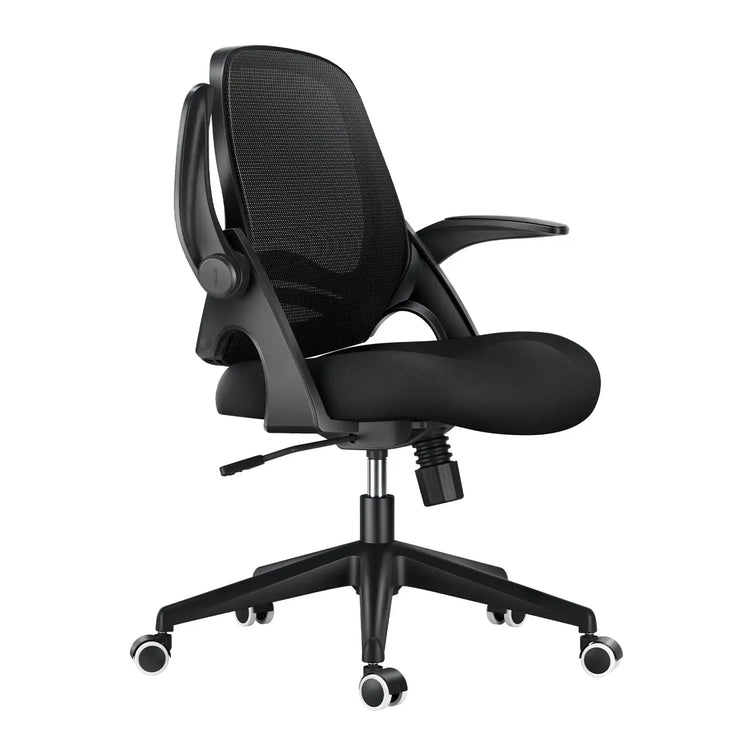
HBADA models for different kinds of seated work
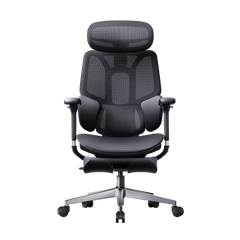
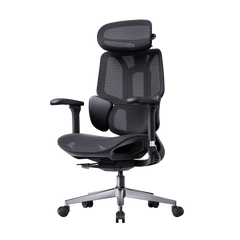
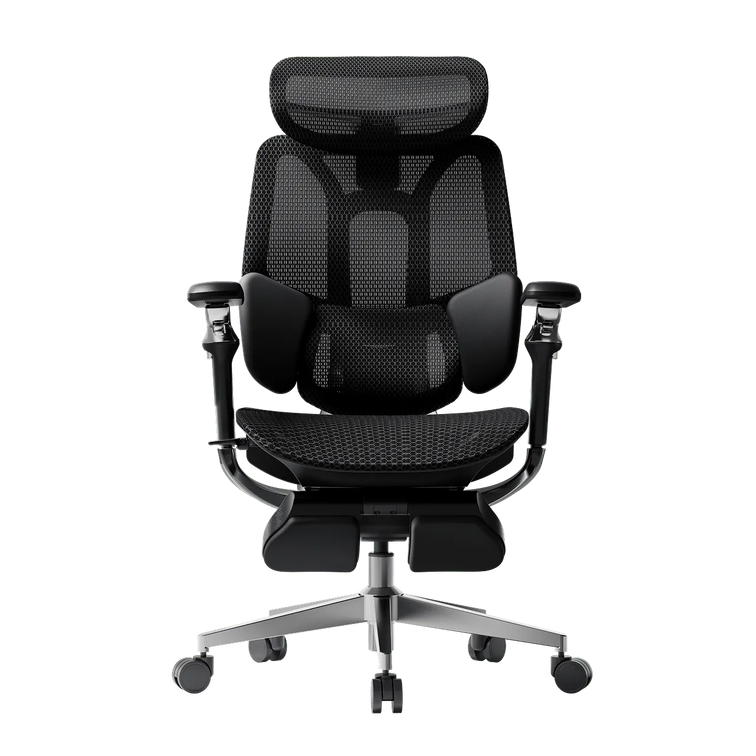
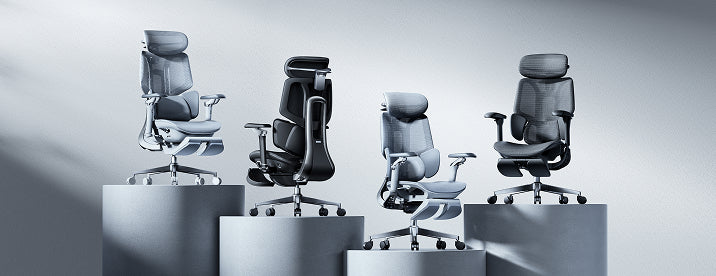
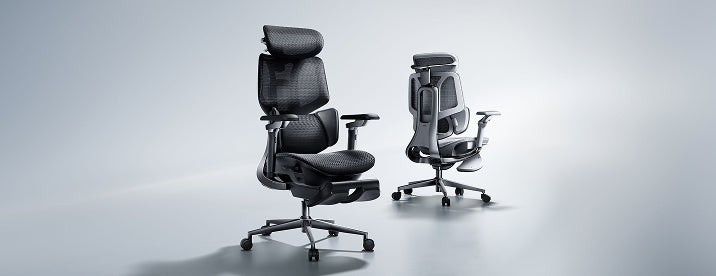
If HBADA is on your shortlist, start by matching the chair’s adjustment style to how you actually work, not by choosing the highest feature count. The three current series below cover different priorities.
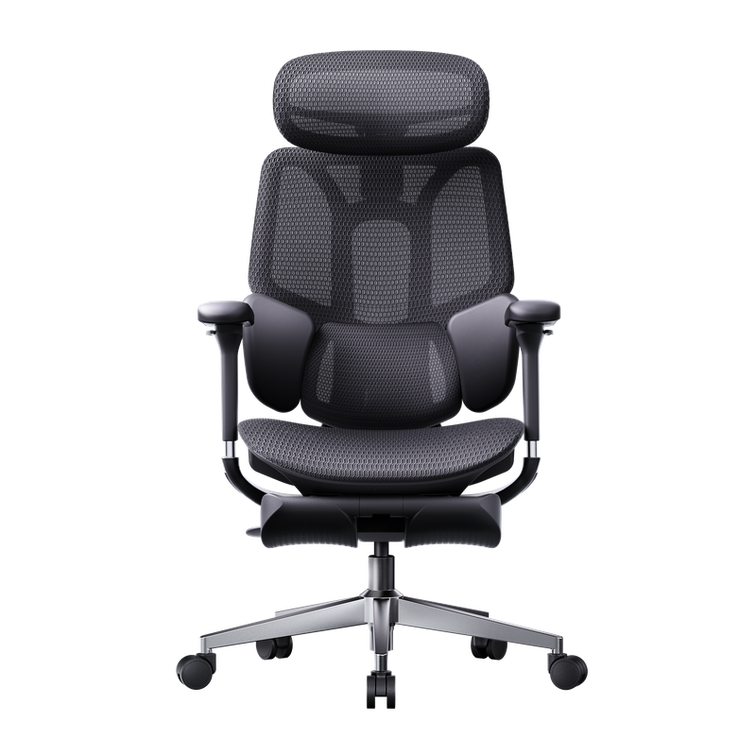
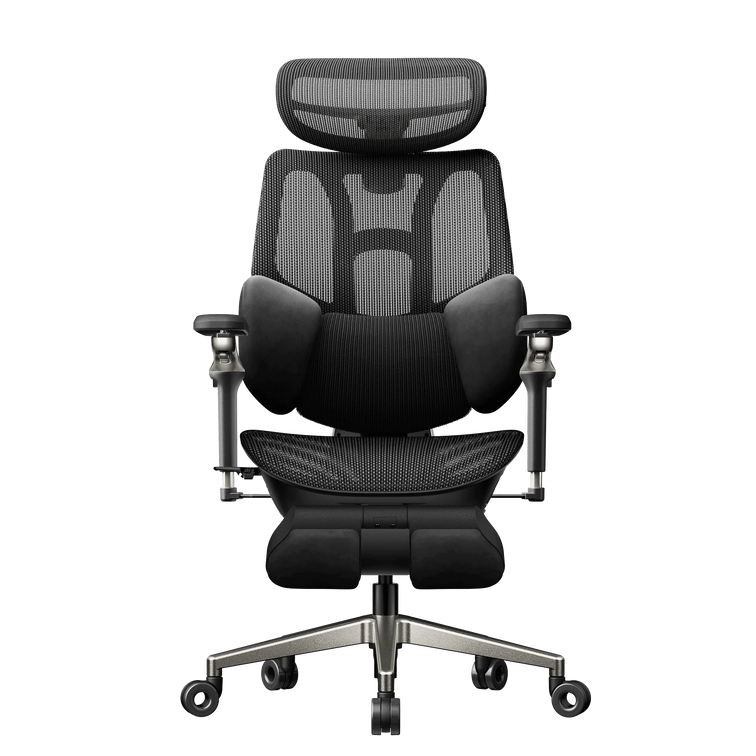
HBADA X7
Built for long, intensive desk days. AI lumbar tracking adjusts the support as your posture shifts, so the lower back stays supported without manual readjustment. Also includes active features such as ventilation and massage.
View the X7 →HBADA E3 Pro 2026
A mechanical-first choice with a 3-zone elastic lumbar system, 720° armrests, and a 140° recline. Suited to users who want extensive manual adjustment and regular reclining breaks without electronic controls.
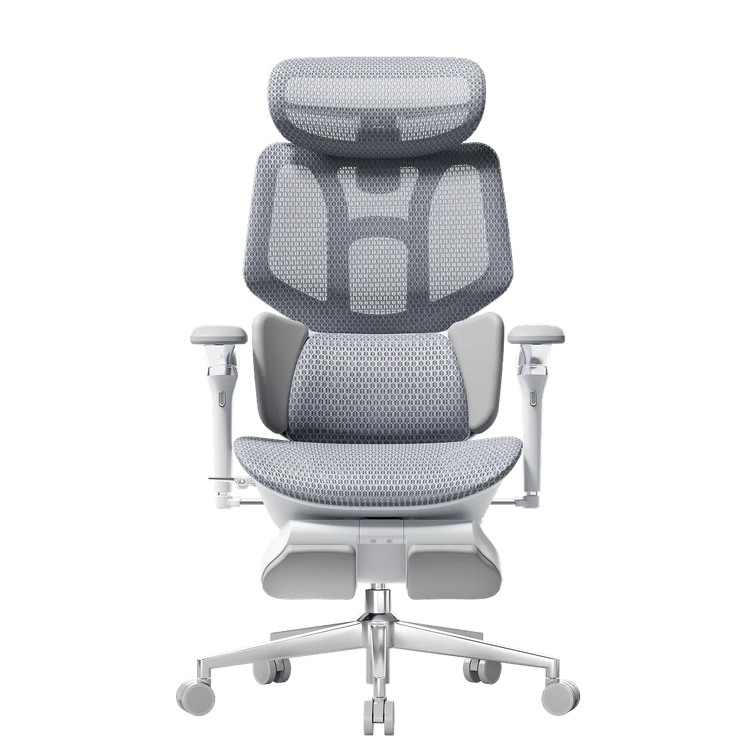
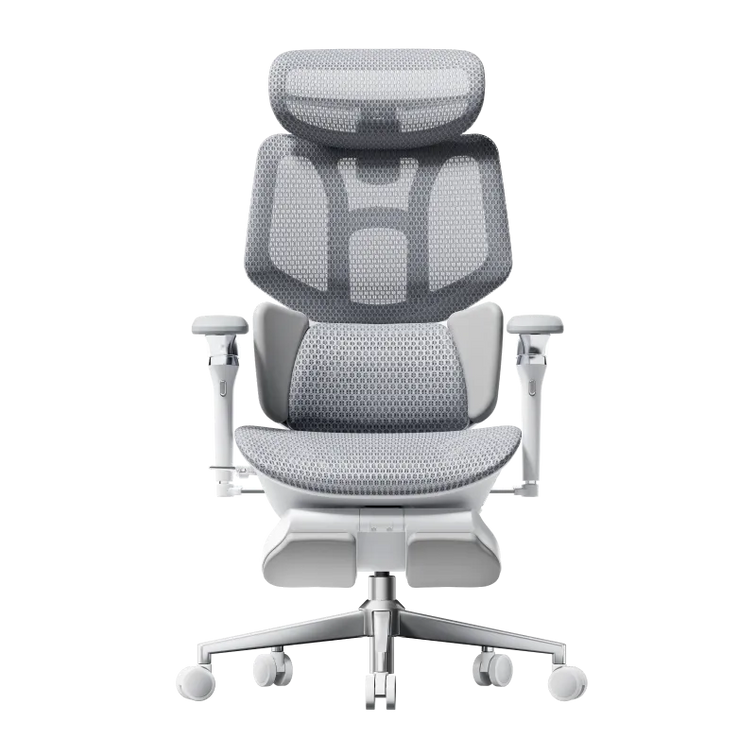
View the E3 Pro 2026 →HBADA E3 Air 2026
A lighter everyday home-office chair with 3-zone adaptive lumbar support, 4D armrests, and breathable mesh. A more accessible entry point into the E3 adjustment system.
View the E3 Air 2026 →Whichever model you consider, the setup sequence stays the same: adjust the chair to your body first, then bring the desk and monitor into line. HBADA’s first-30-days guide covers what to expect during the initial adjustment period, including the mild “different” feeling that can occur when moving from a conventional chair to a properly fitted ergonomic one.
Frequently asked questions
What is World Spine Day 2026, and when is it observed?
World Spine Day 2026 is observed on October 16. The official theme is “Spine Health for Life,” focusing on protecting spinal health proactively across every stage of life rather than waiting for pain to appear.
What does a spine-friendly home office actually require?
At minimum: a chair with adjustable lumbar support and seat depth, a monitor positioned so your eyes land 2–3 inches below the top edge, a keyboard and mouse at a height that keeps your wrists straight, and a habit of standing or moving every 30–60 minutes.
Can a good chair alone fix poor home office posture?
Not entirely. A supportive chair is foundational, but working from a couch, leaving a laptop flat on the desk, or staying in one fixed position all day can undermine even a well-designed chair. The chair and the workspace have to align as a system.
How often should I move during the workday for spine health?
General guidance suggests standing, stretching, or walking every 30 to 60 minutes, alongside a broader weekly target of at least 150 minutes of moderate activity. The key is interrupting prolonged static posture, not replacing sitting with standing for the entire day.
What is the most overlooked part of an ergonomic workspace?
Seat depth and monitor height are commonly overlooked compared with seat height and lumbar support. Seat depth determines whether you can actually use the backrest; monitor height determines whether your neck stays neutral over hours of screen work.
Is World Spine Day only relevant to people with existing back pain?
No. The 2026 theme explicitly emphasizes prevention across all life stages, which makes it just as relevant to people without current pain who want to reduce the likelihood of developing it.
A spine you won’t think about tomorrow
The goal of a spine-friendly home office is not a perfect one-time setup. It is a reliable sequence—chair first, desk and screen second, movement throughout the day—that quietly protects your spine long after World Spine Day itself has passed.
If your current chair is no longer giving your lower back the support or adjustment range it needs, the HBADA ergonomic chair collection is the place to compare models against the checklist above. Start with the fit, verify the adjustments, and build the rest of the workspace around a chair that meets your body where it is.