
Cart
Your shopping cart is empty
Continue Shopping
Every Order, Backed by HBADA
30-day in-home Trial
Free 2-5 Business-Day Shipping
5-Year Hassle-Free Warranty
24/7 Customer Support

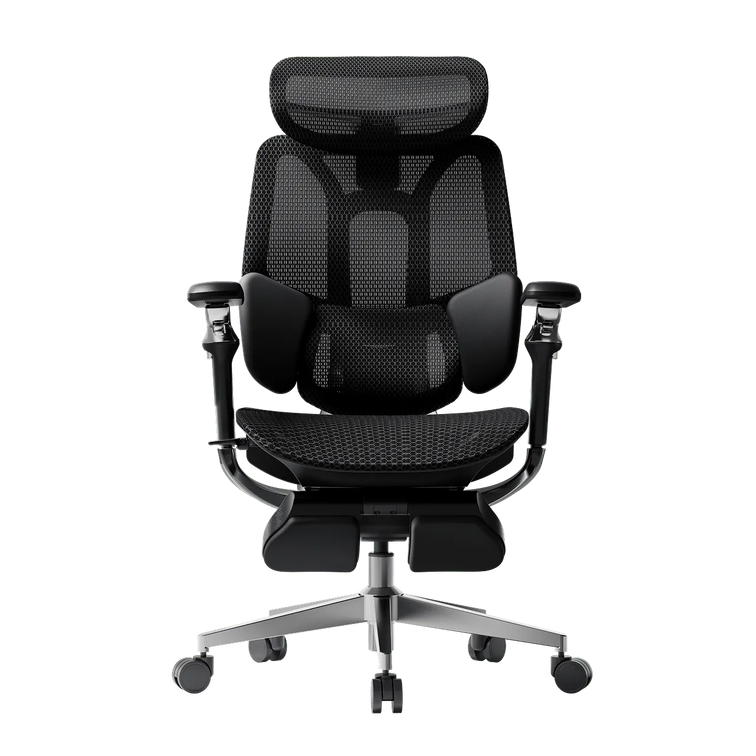
HBADA E3 Ultra Ergonomic Office Chair

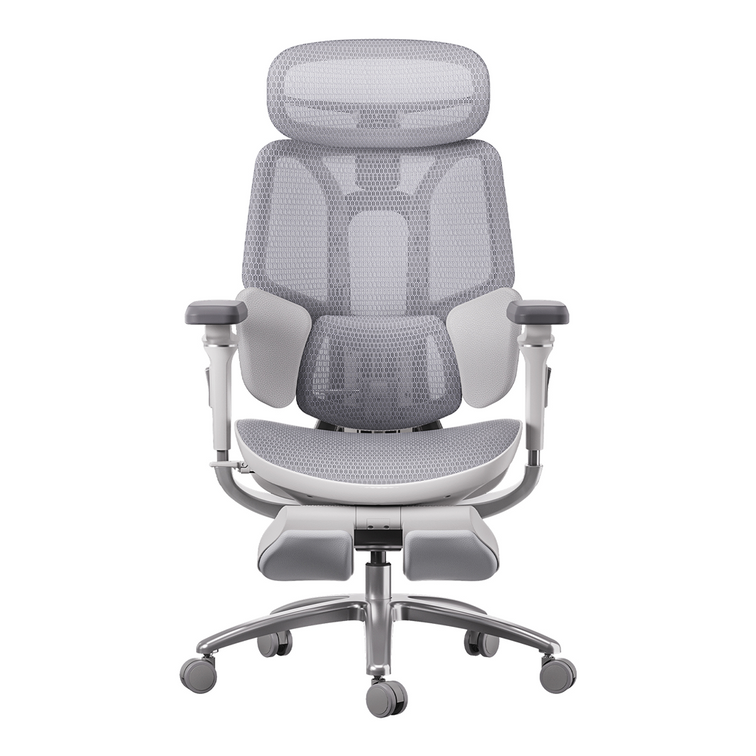
HBADA X7 Smart Ergonomic Office Chair with AI Lumbar Support

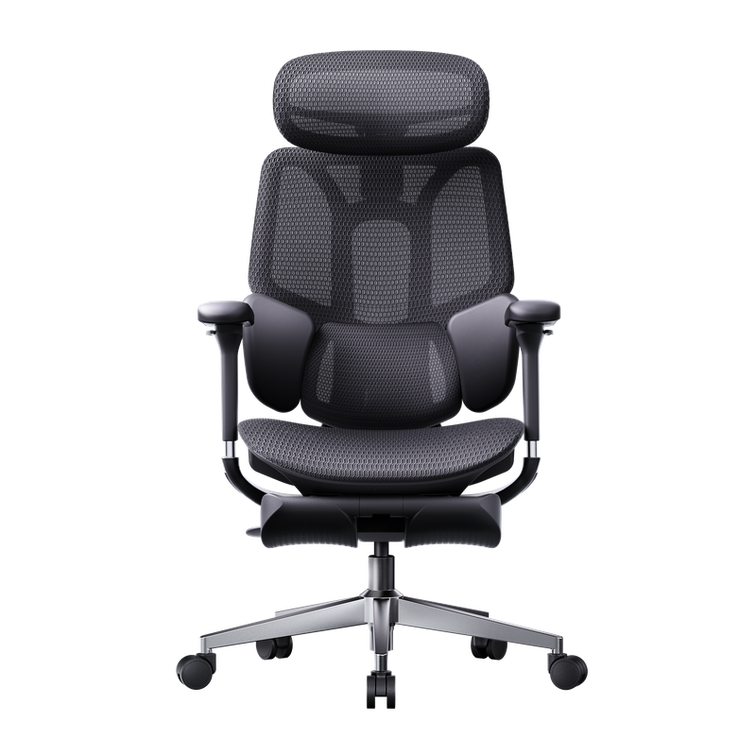
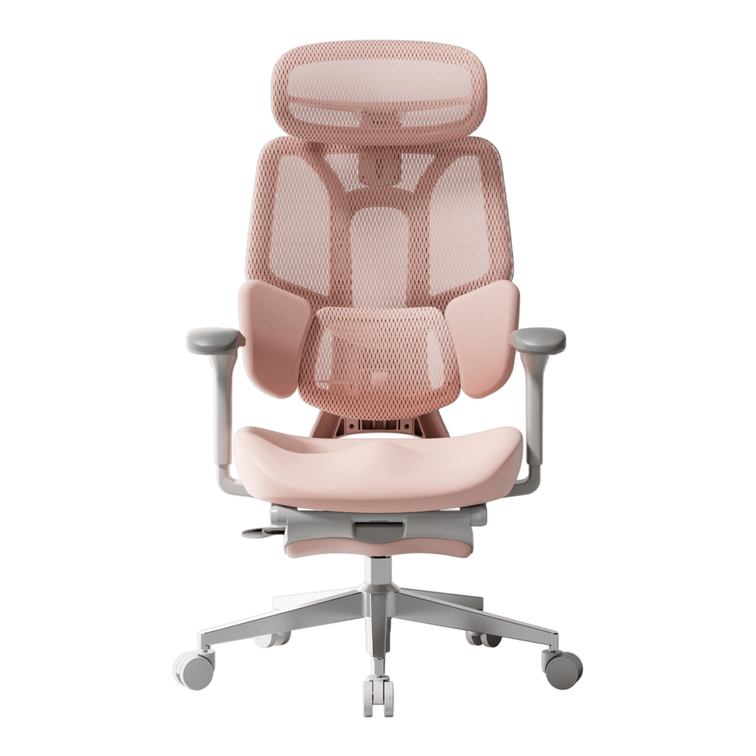
HBADA E3 Pro Ergonomic Office Chair 2026 Edition

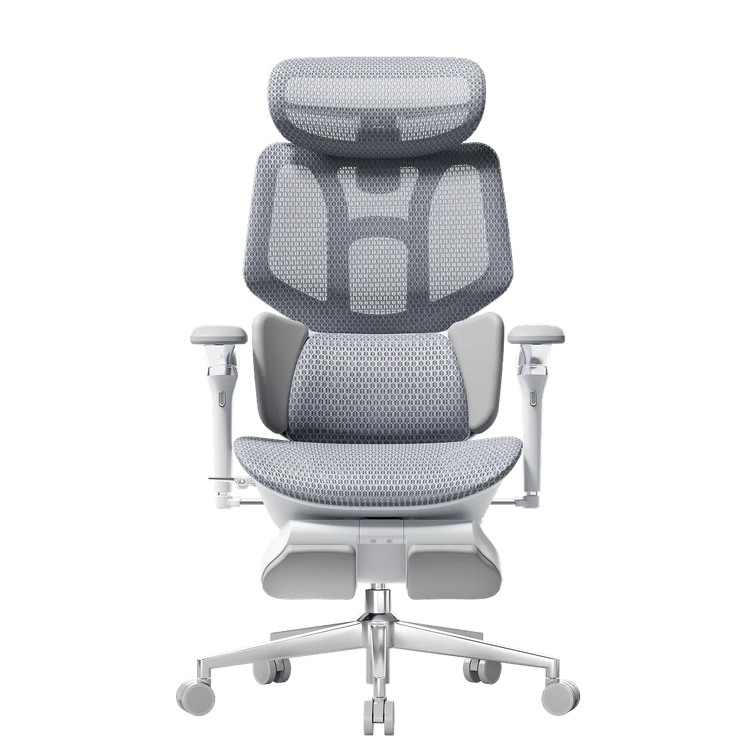
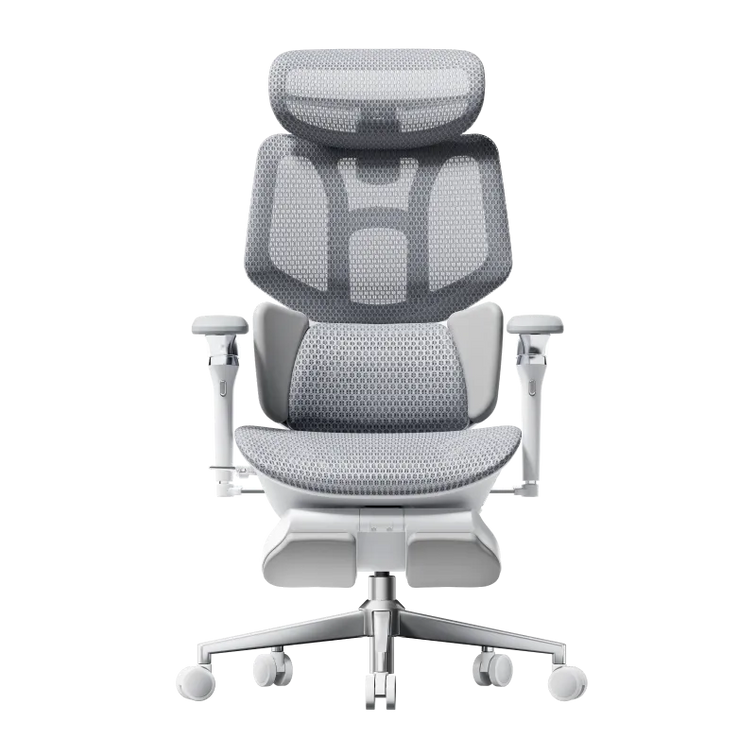
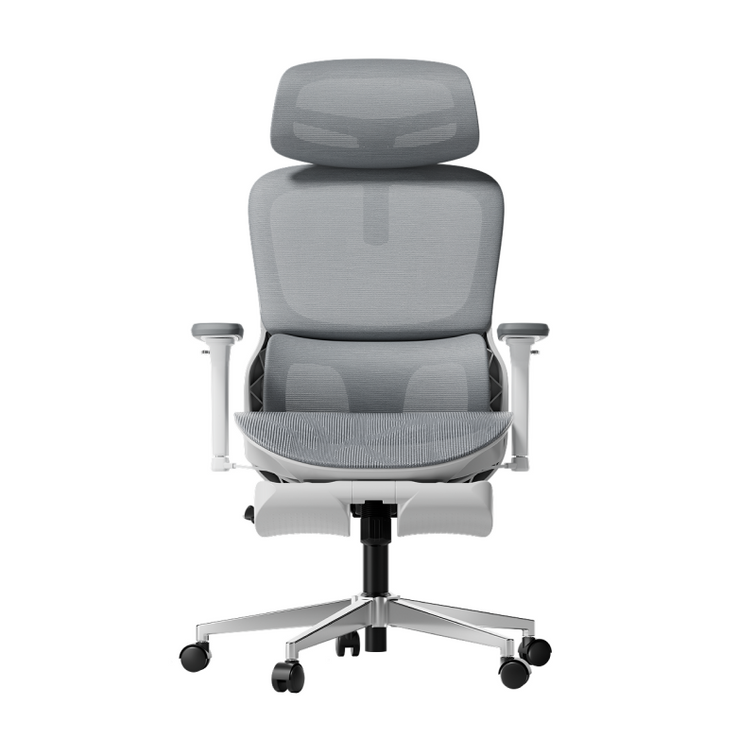
HBADA E3 Air Ergonomic Office Chair 2026 Edition
Remove this item from your cart?
Cart
 Best Office Chair Wheels for Hardwood, Carpet and Tile Floors
Quick answer
A smoother workspace starts from the ground up.
For hardwood and tile, choose soft, non-marking office chair wheels rated for hard floors, such as suitable polyurethane (PU) or rubber-tread casters. For carpet, carpet-rated firmer wheels or larger-diameter casters may roll more easily. Always confirm compatibility with your chair and floor.
Hardwood Soft, non-marking treads suited to your floor finish.
Carpet Carpet-rated wheels matched to the pile and load.
Tile Soft treads, with grout lines and edges in mind.
In this guide
Why caster material matters
Hardwood floors
Tile floors
Carpet
Rubber vs. hard nylon
Rollerblade chair wheels
Wheels by floor type
HBADA model considerations
Replacing your casters
Frequently asked questions
Final thoughts
That faint scraping sound when you move your office chair is worth checking. It could mean the wheels and flooring are not a good match, but trapped dirt or a damaged caster may also be responsible.
Whether you already own a HBADA chair or are choosing one for a new workspace, the floor beneath it deserves attention too. The right caster setup helps the chair move as intended while reducing unnecessary wear on your flooring.
Why Caster Material Matters
Office chair wheels are not all designed for the same surface. Some hard plastic or nylon casters are intended for carpet, while softer-tread versions are designed for hard floors.
The basic starting point is simple: choose soft, hard-floor-rated treads for hard flooring and suitable carpet-rated casters for carpet. Wheel diameter, tread firmness, bearings and the supported load also affect how easily a chair rolls.
Check the specification, not just the material. PU comes in different hardnesses, and rubber formulations vary. The caster's intended floor type and compatibility with your chair matter more than the material name alone.
Office Chair Wheels for Hardwood Floors
If you are looking for office chair wheels for hardwood floors, start with soft, non-marking casters specifically rated for that surface. Suitable PU or rubber treads can provide a gentler contact surface and reduce rolling noise compared with hard carpet casters.
Hard wheels intended for carpet may be unsuitable for a finished wood floor. However, a softer tread is not a guarantee against scratches: grit caught underneath any wheel can damage a delicate finish.
Follow the flooring manufacturer's care guidance.
Keep the wheels and the rolling area free of dirt.
Check for embedded grit, cracks and uneven wear.
Consider a suitable protective mat for delicate finishes or heavy daily use.
If your current HBADA chair moves smoothly and its casters are confirmed suitable for your floor, there is no need to replace them simply because another wheel looks different.
Chair Wheels for Tile Floors
Tile often calls for a similar approach to hardwood: soft, non-marking casters rated for hard surfaces. These can help reduce rolling noise and the risk of scuffing when the wheels and floor are kept clean.
Grout lines add another consideration. A slightly larger wheel may cross shallow seams more smoothly than a small wheel, but deep grout or uneven tile edges can still interrupt movement.
Test the transitions. Check movement across grout lines and tile edges, not just across the center of one smooth tile. Avoid forcing the chair over uneven flooring.
Office Chair Casters for Carpet
Carpet changes the priorities. A soft tread that rolls smoothly on hardwood may require more effort to move through carpet fibers. Firmer, carpet-rated wheels can work well on low-pile surfaces, while a larger diameter may help reduce rolling resistance.
For thick or high-pile carpet, changing wheels may not be enough. A chair mat designed for the carpet type and pile height can provide a firmer rolling surface. The casters must also be suitable for that mat.
In a room with both carpet and hard flooring, check that the wheels are rated for both surfaces. Test movement and control on each, rather than assuming one setup performs identically everywhere.
Rubber Office Chair Wheels vs. Hard Nylon Casters
Neither material is automatically the best choice for every workspace. The useful comparison is how each caster is designed to interact with your floor.
Rubber and soft PU
Suitable hard-floor versions offer a softer contact surface and can reduce rolling noise. They still need regular cleaning, and some designs require more effort to move across thick carpet.
Hard nylon
Carpet-rated nylon casters can roll effectively on low-pile carpet. Do not assume the same wheels are suitable for wood, polished tile or a hard chair mat.
For your HBADA chair, choose compatibility first: the appropriate floor rating, attachment type, load capacity and wheel size all need to work together.
What Are Rollerblade Chair Wheels?
Rollerblade-style chair wheels resemble inline-skate wheels. Many use a single, relatively large wheel in each caster assembly, rather than the twin-wheel arrangement common on traditional office-chair casters.
Some use PU treads and are designed for hard floors or mixed surfaces. Performance depends on the actual tread, bearings, wheel diameter and caster construction, not simply the shape.
This style is not automatically an upgrade for every chair. A larger replacement can raise the seat, affect clearance and change how readily the chair rolls. Check compatibility with HBADA before changing the original caster setup.
Quick Reference: Wheels by Floor Type
Use this table as a starting point, then confirm the requirements of your exact floor and chair.
Choose for the surface you use every day
Floor type
Starting point
Important check
Hardwood
Soft, non-marking PU or rubber rated for wood floors.
Finish compatibility, wheel cleanliness and floor-care guidance.
Tile
Soft, hard-floor-rated casters.
Grout depth, tile edges and movement across seams.
Low-pile carpet
Carpet-rated nylon or appropriately firm PU casters.
Rolling resistance, supported load and caster condition.
Thick or high-pile carpet
Suitable larger casters or a carpet-rated chair mat.
Mat suitability, caster compatibility and stability.
Mixed flooring
Casters explicitly rated for the surfaces involved.
Controlled movement on hard floors and easy rolling on carpet.
How HBADA Chairs Handle This, By Model
When choosing between HBADA models, consider the whole workspace: your floor, desk height, body dimensions and preferred adjustments. Casters are one part of that setup, not a substitute for getting the chair fit right.
Replacement compatibility should be checked against the exact model and version. Do not assume that the X7, E3 Pro and E3 Air use interchangeable caster parts.
What to confirm for your HBADA chair
Model
What to check
Product details
HBADA X7
Confirm the approved caster attachment, floor suitability and replacement part for your X7 version.
Explore HBADA X7
HBADA E3 Pro
Check the model year, stem dimensions and compatible caster options before ordering replacements.
Explore HBADA E3 Pro
HBADA E3 Air
Confirm the supplied caster specification and whether it suits your floor or chair mat.
Explore HBADA E3 Air
Already own a HBADA chair? Have your model name, order information and photos of the existing caster ready when contacting HBADA support. These details help identify the correct replacement without relying on a “universal fit” label.
How to Replace Your Casters
Many push-fit casters can be changed without specialist tools. Threaded, clipped or other attachments require a different approach. Follow your chair's instructions rather than assuming every caster pulls straight out.
Confirm the replacement specification. Check the attachment type, stem diameter and length, wheel diameter, clearance and load rating. A common aftermarket grip-ring stem is about 7/16 inch (11 mm) in diameter, but this is not a confirmed fit for every HBADA chair.
Position the empty chair securely. Protect the chair and floor with a soft covering. Follow the manual for safe positioning and get help with a heavy chair. For powered models, follow the manufacturer's power-off instructions.
Remove the old caster correctly. For an approved push-fit design, grip the caster assembly close to the stem and pull as directed. Do not force a threaded or retained fitting.
Install a compatible, matching set. Seat each caster fully according to the instructions. Do not mix different wheel heights or incompatible caster types on the same base.
Check the chair before sitting down. Return it upright, confirm that every caster is securely fitted and contacts the floor, and test movement without a person seated. Recheck seat height and desk fit if the wheel size has changed.
If a socket is damaged, a caster will not seat fully or the chair feels unstable, stop and contact HBADA support rather than forcing the installation.
Frequently Asked Questions
What are the best office chair wheels for hardwood floors?
Start with soft, non-marking casters specifically rated for hardwood, such as suitable PU or rubber treads. Check your floor manufacturer's advice and keep the wheels clean. No caster guarantees protection against scratches caused by grit or damage.
Do I need different wheels for tile versus hardwood?
Not necessarily. A caster approved for both surfaces may work for either. Tile also requires attention to grout lines and uneven edges, so wheel diameter and rolling control matter alongside tread material.
Why can factory-standard casters damage hard floors?
Some casters are intended for carpet rather than hard flooring. Unsuitable treads, embedded dirt or damaged wheels can contribute to scuffs and scratches. Check the actual caster specification before deciding that the original wheels need replacing.
Are rollerblade chair wheels better than standard casters?
Not automatically. Many use a larger single wheel per caster, but suitability depends on the floor, attachment, load capacity and overall height. For a HBADA chair, confirm compatibility before changing the original wheel design.
What size caster fits a HBADA office chair?
Confirm the dimensions for your exact model and version with HBADA. Stem diameter alone is not enough: stem length, attachment type, wheel clearance and load rating also matter. Do not assume an aftermarket 11 mm stem fits every model.
Do rubber office chair wheels work on carpet too?
Some do, if rated for carpet. Performance depends on tread firmness, wheel diameter, load and carpet pile. Thick carpet may require a suitable chair mat rather than a simple change of wheel material.
Final Thoughts
Choosing office chair wheels for hardwood, carpet or tile starts with a practical question: does this caster suit both my floor and my chair?
Match the floor rating, confirm compatibility and keep the rolling area clean. If you already own a HBADA chair, check the original caster specification before making changes.
Planning a new workspace? Compare the HBADA X7 , E3 Pro and E3 Air to find the adjustments and dimensions that fit your desk and daily routine. Then confirm the floor setup that works with your chosen model.
Back to top ↑
Oct 10, 2026
Best Office Chair Wheels for Hardwood, Carpet and Tile Floors
Quick answer
A smoother workspace starts from the ground up.
For hardwood and tile, choose soft, non-marking office chair wheels rated for hard floors, such as suitable polyurethane (PU) or rubber-tread casters. For carpet, carpet-rated firmer wheels or larger-diameter casters may roll more easily. Always confirm compatibility with your chair and floor.
Hardwood Soft, non-marking treads suited to your floor finish.
Carpet Carpet-rated wheels matched to the pile and load.
Tile Soft treads, with grout lines and edges in mind.
In this guide
Why caster material matters
Hardwood floors
Tile floors
Carpet
Rubber vs. hard nylon
Rollerblade chair wheels
Wheels by floor type
HBADA model considerations
Replacing your casters
Frequently asked questions
Final thoughts
That faint scraping sound when you move your office chair is worth checking. It could mean the wheels and flooring are not a good match, but trapped dirt or a damaged caster may also be responsible.
Whether you already own a HBADA chair or are choosing one for a new workspace, the floor beneath it deserves attention too. The right caster setup helps the chair move as intended while reducing unnecessary wear on your flooring.
Why Caster Material Matters
Office chair wheels are not all designed for the same surface. Some hard plastic or nylon casters are intended for carpet, while softer-tread versions are designed for hard floors.
The basic starting point is simple: choose soft, hard-floor-rated treads for hard flooring and suitable carpet-rated casters for carpet. Wheel diameter, tread firmness, bearings and the supported load also affect how easily a chair rolls.
Check the specification, not just the material. PU comes in different hardnesses, and rubber formulations vary. The caster's intended floor type and compatibility with your chair matter more than the material name alone.
Office Chair Wheels for Hardwood Floors
If you are looking for office chair wheels for hardwood floors, start with soft, non-marking casters specifically rated for that surface. Suitable PU or rubber treads can provide a gentler contact surface and reduce rolling noise compared with hard carpet casters.
Hard wheels intended for carpet may be unsuitable for a finished wood floor. However, a softer tread is not a guarantee against scratches: grit caught underneath any wheel can damage a delicate finish.
Follow the flooring manufacturer's care guidance.
Keep the wheels and the rolling area free of dirt.
Check for embedded grit, cracks and uneven wear.
Consider a suitable protective mat for delicate finishes or heavy daily use.
If your current HBADA chair moves smoothly and its casters are confirmed suitable for your floor, there is no need to replace them simply because another wheel looks different.
Chair Wheels for Tile Floors
Tile often calls for a similar approach to hardwood: soft, non-marking casters rated for hard surfaces. These can help reduce rolling noise and the risk of scuffing when the wheels and floor are kept clean.
Grout lines add another consideration. A slightly larger wheel may cross shallow seams more smoothly than a small wheel, but deep grout or uneven tile edges can still interrupt movement.
Test the transitions. Check movement across grout lines and tile edges, not just across the center of one smooth tile. Avoid forcing the chair over uneven flooring.
Office Chair Casters for Carpet
Carpet changes the priorities. A soft tread that rolls smoothly on hardwood may require more effort to move through carpet fibers. Firmer, carpet-rated wheels can work well on low-pile surfaces, while a larger diameter may help reduce rolling resistance.
For thick or high-pile carpet, changing wheels may not be enough. A chair mat designed for the carpet type and pile height can provide a firmer rolling surface. The casters must also be suitable for that mat.
In a room with both carpet and hard flooring, check that the wheels are rated for both surfaces. Test movement and control on each, rather than assuming one setup performs identically everywhere.
Rubber Office Chair Wheels vs. Hard Nylon Casters
Neither material is automatically the best choice for every workspace. The useful comparison is how each caster is designed to interact with your floor.
Rubber and soft PU
Suitable hard-floor versions offer a softer contact surface and can reduce rolling noise. They still need regular cleaning, and some designs require more effort to move across thick carpet.
Hard nylon
Carpet-rated nylon casters can roll effectively on low-pile carpet. Do not assume the same wheels are suitable for wood, polished tile or a hard chair mat.
For your HBADA chair, choose compatibility first: the appropriate floor rating, attachment type, load capacity and wheel size all need to work together.
What Are Rollerblade Chair Wheels?
Rollerblade-style chair wheels resemble inline-skate wheels. Many use a single, relatively large wheel in each caster assembly, rather than the twin-wheel arrangement common on traditional office-chair casters.
Some use PU treads and are designed for hard floors or mixed surfaces. Performance depends on the actual tread, bearings, wheel diameter and caster construction, not simply the shape.
This style is not automatically an upgrade for every chair. A larger replacement can raise the seat, affect clearance and change how readily the chair rolls. Check compatibility with HBADA before changing the original caster setup.
Quick Reference: Wheels by Floor Type
Use this table as a starting point, then confirm the requirements of your exact floor and chair.
Choose for the surface you use every day
Floor type
Starting point
Important check
Hardwood
Soft, non-marking PU or rubber rated for wood floors.
Finish compatibility, wheel cleanliness and floor-care guidance.
Tile
Soft, hard-floor-rated casters.
Grout depth, tile edges and movement across seams.
Low-pile carpet
Carpet-rated nylon or appropriately firm PU casters.
Rolling resistance, supported load and caster condition.
Thick or high-pile carpet
Suitable larger casters or a carpet-rated chair mat.
Mat suitability, caster compatibility and stability.
Mixed flooring
Casters explicitly rated for the surfaces involved.
Controlled movement on hard floors and easy rolling on carpet.
How HBADA Chairs Handle This, By Model
When choosing between HBADA models, consider the whole workspace: your floor, desk height, body dimensions and preferred adjustments. Casters are one part of that setup, not a substitute for getting the chair fit right.
Replacement compatibility should be checked against the exact model and version. Do not assume that the X7, E3 Pro and E3 Air use interchangeable caster parts.
What to confirm for your HBADA chair
Model
What to check
Product details
HBADA X7
Confirm the approved caster attachment, floor suitability and replacement part for your X7 version.
Explore HBADA X7
HBADA E3 Pro
Check the model year, stem dimensions and compatible caster options before ordering replacements.
Explore HBADA E3 Pro
HBADA E3 Air
Confirm the supplied caster specification and whether it suits your floor or chair mat.
Explore HBADA E3 Air
Already own a HBADA chair? Have your model name, order information and photos of the existing caster ready when contacting HBADA support. These details help identify the correct replacement without relying on a “universal fit” label.
How to Replace Your Casters
Many push-fit casters can be changed without specialist tools. Threaded, clipped or other attachments require a different approach. Follow your chair's instructions rather than assuming every caster pulls straight out.
Confirm the replacement specification. Check the attachment type, stem diameter and length, wheel diameter, clearance and load rating. A common aftermarket grip-ring stem is about 7/16 inch (11 mm) in diameter, but this is not a confirmed fit for every HBADA chair.
Position the empty chair securely. Protect the chair and floor with a soft covering. Follow the manual for safe positioning and get help with a heavy chair. For powered models, follow the manufacturer's power-off instructions.
Remove the old caster correctly. For an approved push-fit design, grip the caster assembly close to the stem and pull as directed. Do not force a threaded or retained fitting.
Install a compatible, matching set. Seat each caster fully according to the instructions. Do not mix different wheel heights or incompatible caster types on the same base.
Check the chair before sitting down. Return it upright, confirm that every caster is securely fitted and contacts the floor, and test movement without a person seated. Recheck seat height and desk fit if the wheel size has changed.
If a socket is damaged, a caster will not seat fully or the chair feels unstable, stop and contact HBADA support rather than forcing the installation.
Frequently Asked Questions
What are the best office chair wheels for hardwood floors?
Start with soft, non-marking casters specifically rated for hardwood, such as suitable PU or rubber treads. Check your floor manufacturer's advice and keep the wheels clean. No caster guarantees protection against scratches caused by grit or damage.
Do I need different wheels for tile versus hardwood?
Not necessarily. A caster approved for both surfaces may work for either. Tile also requires attention to grout lines and uneven edges, so wheel diameter and rolling control matter alongside tread material.
Why can factory-standard casters damage hard floors?
Some casters are intended for carpet rather than hard flooring. Unsuitable treads, embedded dirt or damaged wheels can contribute to scuffs and scratches. Check the actual caster specification before deciding that the original wheels need replacing.
Are rollerblade chair wheels better than standard casters?
Not automatically. Many use a larger single wheel per caster, but suitability depends on the floor, attachment, load capacity and overall height. For a HBADA chair, confirm compatibility before changing the original wheel design.
What size caster fits a HBADA office chair?
Confirm the dimensions for your exact model and version with HBADA. Stem diameter alone is not enough: stem length, attachment type, wheel clearance and load rating also matter. Do not assume an aftermarket 11 mm stem fits every model.
Do rubber office chair wheels work on carpet too?
Some do, if rated for carpet. Performance depends on tread firmness, wheel diameter, load and carpet pile. Thick carpet may require a suitable chair mat rather than a simple change of wheel material.
Final Thoughts
Choosing office chair wheels for hardwood, carpet or tile starts with a practical question: does this caster suit both my floor and my chair?
Match the floor rating, confirm compatibility and keep the rolling area clean. If you already own a HBADA chair, check the original caster specification before making changes.
Planning a new workspace? Compare the HBADA X7 , E3 Pro and E3 Air to find the adjustments and dimensions that fit your desk and daily routine. Then confirm the floor setup that works with your chosen model.
Back to top ↑
Oct 10, 2026
 2D vs 3D vs 4D Armrests: How Do 6D Armrests Compare?
Dark reading mode
More ways to move.A better way to compare.
Understand 2D, 3D, 4D, and 6D armrests—and choose the adjustments that actually fit your day.
Quick answer: The main difference between 2D, 3D, 4D, and 6D armrests is the range of adjustments offered. A common 4D setup includes height, depth, width, and pivot. Other labels vary by manufacturer. Choose the movements that support your forearms comfortably and fit your desk, rather than assuming a higher number is always better.
Contents
What Does the “D” Mean?
2D Armrests Explained
3D Armrests Explained
4D Armrests Explained
6D Armrests Explained
Comparing All Four Types
Why Numbering Varies
Choosing by Use Case
Our Recommendation: HBADA X7
Frequently Asked Questions
Final Thoughts
Armrest labels are one of the most confusing parts of chair shopping. 2D. 3D. 4D. 6D. They sound technical, but they describe something practical: how you can reposition the arm supports.
This guide walks through the common configurations, then helps you figure out which movements are worth paying for.
What Does the “D” in Armrests Actually Mean?
The “D” usually stands for dimensions and is used to describe adjustment functions. Moving up and down normally counts as one adjustment, not two.
In practice, the labels do not give you a reliable cross-brand checklist. Manufacturers may count sliding, rotation, tilt, and linked movement differently. Two chairs sold with the same D-number may offer different controls and ranges.
Someone who mostly types may value inward adjustment and pivot. Someone who often reclines may prefer armrests that remain useful as the backrest moves. Look at the actual movements before deciding what you need.
2D Armrests Explained
A 2D armrest generally offers two adjustment functions. Depending on the chair, that might mean:
Height: raising or lowering the support.
A second movement: width, depth, or rotation.
Height and width are one possible combination, but not the only one. Check the product description rather than assuming every 2D armrest works the same way.
A simpler setup can be enough if it puts the pads in the right place. Its limitation is fewer options when your desk, shoulder width, or working position requires extra adjustment.
3D Armrests Explained
A 3D design adds another adjustment function. One common combination is:
Height adjustment.
Depth adjustment, moving the pad forward and backward.
Pivot, angling the pad inward or outward.
Other designs may include width instead of pivot. Rotation helps the pad follow your forearm angle, while depth adjustment helps position support without pushing you away from the desk.
For regular desk work, a well-fitting 3D design can be useful. The question is whether its particular movements cover your needs.
4D Armrests Explained
A common 4D configuration combines height, depth, width, and pivot. Independent width adjustment lets you bring the supports closer to your body or move them farther apart.
This is particularly useful when fixed armrests feel too wide or too narrow. It gives you more flexibility to support your forearms without reaching outward or drawing your shoulders up.
For everyday typing and mouse work, this can be a practical balance of function and cost. However, “4D” is not an eight-hour comfort certification. Pad spacing, height range, firmness, and desk clearance still matter.
6D Armrests Explained
Products described as 6D generally add functions beyond basic sliding and pivoting. Depending on the design, these may include:
Pad tilt: changing the angle of the support surface.
Additional rotation: repositioning the pad or supporting arm.
Recline-linked movement: moving with the chair as you lean back.
Fold-away movement: moving the support out of the way.
These are features to look for, not a definition that every 6D product must follow. In particular, recline-linked movement is not exclusive to chairs marketed as 6D.
Extra movement can be useful if you switch between typing, calls, and reclined breaks. It is worth paying for when it solves a positioning problem you actually have.
Comparing All Four Office Chair Armrest Types
Common examples, not universal definitions. Confirm the controls and ranges on each product.
Label
Typical description
What to check
2D
Height plus one other adjustment.
Whether the second movement is width, depth, or pivot.
3D
Three functions, such as height, depth, and pivot.
Whether the pads can also reach your preferred spacing.
4D
Often height, depth, width, and pivot.
Actual travel, pad stability, and desk clearance.
6D
A manufacturer-defined combination of additional movements.
Which functions are included and whether you will use them.
Why the Numbering Isn't Standardized
Treat D-labels as product descriptions rather than a universal ranking. A manufacturer may describe separate rotation points individually, while another may group them into one function.
The same caution applies to degree-based terms such as “720°”. An angular description is not directly comparable with a count of adjustment functions.
The better question: Can you place the pads where your forearms naturally rest—and keep them there while typing, using a mouse, and changing position?
Best Armrests for Office Chair by Use Case
Choosing between these designs comes down to your workspace and tasks, not just the highest number available.
Typing and mouse work
Prioritize usable height, width, and depth ranges. Pivot can help match the angle of your forearms.
A narrow or wide build
Check the minimum and maximum distance between the pads. A higher D-number does not guarantee enough width adjustment.
Calls and reclined breaks
Check how the armrests behave during recline. Linked movement or pad tilt may help maintain useful support.
A tight desk setup
Measure clearance beneath the desktop, including drawers. Check minimum armrest height and whether the pads move back.
For example, if the underside of your desk is 28 inches above the floor, measure the armrest height with the chair at your actual working seat height—not just its lowest setting.
A quick fit check: Keep your shoulders relaxed, elbows near your sides, and keyboard within easy reach. The pads should support your forearms without forcing your shoulders upward or preventing you from moving close to the desk.
For workstation setup guidance, see OSHA's chair and armrest guidance.
Our Recommendation: HBADA X7
If you want flexible arm positioning alongside powered comfort features, the HBADA X7 is worth considering. Its US listing describes a 720° armrest system with rotation, flip, height, and forward-backward adjustment.
The published adjustment information includes approximately 4.33 inches of forward-backward travel and 1.97 inches of armrest-height travel. Compare those ranges with your own setup rather than choosing on the 720° label alone.
The X7 also combines powered lumbar tracking with massage, heating, and seat ventilation. That makes it an option for buyers who want more than mechanical chair adjustments.
Not an exclusive feature: The E3 Pro 2026 also offers 720° armrests. The X7 recommendation here is based on its overall feature combination, not a claim that it has the most adjustable armrests in every situation.
HBADA E3 Pro 2026
Compare the E3 Pro 2026 if you want flexible arm support and mechanical lumbar adjustment without the X7's powered comfort features.
HBADA E3 Air 2026
Include the E3 Air 2026 in your comparison. Check its actual armrest controls and desk clearance against the tasks you do most.
Before ordering, confirm the generation, configuration, and armrest specifications shown on the US product page. Similar model names do not always mean identical fittings.
Frequently Asked Questions
What is the difference between 2D, 3D, and 4D armrests?
They describe different adjustment combinations. A common 4D setup includes height, depth, width, and pivot. The movements counted as 2D or 3D vary, so check the actual feature list.
Are 6D armrests worth it?
They can be if the additional movements help with your tasks or body proportions. Check what “6D” includes and whether those functions solve a problem that simpler arms do not.
Why do armrest D-numbers differ between brands?
Brands may count or group sliding, rotation, tilt, and linked movement differently. Matching D-numbers do not guarantee matching movement ranges.
Which armrests are best for a full workday?
Choose arms that support your forearms with relaxed shoulders and allow you to reach the desk. Height, depth, width, and pivot are useful options, but no D-number alone guarantees all-day comfort.
Is the X7 the only HBADA chair with 720° armrests?
No. The E3 Pro 2026 also offers 720° armrests. Compare the specific ranges and the rest of the chair's features, not just the shared label.
Do I need 6D armrests for occasional use?
Not necessarily. A simpler design can be sufficient if it reaches the right position and does not interfere with your desk.
Final Thoughts
The 2D vs 3D vs 4D armrests comparison comes down to how you work and where your forearms need support. Additional movement is useful when it improves your actual fit.
A familiar 4D combination is a good starting point for comparison. More elaborate designs may add useful options for changing tasks and reclining, but a bigger number is not automatically a better choice.
Choose the movements you need, check their ranges, and match the chair to your desk.
Oct 09, 2026
2D vs 3D vs 4D Armrests: How Do 6D Armrests Compare?
Dark reading mode
More ways to move.A better way to compare.
Understand 2D, 3D, 4D, and 6D armrests—and choose the adjustments that actually fit your day.
Quick answer: The main difference between 2D, 3D, 4D, and 6D armrests is the range of adjustments offered. A common 4D setup includes height, depth, width, and pivot. Other labels vary by manufacturer. Choose the movements that support your forearms comfortably and fit your desk, rather than assuming a higher number is always better.
Contents
What Does the “D” Mean?
2D Armrests Explained
3D Armrests Explained
4D Armrests Explained
6D Armrests Explained
Comparing All Four Types
Why Numbering Varies
Choosing by Use Case
Our Recommendation: HBADA X7
Frequently Asked Questions
Final Thoughts
Armrest labels are one of the most confusing parts of chair shopping. 2D. 3D. 4D. 6D. They sound technical, but they describe something practical: how you can reposition the arm supports.
This guide walks through the common configurations, then helps you figure out which movements are worth paying for.
What Does the “D” in Armrests Actually Mean?
The “D” usually stands for dimensions and is used to describe adjustment functions. Moving up and down normally counts as one adjustment, not two.
In practice, the labels do not give you a reliable cross-brand checklist. Manufacturers may count sliding, rotation, tilt, and linked movement differently. Two chairs sold with the same D-number may offer different controls and ranges.
Someone who mostly types may value inward adjustment and pivot. Someone who often reclines may prefer armrests that remain useful as the backrest moves. Look at the actual movements before deciding what you need.
2D Armrests Explained
A 2D armrest generally offers two adjustment functions. Depending on the chair, that might mean:
Height: raising or lowering the support.
A second movement: width, depth, or rotation.
Height and width are one possible combination, but not the only one. Check the product description rather than assuming every 2D armrest works the same way.
A simpler setup can be enough if it puts the pads in the right place. Its limitation is fewer options when your desk, shoulder width, or working position requires extra adjustment.
3D Armrests Explained
A 3D design adds another adjustment function. One common combination is:
Height adjustment.
Depth adjustment, moving the pad forward and backward.
Pivot, angling the pad inward or outward.
Other designs may include width instead of pivot. Rotation helps the pad follow your forearm angle, while depth adjustment helps position support without pushing you away from the desk.
For regular desk work, a well-fitting 3D design can be useful. The question is whether its particular movements cover your needs.
4D Armrests Explained
A common 4D configuration combines height, depth, width, and pivot. Independent width adjustment lets you bring the supports closer to your body or move them farther apart.
This is particularly useful when fixed armrests feel too wide or too narrow. It gives you more flexibility to support your forearms without reaching outward or drawing your shoulders up.
For everyday typing and mouse work, this can be a practical balance of function and cost. However, “4D” is not an eight-hour comfort certification. Pad spacing, height range, firmness, and desk clearance still matter.
6D Armrests Explained
Products described as 6D generally add functions beyond basic sliding and pivoting. Depending on the design, these may include:
Pad tilt: changing the angle of the support surface.
Additional rotation: repositioning the pad or supporting arm.
Recline-linked movement: moving with the chair as you lean back.
Fold-away movement: moving the support out of the way.
These are features to look for, not a definition that every 6D product must follow. In particular, recline-linked movement is not exclusive to chairs marketed as 6D.
Extra movement can be useful if you switch between typing, calls, and reclined breaks. It is worth paying for when it solves a positioning problem you actually have.
Comparing All Four Office Chair Armrest Types
Common examples, not universal definitions. Confirm the controls and ranges on each product.
Label
Typical description
What to check
2D
Height plus one other adjustment.
Whether the second movement is width, depth, or pivot.
3D
Three functions, such as height, depth, and pivot.
Whether the pads can also reach your preferred spacing.
4D
Often height, depth, width, and pivot.
Actual travel, pad stability, and desk clearance.
6D
A manufacturer-defined combination of additional movements.
Which functions are included and whether you will use them.
Why the Numbering Isn't Standardized
Treat D-labels as product descriptions rather than a universal ranking. A manufacturer may describe separate rotation points individually, while another may group them into one function.
The same caution applies to degree-based terms such as “720°”. An angular description is not directly comparable with a count of adjustment functions.
The better question: Can you place the pads where your forearms naturally rest—and keep them there while typing, using a mouse, and changing position?
Best Armrests for Office Chair by Use Case
Choosing between these designs comes down to your workspace and tasks, not just the highest number available.
Typing and mouse work
Prioritize usable height, width, and depth ranges. Pivot can help match the angle of your forearms.
A narrow or wide build
Check the minimum and maximum distance between the pads. A higher D-number does not guarantee enough width adjustment.
Calls and reclined breaks
Check how the armrests behave during recline. Linked movement or pad tilt may help maintain useful support.
A tight desk setup
Measure clearance beneath the desktop, including drawers. Check minimum armrest height and whether the pads move back.
For example, if the underside of your desk is 28 inches above the floor, measure the armrest height with the chair at your actual working seat height—not just its lowest setting.
A quick fit check: Keep your shoulders relaxed, elbows near your sides, and keyboard within easy reach. The pads should support your forearms without forcing your shoulders upward or preventing you from moving close to the desk.
For workstation setup guidance, see OSHA's chair and armrest guidance.
Our Recommendation: HBADA X7
If you want flexible arm positioning alongside powered comfort features, the HBADA X7 is worth considering. Its US listing describes a 720° armrest system with rotation, flip, height, and forward-backward adjustment.
The published adjustment information includes approximately 4.33 inches of forward-backward travel and 1.97 inches of armrest-height travel. Compare those ranges with your own setup rather than choosing on the 720° label alone.
The X7 also combines powered lumbar tracking with massage, heating, and seat ventilation. That makes it an option for buyers who want more than mechanical chair adjustments.
Not an exclusive feature: The E3 Pro 2026 also offers 720° armrests. The X7 recommendation here is based on its overall feature combination, not a claim that it has the most adjustable armrests in every situation.
HBADA E3 Pro 2026
Compare the E3 Pro 2026 if you want flexible arm support and mechanical lumbar adjustment without the X7's powered comfort features.
HBADA E3 Air 2026
Include the E3 Air 2026 in your comparison. Check its actual armrest controls and desk clearance against the tasks you do most.
Before ordering, confirm the generation, configuration, and armrest specifications shown on the US product page. Similar model names do not always mean identical fittings.
Frequently Asked Questions
What is the difference between 2D, 3D, and 4D armrests?
They describe different adjustment combinations. A common 4D setup includes height, depth, width, and pivot. The movements counted as 2D or 3D vary, so check the actual feature list.
Are 6D armrests worth it?
They can be if the additional movements help with your tasks or body proportions. Check what “6D” includes and whether those functions solve a problem that simpler arms do not.
Why do armrest D-numbers differ between brands?
Brands may count or group sliding, rotation, tilt, and linked movement differently. Matching D-numbers do not guarantee matching movement ranges.
Which armrests are best for a full workday?
Choose arms that support your forearms with relaxed shoulders and allow you to reach the desk. Height, depth, width, and pivot are useful options, but no D-number alone guarantees all-day comfort.
Is the X7 the only HBADA chair with 720° armrests?
No. The E3 Pro 2026 also offers 720° armrests. Compare the specific ranges and the rest of the chair's features, not just the shared label.
Do I need 6D armrests for occasional use?
Not necessarily. A simpler design can be sufficient if it reaches the right position and does not interfere with your desk.
Final Thoughts
The 2D vs 3D vs 4D armrests comparison comes down to how you work and where your forearms need support. Additional movement is useful when it improves your actual fit.
A familiar 4D combination is a good starting point for comparison. More elaborate designs may add useful options for changing tasks and reclining, but a bigger number is not automatically a better choice.
Choose the movements you need, check their ranges, and match the chair to your desk.
Oct 09, 2026
 BIFMA X5.1 Certification: What Office Chair Buyers Should Know
Dark reading mode
Look past the logo.Understand the testing.
What office chair standards tell you—and what to check before trusting a certification claim.
Quick answer: ANSI/BIFMA X5.1 is a safety, strength, and durability testing standard for general-purpose office chairs. It is not, by itself, a product certification. When a listing says “BIFMA certified,” check the exact model, standard edition, testing organization, and report or program behind the claim.
Table of Contents
What Is BIFMA X5.1 Certification?
Why BIFMA X5.1 Certification Matters
What the Testing Actually Covers
What Is BIFMA Certification, in Plain Terms?
SGS vs BIFMA: What's the Difference?
TÜV Office Chair Certification Explained
Office Chair Safety Standards Beyond BIFMA
How to Spot a Genuinely BIFMA Certified Office Chair
How HBADA Chairs Measure Up
Red Flags to Watch For
Frequently Asked Questions
Final Thoughts
Certification badges are everywhere on office chair listings. BIFMA. SGS. TÜV. EN 1335. It's easy to scroll past them without really knowing what they mean or whether they matter.
Some names identify standards. Others identify testing organizations or certification programs. Understanding that difference is the first step toward judging the evidence behind a product.
This guide breaks down what BIFMA X5.1 covers, how it relates to other common names, and what to look for so you're not just trusting a logo.
What Is BIFMA X5.1 Certification?
BIFMA stands for the Business and Institutional Furniture Manufacturers Association. ANSI/BIFMA X5.1 sets out tests for general-purpose office chairs, providing a common basis for evaluating mechanical safety and durability.
“BIFMA X5.1 certification” is common shopping language, but a listing should explain whether it means a test report, a statement of conformance, or participation in a named verification or certification program.
The BIFMA Compliant program is a separate verification program with laboratory requirements, a public product registry, and report auditing. It should not be assumed from a generic BIFMA logo.
Why BIFMA X5.1 Certification Matters
Think about how much a chair actually goes through over a few years: thousands of sit-downs, constant leaning back, repeated adjustments, and rolling across the floor. A chair that looks fine on day one still needs to withstand repeated use.
Documented testing gives you more to evaluate than phrases such as “commercial grade” or “built to last.” It helps you ask specific questions about the product rather than judging durability from photographs alone.
Testing and personal fit are different: A documented test result does not tell you whether the seat fits your legs, the armrests suit your desk, or the chair will feel comfortable to you.
What the Testing Actually Covers
X5.1 is a collection of tests, not one universal stress-cycle check. Applicable tests depend on the chair's design and the edition used.
Examples of testing areas—not a complete compliance checklist.
Testing area
What it examines
Backrest and arm strength
Resistance to specified applied forces.
Seat impact and durability
Structural response to defined impacts and repeated loading.
Stability
Resistance to tipping in prescribed test positions.
Swivel and tilt mechanisms
Performance during repeated movement under defined conditions.
Casters and base
Durability of the supporting and rolling assembly.
See BIFMA's X5.1 overview and Intertek's explanation of testing updates for examples of the methods involved.
Read cycle counts in context: “100,000 cycles” only becomes useful when you know the test, load, method, and result. Counts from different tests are not directly comparable and do not translate into a guaranteed number of years.
What Is BIFMA Certification, in Plain Terms?
Start with three separate questions: what requirements were used, who performed the tests, and what claim the resulting documentation supports.
01
The standard
Defines the test methods and acceptance requirements.
02
The evidence
Identifies the tested product, scope, laboratory, and results.
BIFMA develops standards; it is not the laboratory behind every chair test. Its Compliant program allows testing by an in-house or third-party ISO/IEC 17025-accredited laboratory with the relevant standard in its accreditation scope.
That means “tested to X5.1” does not automatically mean “independently certified by BIFMA.”
SGS vs BIFMA: What's the Difference?
BIFMA and SGS aren't competing standards. They serve different roles.
BIFMA: Develops furniture standards, including X5.1.
SGS: Provides testing, inspection, and certification services, including furniture testing.
A manufacturer may commission an SGS laboratory to test a chair against a BIFMA standard. However, you still need to check the specific laboratory, report, model, and test scope.
An SGS report for a gas lift does not establish that the complete chair passed all applicable X5.1 tests. Seeing both names on a listing is not a substitute for reading what was tested.
Source: SGS furniture testing services.
TÜV Office Chair Certification Explained
TÜV names also appear on office chair listings. Organizations such as TÜV Rheinland and TÜV SÜD provide testing and certification services, but the name alone does not identify the standard or product covered.
Check the issuing organization, certificate number, model, and scope. The evidence may concern a complete chair, a component, or a specific characteristic.
For TÜV Rheinland claims, its furniture testing information explains how certificate identification numbers can be checked through Certipedia.
More logos do not necessarily mean more testing. Different names can refer to the same testing activity. Match each claim to its documentation before treating it as additional evidence.
Office Chair Safety Standards Beyond BIFMA
ANSI/BIFMA X5.1 is widely referenced for general-purpose office chairs in the US. European listings often reference EN 1335. These standards are not interchangeable.
EN 1335-1: Covers office work chair dimensions and their measurement.
EN 1335-2: Covers safety requirements for office work chairs.
Types Ax, A, B, and C are dimensional classifications, not a ranking of daily sitting hours. Type Ax was introduced to accommodate a wider range of users; it is not an automatic “8+ hours” guarantee.
When comparing standards, check the exact part, edition, product scope, and result rather than assuming that one label is equivalent to another.
Sources: SATRA's standards explanation and European seating testing guidance.
How to Spot a Genuinely BIFMA Certified Office Chair
Certification claims aren't all equally clear. Use these checks to understand what a listing actually supports.
Match the model. Check the model number and configuration. Evidence for another chair in the same product family may not cover your selection.
Find the exact standard. Look for the standard number and edition, not just “BIFMA tested.”
Check the scope. Establish whether the documentation covers the whole chair, selected tests, or a component such as the gas lift.
Identify the laboratory and report. Ask for the report reference, results, and relevant accreditation details.
Verify a named program. If the seller claims BIFMA Compliant status, check the product registry linked from the official program page.
Read the limits. Keep test results separate from the manufacturer's weight rating, warranty, and instructions for use.
A useful question to send the seller: “Could you share the test report reference or certificate for this exact model, including the standard edition, testing organization, and whether it covers the complete chair or selected components?”
How HBADA Chairs Measure Up
Testing information should be checked model by model. Start with the current US product page, then request supporting documentation for the exact version you're considering.
HBADA E3 Pro 2026
Review the E3 Pro 2026 product page for its published testing and construction information. For cycle-count claims, ask which test and conditions the number refers to.
HBADA X7
Review the X7 product page for the selected model. Ask for the applicable documentation rather than assuming another X7-series configuration has identical coverage.
Certification specifics can vary by version, region, and configuration. Product-page badges are a starting point, not a replacement for the underlying report or certificate.
If the documentation is not shown, contact HBADA US support with the product link and model you're considering.
Red Flags to Watch For
Unexplained badges: Logos appear without a standard, report reference, or scope.
A model mismatch: The certificate names a different model or configuration with no explanation of coverage.
Component evidence presented as whole-chair proof: A gas-lift report is used to imply complete chair compliance.
Cycle counts without context: A large number appears without the test method, load, or result.
Unsupported guarantees: A test claim is presented as proof of unlimited service life or comfort for everyone.
A low price alone does not prove a certification claim is false. Likewise, a high price does not prove it is valid. Judge the documentation, not the price tag.
About “Class 4” gas lifts: Treat this as a component specification that needs its own context. It is not a universal safety score for the complete chair, and it does not replace model-specific testing evidence.
Frequently Asked Questions
What does BIFMA X5.1 testing cover?
It evaluates defined aspects of chair strength, stability, and durability. Applicable checks can include the seat, backrest, arms, swivel, tilt mechanism, casters, and base.
Is BIFMA X5.1 a certification?
It is a testing standard. A seller using “certified” should identify the report, certification scheme, or verification program that supports that wording.
Is SGS the same as BIFMA?
No. BIFMA develops standards; SGS provides testing and other assurance services. Check the individual report to see what an SGS laboratory tested.
What does a TÜV office chair certificate tell me?
Its meaning depends on the issuer and scope. Verify the certificate number and covered model rather than assuming that every TÜV-related claim covers the complete chair.
Does EN 1335 Type Ax mean a chair is certified for eight-hour days?
No. The chair types in EN 1335-1 concern dimensions and adjustment requirements. They are not daily sitting-hour ratings.
Do more test cycles mean a chair will last longer?
Only comparable test conditions make cycle counts useful for comparison. A cycle count does not guarantee a specific lifespan. Use, maintenance, loading, and environment also affect how a chair performs over time.
What is the most useful evidence to request?
Ask for the model-specific report or certificate reference, standard edition, testing organization, scope, and results. If a public verification program is claimed, check its registry too.
Final Thoughts
BIFMA X5.1 is more useful when you understand the evidence behind the claim. A clear test report tells you more than a collection of unexplained badges.
The goal isn't to chase every logo you can find. It's to understand what each one verifies—and to keep that separate from personal fit, warranty coverage, and expected service life.
Whether you're comparing HBADA models or shopping elsewhere, the same principle applies: look past the logo, check the model, and ask what was tested.
Oct 09, 2026
BIFMA X5.1 Certification: What Office Chair Buyers Should Know
Dark reading mode
Look past the logo.Understand the testing.
What office chair standards tell you—and what to check before trusting a certification claim.
Quick answer: ANSI/BIFMA X5.1 is a safety, strength, and durability testing standard for general-purpose office chairs. It is not, by itself, a product certification. When a listing says “BIFMA certified,” check the exact model, standard edition, testing organization, and report or program behind the claim.
Table of Contents
What Is BIFMA X5.1 Certification?
Why BIFMA X5.1 Certification Matters
What the Testing Actually Covers
What Is BIFMA Certification, in Plain Terms?
SGS vs BIFMA: What's the Difference?
TÜV Office Chair Certification Explained
Office Chair Safety Standards Beyond BIFMA
How to Spot a Genuinely BIFMA Certified Office Chair
How HBADA Chairs Measure Up
Red Flags to Watch For
Frequently Asked Questions
Final Thoughts
Certification badges are everywhere on office chair listings. BIFMA. SGS. TÜV. EN 1335. It's easy to scroll past them without really knowing what they mean or whether they matter.
Some names identify standards. Others identify testing organizations or certification programs. Understanding that difference is the first step toward judging the evidence behind a product.
This guide breaks down what BIFMA X5.1 covers, how it relates to other common names, and what to look for so you're not just trusting a logo.
What Is BIFMA X5.1 Certification?
BIFMA stands for the Business and Institutional Furniture Manufacturers Association. ANSI/BIFMA X5.1 sets out tests for general-purpose office chairs, providing a common basis for evaluating mechanical safety and durability.
“BIFMA X5.1 certification” is common shopping language, but a listing should explain whether it means a test report, a statement of conformance, or participation in a named verification or certification program.
The BIFMA Compliant program is a separate verification program with laboratory requirements, a public product registry, and report auditing. It should not be assumed from a generic BIFMA logo.
Why BIFMA X5.1 Certification Matters
Think about how much a chair actually goes through over a few years: thousands of sit-downs, constant leaning back, repeated adjustments, and rolling across the floor. A chair that looks fine on day one still needs to withstand repeated use.
Documented testing gives you more to evaluate than phrases such as “commercial grade” or “built to last.” It helps you ask specific questions about the product rather than judging durability from photographs alone.
Testing and personal fit are different: A documented test result does not tell you whether the seat fits your legs, the armrests suit your desk, or the chair will feel comfortable to you.
What the Testing Actually Covers
X5.1 is a collection of tests, not one universal stress-cycle check. Applicable tests depend on the chair's design and the edition used.
Examples of testing areas—not a complete compliance checklist.
Testing area
What it examines
Backrest and arm strength
Resistance to specified applied forces.
Seat impact and durability
Structural response to defined impacts and repeated loading.
Stability
Resistance to tipping in prescribed test positions.
Swivel and tilt mechanisms
Performance during repeated movement under defined conditions.
Casters and base
Durability of the supporting and rolling assembly.
See BIFMA's X5.1 overview and Intertek's explanation of testing updates for examples of the methods involved.
Read cycle counts in context: “100,000 cycles” only becomes useful when you know the test, load, method, and result. Counts from different tests are not directly comparable and do not translate into a guaranteed number of years.
What Is BIFMA Certification, in Plain Terms?
Start with three separate questions: what requirements were used, who performed the tests, and what claim the resulting documentation supports.
01
The standard
Defines the test methods and acceptance requirements.
02
The evidence
Identifies the tested product, scope, laboratory, and results.
BIFMA develops standards; it is not the laboratory behind every chair test. Its Compliant program allows testing by an in-house or third-party ISO/IEC 17025-accredited laboratory with the relevant standard in its accreditation scope.
That means “tested to X5.1” does not automatically mean “independently certified by BIFMA.”
SGS vs BIFMA: What's the Difference?
BIFMA and SGS aren't competing standards. They serve different roles.
BIFMA: Develops furniture standards, including X5.1.
SGS: Provides testing, inspection, and certification services, including furniture testing.
A manufacturer may commission an SGS laboratory to test a chair against a BIFMA standard. However, you still need to check the specific laboratory, report, model, and test scope.
An SGS report for a gas lift does not establish that the complete chair passed all applicable X5.1 tests. Seeing both names on a listing is not a substitute for reading what was tested.
Source: SGS furniture testing services.
TÜV Office Chair Certification Explained
TÜV names also appear on office chair listings. Organizations such as TÜV Rheinland and TÜV SÜD provide testing and certification services, but the name alone does not identify the standard or product covered.
Check the issuing organization, certificate number, model, and scope. The evidence may concern a complete chair, a component, or a specific characteristic.
For TÜV Rheinland claims, its furniture testing information explains how certificate identification numbers can be checked through Certipedia.
More logos do not necessarily mean more testing. Different names can refer to the same testing activity. Match each claim to its documentation before treating it as additional evidence.
Office Chair Safety Standards Beyond BIFMA
ANSI/BIFMA X5.1 is widely referenced for general-purpose office chairs in the US. European listings often reference EN 1335. These standards are not interchangeable.
EN 1335-1: Covers office work chair dimensions and their measurement.
EN 1335-2: Covers safety requirements for office work chairs.
Types Ax, A, B, and C are dimensional classifications, not a ranking of daily sitting hours. Type Ax was introduced to accommodate a wider range of users; it is not an automatic “8+ hours” guarantee.
When comparing standards, check the exact part, edition, product scope, and result rather than assuming that one label is equivalent to another.
Sources: SATRA's standards explanation and European seating testing guidance.
How to Spot a Genuinely BIFMA Certified Office Chair
Certification claims aren't all equally clear. Use these checks to understand what a listing actually supports.
Match the model. Check the model number and configuration. Evidence for another chair in the same product family may not cover your selection.
Find the exact standard. Look for the standard number and edition, not just “BIFMA tested.”
Check the scope. Establish whether the documentation covers the whole chair, selected tests, or a component such as the gas lift.
Identify the laboratory and report. Ask for the report reference, results, and relevant accreditation details.
Verify a named program. If the seller claims BIFMA Compliant status, check the product registry linked from the official program page.
Read the limits. Keep test results separate from the manufacturer's weight rating, warranty, and instructions for use.
A useful question to send the seller: “Could you share the test report reference or certificate for this exact model, including the standard edition, testing organization, and whether it covers the complete chair or selected components?”
How HBADA Chairs Measure Up
Testing information should be checked model by model. Start with the current US product page, then request supporting documentation for the exact version you're considering.
HBADA E3 Pro 2026
Review the E3 Pro 2026 product page for its published testing and construction information. For cycle-count claims, ask which test and conditions the number refers to.
HBADA X7
Review the X7 product page for the selected model. Ask for the applicable documentation rather than assuming another X7-series configuration has identical coverage.
Certification specifics can vary by version, region, and configuration. Product-page badges are a starting point, not a replacement for the underlying report or certificate.
If the documentation is not shown, contact HBADA US support with the product link and model you're considering.
Red Flags to Watch For
Unexplained badges: Logos appear without a standard, report reference, or scope.
A model mismatch: The certificate names a different model or configuration with no explanation of coverage.
Component evidence presented as whole-chair proof: A gas-lift report is used to imply complete chair compliance.
Cycle counts without context: A large number appears without the test method, load, or result.
Unsupported guarantees: A test claim is presented as proof of unlimited service life or comfort for everyone.
A low price alone does not prove a certification claim is false. Likewise, a high price does not prove it is valid. Judge the documentation, not the price tag.
About “Class 4” gas lifts: Treat this as a component specification that needs its own context. It is not a universal safety score for the complete chair, and it does not replace model-specific testing evidence.
Frequently Asked Questions
What does BIFMA X5.1 testing cover?
It evaluates defined aspects of chair strength, stability, and durability. Applicable checks can include the seat, backrest, arms, swivel, tilt mechanism, casters, and base.
Is BIFMA X5.1 a certification?
It is a testing standard. A seller using “certified” should identify the report, certification scheme, or verification program that supports that wording.
Is SGS the same as BIFMA?
No. BIFMA develops standards; SGS provides testing and other assurance services. Check the individual report to see what an SGS laboratory tested.
What does a TÜV office chair certificate tell me?
Its meaning depends on the issuer and scope. Verify the certificate number and covered model rather than assuming that every TÜV-related claim covers the complete chair.
Does EN 1335 Type Ax mean a chair is certified for eight-hour days?
No. The chair types in EN 1335-1 concern dimensions and adjustment requirements. They are not daily sitting-hour ratings.
Do more test cycles mean a chair will last longer?
Only comparable test conditions make cycle counts useful for comparison. A cycle count does not guarantee a specific lifespan. Use, maintenance, loading, and environment also affect how a chair performs over time.
What is the most useful evidence to request?
Ask for the model-specific report or certificate reference, standard edition, testing organization, scope, and results. If a public verification program is claimed, check its registry too.
Final Thoughts
BIFMA X5.1 is more useful when you understand the evidence behind the claim. A clear test report tells you more than a collection of unexplained badges.
The goal isn't to chase every logo you can find. It's to understand what each one verifies—and to keep that separate from personal fit, warranty coverage, and expected service life.
Whether you're comparing HBADA models or shopping elsewhere, the same principle applies: look past the logo, check the model, and ask what was tested.
Oct 09, 2026
 Office Chair Size Calculator: Find Your Ideal Seat Dimensions
Dark reading mode
Find your numbers first.Then find your fit.
A practical guide to seat height, seat depth, and choosing an office chair that fits your body.
Quick answer: The right chair size starts with two numbers: your seat height and your seat depth. Seat height should let your feet rest flat with your knees near 90 degrees. Seat depth should leave a small gap behind your knees when your back touches the backrest. This office chair size calculator walks you through both using reference tables and a simple manual measurement method.
Table of Contents
Why Chair Size Actually Matters
How This Office Chair Size Calculator Works
Office Chair Seat Height Calculator
Seat Depth Calculator
Full Office Chair Dimensions Guide
Height-to-Size Quick Reference Table
Matching Your Numbers to a HBADA Chair
How to Measure Yourself at Home
Frequently Asked Questions
Final Thoughts
Buying a chair based on looks alone is a common mistake. Two people can buy the exact same model and have completely different experiences, simply because their bodies are different sizes. That's why checking chair dimensions matters alongside star ratings and photos.
This guide gives you a simple, practical way to find your numbers, then match them to a chair that actually fits.
Why Chair Size Actually Matters
A chair that's the wrong size can limit the usefulness of its ergonomic features, no matter how good they look on a spec sheet. If the seat sits too high, your feet may dangle and the seat edge may press against your thighs. If it's too deep, you may end up perched at the front to avoid pressure behind your knees, losing contact with the backrest and lumbar support.
This is really what an ergonomic chair size guide is trying to solve. It's not about finding the "best" chair in general. It's about finding the right dimensions for your specific body.
How This Office Chair Size Calculator Works
Think of this less like a single magic number and more like a simple two-step process.
01
Seat height
Start with your lower-leg measurement, from the floor to the underside of your knee while seated in your usual work shoes.
02
Seat depth
Measure from the back of your buttocks to the back of your knee, then subtract space for clearance behind the knee.
Once you know these two measurements, you can compare them against a chair's adjustable range. The tables below provide rough starting points; your own measurements and a seated fit check should take priority.
Manual calculation: Start seat height near your seated lower-leg measurement. For seat depth, subtract approximately 1–2 inches from your buttock-to-knee measurement, then check that the seat supports your thighs without touching the backs of your knees.
For example, a 19-inch buttock-to-knee measurement gives an initial seat-depth range of about 17–18 inches. This is a starting point, not a guaranteed fit.
Office Chair Seat Height Calculator
Seat height is usually the easiest place to start. The goal is simple: your feet should rest flat on the floor, and your knees should sit at roughly a 90-degree angle, level with or slightly below your hips.
The following standing-height table offers rough starting ranges. People of the same height can have different leg proportions, so it should not replace measuring yourself.
Illustrative starting ranges, not a validated height-to-seat formula.
Standing height
Seat height starting range
5'0" / 152 cm
16–17"
5'2" / 157 cm
16.5–17.5"
5'4" / 163 cm
17–18"
5'6" / 168 cm
17.5–18.5"
5'8" / 173 cm
18–19"
5'10" / 178 cm
18.5–19.5"
6'0" / 183 cm
19–20"
6'2" / 188 cm
19.5–20.5"
6'4" / 193 cm
20–21"
If you fall between two rows, check both nearby ranges against your lower-leg measurement rather than automatically choosing the higher setting.
Check the desk, too: If you need to raise the chair to reach a fixed-height desk comfortably, use a stable floor footrest if your feet no longer reach the floor. A retractable leg rest intended for reclining is not the same as a floor footrest for upright desk work.
Seat Depth Calculator
Seat depth is easy to overlook, but it matters just as much. If the seat is too deep, the backrest may sit too far away to support your lower back without pressure behind your knees. If it's too shallow, your thighs may not have enough support.
The goal is a small gap, about two to three finger-widths, between the front edge of the seat and the back of your knees when you're sitting fully back. Use the table as a rough starting point, then check your actual buttock-to-knee measurement.
Illustrative starting ranges. Thigh length, backrest shape, and knee clearance determine your final setting.
Standing height
Seat depth starting range
5'0" / 152 cm
15–16"
5'2" / 157 cm
15.5–16.5"
5'4" / 163 cm
16–17"
5'6" / 168 cm
16.5–17.5"
5'8" / 173 cm
17–18"
5'10" / 178 cm
17.5–18.5"
6'0" / 183 cm
18–19"
6'2" / 188 cm
18.5–19.5"
6'4" / 193 cm
19–20"
Seat depth is where an adjustable chair really earns its keep. A fixed-depth seat suits a narrower range of body proportions. An adjustable seat gives you more room to find a setting that supports your thighs while keeping your back against the backrest.
Full Office Chair Dimensions Guide
Seat height and seat depth are two key numbers, but a complete office chair dimensions guide looks at a few more measurements too.
Seat width: Allow comfortable clearance on both sides of your hips. Around an inch per side can be a starting point, but also check the usable space between the armrests.
Armrest height: Your forearms should be supported with your shoulders relaxed, not raised. The armrests should not prevent you from moving close to the desk.
Backrest height: Check that the lumbar support reaches your lower back. Taller backrests and headrests should suit your torso and seated head position.
Weight capacity: Stay within the manufacturer's stated maximum load for your exact model. Weight capacity alone does not establish comfort or fit.
Checking all of these together gives you a much clearer picture than seat height or depth alone.
Height-to-Size Quick Reference Table
For a fast, at-a-glance version, here's a combined summary of the starting ranges above.
Rough screening ranges only. Use your seated measurements before choosing a chair.
Standing height
Seat height
Seat depth
5'0"–5'4"
16–18"
15–17"
5'5"–5'9"
17.5–19.5"
16.5–18"
5'10"–6'2"
18.5–20.5"
17.5–19.5"
6'3"–6'4"
20–21"
19–20"
For heights outside this table, use direct measurements rather than extending the ranges by assumption.
Matching Your Numbers to a HBADA Chair
Once you have your numbers, the next step is checking them against a chair's actual adjustable range. Here's how to compare three HBADA models available through the US store.
US product information. Dimensions are in inches. Check the exact model and configuration before ordering.
Chair
Seat height
Seat depth
Listed user height
HBADA X7
17.52–20.87"
15.94–17.91"
4'11"–6'5"
HBADA E3 Pro (2026)
Adjustable; check the dimension chart on the linked US product page.
Approximately 2" of sliding adjustment; check the chart for the full range.
5'1"–6'5"
HBADA E3 Air (2026)
18.3" minimum, with approximately 3.4" of height adjustment.
16.9–18.9"
5'1"–6'5"
Notice how the dimensions affect your options. The X7 has a lower minimum seat height and a shorter minimum seat depth than the E3 Air 2026. For the E3 Pro, compare your measurements with the dimension chart rather than relying on its recommended user-height range alone.
A recommended height range does not guarantee that every person within it will fit. Check both your required seat height and your required seat depth, then consider armrest and backrest position.
Compare both numbers together: If you need a 17-inch seat height, a chair with an 18.3-inch minimum will not reach that setting. A broad recommended user-height range does not override that dimensional limit.
How to Measure Yourself at Home
If you want more useful numbers than the general estimates above, a quick self-measurement only takes a few minutes.
Set up your seated position. Sit on a firm, flat surface with your feet supported and knees bent at roughly 90 degrees. Wear the shoes you normally use at your desk.
Measure for seat height. Measure vertically from the floor to the underside of your knee. Use this as a starting seat height, then check foot support once seated on the actual chair.
Calculate seat depth. Measure horizontally from the back of your buttocks to the back of your knee. Subtract approximately 1–2 inches to leave knee clearance. Do not use the full thigh measurement as the seat depth.
Check seated hip width. Measure across the widest part of your hips while seated. Allow comfortable room on both sides and check the space between the armrests.
Compare and test. Compare your numbers against the chair's listed adjustable ranges before buying. When trying the chair, check that your back is supported, your feet are supported, and the seat edge does not press behind your knees.
For additional guidance on seat height, seat depth, and foot support, see OSHA's workstation chair guidance. The standing-height tables above are illustrative, not tables published by OSHA.
Frequently Asked Questions
1. What is an office chair size calculator, exactly?
It's a way to estimate seat height and seat depth from your body measurements, then compare those numbers with a chair's adjustable range. This guide uses manual measurements and reference tables rather than an automated input tool.
2. How accurate is a height-based seat height calculator?
Standing height provides only a rough starting point because individual leg proportions vary. Measuring your seated lower-leg length and checking your foot support on the actual chair gives a more individual result.
3. Why does seat depth matter as much as seat height?
Seat depth affects whether you can sit against the backrest while leaving space behind your knees. A seat that's too deep may push you forward, reducing contact with the lumbar support. A seat that's too shallow may leave too much of your thighs unsupported.
4. Can one chair fit both short and tall users?
It can, if its adjustment ranges suit both users' measurements. The HBADA X7, E3 Pro 2026, and E3 Air 2026 all offer seat-height and seat-depth adjustment, but no single range guarantees a fit for everyone.
5. What if my measurements fall between two chairs' ranges?
Choose a chair whose height and depth ranges both include your required settings. If two chairs meet those requirements, a range that leaves room for fine adjustment may be useful. If neither does, look for another size rather than relying on the closest advertised range.
6. Does seat width matter as much as height and depth?
Seat width also matters. You should have enough room to sit and move without pressure at your hips, while still being able to use the armrests comfortably. Around an inch of clearance per side is a starting point, not a universal requirement.
Final Thoughts
Chair shopping gets a lot easier once you stop guessing and start measuring. This office chair size calculator helps you establish two key numbers, seat height and seat depth, then compare them with a chair's actual adjustable range.
Whether you land on the HBADA X7, E3 Pro, E3 Air, or another model entirely, the process stays the same. Know your numbers first. Then find the chair that fits them.
Oct 07, 2026
Office Chair Size Calculator: Find Your Ideal Seat Dimensions
Dark reading mode
Find your numbers first.Then find your fit.
A practical guide to seat height, seat depth, and choosing an office chair that fits your body.
Quick answer: The right chair size starts with two numbers: your seat height and your seat depth. Seat height should let your feet rest flat with your knees near 90 degrees. Seat depth should leave a small gap behind your knees when your back touches the backrest. This office chair size calculator walks you through both using reference tables and a simple manual measurement method.
Table of Contents
Why Chair Size Actually Matters
How This Office Chair Size Calculator Works
Office Chair Seat Height Calculator
Seat Depth Calculator
Full Office Chair Dimensions Guide
Height-to-Size Quick Reference Table
Matching Your Numbers to a HBADA Chair
How to Measure Yourself at Home
Frequently Asked Questions
Final Thoughts
Buying a chair based on looks alone is a common mistake. Two people can buy the exact same model and have completely different experiences, simply because their bodies are different sizes. That's why checking chair dimensions matters alongside star ratings and photos.
This guide gives you a simple, practical way to find your numbers, then match them to a chair that actually fits.
Why Chair Size Actually Matters
A chair that's the wrong size can limit the usefulness of its ergonomic features, no matter how good they look on a spec sheet. If the seat sits too high, your feet may dangle and the seat edge may press against your thighs. If it's too deep, you may end up perched at the front to avoid pressure behind your knees, losing contact with the backrest and lumbar support.
This is really what an ergonomic chair size guide is trying to solve. It's not about finding the "best" chair in general. It's about finding the right dimensions for your specific body.
How This Office Chair Size Calculator Works
Think of this less like a single magic number and more like a simple two-step process.
01
Seat height
Start with your lower-leg measurement, from the floor to the underside of your knee while seated in your usual work shoes.
02
Seat depth
Measure from the back of your buttocks to the back of your knee, then subtract space for clearance behind the knee.
Once you know these two measurements, you can compare them against a chair's adjustable range. The tables below provide rough starting points; your own measurements and a seated fit check should take priority.
Manual calculation: Start seat height near your seated lower-leg measurement. For seat depth, subtract approximately 1–2 inches from your buttock-to-knee measurement, then check that the seat supports your thighs without touching the backs of your knees.
For example, a 19-inch buttock-to-knee measurement gives an initial seat-depth range of about 17–18 inches. This is a starting point, not a guaranteed fit.
Office Chair Seat Height Calculator
Seat height is usually the easiest place to start. The goal is simple: your feet should rest flat on the floor, and your knees should sit at roughly a 90-degree angle, level with or slightly below your hips.
The following standing-height table offers rough starting ranges. People of the same height can have different leg proportions, so it should not replace measuring yourself.
Illustrative starting ranges, not a validated height-to-seat formula.
Standing height
Seat height starting range
5'0" / 152 cm
16–17"
5'2" / 157 cm
16.5–17.5"
5'4" / 163 cm
17–18"
5'6" / 168 cm
17.5–18.5"
5'8" / 173 cm
18–19"
5'10" / 178 cm
18.5–19.5"
6'0" / 183 cm
19–20"
6'2" / 188 cm
19.5–20.5"
6'4" / 193 cm
20–21"
If you fall between two rows, check both nearby ranges against your lower-leg measurement rather than automatically choosing the higher setting.
Check the desk, too: If you need to raise the chair to reach a fixed-height desk comfortably, use a stable floor footrest if your feet no longer reach the floor. A retractable leg rest intended for reclining is not the same as a floor footrest for upright desk work.
Seat Depth Calculator
Seat depth is easy to overlook, but it matters just as much. If the seat is too deep, the backrest may sit too far away to support your lower back without pressure behind your knees. If it's too shallow, your thighs may not have enough support.
The goal is a small gap, about two to three finger-widths, between the front edge of the seat and the back of your knees when you're sitting fully back. Use the table as a rough starting point, then check your actual buttock-to-knee measurement.
Illustrative starting ranges. Thigh length, backrest shape, and knee clearance determine your final setting.
Standing height
Seat depth starting range
5'0" / 152 cm
15–16"
5'2" / 157 cm
15.5–16.5"
5'4" / 163 cm
16–17"
5'6" / 168 cm
16.5–17.5"
5'8" / 173 cm
17–18"
5'10" / 178 cm
17.5–18.5"
6'0" / 183 cm
18–19"
6'2" / 188 cm
18.5–19.5"
6'4" / 193 cm
19–20"
Seat depth is where an adjustable chair really earns its keep. A fixed-depth seat suits a narrower range of body proportions. An adjustable seat gives you more room to find a setting that supports your thighs while keeping your back against the backrest.
Full Office Chair Dimensions Guide
Seat height and seat depth are two key numbers, but a complete office chair dimensions guide looks at a few more measurements too.
Seat width: Allow comfortable clearance on both sides of your hips. Around an inch per side can be a starting point, but also check the usable space between the armrests.
Armrest height: Your forearms should be supported with your shoulders relaxed, not raised. The armrests should not prevent you from moving close to the desk.
Backrest height: Check that the lumbar support reaches your lower back. Taller backrests and headrests should suit your torso and seated head position.
Weight capacity: Stay within the manufacturer's stated maximum load for your exact model. Weight capacity alone does not establish comfort or fit.
Checking all of these together gives you a much clearer picture than seat height or depth alone.
Height-to-Size Quick Reference Table
For a fast, at-a-glance version, here's a combined summary of the starting ranges above.
Rough screening ranges only. Use your seated measurements before choosing a chair.
Standing height
Seat height
Seat depth
5'0"–5'4"
16–18"
15–17"
5'5"–5'9"
17.5–19.5"
16.5–18"
5'10"–6'2"
18.5–20.5"
17.5–19.5"
6'3"–6'4"
20–21"
19–20"
For heights outside this table, use direct measurements rather than extending the ranges by assumption.
Matching Your Numbers to a HBADA Chair
Once you have your numbers, the next step is checking them against a chair's actual adjustable range. Here's how to compare three HBADA models available through the US store.
US product information. Dimensions are in inches. Check the exact model and configuration before ordering.
Chair
Seat height
Seat depth
Listed user height
HBADA X7
17.52–20.87"
15.94–17.91"
4'11"–6'5"
HBADA E3 Pro (2026)
Adjustable; check the dimension chart on the linked US product page.
Approximately 2" of sliding adjustment; check the chart for the full range.
5'1"–6'5"
HBADA E3 Air (2026)
18.3" minimum, with approximately 3.4" of height adjustment.
16.9–18.9"
5'1"–6'5"
Notice how the dimensions affect your options. The X7 has a lower minimum seat height and a shorter minimum seat depth than the E3 Air 2026. For the E3 Pro, compare your measurements with the dimension chart rather than relying on its recommended user-height range alone.
A recommended height range does not guarantee that every person within it will fit. Check both your required seat height and your required seat depth, then consider armrest and backrest position.
Compare both numbers together: If you need a 17-inch seat height, a chair with an 18.3-inch minimum will not reach that setting. A broad recommended user-height range does not override that dimensional limit.
How to Measure Yourself at Home
If you want more useful numbers than the general estimates above, a quick self-measurement only takes a few minutes.
Set up your seated position. Sit on a firm, flat surface with your feet supported and knees bent at roughly 90 degrees. Wear the shoes you normally use at your desk.
Measure for seat height. Measure vertically from the floor to the underside of your knee. Use this as a starting seat height, then check foot support once seated on the actual chair.
Calculate seat depth. Measure horizontally from the back of your buttocks to the back of your knee. Subtract approximately 1–2 inches to leave knee clearance. Do not use the full thigh measurement as the seat depth.
Check seated hip width. Measure across the widest part of your hips while seated. Allow comfortable room on both sides and check the space between the armrests.
Compare and test. Compare your numbers against the chair's listed adjustable ranges before buying. When trying the chair, check that your back is supported, your feet are supported, and the seat edge does not press behind your knees.
For additional guidance on seat height, seat depth, and foot support, see OSHA's workstation chair guidance. The standing-height tables above are illustrative, not tables published by OSHA.
Frequently Asked Questions
1. What is an office chair size calculator, exactly?
It's a way to estimate seat height and seat depth from your body measurements, then compare those numbers with a chair's adjustable range. This guide uses manual measurements and reference tables rather than an automated input tool.
2. How accurate is a height-based seat height calculator?
Standing height provides only a rough starting point because individual leg proportions vary. Measuring your seated lower-leg length and checking your foot support on the actual chair gives a more individual result.
3. Why does seat depth matter as much as seat height?
Seat depth affects whether you can sit against the backrest while leaving space behind your knees. A seat that's too deep may push you forward, reducing contact with the lumbar support. A seat that's too shallow may leave too much of your thighs unsupported.
4. Can one chair fit both short and tall users?
It can, if its adjustment ranges suit both users' measurements. The HBADA X7, E3 Pro 2026, and E3 Air 2026 all offer seat-height and seat-depth adjustment, but no single range guarantees a fit for everyone.
5. What if my measurements fall between two chairs' ranges?
Choose a chair whose height and depth ranges both include your required settings. If two chairs meet those requirements, a range that leaves room for fine adjustment may be useful. If neither does, look for another size rather than relying on the closest advertised range.
6. Does seat width matter as much as height and depth?
Seat width also matters. You should have enough room to sit and move without pressure at your hips, while still being able to use the armrests comfortably. Around an inch of clearance per side is a starting point, not a universal requirement.
Final Thoughts
Chair shopping gets a lot easier once you stop guessing and start measuring. This office chair size calculator helps you establish two key numbers, seat height and seat depth, then compare them with a chair's actual adjustable range.
Whether you land on the HBADA X7, E3 Pro, E3 Air, or another model entirely, the process stays the same. Know your numbers first. Then find the chair that fits them.
Oct 07, 2026
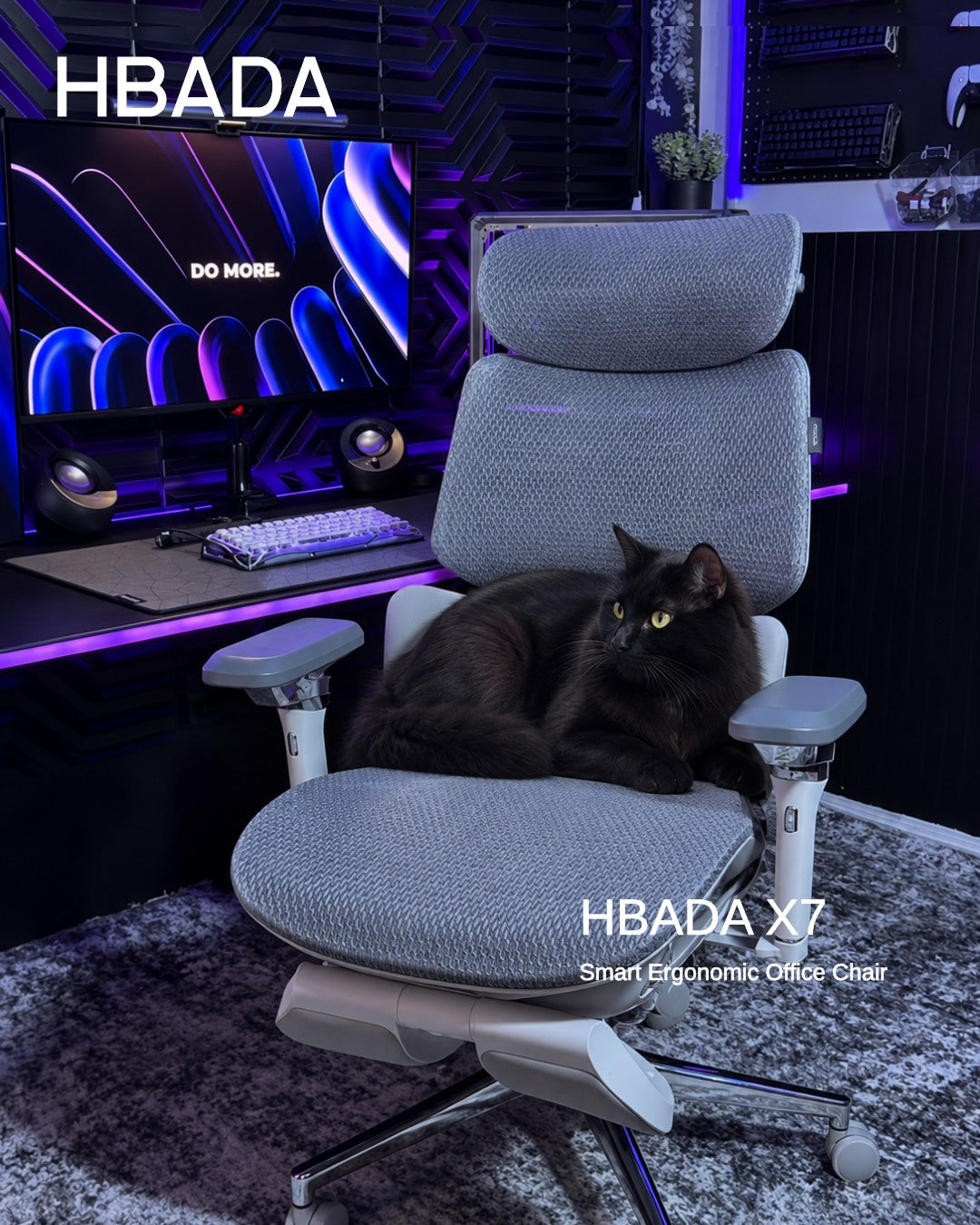 How Often Should You Replace an Ergonomic Office Chair? Seven Warning Signs
Dark reading mode
Still supportive?Or time for a change?
A chair’s age tells only part of its story. Look at how it supports you, whether its adjustments still work and which problems can be repaired before deciding to replace it.
Condition mattersmore than the calendar.
Repair a suitable replaceable part. Replace the chair when safe, reliable support cannot be restored.
How often should you replace an ergonomic office chair? There is no single replacement interval for every chair. Inspect it for lost seat support, sinking height adjustment, structural cracks and failing mechanisms. Repair isolated faults when compatible parts and a safe repair are available. Stop using an unstable or structurally damaged chair until it has been assessed.
In this guide
How long does a chair last?
Seven warning signs
Repair or replace?
Make your chair last longer
HBADA models and durability
When to get help
The takeaway
Frequently asked questions
Sources
How long does an ergonomic office chair last?
A well-maintained chair can remain useful for years, but build quality, hours of use, user load, care and storage conditions all affect how it wears. A lightly used home office chair and a shared chair used across multiple shifts do not experience the same demands.
Treat age as a reason to inspect the chair—not an automatic expiry date. A newer chair with a cracked frame needs attention immediately, while an older chair may remain usable if it is stable, supportive and functioning correctly.
Service life, testing and warranty are different. A design-life target describes intended use. A test result describes performance under specified test conditions. A warranty describes coverage under its terms. None should be treated as a promise that every component will last a fixed number of years.
What are the seven warning signs?
Some changes call for maintenance; others mean you should stop using the chair. The next step depends on the cause, the affected part and whether support can be restored.
Seven signs to investigate before your next workday
Warning sign
What to check
Repair or replace?
1. Sagging cushion or stretched mesh
The seat no longer supports you evenly, even after adjustment.
Ask about a replacement seat or mesh assembly. Replace the chair if support cannot be restored.
2. The seat keeps sinking
The height control may be engaging unintentionally, or the cylinder may be worn.
Have the fault diagnosed. A compatible cylinder may solve it without replacing the whole chair.
3. A cracked base or structural instability
Look for cracks, deformation or movement at load-bearing connections.
Stop using it. Seek an approved structural repair or replacement part; replace the chair if this is not feasible.
4. Broken lumbar support or backrest
The support no longer holds its intended position or attachment.
Request service or a compatible assembly. Do not continue using a loose or damaged backrest.
5. An unreliable recline or tilt lock
The backrest releases unexpectedly or cannot hold a selected position.
Stop using the chair until assessed. Service the mechanism or replace the chair.
6. Broken casters or armrests
Check the damaged part, its mounting point and compatible replacements.
Replace the part if the rest of the chair is sound. Do not assume universal parts will fit.
7. Persistent squeaks, wobbling or new discomfort
Check fasteners, fit, wear and the rest of the workstation.
Investigate first. Noise alone does not prove the chair is worn out; unresolved instability needs professional assessment.
Lost support is a reason to act
When a seat sags or a backrest no longer supports you, repeated adjustment may not solve the problem. Check whether the affected assembly can be replaced before discarding an otherwise sound chair.
Structural damage is different from cosmetic wear
A scuffed finish is not the same as a cracked base. Unexpected movement, a damaged load-bearing component or a failing tilt mechanism should not be ignored.
OSHA’s workstation checklist includes a sturdy five-leg chair base and sufficient adjustability. It does not prescribe a universal replacement age. Review the checklist.
Should you repair or replace?
Not every fault calls for a new chair. A worn caster or faulty cylinder may be repairable when the frame, seat and other mechanisms remain in good condition.
Repair when…
The fault is isolated and clearly identified.
The rest of the chair is structurally sound.
A manufacturer-approved compatible part is available.
The total repair cost is reasonable.
Replace when…
Structural damage cannot be safely repaired.
Several major assemblies are worn out.
Suitable parts are unavailable.
A repair cannot restore stable, comfortable use.
Compare the full repair cost—including parts, shipping and labor—with a suitable replacement. A low-cost part is not good value if it does not fit or leaves another serious fault unresolved.
Check coverage before dismantling. Read the HBADA US warranty and service information and contact support with your order details, model number and clear photos of the issue.
Gas lift cylinders are sealed pressure components. Do not open, drill, heat or attempt to refill one. Follow model-specific replacement instructions or seek qualified assistance.
How do you make a chair last longer?
Routine care helps identify wear before a small problem becomes a larger one. Follow your model’s instructions rather than applying the same maintenance method to every chair.
Respect the load limit: do not stand on the seat or use armrests and footrests as steps.
Inspect fasteners: check for looseness at the intervals in your manual, without overtightening.
Clean gently: remove dust from mesh and debris from casters using suitable tools and approved cleaning methods.
Address worn parts: request compatible replacements instead of accepting unstable movement.
Protect the materials: avoid prolonged direct sunlight, excessive heat and damp storage.
Watch for changes: investigate new sinking, unusual movement or damage promptly.
HBADA’s US maintenance FAQ recommends checking fasteners every one to three months depending on use. Consult your model instructions for the correct procedure. View the maintenance guide.
Which HBADA chairs should you consider for long-term use?
When replacing a chair, compare support, adjustability, maintenance requirements and after-sales service—not just a lifespan headline.
X7 and E3 Pro 2026: what to evaluate
Consideration
HBADA X7
E3 Pro 2026
Support approach
Powered automatic lumbar tracking
Mechanical three-zone adaptive lumbar support
Published durability information
The US listing describes an intended 10-year service life, subject to usage and care.
The US listing reports 120,000 recline, gas lift and rotation test cycles.
Ownership checks
Ask about structural parts, powered components and battery support.
Ask about the mesh seat, lumbar assembly and mechanical parts.
Warranty
Confirm coverage for your model, component and purchase.
Confirm coverage for your model, component and purchase.
These are manufacturer-published product details, not an independent prediction of your chair’s lifespan. Test cycles should not be converted directly into years of use.
HBADA X7
Consider X7 if you want powered lumbar tracking alongside massage, heating and ventilation.
Explore X7 →
HBADA E3 Pro 2026
Consider E3 Pro 2026 if you prefer mechanical adjustment, adaptive lumbar support and breathable mesh.
Explore E3 Pro 2026 →
Limitations and when to get help
A visual check cannot confirm every internal component is sound.
Use the correct manual and parts for your exact model.
Do not force a jammed mechanism or improvise a structural repair.
New discomfort may involve desk setup, habits or health—not only chair wear.
Seek qualified healthcare advice for persistent, severe or radiating pain.
The takeaway: inspect first, then decide
Replace an ergonomic office chair when safe, reliable support cannot be restored—not simply because it has reached a birthday. Repair suitable individual parts, keep up with maintenance and act promptly on structural damage or failing mechanisms.
Start with the seven warning signs, check your warranty and ask about compatible parts before buying a replacement.
Frequently asked questions
How often should you replace an office chair?
There is no fixed interval for every chair. Assess stability, seat support, adjustment function and repair options. Replace it when damage or wear cannot be safely and reasonably resolved.
Is it worth repairing an office chair?
Often, if one replaceable component has failed and the rest of the chair is sound. Confirm compatibility and compare the complete repair cost with replacement. Do not assume a part labeled universal fits your chair.
Does stretched mesh mean I need a new chair?
Not necessarily. Ask whether the seat or mesh assembly can be replaced. If it cannot, or other major parts are also worn, replacing the chair may be more practical.
Should I replace a chair that keeps sinking?
Have the height control and cylinder checked first. A suitable replacement cylinder may restore the chair. Repeated sinking requires diagnosis rather than automatically discarding it or repeatedly fitting parts.
Does an old office chair cause back pain?
Lost support or poor fit may contribute to discomfort, but age alone does not identify the cause of pain. Review your setup and seek medical advice for persistent or severe symptoms.
Does a five-year warranty mean a chair lasts five years?
No. Warranty duration and useful lifespan are different. Coverage depends on the product, component and terms. A chair may remain usable after coverage ends, while a covered fault may occur earlier.
Sources
OSHA — Workstation Evaluation Checklist
HBADA US — Assembly, Maintenance and Troubleshooting
HBADA US — Warranty and Service
HBADA US — X7
HBADA US — E3 Pro 2026
Sep 29, 2026
How Often Should You Replace an Ergonomic Office Chair? Seven Warning Signs
Dark reading mode
Still supportive?Or time for a change?
A chair’s age tells only part of its story. Look at how it supports you, whether its adjustments still work and which problems can be repaired before deciding to replace it.
Condition mattersmore than the calendar.
Repair a suitable replaceable part. Replace the chair when safe, reliable support cannot be restored.
How often should you replace an ergonomic office chair? There is no single replacement interval for every chair. Inspect it for lost seat support, sinking height adjustment, structural cracks and failing mechanisms. Repair isolated faults when compatible parts and a safe repair are available. Stop using an unstable or structurally damaged chair until it has been assessed.
In this guide
How long does a chair last?
Seven warning signs
Repair or replace?
Make your chair last longer
HBADA models and durability
When to get help
The takeaway
Frequently asked questions
Sources
How long does an ergonomic office chair last?
A well-maintained chair can remain useful for years, but build quality, hours of use, user load, care and storage conditions all affect how it wears. A lightly used home office chair and a shared chair used across multiple shifts do not experience the same demands.
Treat age as a reason to inspect the chair—not an automatic expiry date. A newer chair with a cracked frame needs attention immediately, while an older chair may remain usable if it is stable, supportive and functioning correctly.
Service life, testing and warranty are different. A design-life target describes intended use. A test result describes performance under specified test conditions. A warranty describes coverage under its terms. None should be treated as a promise that every component will last a fixed number of years.
What are the seven warning signs?
Some changes call for maintenance; others mean you should stop using the chair. The next step depends on the cause, the affected part and whether support can be restored.
Seven signs to investigate before your next workday
Warning sign
What to check
Repair or replace?
1. Sagging cushion or stretched mesh
The seat no longer supports you evenly, even after adjustment.
Ask about a replacement seat or mesh assembly. Replace the chair if support cannot be restored.
2. The seat keeps sinking
The height control may be engaging unintentionally, or the cylinder may be worn.
Have the fault diagnosed. A compatible cylinder may solve it without replacing the whole chair.
3. A cracked base or structural instability
Look for cracks, deformation or movement at load-bearing connections.
Stop using it. Seek an approved structural repair or replacement part; replace the chair if this is not feasible.
4. Broken lumbar support or backrest
The support no longer holds its intended position or attachment.
Request service or a compatible assembly. Do not continue using a loose or damaged backrest.
5. An unreliable recline or tilt lock
The backrest releases unexpectedly or cannot hold a selected position.
Stop using the chair until assessed. Service the mechanism or replace the chair.
6. Broken casters or armrests
Check the damaged part, its mounting point and compatible replacements.
Replace the part if the rest of the chair is sound. Do not assume universal parts will fit.
7. Persistent squeaks, wobbling or new discomfort
Check fasteners, fit, wear and the rest of the workstation.
Investigate first. Noise alone does not prove the chair is worn out; unresolved instability needs professional assessment.
Lost support is a reason to act
When a seat sags or a backrest no longer supports you, repeated adjustment may not solve the problem. Check whether the affected assembly can be replaced before discarding an otherwise sound chair.
Structural damage is different from cosmetic wear
A scuffed finish is not the same as a cracked base. Unexpected movement, a damaged load-bearing component or a failing tilt mechanism should not be ignored.
OSHA’s workstation checklist includes a sturdy five-leg chair base and sufficient adjustability. It does not prescribe a universal replacement age. Review the checklist.
Should you repair or replace?
Not every fault calls for a new chair. A worn caster or faulty cylinder may be repairable when the frame, seat and other mechanisms remain in good condition.
Repair when…
The fault is isolated and clearly identified.
The rest of the chair is structurally sound.
A manufacturer-approved compatible part is available.
The total repair cost is reasonable.
Replace when…
Structural damage cannot be safely repaired.
Several major assemblies are worn out.
Suitable parts are unavailable.
A repair cannot restore stable, comfortable use.
Compare the full repair cost—including parts, shipping and labor—with a suitable replacement. A low-cost part is not good value if it does not fit or leaves another serious fault unresolved.
Check coverage before dismantling. Read the HBADA US warranty and service information and contact support with your order details, model number and clear photos of the issue.
Gas lift cylinders are sealed pressure components. Do not open, drill, heat or attempt to refill one. Follow model-specific replacement instructions or seek qualified assistance.
How do you make a chair last longer?
Routine care helps identify wear before a small problem becomes a larger one. Follow your model’s instructions rather than applying the same maintenance method to every chair.
Respect the load limit: do not stand on the seat or use armrests and footrests as steps.
Inspect fasteners: check for looseness at the intervals in your manual, without overtightening.
Clean gently: remove dust from mesh and debris from casters using suitable tools and approved cleaning methods.
Address worn parts: request compatible replacements instead of accepting unstable movement.
Protect the materials: avoid prolonged direct sunlight, excessive heat and damp storage.
Watch for changes: investigate new sinking, unusual movement or damage promptly.
HBADA’s US maintenance FAQ recommends checking fasteners every one to three months depending on use. Consult your model instructions for the correct procedure. View the maintenance guide.
Which HBADA chairs should you consider for long-term use?
When replacing a chair, compare support, adjustability, maintenance requirements and after-sales service—not just a lifespan headline.
X7 and E3 Pro 2026: what to evaluate
Consideration
HBADA X7
E3 Pro 2026
Support approach
Powered automatic lumbar tracking
Mechanical three-zone adaptive lumbar support
Published durability information
The US listing describes an intended 10-year service life, subject to usage and care.
The US listing reports 120,000 recline, gas lift and rotation test cycles.
Ownership checks
Ask about structural parts, powered components and battery support.
Ask about the mesh seat, lumbar assembly and mechanical parts.
Warranty
Confirm coverage for your model, component and purchase.
Confirm coverage for your model, component and purchase.
These are manufacturer-published product details, not an independent prediction of your chair’s lifespan. Test cycles should not be converted directly into years of use.
HBADA X7
Consider X7 if you want powered lumbar tracking alongside massage, heating and ventilation.
Explore X7 →
HBADA E3 Pro 2026
Consider E3 Pro 2026 if you prefer mechanical adjustment, adaptive lumbar support and breathable mesh.
Explore E3 Pro 2026 →
Limitations and when to get help
A visual check cannot confirm every internal component is sound.
Use the correct manual and parts for your exact model.
Do not force a jammed mechanism or improvise a structural repair.
New discomfort may involve desk setup, habits or health—not only chair wear.
Seek qualified healthcare advice for persistent, severe or radiating pain.
The takeaway: inspect first, then decide
Replace an ergonomic office chair when safe, reliable support cannot be restored—not simply because it has reached a birthday. Repair suitable individual parts, keep up with maintenance and act promptly on structural damage or failing mechanisms.
Start with the seven warning signs, check your warranty and ask about compatible parts before buying a replacement.
Frequently asked questions
How often should you replace an office chair?
There is no fixed interval for every chair. Assess stability, seat support, adjustment function and repair options. Replace it when damage or wear cannot be safely and reasonably resolved.
Is it worth repairing an office chair?
Often, if one replaceable component has failed and the rest of the chair is sound. Confirm compatibility and compare the complete repair cost with replacement. Do not assume a part labeled universal fits your chair.
Does stretched mesh mean I need a new chair?
Not necessarily. Ask whether the seat or mesh assembly can be replaced. If it cannot, or other major parts are also worn, replacing the chair may be more practical.
Should I replace a chair that keeps sinking?
Have the height control and cylinder checked first. A suitable replacement cylinder may restore the chair. Repeated sinking requires diagnosis rather than automatically discarding it or repeatedly fitting parts.
Does an old office chair cause back pain?
Lost support or poor fit may contribute to discomfort, but age alone does not identify the cause of pain. Review your setup and seek medical advice for persistent or severe symptoms.
Does a five-year warranty mean a chair lasts five years?
No. Warranty duration and useful lifespan are different. Coverage depends on the product, component and terms. A chair may remain usable after coverage ends, while a covered fault may occur earlier.
Sources
OSHA — Workstation Evaluation Checklist
HBADA US — Assembly, Maintenance and Troubleshooting
HBADA US — Warranty and Service
HBADA US — X7
HBADA US — E3 Pro 2026
Sep 29, 2026
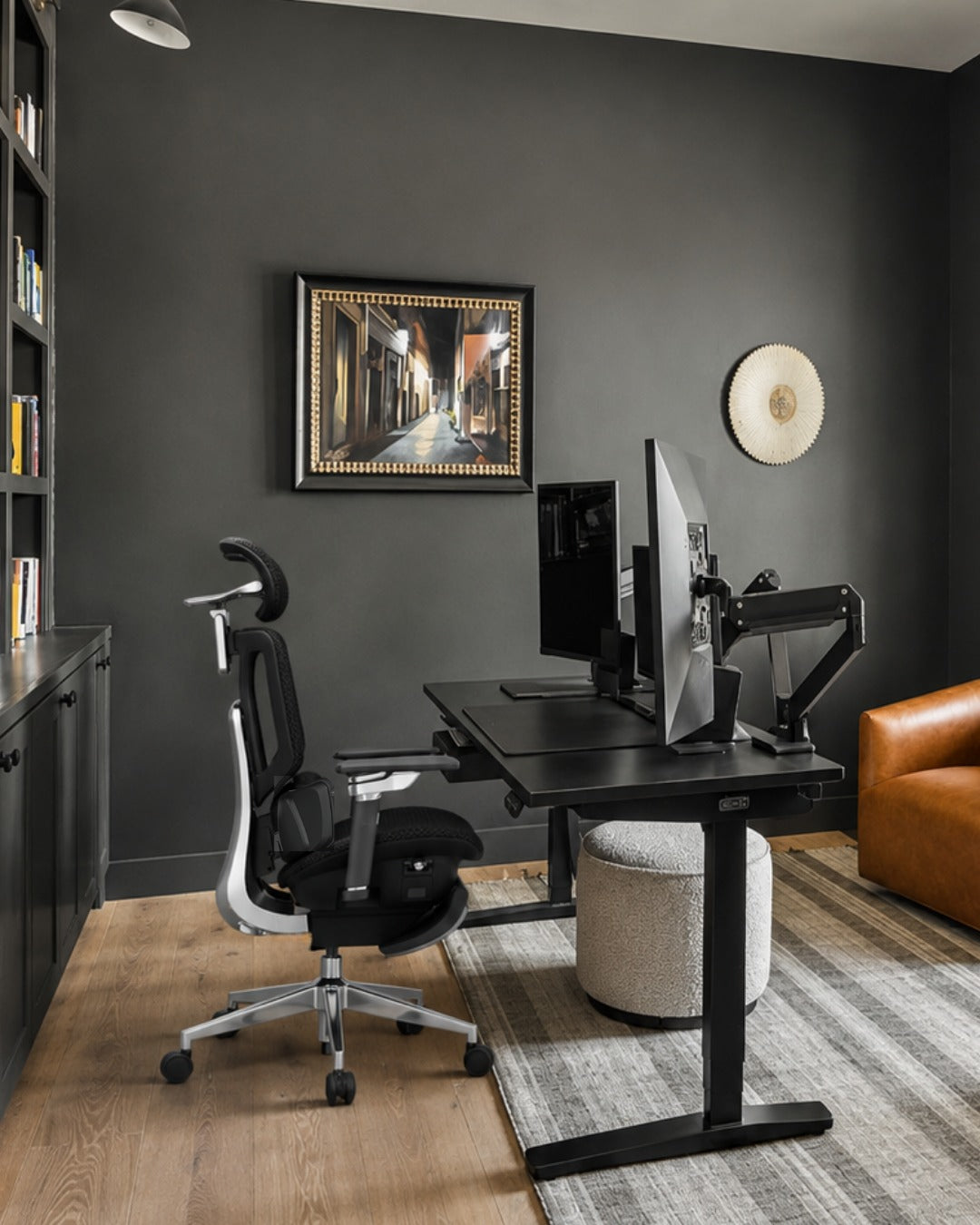 How to Adjust a Shared Ergonomic Office Chair for Hot Desking
Dark reading mode
A shared desk.A setup that is yours.
Someone else’s chair settings do not have to become your working posture. A simple reset helps you make a shared ergonomic office chair fit your body before the day begins.
One routine.Five adjustments.
Seat height
Seat depth
Lumbar support
Armrests
Recline
How do you adjust a shared ergonomic office chair? Start with seat height, then seat depth, lumbar support, armrests and recline. Check the desk and screen afterward. Once you know the controls, aim for a quick one-minute check, taking longer whenever you need to fine-tune the fit.
In this guide
Why reset a shared chair?
The adjustment order
The 60-second reset
What to look for
Shared-chair hygiene
HBADA chair comparison
Limitations
The takeaway
Frequently asked questions
Sources
Why must you reset a shared chair?
A hot-desk chair usually arrives set for whoever used it last. Their legs, back and arms may differ from yours, so the seat, lumbar support and armrests may not be in the right position for you.
Small mismatches can become distracting during a full workday. You might perch on the front edge because the seat is too deep, raise your shoulders to reach the keyboard or sit away from the backrest because the lumbar support is in the wrong place.
Resetting the chair gives you a more useful starting point than adjusting your posture around someone else’s settings. It also gives you a chance to check the rest of the workstation before getting absorbed in work.
Think beyond the seat. OSHA’s computer workstation guidance treats chair adjustment, desk setup and equipment placement as connected parts of the workstation. Explore OSHA’s chair guidance.
What order should you adjust the chair in?
Start with the settings that establish your overall position. Seat height sets your relationship to the desk; seat depth determines how far back you can sit. Then position the lumbar support and armrests around that foundation.
Your reset sequence:Seat height → seat depth → lumbar support → armrests → recline → desk and screen check.
At a height-adjustable desk, set the chair for supported feet and then bring the work surface to a comfortable working height. At a fixed-height desk, you may need to raise the chair to reach the keyboard comfortably and use a separate floor footrest.
Treat the sequence as a practical routine, not a rigid rule. If changing one setting affects another, go back and make a small correction.
The 60-second hot-desking reset
Learn the controls first, then use these five steps as a quick daily routine. The goal is a repeatable setup—not finishing before a timer runs out.
Set the seat height
Sit back and position yourself so you can reach the keyboard without lifting your shoulders. Keep your feet supported on the floor or a stable floor footrest, and check that the seat edge does not press into the backs of your thighs.
Slide the seat to fit your legs
Adjust the seat depth while keeping your back against the backrest. Leave roughly two to three fingers of clearance behind your knees as a starting point, then check that the position feels comfortable.
Position the lumbar support
Move the support toward the curve of your lower back. It should feel supportive rather than push you forward. With automatic tracking, still check the starting position and available support settings.
Bring the armrests to you
Adjust the available height, width or rotation so your forearms can rest without raising your shoulders. Make sure the armrests do not block you from moving close enough to the desk.
Check the recline
Lean back gently and locate the tilt lock. Adjust resistance if the chair has a manual tension control. With an automatic mechanism, check that the movement feels controlled and supportive.
Your final fit check
Adjustment
Aim for
Quick check
Seat height
Comfortable access to the work surface
Feet supported; shoulders relaxed
Seat depth
Thigh support with knee clearance
You can sit back without pressure behind the knees
Lumbar support
Comfortable contact with the lower-back curve
You do not feel pushed toward the seat edge
Armrests
Supported forearms and relaxed shoulders
You can move close to the keyboard
Recline
Controlled, supported movement
You understand the lock and resistance controls
Floor footrest
Foot support when the floor is out of reach
Both feet rest securely without stretching downward
What makes a chair good for hot desking?
A shared chair earns its place when different users can adjust it easily and understand how its controls work. Look beyond the feature count to how practical those adjustments are during a busy workday.
A useful adjustment range: compare seat height, depth and width with the people using the workspace. One chair may not fit everyone.
Clear, accessible controls: users should be able to identify and reach the controls without guessing.
Suitable build and service support: check intended use, maintenance requirements, replacement parts and warranty coverage.
Practical materials: breathable mesh allows airflow, while cleaning suitability depends on the specific materials and care instructions.
Appropriate capacity and dimensions: check both the weight limit and physical fit. Capacity alone does not tell you whether the seat fits.
Make adjustment easy to learn. Keep a short setup card or a link to the chair’s instructions at each shared desk. A clearly labeled control is more useful than a feature nobody knows how to operate.
How do you keep a shared chair hygienic?
Armrests, controls and headrests are common touch points. A consistent cleaning routine helps keep the chair pleasant for the next person.
Follow the chair’s care instructions and your workplace cleaning procedure.
Use a suitable cloth and a cleaner approved for the surface. Do not assume every disinfectant is compatible with mesh, padding or finishes.
Avoid soaking the seat or spraying liquid directly into controls, ventilation openings or electrical components.
Allow cleaned surfaces to dry before the next use.
Report spills, loose parts and damaged controls promptly. Remove an unsafe chair from use.
Breathability and hygiene are separate considerations: mesh allows airflow, but it still needs appropriate care.
Which HBADA chair suits shared desks?
The HBADA X7 and E3 Pro 2026 take different approaches to lumbar support. Compare fit first, then decide whether powered tracking or mechanical adjustment better suits the workspace.
X7 vs. E3 Pro 2026: what matters at a shared desk
Consideration
HBADA X7
E3 Pro 2026
Lumbar approach
Powered automatic lumbar tracking
3-zone adaptive lumbar support with mechanical adjustments
Daily reset
Check seat fit, armrests and preferred tracking settings
Check seat fit, lumbar position and armrests
Seat material
Breathable mesh
Breathable high-elastic mesh
Adjustment preference
For users who want powered lumbar tracking
For users who prefer hands-on mechanical adjustment
Before purchasing
Confirm dimensions, configuration and power requirements
Confirm dimensions and the selected footrest configuration
X7: powered lumbar tracking
Consider the X7 if you want lumbar support that responds automatically to posture changes. Each user should still check seat fit, armrests and preferred support settings.
Explore HBADA X7 →
E3 Pro 2026: mechanical adjustment
Consider the E3 Pro 2026 if you prefer hands-on adjustment with adaptive lumbar support, adjustable armrests and a breathable mesh seat.
Explore E3 Pro 2026 →
Refer to the linked US product listings for current dimensions and configurations. For office-wide purchasing, confirm shared or intensive-use requirements and warranty terms before ordering. Automatic lumbar tracking does not automatically fit the entire chair to a new user.
Limitations and when to get help
A chair reset is one part of setting up a shared workstation. It cannot compensate for every desk, screen or individual fit issue.
Check screen position, keyboard reach and available leg space after adjusting the chair.
If the adjustment range does not fit you, ask for a suitable alternative rather than forcing a position.
Change posture and take movement breaks throughout the day.
Ask for a workstation assessment if you cannot find a comfortable setup.
For severe, persistent or radiating pain, consult a qualified healthcare professional.
The takeaway: make the setup yours
Hot desking works better when you take a moment to adjust the workstation. Start with seat height, then work through depth, lumbar support, armrests and recline. Finish by checking the desk and screen.
Choose powered tracking if that suits your routine, or mechanical adjustment if you prefer a hands-on setup. Either way, learning the controls once makes every future reset more straightforward.
Frequently asked questions
How do you adjust an office chair for your body?
Start with seat height and depth, then position the lumbar support and armrests. Check the recline controls and finish by reviewing the desk and screen. Look for supported feet, relaxed shoulders and comfortable clearance behind your knees.
Is hot desking bad for your back?
Hot desking does not automatically mean an uncomfortable setup. Problems can arise when the chair or workstation does not fit the user or is difficult to adjust. Learn the controls, review your fit and keep movement in your workday.
What should you look for in a shared office chair?
Look for a useful adjustment range, clear controls, suitable dimensions and materials you can maintain according to the care instructions. Check intended use, weight capacity and after-sales support. A single model may not suit every colleague.
How do you know a chair fits after resetting it?
Check that your feet are supported, your thighs rest comfortably and the seat does not press behind your knees. Lumbar support should meet your lower back, and you should reach the keyboard with relaxed shoulders. Reassess comfort as you work.
Should a shared chair have a footrest?
Some users need a separate floor footrest when a fixed desk requires a higher seat position. A retractable chair footrest supports the legs during reclining and serves a different purpose. Choose support according to the working position.
Does automatic lumbar tracking adjust the whole chair?
No. Automatic lumbar tracking responds to posture changes, but it does not replace checking seat height, seat depth, armrests or workstation fit. Each new user should still run through the reset.
Can you really reset a chair in 60 seconds?
A familiar chair can be quick to check, but one minute is a practical target rather than a guarantee. Allow more time when learning a new chair or adjusting an unfamiliar workstation.
Sources
General workstation guidance is based on OSHA’s computer workstation resources. Product information refers to the linked HBADA US listings.
OSHA — Computer Workstations: Chairs
OSHA — Workstation Evaluation Checklist
HBADA US — X7 Smart Ergonomic Chair
HBADA US — E3 Pro Ergonomic Office Chair 2026 Edition
Sep 23, 2026
How to Adjust a Shared Ergonomic Office Chair for Hot Desking
Dark reading mode
A shared desk.A setup that is yours.
Someone else’s chair settings do not have to become your working posture. A simple reset helps you make a shared ergonomic office chair fit your body before the day begins.
One routine.Five adjustments.
Seat height
Seat depth
Lumbar support
Armrests
Recline
How do you adjust a shared ergonomic office chair? Start with seat height, then seat depth, lumbar support, armrests and recline. Check the desk and screen afterward. Once you know the controls, aim for a quick one-minute check, taking longer whenever you need to fine-tune the fit.
In this guide
Why reset a shared chair?
The adjustment order
The 60-second reset
What to look for
Shared-chair hygiene
HBADA chair comparison
Limitations
The takeaway
Frequently asked questions
Sources
Why must you reset a shared chair?
A hot-desk chair usually arrives set for whoever used it last. Their legs, back and arms may differ from yours, so the seat, lumbar support and armrests may not be in the right position for you.
Small mismatches can become distracting during a full workday. You might perch on the front edge because the seat is too deep, raise your shoulders to reach the keyboard or sit away from the backrest because the lumbar support is in the wrong place.
Resetting the chair gives you a more useful starting point than adjusting your posture around someone else’s settings. It also gives you a chance to check the rest of the workstation before getting absorbed in work.
Think beyond the seat. OSHA’s computer workstation guidance treats chair adjustment, desk setup and equipment placement as connected parts of the workstation. Explore OSHA’s chair guidance.
What order should you adjust the chair in?
Start with the settings that establish your overall position. Seat height sets your relationship to the desk; seat depth determines how far back you can sit. Then position the lumbar support and armrests around that foundation.
Your reset sequence:Seat height → seat depth → lumbar support → armrests → recline → desk and screen check.
At a height-adjustable desk, set the chair for supported feet and then bring the work surface to a comfortable working height. At a fixed-height desk, you may need to raise the chair to reach the keyboard comfortably and use a separate floor footrest.
Treat the sequence as a practical routine, not a rigid rule. If changing one setting affects another, go back and make a small correction.
The 60-second hot-desking reset
Learn the controls first, then use these five steps as a quick daily routine. The goal is a repeatable setup—not finishing before a timer runs out.
Set the seat height
Sit back and position yourself so you can reach the keyboard without lifting your shoulders. Keep your feet supported on the floor or a stable floor footrest, and check that the seat edge does not press into the backs of your thighs.
Slide the seat to fit your legs
Adjust the seat depth while keeping your back against the backrest. Leave roughly two to three fingers of clearance behind your knees as a starting point, then check that the position feels comfortable.
Position the lumbar support
Move the support toward the curve of your lower back. It should feel supportive rather than push you forward. With automatic tracking, still check the starting position and available support settings.
Bring the armrests to you
Adjust the available height, width or rotation so your forearms can rest without raising your shoulders. Make sure the armrests do not block you from moving close enough to the desk.
Check the recline
Lean back gently and locate the tilt lock. Adjust resistance if the chair has a manual tension control. With an automatic mechanism, check that the movement feels controlled and supportive.
Your final fit check
Adjustment
Aim for
Quick check
Seat height
Comfortable access to the work surface
Feet supported; shoulders relaxed
Seat depth
Thigh support with knee clearance
You can sit back without pressure behind the knees
Lumbar support
Comfortable contact with the lower-back curve
You do not feel pushed toward the seat edge
Armrests
Supported forearms and relaxed shoulders
You can move close to the keyboard
Recline
Controlled, supported movement
You understand the lock and resistance controls
Floor footrest
Foot support when the floor is out of reach
Both feet rest securely without stretching downward
What makes a chair good for hot desking?
A shared chair earns its place when different users can adjust it easily and understand how its controls work. Look beyond the feature count to how practical those adjustments are during a busy workday.
A useful adjustment range: compare seat height, depth and width with the people using the workspace. One chair may not fit everyone.
Clear, accessible controls: users should be able to identify and reach the controls without guessing.
Suitable build and service support: check intended use, maintenance requirements, replacement parts and warranty coverage.
Practical materials: breathable mesh allows airflow, while cleaning suitability depends on the specific materials and care instructions.
Appropriate capacity and dimensions: check both the weight limit and physical fit. Capacity alone does not tell you whether the seat fits.
Make adjustment easy to learn. Keep a short setup card or a link to the chair’s instructions at each shared desk. A clearly labeled control is more useful than a feature nobody knows how to operate.
How do you keep a shared chair hygienic?
Armrests, controls and headrests are common touch points. A consistent cleaning routine helps keep the chair pleasant for the next person.
Follow the chair’s care instructions and your workplace cleaning procedure.
Use a suitable cloth and a cleaner approved for the surface. Do not assume every disinfectant is compatible with mesh, padding or finishes.
Avoid soaking the seat or spraying liquid directly into controls, ventilation openings or electrical components.
Allow cleaned surfaces to dry before the next use.
Report spills, loose parts and damaged controls promptly. Remove an unsafe chair from use.
Breathability and hygiene are separate considerations: mesh allows airflow, but it still needs appropriate care.
Which HBADA chair suits shared desks?
The HBADA X7 and E3 Pro 2026 take different approaches to lumbar support. Compare fit first, then decide whether powered tracking or mechanical adjustment better suits the workspace.
X7 vs. E3 Pro 2026: what matters at a shared desk
Consideration
HBADA X7
E3 Pro 2026
Lumbar approach
Powered automatic lumbar tracking
3-zone adaptive lumbar support with mechanical adjustments
Daily reset
Check seat fit, armrests and preferred tracking settings
Check seat fit, lumbar position and armrests
Seat material
Breathable mesh
Breathable high-elastic mesh
Adjustment preference
For users who want powered lumbar tracking
For users who prefer hands-on mechanical adjustment
Before purchasing
Confirm dimensions, configuration and power requirements
Confirm dimensions and the selected footrest configuration
X7: powered lumbar tracking
Consider the X7 if you want lumbar support that responds automatically to posture changes. Each user should still check seat fit, armrests and preferred support settings.
Explore HBADA X7 →
E3 Pro 2026: mechanical adjustment
Consider the E3 Pro 2026 if you prefer hands-on adjustment with adaptive lumbar support, adjustable armrests and a breathable mesh seat.
Explore E3 Pro 2026 →
Refer to the linked US product listings for current dimensions and configurations. For office-wide purchasing, confirm shared or intensive-use requirements and warranty terms before ordering. Automatic lumbar tracking does not automatically fit the entire chair to a new user.
Limitations and when to get help
A chair reset is one part of setting up a shared workstation. It cannot compensate for every desk, screen or individual fit issue.
Check screen position, keyboard reach and available leg space after adjusting the chair.
If the adjustment range does not fit you, ask for a suitable alternative rather than forcing a position.
Change posture and take movement breaks throughout the day.
Ask for a workstation assessment if you cannot find a comfortable setup.
For severe, persistent or radiating pain, consult a qualified healthcare professional.
The takeaway: make the setup yours
Hot desking works better when you take a moment to adjust the workstation. Start with seat height, then work through depth, lumbar support, armrests and recline. Finish by checking the desk and screen.
Choose powered tracking if that suits your routine, or mechanical adjustment if you prefer a hands-on setup. Either way, learning the controls once makes every future reset more straightforward.
Frequently asked questions
How do you adjust an office chair for your body?
Start with seat height and depth, then position the lumbar support and armrests. Check the recline controls and finish by reviewing the desk and screen. Look for supported feet, relaxed shoulders and comfortable clearance behind your knees.
Is hot desking bad for your back?
Hot desking does not automatically mean an uncomfortable setup. Problems can arise when the chair or workstation does not fit the user or is difficult to adjust. Learn the controls, review your fit and keep movement in your workday.
What should you look for in a shared office chair?
Look for a useful adjustment range, clear controls, suitable dimensions and materials you can maintain according to the care instructions. Check intended use, weight capacity and after-sales support. A single model may not suit every colleague.
How do you know a chair fits after resetting it?
Check that your feet are supported, your thighs rest comfortably and the seat does not press behind your knees. Lumbar support should meet your lower back, and you should reach the keyboard with relaxed shoulders. Reassess comfort as you work.
Should a shared chair have a footrest?
Some users need a separate floor footrest when a fixed desk requires a higher seat position. A retractable chair footrest supports the legs during reclining and serves a different purpose. Choose support according to the working position.
Does automatic lumbar tracking adjust the whole chair?
No. Automatic lumbar tracking responds to posture changes, but it does not replace checking seat height, seat depth, armrests or workstation fit. Each new user should still run through the reset.
Can you really reset a chair in 60 seconds?
A familiar chair can be quick to check, but one minute is a practical target rather than a guarantee. Allow more time when learning a new chair or adjusting an unfamiliar workstation.
Sources
General workstation guidance is based on OSHA’s computer workstation resources. Product information refers to the linked HBADA US listings.
OSHA — Computer Workstations: Chairs
OSHA — Workstation Evaluation Checklist
HBADA US — X7 Smart Ergonomic Chair
HBADA US — E3 Pro Ergonomic Office Chair 2026 Edition
Sep 23, 2026


