

Blog

HBADA Ergonomics: What Is the Best Backrest Angle for Spinal Support?

HBADA Ergonomics: What Is the Best Backrest Angle for Spinal Support?

Updated August 10, 2026

Ever notice how sitting perfectly upright can become uncomfortable after an hour? The opposite can also happen: you recline too far, slide forward and gradually lose contact with the lumbar support.

These problems are not caused by angle alone. Backrest position, lumbar support, seat depth, desk height and how often you move all affect how a chair feels during a workday. Your backrest should support a comfortable working posture without forcing you to remain rigid.

Quick answer: For many computer-based tasks, a seat-to-backrest angle of approximately 100° to 110° is a useful starting point. It creates a slight recline while keeping the keyboard and monitor within comfortable reach.

However, there is no single perfect angle for every person or task. OSHA also recognizes a reclined neutral posture of approximately 105° to 120° between the torso and thighs. The better approach is to maintain back support, keep the workstation within reach and change positions regularly.

Why Backrest Angle Matters

The human spine has natural curves rather than forming a straight vertical line. An adjustable backrest and properly positioned lumbar support can help maintain these curves while you work.

Sitting fully upright is not automatically harmful, and reclining is not automatically better. Problems are more likely when you remain in one unsupported or awkward position for a prolonged period.

A slight recline allows the backrest to carry part of the upper body's weight. It may also reduce the muscular effort needed to hold the torso upright. The benefit depends on whether your lower back remains supported and whether you can reach the keyboard and view the monitor without leaning forward.

If you frequently slump, lean forward or lose contact with the backrest, review these common unhealthy sitting positions .

What Is the Best Backrest Angle for Spinal Support?

For focused desk work, approximately 100° to 110° is a practical starting range. Cornell University's workstation guidance describes a slightly reclined 100° to 110° posture as preferable to remaining rigidly upright at 90°.

OSHA does not prescribe one mandatory angle for every user. Its workstation guidance recognizes several neutral seated postures and describes reclined sitting as a position in which the torso and neck remain straight while the torso is approximately 105° to 120° from the thighs.

These ranges should be treated as setup guidance rather than medical prescriptions. Your task, desk dimensions, body proportions and chair mechanism can change which position feels best.

Quick Reference: Backrest Angle by Task

Situation Useful Starting Position What to Check
Focused typing or desk work Approximately 100°–110° Keep the keyboard close, shoulders relaxed and lower back in contact with the lumbar support.
General computer work Approximately 105°–120° Confirm that you can see the monitor and reach the input devices without moving your head or torso forward.
Reading or video calls Slightly more reclined than typing posture Support the head and arms while keeping the screen within a comfortable viewing range.
Short recovery breaks Use a deeper supported recline within the chair's rated range Deep recline is generally better suited to resting than keyboard or mouse work.

Do not interpret this table as an instruction to lock the chair at one angle all day. OSHA recommends changing working position frequently, making small chair adjustments and periodically standing or walking.

Does the 90-90-90 Rule Still Apply?

The 90-90-90 rule is commonly used as a simple workstation starting point: elbows, hips and knees are positioned close to right angles. It can help users identify an obviously poor setup, but it should not be treated as a rigid requirement.

In practice, your elbow and knee angles may remain close to 90° while the angle between your torso and thighs opens beyond 90°. This creates a slight recline without forcing you away from the desk.

The more important checks are whether:

  • Your back remains supported by the backrest and lumbar support.
  • Your shoulders stay relaxed rather than raised or rounded forward.
  • Your elbows remain close to your body.
  • Your feet rest on the floor or on a stable footrest.
  • You can reach the keyboard and mouse without leaning forward.
  • The monitor can be viewed without bending your neck.

How to Find Your Personal Best Backrest Angle

Hbada chair assembly guide diagram showing backrest and seat cushion connection.

  1. Start slightly reclined. Begin at approximately 100° rather than forcing yourself into a perfectly vertical position.
  2. Sit fully back in the seat. Your pelvis and lower back should remain in contact with the chair instead of sliding forward.
  3. Position the lumbar support. Place it in the inward curve of your lower back, generally above the belt line.
  4. Adjust a few degrees at a time. Recline gradually while checking whether your back remains supported.
  5. Test the position during real work. Type and use the mouse. If you reach forward or raise your shoulders, move the workstation closer or reduce the recline.
  6. Set the tilt tension. The chair should move with you without pushing you forward or dropping backward too easily.
  7. Continue moving. Alternate between supported upright, slightly reclined and standing positions during the day.

For the rest of the setup process, follow our guide on how to adjust an ergonomic chair .

How Different HBADA Chairs Handle Recline

HBADA models offer broader recline ranges than the angles normally used for typing. This allows users to switch between focused work and supported breaks without treating the maximum recline as the default working position.

HBADA Model Published Maximum Recline Relevant Adjustment
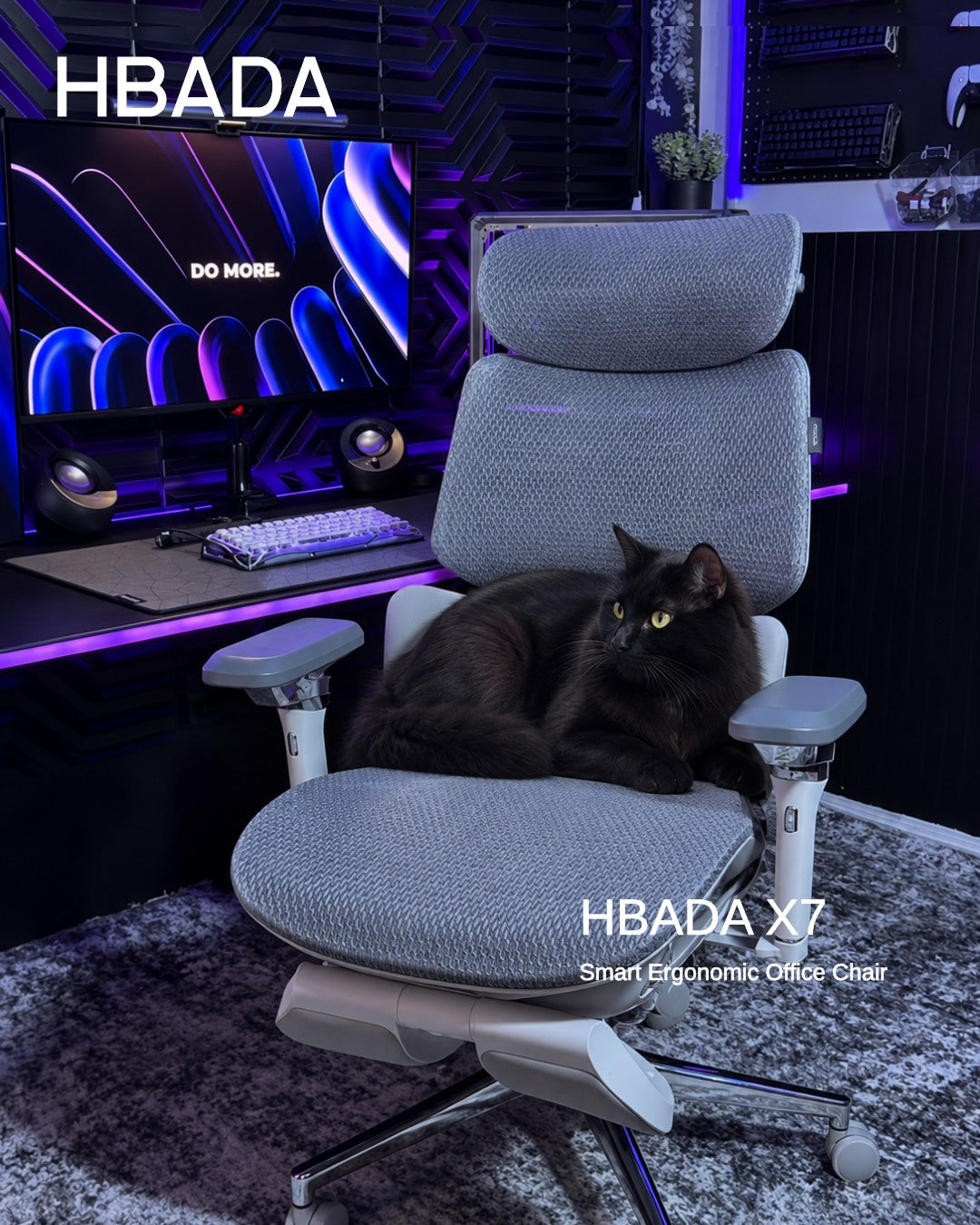
HBADA X7 Smart Ergonomic Chair Up to 140° Multiple working and resting positions with adaptive lumbar support.
HBADA E3 Pro 2026 Edition Up to 140° Four-level tilt with adjustable mechanical lumbar support.

Product specifications, configurations and availability can change by variant or market. Review the current product page before purchasing. Shoppers who want to compare different mechanisms, dimensions and support systems can browse the complete ergonomic office chair collection .

Setting Lumbar Support to Match Your Backrest Angle

Backrest angle and lumbar support should be adjusted together. A suitable recline angle will not help if your lower back loses contact with the support surface.

  1. Sit fully against the backrest at your chosen working angle.
  2. Position the lumbar support so its outward curve fits the inward curve of your lower back.
  3. Increase depth gradually until you feel support without a hard pressure point.
  4. Recline and return upright several times to confirm that the support remains aligned.
  5. Recheck the position after changing seat depth or backrest height.

If the chair feels uncomfortable despite appearing correctly adjusted, review why an ergonomic chair may still hurt your back .

Common Backrest-Angle Mistakes

Remaining rigidly upright

A 90° position is not inherently harmful, but holding any static posture for hours may contribute to fatigue. Allow the chair to support small changes in position.

Using a deep recline for concentrated typing

A deep recline may move you too far from the keyboard and encourage the head, neck and shoulders to reach forward.

Ignoring the workstation

Changing the backrest without repositioning the monitor, keyboard or desk can replace one awkward posture with another.

Using incorrect tilt tension

Excessive resistance can prevent natural movement. Insufficient resistance can make the backrest feel unstable. Adjust the tension for your body weight and preferred movement.

Allowing the lower back to lose contact

Sliding forward may create a gap between the lumbar region and the backrest. Reset your sitting position before changing the angle again.

Searching for one permanent angle

The most supportive working routine normally includes more than one position. Change the angle slightly, stand periodically and take short walking breaks.

Final Thoughts: Start at 100°–110°, Then Adjust

For many desk users, approximately 100° to 110° is a sensible starting range: slightly reclined, fully supported and still close enough to the workstation for focused tasks.

It is not a universal prescription. Your ideal position should let you sit fully against the backrest, maintain lumbar contact and reach your equipment without leaning forward. More importantly, it should allow you to change position instead of remaining fixed all day.

If you are currently comparing models, use our 2026 ergonomic office chair buying guide to evaluate lumbar adjustment, recline, seat dimensions and other fit factors.

Health note: Ergonomic adjustments may improve workstation comfort, but an office chair is not a treatment for back pain or a spinal condition. Seek advice from a qualified healthcare professional if pain is persistent, severe, worsening, follows an injury or is accompanied by weakness, numbness, bladder or bowel changes.

Frequently Asked Questions

What is the best office chair backrest angle?

Approximately 100° to 110° is a useful starting range for many computer tasks. The final position should keep your back supported and your keyboard and monitor within comfortable reach.

Is sitting at 90 degrees bad for your back?

Not necessarily. A 90° posture is not automatically harmful, but remaining rigidly in any position for a long time can contribute to discomfort and fatigue. A slight recline and regular movement may feel more sustainable.

How far should I recline while working?

Begin at approximately 100° to 110°. OSHA also recognizes a reclined neutral posture of about 105° to 120°. Use an angle that lets you work without reaching forward or losing lumbar support.

Is a 140-degree recline suitable for typing?

A 140° recline is generally better suited to a supported rest or stretching break than concentrated keyboard work. Return to a less reclined position when typing or using a mouse.

Should I use one backrest angle all day?

No. Even a well-supported position should not be held rigidly for hours. Make small backrest adjustments, alternate tasks and periodically stand or walk.

Does lumbar support still matter when the backrest is reclined?

Yes. Your lower back should remain supported when you recline. If a gap develops, adjust the lumbar height or depth and confirm that you are sitting fully against the backrest.

Sources and Further Reading

  • U.S. Occupational Safety and Health Administration — Computer Workstations: Good Working Positions
  • U.S. Occupational Safety and Health Administration — Workstation Chairs
  • Cornell University Ergonomics Web — Computer Workstation Ergonomics Guidelines
Relevant Product

You May Also Like

Best HBADA Office Chair for Carpal Tunnel Syndrome: Complete Ergonomic Setup Guide Best HBADA Office Chair for Carpal Tunnel Syndrome: Complete Ergonomic Setup Guide Updated August 2026 If you experience tingling, numbness or wrist discomfort while working at a computer, your chair and workstation setup may be contributing to awkward wrist and arm positions. However, an office chair cannot diagnose, prevent or treat carpal tunnel syndrome. The most useful chair features for wrist comfort are adjustable armrests, an appropriate seat height and reliable back support. Together, these features can help support your forearms, relax your shoulders and keep your hands and wrists closer to a neutral typing position. Quick answer: The HBADA X7 offers the broadest combination of smart lumbar support and multidirectional armrest adjustment. The E3 Pro is a strong mechanical alternative, while the E3 Air provides a simpler adjustable setup. The best choice depends on your desk height, body size, preferred adjustments and budget. Table of Contents What Is Carpal Tunnel Syndrome? What Causes Wrist Strain at a Desk? Why Adjustable Armrests Matter Comparing HBADA Armrest Systems Which HBADA Chair Should You Choose? How to Set Up Your Chair and Desk Additional Wrist-Friendly Work Habits When to Seek Medical Advice Frequently Asked Questions What Is Carpal Tunnel Syndrome? Carpal tunnel syndrome occurs when the median nerve is compressed as it passes through the carpal tunnel in the wrist. Common symptoms can include tingling, numbness, pain, thumb weakness or difficulty gripping objects. These symptoms can have several causes and should not be diagnosed from workstation discomfort alone. A healthcare professional can assess whether your symptoms are caused by carpal tunnel syndrome or another condition. What Causes Wrist Strain at a Desk? A poorly arranged workstation may require you to bend your wrists upward, downward or sideways while typing. Reaching for a keyboard or mouse can also move your elbows away from your body and cause the shoulders to tense. Chair height, desk height, keyboard position and armrest placement work together. Changing only the chair may not solve an uncomfortable setup if the keyboard and mouse remain too high, too far away or poorly positioned. OSHA recommends keeping the hands, wrists and forearms straight, aligned and approximately parallel to the floor. The shoulders should remain relaxed, with the elbows close to the body and generally bent between 90 and 120 degrees. Why Adjustable Armrests Matter Properly adjusted armrests can support part of the forearm without lifting the shoulders or pushing the elbows away from the torso. This may make it easier to keep the keyboard and mouse close while maintaining a neutral wrist position. Useful armrest adjustments include: Height adjustment: Helps align the forearms with the desk and keyboard while allowing the shoulders to remain relaxed. Front-to-back adjustment: Helps support the forearms without forcing you to reach forward. Inward or outward rotation: Helps position the elbows closer to the body when typing or using a mouse. Recline-linked support: Can help maintain arm support when changing sitting positions. Armrests should not prevent the chair from moving close to the desk. If an armrest forces you to reach forward or raise your shoulders, lower it, reposition it or stop using it until the workstation can be adjusted. For more setup guidance, read how to adjust an ergonomic chair for better comfort . Comparing HBADA Armrest Systems HBADA models offer different levels of armrest adjustment. The following comparison is intended to help you evaluate workstation fit. It is not a comparison of medical effectiveness. Model Armrest system Main adjustment benefit Best suited for HBADA X7 720° multidirectional armrest system Broad positioning range for typing, mouse use, reading and reclining Users who want extensive adjustment plus electronic lumbar, heating, ventilation and massage functions HBADA E3 Pro 720° Omni-Mechanical armrests Wide mechanical adjustment range for changing arm and working positions Users who prefer extensive mechanical adjustment without relying on smart electronic support HBADA E3 Air 4D adjustable armrests Practical height, depth and angle adjustment for everyday desk work Users seeking a simpler ergonomic office chair setup Which HBADA Chair Should You Choose? HBADA X7: Most Complete Smart Adjustment System The HBADA X7 Smart Ergonomic Chair combines a 720° armrest system with smart lumbar tracking, adjustable support intensity, heating, ventilation and massage functions. It is the strongest option in this comparison for users who want a highly adjustable chair with smart comfort features. These functions support workstation customization, but they do not treat carpal tunnel syndrome or other medical conditions. HBADA E3 Pro: Extensive Mechanical Adjustment The HBADA E3 Pro Ergonomic Office Chair is a suitable alternative for users who want wide-ranging mechanical armrest and lumbar adjustments without the X7’s electronic functions. Its Omni-Mechanical armrests can be repositioned for different tasks, including keyboard work, mouse use, reading and reclining. HBADA E3 Air: Practical Everyday Adjustability The HBADA E3 Air Ergonomic Office Chair provides 4D adjustable armrests in a simpler configuration. It may be appropriate for users who primarily need height, depth and angle adjustment for everyday desk work. Before choosing, compare the chair’s measurements with your body dimensions, desk height and available workspace. Our ergonomic office chair buying guide explains the other measurements worth checking. How to Set Up Your Chair and Desk Adjust the seat height. Keep your feet supported on the floor or a footrest. Your thighs should feel supported without excessive pressure behind the knees. Move close to the desk. Position the chair so you do not have to lean or reach forward to use the keyboard. Relax your shoulders. Raise or lower the armrests until they lightly support your forearms without lifting your shoulders. Position your elbows. Keep the upper arms close to the torso and the elbows generally between 90 and 120 degrees. Adjust armrest depth. Support the forearms while leaving enough space to move the hands freely. Align the keyboard and mouse. Keep both close enough that you can use them without extending your elbows or reaching forward. Check your wrists. Keep the hands and wrists straight and aligned with the forearms rather than bent upward, downward or sideways. Adjust the backrest. Use the lumbar support to maintain a comfortable upright posture without forcing the lower back into an uncomfortable curve. Recheck every position. Confirm that your shoulders, elbows and wrists remain comfortable after reclining or changing tasks. Setup area What to check Seat height Feet supported and thighs approximately parallel to the floor Shoulders Relaxed rather than raised Elbows Close to the body and generally between 90° and 120° Forearms Supported without pressing against a hard edge Wrists Straight and aligned with the forearms Keyboard and mouse Close enough to use without reaching Backrest Supports a comfortable posture without forcing your position Additional Wrist-Friendly Work Habits Take regular short breaks from repetitive keyboard and mouse use. Change positions instead of holding one posture for long periods. Keep frequently used devices within easy reach. Avoid pressing the wrist or forearm against a hard desk edge. Use a light grip on the mouse and avoid unnecessary force while typing. If you use a palm rest, rest the heel of the palm on it during pauses rather than planting the wrist on it while actively typing. Reassess your workstation whenever you change chairs, desks, keyboards or pointing devices. When to Seek Medical Advice Important: HBADA chairs are consumer furniture, not medical devices. They are not designed to diagnose, prevent, cure or treat carpal tunnel syndrome. Consult a qualified healthcare professional if you experience persistent or worsening pain, numbness, tingling, nighttime symptoms, thumb weakness, difficulty gripping objects or loss of hand function. A clinician may need to determine whether your symptoms are caused by carpal tunnel syndrome or another condition. Appropriate treatment may include activity modification, splinting, therapy, medication or other medical options depending on the diagnosis. Frequently Asked Questions What is the best HBADA chair for wrist comfort? The HBADA X7 provides the broadest combination of multidirectional armrest adjustment and smart lumbar support. The E3 Pro is a strong mechanical alternative, while the E3 Air offers a simpler 4D armrest system. The best choice depends on how well the chair fits your body and desk. Can an office chair treat carpal tunnel syndrome? No. An office chair cannot treat carpal tunnel syndrome. A properly adjusted chair and workstation may help reduce awkward arm and wrist positions, but diagnosed or persistent symptoms require advice from a qualified healthcare professional. Which armrest adjustments are most useful for typing? Height, front-to-back movement and inward rotation are particularly useful. They help support the forearms, keep the elbows close to the body and align the hands with the keyboard. How high should my armrests be? Position the armrests so they lightly support your forearms while your shoulders remain relaxed. Your elbows should generally stay close to your body and between approximately 90 and 120 degrees. Should my wrists rest on the desk while typing? Avoid pressing the wrists against a hard desk edge. While typing, the hands should move freely and remain aligned with the forearms. A palm rest should generally support the heel of the palm during pauses rather than placing pressure directly on the wrist. When should I contact a healthcare professional? Seek professional advice if numbness, tingling or pain is persistent, worsening, affects sleep or is accompanied by weakness, reduced grip or difficulty using the hand. Final Thoughts When evaluating the best office chair setup for carpal tunnel comfort, focus on workstation fit rather than medical promises. Adjustable armrests, correct seat height, relaxed shoulders and a nearby keyboard and mouse can make it easier to maintain a neutral wrist position. The HBADA X7 offers the most complete smart adjustment package, the E3 Pro provides extensive mechanical adjustability, and the E3 Air offers practical everyday arm support. Whichever chair you select, take time to adjust the entire workstation rather than relying on the chair alone. Sources and further reading OSHA: Good Working Positions for Computer Workstations OSHA: Computer Workstation Chair and Armrest Guidance OSHA: Wrist and Palm Support Guidance NHS: Carpal Tunnel Syndrome Does Your Employer Have to Pay for an Ergonomic Chair? Does Your Employer Have to Pay for an Ergonomic Chair? If you regularly work from a dining chair or another temporary setup, you may wonder whether your employer must pay for a proper office chair. The answer depends on federal wage rules, the law of the state where you work, your employer’s expense policy, whether the purchase was authorized or required, and whether the chair is requested as a disability-related accommodation. Quick answer: Does an employer have to pay for an ergonomic chair? Not automatically. Federal law may prevent required business expenses from reducing a nonexempt employee’s pay below applicable minimum-wage or overtime requirements. Some states, including California and Illinois, have broader expense-reimbursement laws. Employers may also offer their own home-office allowances, approved-equipment programs or disability accommodations. Whether a particular chair is covered depends on the applicable law, company policy and facts of the request. Table of Contents The Short Answer What Federal Law Generally Covers How State Reimbursement Laws Can Differ California Expense Reimbursement Illinois Expense Reimbursement Common Employer Reimbursement Policies Required vs. Optional Remote Work When the ADA May Apply What Counts as a Necessary Expense? How to Request Reimbursement How to Request an Accommodation What If the Employer Says No? Key Takeaways Frequently Asked Questions Official Sources The Short Answer There is no single nationwide rule requiring every employer to buy every remote employee an ergonomic office chair. A request may fall under one or more of the following categories: A reimbursement required to comply with federal minimum-wage and overtime rules. A necessary business expense covered by state law. An expense covered by the employer’s written remote-work policy. Equipment provided as a reasonable accommodation under the Americans with Disabilities Act. A voluntary home-office or employee-wellness benefit. A chair is not automatically reimbursable simply because it is more comfortable or marketed as ergonomic. The employee may need to establish that the expense was required, authorized, covered by company policy or connected to an effective disability accommodation. What Federal Law Generally Covers The federal Fair Labor Standards Act does not create a general rule requiring every employer to pay the full cost of an employee’s home-office furniture. However, an employer generally cannot shift required business expenses to an employee when doing so would reduce a covered employee’s wages below the applicable federal minimum wage or interfere with overtime compensation. The U.S. Department of Labor identifies tools, supplies and similar costs used for the employer’s benefit as examples of expenses that may need to be considered when calculating compliance with wage requirements. Important: Federal wage rules are only one part of the analysis. State law or a written company policy may provide broader reimbursement rights. How State Reimbursement Laws Can Differ State expense-reimbursement requirements are not uniform. Some states have statutes addressing necessary employee expenses, while others primarily rely on wage rules, employment agreements or company policies. Even where a state has a reimbursement statute, the law does not necessarily mean that every employee can independently purchase any chair and require the employer to pay the full price. Important questions may include: Did the employer require or authorize the expense? Was the chair reasonably necessary for the employee’s duties? Did the employee follow the written reimbursement policy? Was preapproval required? Did the employer provide suitable equipment or an alternative workplace? Was the requested amount within the employer’s published guidelines? California Expense Reimbursement California Labor Code Section 2802 states that an employer must indemnify an employee for necessary expenditures or losses incurred as a direct consequence of performing job duties or following the employer’s directions. Whether a particular ergonomic chair qualifies as a necessary expenditure depends on the circumstances. The statutory language does not state that every remote employee is automatically entitled to purchase a chair of their choice. Employees should normally review the employer’s expense policy and request approval before making a purchase. Employers may also choose to provide equipment directly rather than reimburse an employee-selected product. Illinois Expense Reimbursement Section 9.5 of the Illinois Wage Payment and Collection Act requires reimbursement for necessary expenditures incurred within the scope of employment and directly related to services performed for the employer. The Illinois statute defines necessary expenditures as reasonable expenses required in the discharge of employment duties and primarily benefiting the employer. The law also states that an employer generally is not liable unless it authorized or required the employee to incur the expense, or failed to comply with its own written expense-reimbursement policy. Illinois employees generally must submit supporting documentation within 30 calendar days, unless the employer’s written policy allows additional time. Employees should therefore check the current policy before purchasing an office chair. Common Employer Reimbursement Policies Even when state law does not clearly require reimbursement for a home-office chair, an employer may provide equipment through its own remote-work, expense or employee-accommodation policy. The exact policy differs by employer. Employees should review the written rules and obtain approval before purchasing a chair. Policy type How it usually works What the employee should confirm Full reimbursement The employer reimburses an approved chair purchase after receiving the required receipt and documentation. Whether approval is required before purchase and whether specific products or suppliers must be used. Fixed home-office allowance The employee receives a maximum amount that may be used for approved home-office equipment. The spending limit, eligible product categories and whether unused funds expire. Partial reimbursement The employer pays up to a stated limit and the employee pays any amount above that limit. Whether a more expensive model is permitted and who owns the chair after purchase. Employer-provided equipment The employer purchases and ships an approved chair directly to the employee. Available models, delivery arrangements and whether the chair must be returned when employment ends. Equipment loan program The employee borrows office equipment owned by the employer for the duration of remote work. Return requirements, responsibility for damage and what happens if the employee changes location. Reasonable-accommodation policy Equipment is considered through the employer’s disability-accommodation process rather than the ordinary expense process. How to begin the interactive process and what functional or medical documentation may be required. Questions to Ask Before Buying a Chair Does the company have a written home-office equipment policy? Is advance approval required? Is there a maximum reimbursement amount? Must the chair meet specific ergonomic or safety requirements? Does the company use approved suppliers or chair models? Who owns the chair after reimbursement? Must the chair be returned when employment or remote work ends? What receipt and reimbursement form must be submitted? What is the submission deadline? Important: Buying a chair before receiving approval may affect reimbursement. A company policy may impose reasonable product specifications, spending limits and documentation requirements, subject to applicable law. Required vs. Optional Remote Work Whether remote work is required or optional can be relevant, but it does not produce an automatic answer in every state. A request may be stronger when the employer requires the employee to work from home and does not provide the equipment reasonably needed to perform the job. When an employee chooses to work from home despite having access to an adequately equipped workplace, the employer may argue that the home-office purchase was optional rather than necessary. The result still depends on applicable state law, the employer’s policy, the employee’s role and the facts surrounding the purchase. When the ADA May Apply A separate process may apply when an employee needs workplace equipment because of a qualifying disability. Under the Americans with Disabilities Act, covered employers may need to provide a reasonable accommodation to a qualified employee with a known disability unless the accommodation would create an undue hardship. Reasonable accommodation may include acquiring or modifying equipment. Depending on the employee’s functional limitations and job, an appropriate chair could be considered as one possible accommodation. This does not mean an employer must automatically purchase a particular HBADA chair or the exact product selected by the employee. The employer and employee should engage in an interactive process to identify an effective accommodation. The employer may select another effective solution. EEOC guidance distinguishes between saying that an existing chair is uncomfortable and explaining that a change is needed because of a medical condition. A request does not need to mention the ADA by name, but it should connect the workplace change to a medical limitation. If appropriate, the employer may request reasonable medical documentation when the disability or need for accommodation is not obvious. Employees comparing adjustment features can review our adjustable ergonomic chair buying guide. The guide can explain product features, but it does not determine whether a particular model is a legally required accommodation. What Counts as a Necessary Expense? The word “necessary” does not always mean “preferred,” “more comfortable” or “the most advanced option available.” Its legal meaning depends on the applicable statute and facts. Factor Why it may matter Employer authorization A policy may require written approval before the employee buys equipment. Required remote work Equipment may be easier to classify as work-related when home working is mandatory. Available alternatives The employer may already provide a chair, office workstation or equipment-loan program. Job requirements The employee may need to explain why the equipment is reasonably connected to performing the job. Written policy The employer may set reasonable specifications, spending limits and documentation requirements. Disability-related need A separate ADA accommodation analysis may apply. A stipend or allowance may satisfy a company policy in some situations, but whether it satisfies a legal reimbursement obligation depends on the actual expense, applicable law and policy terms. Employees should not assume that every stipend is legally sufficient or insufficient. How to Request Ergonomic Chair Reimbursement Before purchasing a chair, follow a documented process: Read the company policy. Check the remote-work, home-office and expense-reimbursement policies. Ask whether preapproval is required. Do not assume that a purchase will be reimbursed after the fact. Explain the work-related need. Describe the current workstation and the functions required to perform the job. Ask about approved products or specifications. The employer may have preferred suppliers, price limits or an equipment-loan program. Keep written records. Save the request, approval, receipt and product information. Submit the expense on time. Follow all deadlines in the policy or applicable state law. Sample reimbursement request Subject: Home-office equipment reimbursement request Hello [Manager or HR name], I am requesting approval for an office chair for my remote workstation. My current setup does not provide the adjustability needed for my regular work duties. Could you confirm whether the company provides approved equipment, an equipment allowance or reimbursement for an authorized purchase? Before purchasing anything, I would like to confirm the approved specifications, spending limit, documentation requirements and reimbursement procedure. Thank you,[Employee name] How to Request a Disability-Related Accommodation An accommodation request is different from an ordinary expense claim. The employee should explain that a change or adjustment is needed at work because of a medical condition or related functional limitation. Sample accommodation request Subject: Request for workplace accommodation Hello [HR or accommodations contact], I am requesting a workplace adjustment because a medical condition affects my ability to use my current workstation and perform my duties. I would like to begin the interactive accommodation process and discuss effective equipment or workstation adjustments. Please let me know what information or documentation is required under the company’s accommodation procedure. Thank you,[Employee name] The employee does not need to diagnose the problem independently or prescribe a specific product. A healthcare professional may describe relevant functional limitations and the type of support or adjustment needed. What If the Employer Says No? First, request the reason in writing and review whether the request was treated as an ordinary reimbursement request or a disability-accommodation request. Depending on the situation, possible next steps may include: Providing missing receipts or documentation. Following the employer’s appeal or escalation process. Discussing a lower-cost or employer-provided alternative. Contacting the relevant state labor agency about state reimbursement rules. Using the employer’s ADA accommodation process. Contacting the EEOC or a qualified employment attorney for disability-related concerns. Deadlines and procedures can differ. Employees should consult an official labor agency or qualified attorney rather than relying solely on a commercial blog when a dispute or significant expense is involved. Key Takeaways Federal law does not create a blanket requirement for every employer to purchase an ergonomic chair for every remote employee. Federal wage rules may apply when required business expenses reduce covered wages below legal minimums. California and Illinois have broader statutes addressing necessary employee expenses. Employers may also provide full reimbursement, a fixed allowance, approved equipment or an equipment-loan program. A chair is not automatically reimbursable simply because it is described as ergonomic. Employees should obtain authorization and review company policy before purchasing equipment. A disability-related request should be handled through the reasonable-accommodation process. The employer may select an effective alternative rather than the employee’s preferred chair model. Frequently Asked Questions Is ergonomic chair reimbursement required everywhere in the United States? No. There is no single nationwide rule requiring every employer to reimburse every remote employee for an ergonomic chair. Federal wage requirements, state law, company policy and disability-accommodation rules may produce different results. Do companies have their own ergonomic chair reimbursement policies? Yes. Some employers provide full reimbursement, a fixed home-office allowance, partial reimbursement, approved equipment or an equipment-loan program. Employees should check the written policy and obtain approval before making a purchase. Does an employer have to pay for a chair when remote work is optional? Not necessarily. If an adequately equipped workplace is available and the employee chooses to work from home, the employer may argue that a separate home-office chair was not a required expense. Applicable state law and company policy still need to be checked. Can an ergonomic chair be requested under the ADA? It may be considered as one possible reasonable accommodation when a qualified employee needs workplace equipment because of a known disability. The request is assessed individually, and the employer may provide another effective accommodation. Does a doctor’s note guarantee that the employer must buy a specific chair? No. Medical documentation may help establish the functional limitation and need for an accommodation, but it does not necessarily require the employer to purchase the employee’s preferred brand or model. Can an employer require preapproval? Often, yes. A written expense policy may require authorization, impose reasonable product specifications, set spending limits and establish submission deadlines. The validity and effect of those rules depend on applicable law. What documents should an employee keep? Keep the written request, approval or denial, expense policy, product information, receipt and reimbursement submission. For an accommodation request, retain correspondence about the interactive process and any documentation requested by the employer. Does the employee’s work location matter? It can. Employment protections often depend on where the employee performs the work, but jurisdiction questions can be complex for remote and multistate employment. Confirm the applicable rules with the relevant agency or a qualified attorney. Official Sources California Legislative Information: California Labor Code Section 2802 Illinois General Assembly: 820 ILCS 115/9.5 — Reimbursement of Employee Expenses U.S. Department of Labor: Fact Sheet #16 — Deductions From Wages U.S. Equal Employment Opportunity Commission: Reasonable Accommodation and Undue Hardship Under the ADA U.S. Equal Employment Opportunity Commission: Disability-Related Inquiries and Medical Examinations Legal disclaimer: This article provides general educational information and is not legal advice. Employment law, wage rules, accommodation requirements and filing deadlines vary according to jurisdiction and individual circumstances. Laws and official guidance may change. Consult the relevant government agency or a qualified employment attorney regarding a specific situation. HBADA does not determine whether a product is a necessary business expense or legally required accommodation. HBADA Ergonomics Guide: How to Prevent Musculoskeletal Disorders at Work HBADA Ergonomics Guide: How to Prevent Musculoskeletal Disorders at Work Neck discomfort by mid-afternoon, lower-back stiffness when standing up, and tired wrists after a long day at a computer can all indicate that a workstation needs attention. These symptoms do not automatically mean that someone has a musculoskeletal disorder, but they should not be ignored. This guide explains how office ergonomics, workstation adjustment and regular movement may help reduce common risk factors associated with work-related musculoskeletal disorders. It also explains the role an ergonomic office chair can play as part of a properly adjusted workstation. Quick answer: How can office workers reduce MSD risk? Adjust the chair so the feet and lower back are supported, position the monitor at or slightly below eye level, keep the keyboard and mouse close enough to maintain neutral wrists, and interrupt prolonged sitting with regular posture changes or short movement breaks. No chair can guarantee the prevention of a musculoskeletal disorder, but a properly fitted workstation can help reduce avoidable ergonomic risk factors. Table of Contents What Is a Musculoskeletal Disorder? How Common Are MSD Symptoms Among Office Workers? What Causes MSD Risk in Desk-Based Work? How to Reduce Musculoskeletal Risk at Work 1. Adjust Your Chair 2. Position the Monitor Correctly 3. Change Posture and Take Movement Breaks 4. Adjust the Keyboard and Mouse 5. Respond to Early Symptoms MSD Risk Factors and Practical Adjustments How an Ergonomic Office Chair Can Help Office Workstation Checklist When to Seek Professional Advice Key Takeaways Frequently Asked Questions References What Is a Musculoskeletal Disorder? Musculoskeletal disorders, commonly called MSDs, affect structures such as muscles, nerves, tendons, ligaments, joints, cartilage and spinal discs. Work-related musculoskeletal disorders are conditions that may be caused or aggravated by workplace activities and working conditions. In an office environment, possible symptoms may include back discomfort, neck stiffness, shoulder tension, wrist strain, tingling or repetitive strain symptoms. However, these symptoms can have different causes and should not be self-diagnosed as an MSD. Unlike an obvious accident, some work-related symptoms can develop gradually. Repeated movements, awkward positions and long periods spent in one posture may expose the body to small but recurring stresses. The CDC’s National Institute for Occupational Safety and Health identifies sustained force, repetitive movement and awkward posture among the factors associated with work-related musculoskeletal disorders. How Common Are MSD Symptoms Among Office Workers? A 2025 cross-sectional study published in Scientific Reports examined musculoskeletal symptoms and ergonomic risk factors among a specific group of office workers. The researchers reported work-related musculoskeletal symptoms in 80.81% of the study cohort. The most frequently reported areas in that study were the neck at 58.6%, the lower back at 52.5%, and the shoulders at 37.4%. The study also identified relationships between workstation conditions, including chair height scores, and symptoms in several body regions. Important context: These percentages describe the participants in one study. They should not be interpreted as the universal prevalence of musculoskeletal disorders among all office workers. The research was observational and shows associations rather than proving that a particular chair setting directly caused or prevented pain. What Causes MSD Risk in Desk-Based Work? Office work does not usually involve the same physical demands as lifting or industrial work. However, desk-based work can still include several ergonomic risk factors. Prolonged static posture Remaining in the same seated position for an extended period can keep the same muscles and joints under continuous low-level demand. Even a comfortable posture should be changed periodically. Repetitive movements Repeated typing, clicking and scrolling may contribute to hand, wrist or forearm discomfort, particularly when the workstation requires awkward wrist angles or unnecessary reaching. Poorly adjusted furniture If the seat is too high, the feet may not be adequately supported. If it is too low, the knees and hips may be placed in an uncomfortable position. Armrests that are too high may raise the shoulders, while armrests that are too low may provide little useful support. Incorrect monitor position A screen that is too high, too low or positioned to one side may encourage prolonged neck bending or twisting. Laptop-only setups can make this especially difficult because the keyboard and screen cannot be positioned independently. Psychosocial and organizational factors Workload, limited control over tasks, insufficient recovery time and other psychosocial factors may also affect reported musculoskeletal symptoms. Effective prevention therefore involves more than buying equipment. It may also require participation from managers and employees. How to Reduce Musculoskeletal Risk at Work There is no single workstation position that is ideal for every person. The goal is to create an adjustable setup that supports neutral positions, fits the user and makes regular posture changes possible. 1. Adjust Your Chair Start by adjusting the seat height so the feet are fully supported by the floor. If the desk requires a higher seat position, use a stable footrest rather than leaving the feet unsupported. The thighs should be supported without excessive pressure behind the knees. Leave a small amount of space between the front edge of the seat and the backs of the knees. Adjust the lumbar support so it contacts the lower-back area comfortably without forcing an exaggerated curve. Armrests should allow the shoulders to remain relaxed. They should not push the shoulders upward or prevent the chair from moving close enough to the desk. For a more detailed walkthrough, see our guide explaining how to adjust an ergonomic chair for better comfort . 2. Position the Monitor Correctly Place the monitor directly in front of the user. OSHA generally recommends positioning the top of the monitor at or slightly below eye level. The screen should be far enough away to read comfortably without leaning forward. People who wear bifocals or use unusually large screens may need a different monitor height to maintain a comfortable head and neck position. For regular laptop use, consider a laptop stand or external monitor combined with an external keyboard and mouse. This allows the screen and input devices to be positioned separately. 3. Change Posture and Take Movement Breaks An adjustable chair cannot replace movement. Change posture regularly and avoid remaining completely still for several hours. Short movement breaks, standing tasks or brief walks can interrupt prolonged static sitting. The CDC notes that research has found short breaks every hour can help reduce discomfort among people who work with computers. The most practical schedule may vary according to the person, job and medical circumstances. Employers should also consider task rotation, workload design and reasonable opportunities for breaks rather than placing the entire responsibility on the employee. 4. Adjust the Keyboard and Mouse Keep the keyboard and mouse close enough that the elbows can stay near the body. The hands, wrists and forearms should remain approximately aligned rather than bending sharply upward, downward or sideways. Avoid placing the mouse far to one side. Reaching repeatedly for a distant mouse can increase shoulder and arm movement. Adjust pointer sensitivity if the mouse requires unnecessary gripping or effort to control. 5. Respond to Early Symptoms Occasional stiffness can be a prompt to review chair adjustment, screen position, working habits and break frequency. Do not assume that every symptom is caused by posture or office furniture. Persistent pain, worsening symptoms, numbness, tingling, weakness or loss of function should be discussed with a qualified healthcare professional. Workstation changes are not a substitute for diagnosis or treatment. MSD Risk Factors and Practical Adjustments Risk factor Possible sign Practical adjustment Poor seat-height or lumbar adjustment Lower-back, leg or shoulder discomfort Adjust the seat height, support the feet and position the lumbar support comfortably. Monitor positioned too high or too low Neck fatigue or repeated head tilting Place the monitor directly in front of the user with the top at or slightly below eye level. Prolonged sitting without posture changes General stiffness or fatigue Change position regularly and take short movement breaks when the work allows. Awkward keyboard or mouse position Wrist, forearm or shoulder discomfort Keep the input devices close and maintain neutral wrist alignment. Unsupported feet Pressure behind the thighs or unstable sitting Lower the chair when possible or use a stable, correctly positioned footrest. High workload or insufficient recovery time Muscle tension and persistent discomfort Review workload, break opportunities and organizational support with the employer. How an Ergonomic Office Chair Can Help An ergonomic office chair is most useful when its adjustments allow the seat to fit the person and the desk. Important features may include adjustable seat height, lumbar support, seat depth, armrest position and recline resistance. These features do not automatically make a chair suitable for everyone. Seat dimensions, adjustment ranges and the user’s height, weight and preferred working posture should all be considered. A chair also needs to work with the rest of the workstation. For example, raising a chair to match a high desk may require a footrest. Deep armrests may prevent the user from moving close enough to the keyboard. A headrest may be useful during reclined sitting but is not necessarily required for every user. Our adjustable ergonomic chair buying guide explains how to compare chair dimensions and adjustment features according to body size and working style. If an existing chair feels uncomfortable, review its adjustments before replacing it. Our office chair adjustment and troubleshooting guide covers several practical checks. Office Workstation Checklist Are both feet supported by the floor or a stable footrest? Is the lower back comfortably supported? Is there space between the seat edge and the backs of the knees? Can the shoulders remain relaxed while using the armrests? Is the monitor positioned directly in front of the user? Is the top of the screen at or slightly below eye level? Are the keyboard and mouse close enough to avoid reaching? Can the wrists stay aligned with the forearms? Can the user change posture during the working day? Are short movement breaks possible? A “no” answer does not establish that the workstation caused an injury, but it can identify an area worth reviewing. When to Seek Professional Advice Ergonomic adjustments may help address avoidable workstation problems, but they cannot diagnose or treat a medical condition. Consider seeking advice from a qualified doctor, physical therapist, occupational health professional or certified ergonomics specialist when: Pain persists or continues to worsen. Symptoms interfere with sleep or normal daily activities. Numbness, tingling or weakness develops. There is a noticeable loss of movement or function. Symptoms followed an accident or sudden injury. Workstation adjustments do not improve the situation. Employees should also report work-related symptoms according to their employer’s occupational health and safety procedures. Key Takeaways Work-related musculoskeletal disorders can involve muscles, tendons, nerves, joints and spinal structures. Office risk factors may include static posture, repetitive movement, awkward workstation positions and psychosocial stress. Adjust the chair, monitor, keyboard and mouse as one connected workstation. Maintain neutral positions, but do not remain in one posture all day. An adjustable ergonomic office chair may help reduce workstation-related risk factors when correctly fitted. No chair can guarantee the prevention or treatment of a musculoskeletal disorder. Persistent, worsening or neurological symptoms require professional assessment. Frequently Asked Questions What is the best way to reduce musculoskeletal disorder risk at a desk job? Begin by adjusting the entire workstation. Support the feet and lower back, position the monitor at a comfortable height, keep the keyboard and mouse close, and change posture regularly. There is no single chair adjustment or posture that guarantees MSD prevention. How common are MSD symptoms among office workers? A 2025 study reported work-related musculoskeletal symptoms in 80.81% of its surveyed office-worker cohort. The neck, lower back and shoulders were the most frequently reported areas. This percentage relates to that specific study population and should not be treated as a universal rate. Can an ergonomic office chair prevent musculoskeletal disorders? An ergonomic office chair cannot guarantee prevention. A properly fitted, adjustable chair may help reduce risk factors such as unsupported sitting, unsuitable seat height and awkward arm positioning. Movement, workstation design and work organization are also important. How should an office chair be adjusted? Adjust the chair so the feet are supported, the thighs are comfortable, the lumbar support contacts the lower back and the shoulders remain relaxed. The exact settings depend on the user’s body dimensions and desk height. How often should office workers take movement breaks? Short breaks or posture changes should be taken regularly rather than waiting until discomfort becomes severe. CDC office-safety guidance notes that studies have found short breaks every hour can reduce discomfort for computer workers. Individual requirements and workplace conditions may differ. Are MSDs only associated with heavy physical work? No. Repetitive movements, sustained positions, awkward posture and psychosocial factors can also be relevant in desk-based work. However, the level and type of risk differ between occupations. When should someone see a doctor about office-related pain? Seek qualified medical advice if pain persists, worsens, interferes with daily activity or is accompanied by numbness, tingling, weakness or loss of function. Do not rely only on buying a new chair or changing posture. References CDC/NIOSH: About Ergonomics and Work-Related Musculoskeletal Disorders OSHA: Computer Workstations — Good Working Positions OSHA: Computer Workstations — Monitors CDC/NIOSH: Office Environments and Your Safety Scientific Reports: Musculoskeletal disorders among office workers: prevalence, ergonomic risk factors, and their interrelationships Medical disclaimer: This article provides general ergonomic information and is not medical advice. An ergonomic chair or workstation adjustment cannot diagnose, treat or guarantee the prevention of a musculoskeletal disorder. Consult a qualified healthcare professional if symptoms persist, worsen or include numbness, weakness or loss of function.