
Blog

Best HBADA Office Chair for Carpal Tunnel Syndrome: Complete Ergonomic Setup Guide

Best HBADA Office Chair for Carpal Tunnel Syndrome: Complete Ergonomic Setup Guide

Updated August 2026

If you experience tingling, numbness or wrist discomfort while working at a computer, your chair and workstation setup may be contributing to awkward wrist and arm positions. However, an office chair cannot diagnose, prevent or treat carpal tunnel syndrome.

The most useful chair features for wrist comfort are adjustable armrests, an appropriate seat height and reliable back support. Together, these features can help support your forearms, relax your shoulders and keep your hands and wrists closer to a neutral typing position.

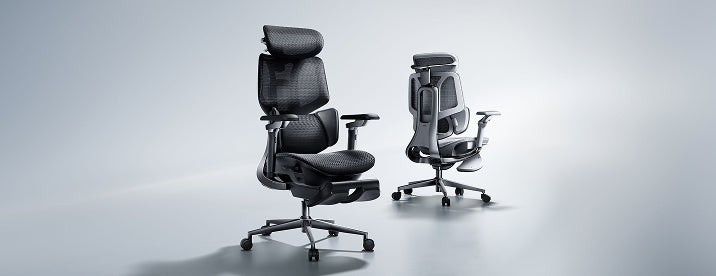
Quick answer: The HBADA X7 offers the broadest combination of smart lumbar support and multidirectional armrest adjustment. The E3 Pro is a strong mechanical alternative, while the E3 Air provides a simpler adjustable setup. The best choice depends on your desk height, body size, preferred adjustments and budget.

What Is Carpal Tunnel Syndrome?

Carpal tunnel syndrome occurs when the median nerve is compressed as it passes through the carpal tunnel in the wrist. Common symptoms can include tingling, numbness, pain, thumb weakness or difficulty gripping objects.

These symptoms can have several causes and should not be diagnosed from workstation discomfort alone. A healthcare professional can assess whether your symptoms are caused by carpal tunnel syndrome or another condition.

What Causes Wrist Strain at a Desk?

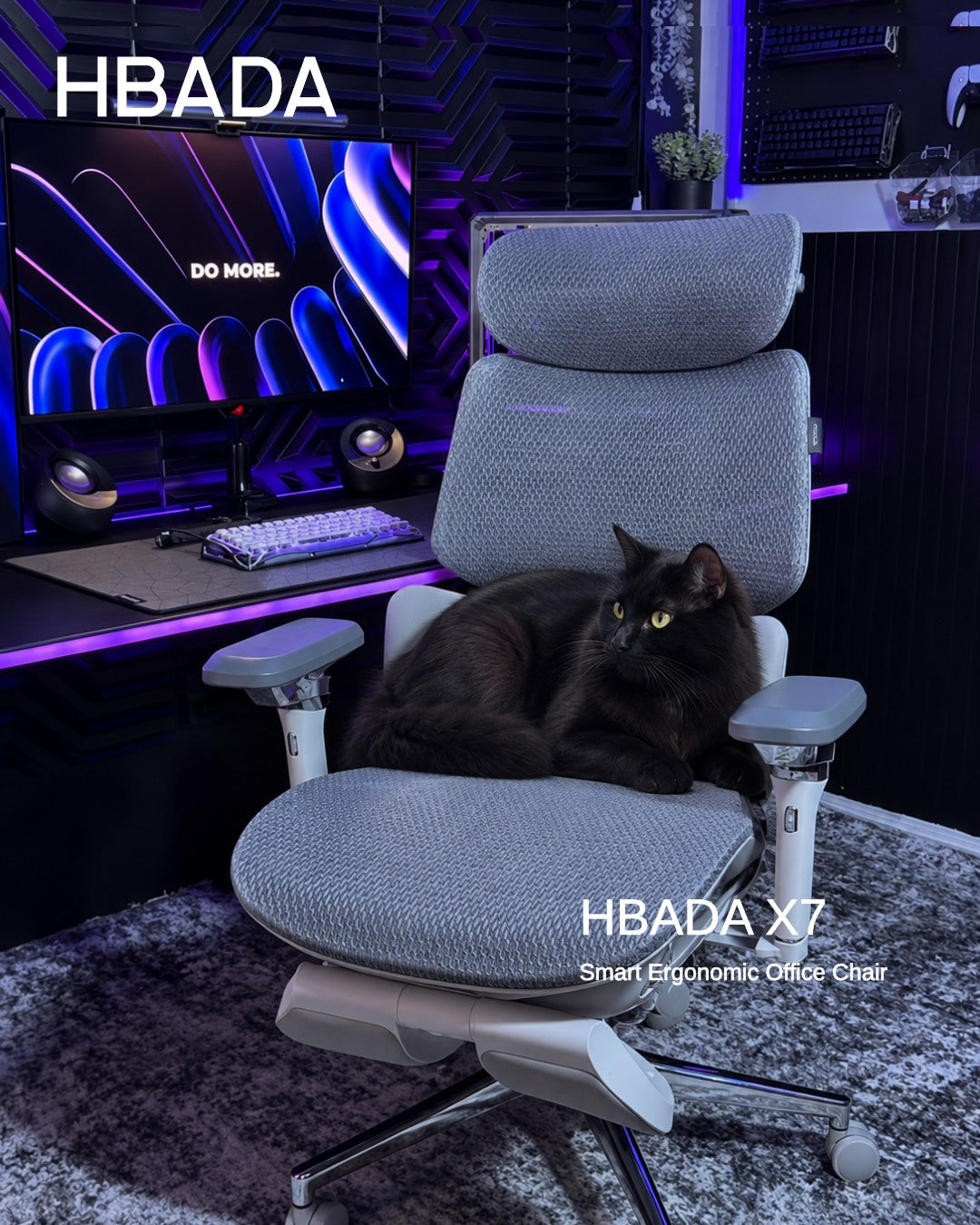
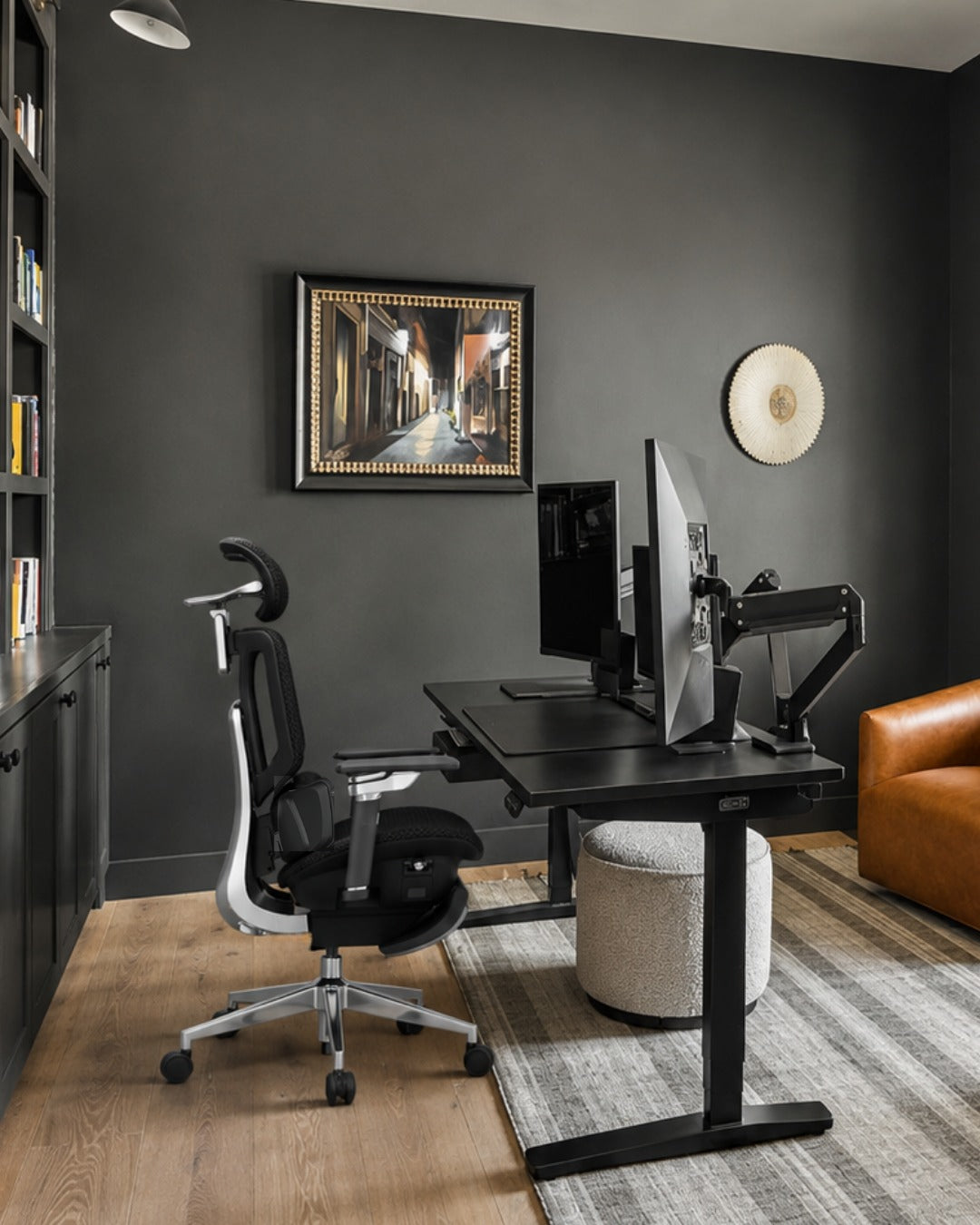
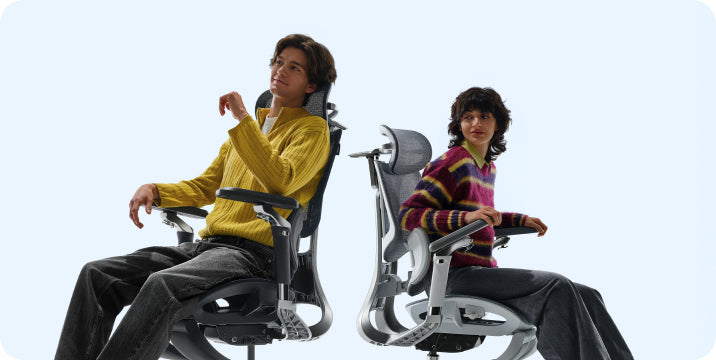
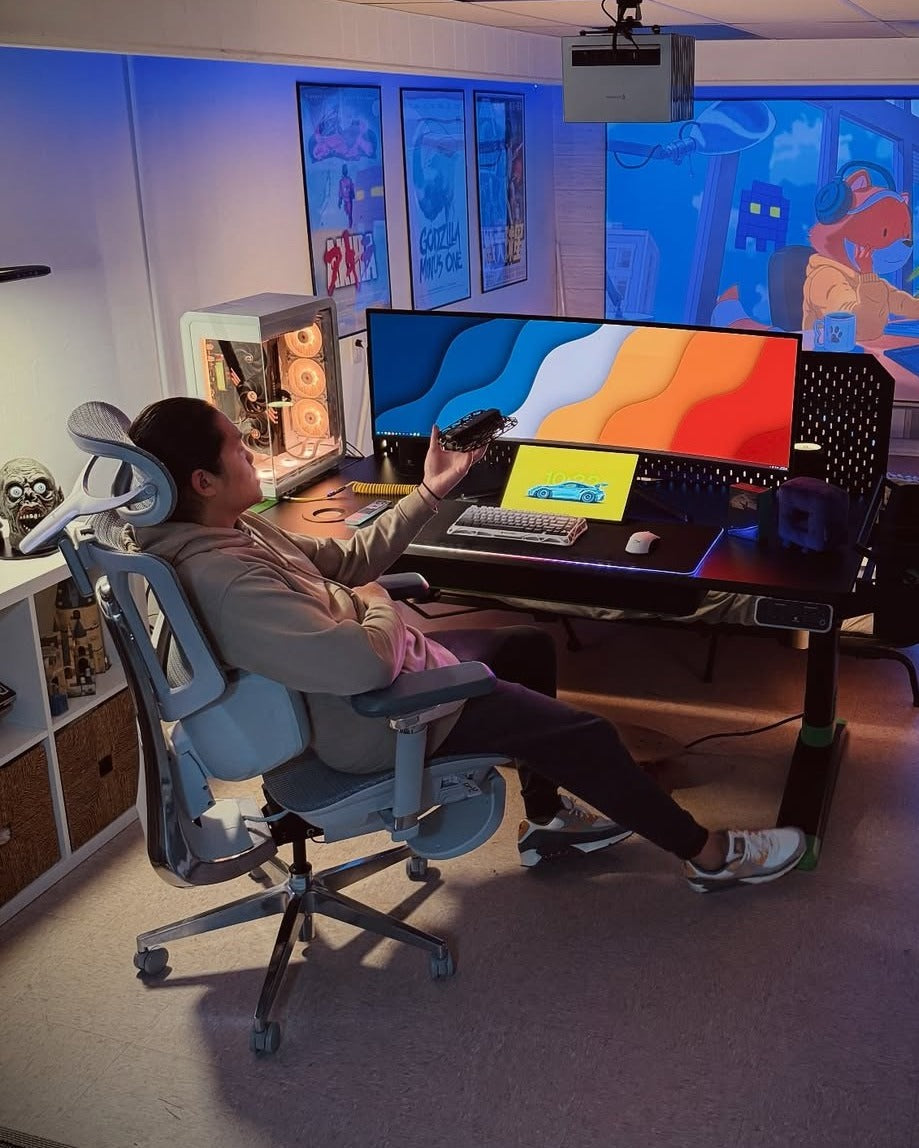
Person lounging in a modern office chair with a computer setup in the background ~scene

A poorly arranged workstation may require you to bend your wrists upward, downward or sideways while typing. Reaching for a keyboard or mouse can also move your elbows away from your body and cause the shoulders to tense.

Chair height, desk height, keyboard position and armrest placement work together. Changing only the chair may not solve an uncomfortable setup if the keyboard and mouse remain too high, too far away or poorly positioned.

OSHA recommends keeping the hands, wrists and forearms straight, aligned and approximately parallel to the floor. The shoulders should remain relaxed, with the elbows close to the body and generally bent between 90 and 120 degrees.

Why Adjustable Armrests Matter

Properly adjusted armrests can support part of the forearm without lifting the shoulders or pushing the elbows away from the torso. This may make it easier to keep the keyboard and mouse close while maintaining a neutral wrist position.

Useful armrest adjustments include:

  • Height adjustment: Helps align the forearms with the desk and keyboard while allowing the shoulders to remain relaxed.
  • Front-to-back adjustment: Helps support the forearms without forcing you to reach forward.
  • Inward or outward rotation: Helps position the elbows closer to the body when typing or using a mouse.
  • Recline-linked support: Can help maintain arm support when changing sitting positions.

Armrests should not prevent the chair from moving close to the desk. If an armrest forces you to reach forward or raise your shoulders, lower it, reposition it or stop using it until the workstation can be adjusted.

For more setup guidance, read how to adjust an ergonomic chair for better comfort .

Comparing HBADA Armrest Systems

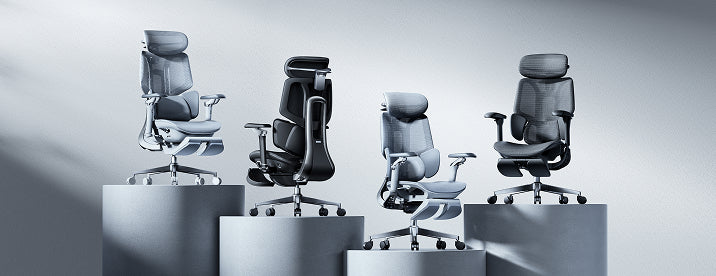
HBADA models offer different levels of armrest adjustment. The following comparison is intended to help you evaluate workstation fit. It is not a comparison of medical effectiveness.

Model Armrest system Main adjustment benefit Best suited for
HBADA X7 720° multidirectional armrest system Broad positioning range for typing, mouse use, reading and reclining Users who want extensive adjustment plus electronic lumbar, heating, ventilation and massage functions
HBADA E3 Pro 720° Omni-Mechanical armrests Wide mechanical adjustment range for changing arm and working positions Users who prefer extensive mechanical adjustment without relying on smart electronic support
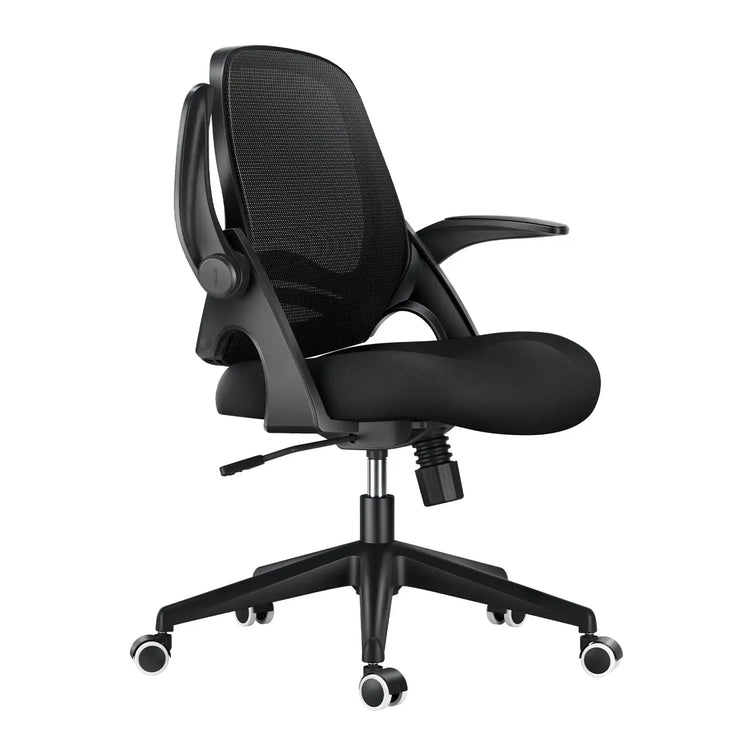
HBADA E3 Air 4D adjustable armrests Practical height, depth and angle adjustment for everyday desk work Users seeking a simpler ergonomic office chair setup

Which HBADA Chair Should You Choose?

HBADA X7: Most Complete Smart Adjustment System

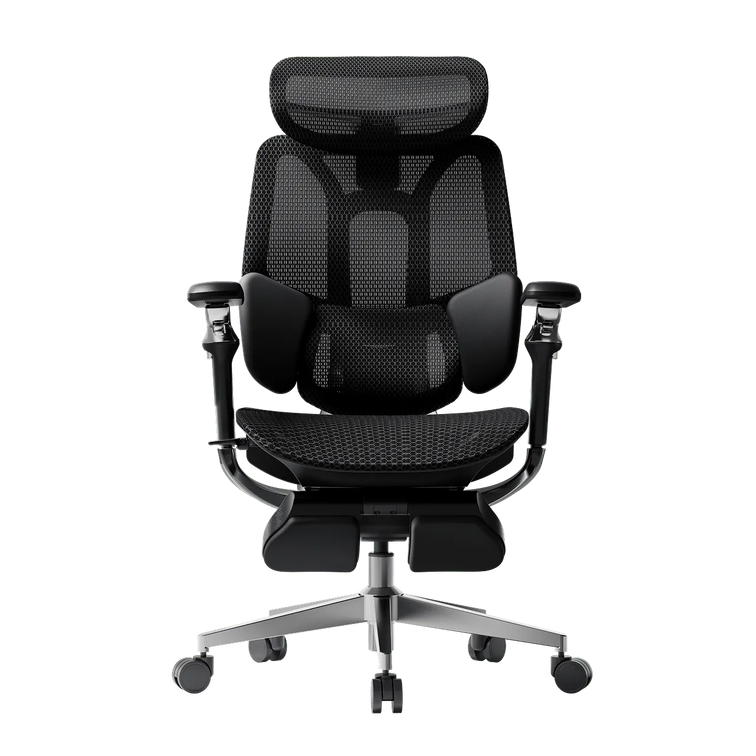
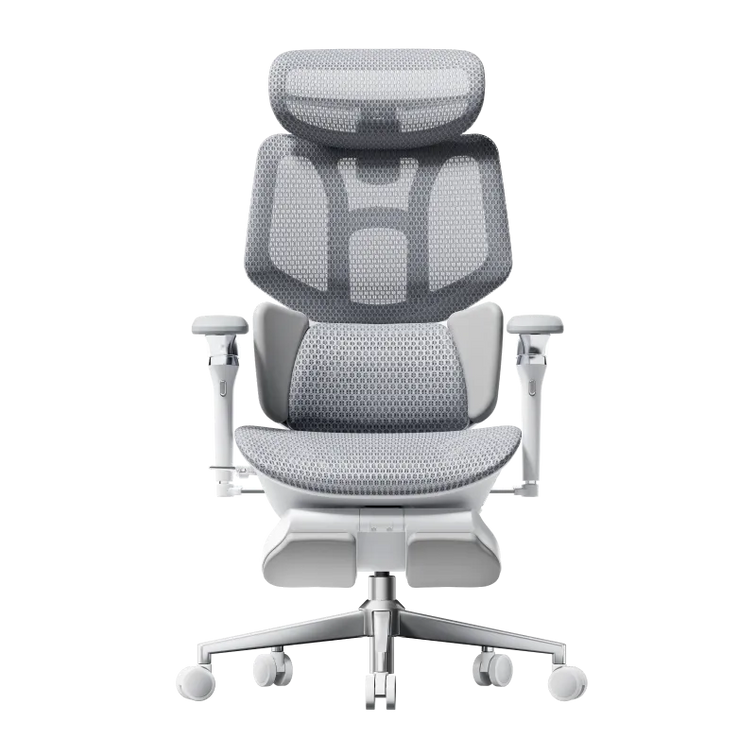
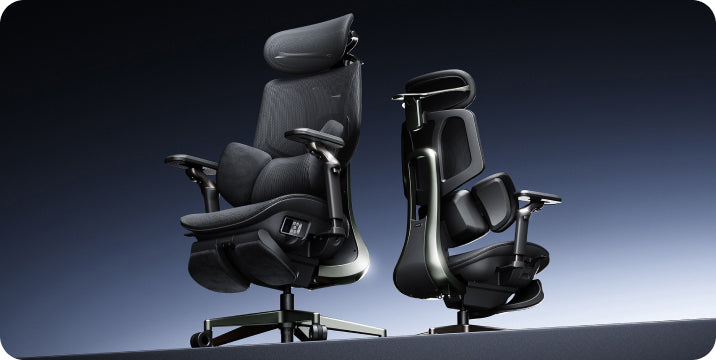
The HBADA X7 Smart Ergonomic Chair combines a 720° armrest system with smart lumbar tracking, adjustable support intensity, heating, ventilation and massage functions.

It is the strongest option in this comparison for users who want a highly adjustable chair with smart comfort features. These functions support workstation customization, but they do not treat carpal tunnel syndrome or other medical conditions.

HBADA E3 Pro: Extensive Mechanical Adjustment

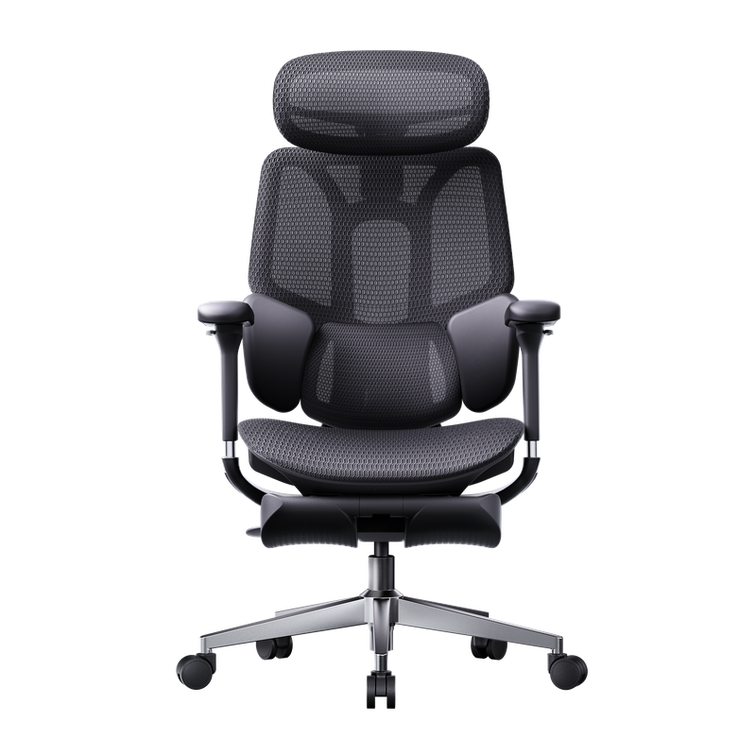
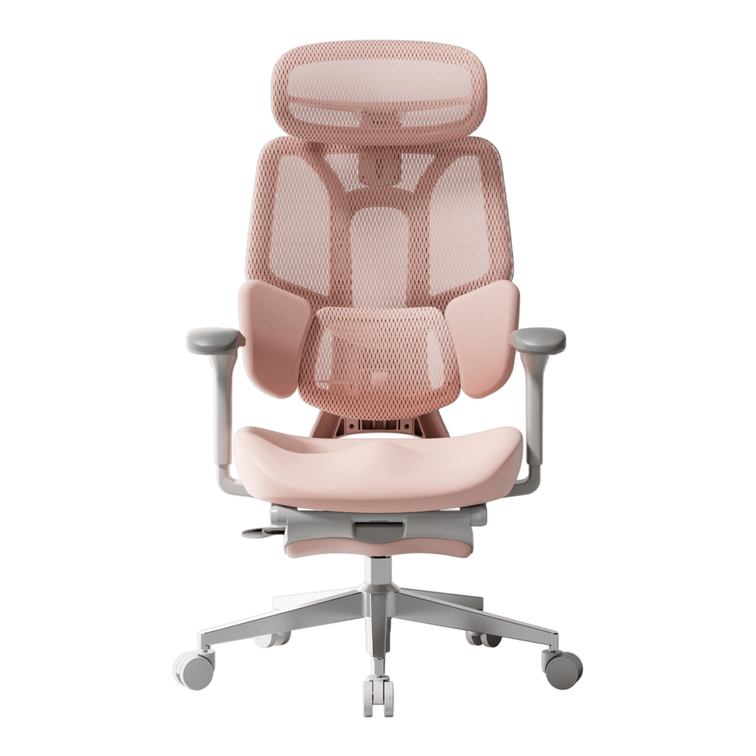
The HBADA E3 Pro Ergonomic Office Chair is a suitable alternative for users who want wide-ranging mechanical armrest and lumbar adjustments without the X7’s electronic functions.

Its Omni-Mechanical armrests can be repositioned for different tasks, including keyboard work, mouse use, reading and reclining.

HBADA E3 Air: Practical Everyday Adjustability

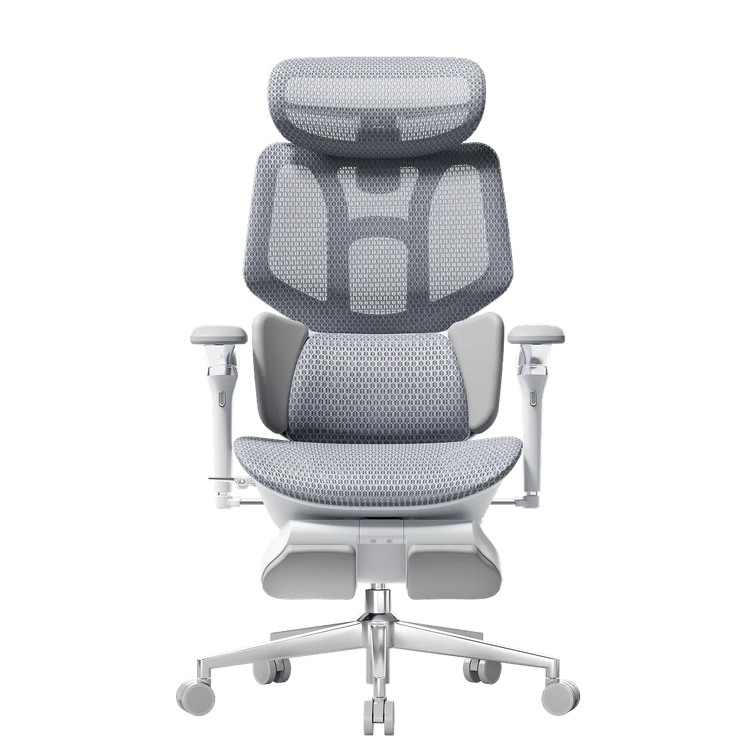
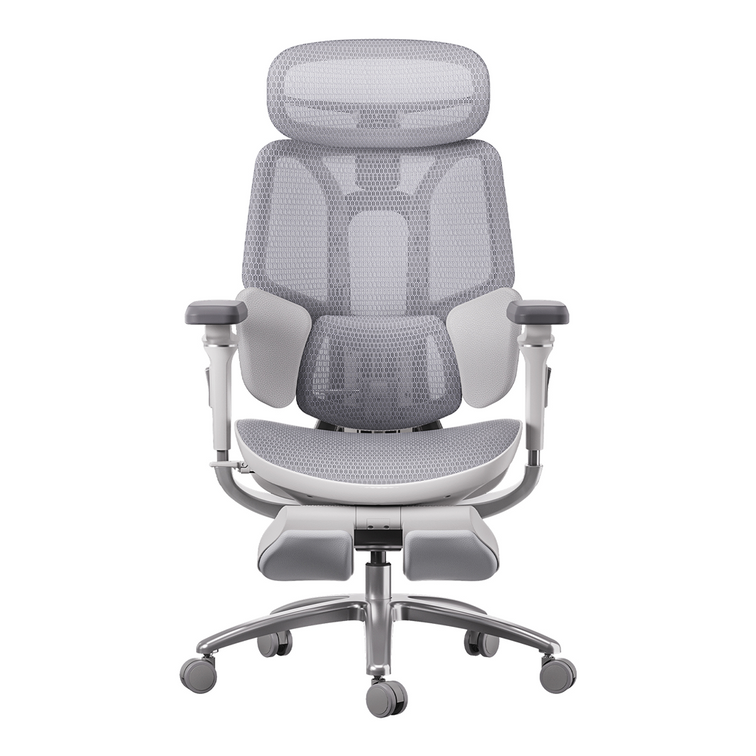
The HBADA E3 Air Ergonomic Office Chair provides 4D adjustable armrests in a simpler configuration. It may be appropriate for users who primarily need height, depth and angle adjustment for everyday desk work.

Before choosing, compare the chair’s measurements with your body dimensions, desk height and available workspace. Our ergonomic office chair buying guide explains the other measurements worth checking.

How to Set Up Your Chair and Desk

  1. Adjust the seat height. Keep your feet supported on the floor or a footrest. Your thighs should feel supported without excessive pressure behind the knees.
  2. Move close to the desk. Position the chair so you do not have to lean or reach forward to use the keyboard.
  3. Relax your shoulders. Raise or lower the armrests until they lightly support your forearms without lifting your shoulders.
  4. Position your elbows. Keep the upper arms close to the torso and the elbows generally between 90 and 120 degrees.
  5. Adjust armrest depth. Support the forearms while leaving enough space to move the hands freely.
  6. Align the keyboard and mouse. Keep both close enough that you can use them without extending your elbows or reaching forward.
  7. Check your wrists. Keep the hands and wrists straight and aligned with the forearms rather than bent upward, downward or sideways.
  8. Adjust the backrest. Use the lumbar support to maintain a comfortable upright posture without forcing the lower back into an uncomfortable curve.
  9. Recheck every position. Confirm that your shoulders, elbows and wrists remain comfortable after reclining or changing tasks.
Setup area What to check
Seat height Feet supported and thighs approximately parallel to the floor
Shoulders Relaxed rather than raised
Elbows Close to the body and generally between 90° and 120°
Forearms Supported without pressing against a hard edge
Wrists Straight and aligned with the forearms
Keyboard and mouse Close enough to use without reaching
Backrest Supports a comfortable posture without forcing your position

Additional Wrist-Friendly Work Habits

  • Take regular short breaks from repetitive keyboard and mouse use.
  • Change positions instead of holding one posture for long periods.
  • Keep frequently used devices within easy reach.
  • Avoid pressing the wrist or forearm against a hard desk edge.
  • Use a light grip on the mouse and avoid unnecessary force while typing.
  • If you use a palm rest, rest the heel of the palm on it during pauses rather than planting the wrist on it while actively typing.
  • Reassess your workstation whenever you change chairs, desks, keyboards or pointing devices.

When to Seek Medical Advice

Important: HBADA chairs are consumer furniture, not medical devices. They are not designed to diagnose, prevent, cure or treat carpal tunnel syndrome.

Consult a qualified healthcare professional if you experience persistent or worsening pain, numbness, tingling, nighttime symptoms, thumb weakness, difficulty gripping objects or loss of hand function.

A clinician may need to determine whether your symptoms are caused by carpal tunnel syndrome or another condition. Appropriate treatment may include activity modification, splinting, therapy, medication or other medical options depending on the diagnosis.

Frequently Asked Questions

What is the best HBADA chair for wrist comfort?

The HBADA X7 provides the broadest combination of multidirectional armrest adjustment and smart lumbar support. The E3 Pro is a strong mechanical alternative, while the E3 Air offers a simpler 4D armrest system. The best choice depends on how well the chair fits your body and desk.

Can an office chair treat carpal tunnel syndrome?

No. An office chair cannot treat carpal tunnel syndrome. A properly adjusted chair and workstation may help reduce awkward arm and wrist positions, but diagnosed or persistent symptoms require advice from a qualified healthcare professional.

Which armrest adjustments are most useful for typing?

Height, front-to-back movement and inward rotation are particularly useful. They help support the forearms, keep the elbows close to the body and align the hands with the keyboard.

How high should my armrests be?

Position the armrests so they lightly support your forearms while your shoulders remain relaxed. Your elbows should generally stay close to your body and between approximately 90 and 120 degrees.

Should my wrists rest on the desk while typing?

Avoid pressing the wrists against a hard desk edge. While typing, the hands should move freely and remain aligned with the forearms. A palm rest should generally support the heel of the palm during pauses rather than placing pressure directly on the wrist.

When should I contact a healthcare professional?

Seek professional advice if numbness, tingling or pain is persistent, worsening, affects sleep or is accompanied by weakness, reduced grip or difficulty using the hand.

Final Thoughts

When evaluating the best office chair setup for carpal tunnel comfort, focus on workstation fit rather than medical promises. Adjustable armrests, correct seat height, relaxed shoulders and a nearby keyboard and mouse can make it easier to maintain a neutral wrist position.

The HBADA X7 offers the most complete smart adjustment package, the E3 Pro provides extensive mechanical adjustability, and the E3 Air offers practical everyday arm support. Whichever chair you select, take time to adjust the entire workstation rather than relying on the chair alone.

Sources and further reading

  • OSHA: Good Working Positions for Computer Workstations
  • OSHA: Computer Workstation Chair and Armrest Guidance
  • OSHA: Wrist and Palm Support Guidance
  • NHS: Carpal Tunnel Syndrome

Relevant Product

You May Also Like

How Often Should You Replace an Ergonomic Office Chair? Seven Warning Signs How Often Should You Replace an Ergonomic Office Chair? Seven Warning Signs Dark reading mode Still supportive?Or time for a change? A chair’s age tells only part of its story. Look at how it supports you, whether its adjustments still work and which problems can be repaired before deciding to replace it. Condition mattersmore than the calendar. Repair a suitable replaceable part. Replace the chair when safe, reliable support cannot be restored. How often should you replace an ergonomic office chair? There is no single replacement interval for every chair. Inspect it for lost seat support, sinking height adjustment, structural cracks and failing mechanisms. Repair isolated faults when compatible parts and a safe repair are available. Stop using an unstable or structurally damaged chair until it has been assessed. In this guide How long does a chair last? Seven warning signs Repair or replace? Make your chair last longer HBADA models and durability When to get help The takeaway Frequently asked questions Sources How long does an ergonomic office chair last? A well-maintained chair can remain useful for years, but build quality, hours of use, user load, care and storage conditions all affect how it wears. A lightly used home office chair and a shared chair used across multiple shifts do not experience the same demands. Treat age as a reason to inspect the chair—not an automatic expiry date. A newer chair with a cracked frame needs attention immediately, while an older chair may remain usable if it is stable, supportive and functioning correctly. Service life, testing and warranty are different. A design-life target describes intended use. A test result describes performance under specified test conditions. A warranty describes coverage under its terms. None should be treated as a promise that every component will last a fixed number of years. What are the seven warning signs? Some changes call for maintenance; others mean you should stop using the chair. The next step depends on the cause, the affected part and whether support can be restored. Seven signs to investigate before your next workday Warning sign What to check Repair or replace? 1. Sagging cushion or stretched mesh The seat no longer supports you evenly, even after adjustment. Ask about a replacement seat or mesh assembly. Replace the chair if support cannot be restored. 2. The seat keeps sinking The height control may be engaging unintentionally, or the cylinder may be worn. Have the fault diagnosed. A compatible cylinder may solve it without replacing the whole chair. 3. A cracked base or structural instability Look for cracks, deformation or movement at load-bearing connections. Stop using it. Seek an approved structural repair or replacement part; replace the chair if this is not feasible. 4. Broken lumbar support or backrest The support no longer holds its intended position or attachment. Request service or a compatible assembly. Do not continue using a loose or damaged backrest. 5. An unreliable recline or tilt lock The backrest releases unexpectedly or cannot hold a selected position. Stop using the chair until assessed. Service the mechanism or replace the chair. 6. Broken casters or armrests Check the damaged part, its mounting point and compatible replacements. Replace the part if the rest of the chair is sound. Do not assume universal parts will fit. 7. Persistent squeaks, wobbling or new discomfort Check fasteners, fit, wear and the rest of the workstation. Investigate first. Noise alone does not prove the chair is worn out; unresolved instability needs professional assessment. Lost support is a reason to act When a seat sags or a backrest no longer supports you, repeated adjustment may not solve the problem. Check whether the affected assembly can be replaced before discarding an otherwise sound chair. Structural damage is different from cosmetic wear A scuffed finish is not the same as a cracked base. Unexpected movement, a damaged load-bearing component or a failing tilt mechanism should not be ignored. OSHA’s workstation checklist includes a sturdy five-leg chair base and sufficient adjustability. It does not prescribe a universal replacement age. Review the checklist. Should you repair or replace? Not every fault calls for a new chair. A worn caster or faulty cylinder may be repairable when the frame, seat and other mechanisms remain in good condition. Repair when… The fault is isolated and clearly identified. The rest of the chair is structurally sound. A manufacturer-approved compatible part is available. The total repair cost is reasonable. Replace when… Structural damage cannot be safely repaired. Several major assemblies are worn out. Suitable parts are unavailable. A repair cannot restore stable, comfortable use. Compare the full repair cost—including parts, shipping and labor—with a suitable replacement. A low-cost part is not good value if it does not fit or leaves another serious fault unresolved. Check coverage before dismantling. Read the HBADA US warranty and service information and contact support with your order details, model number and clear photos of the issue. Gas lift cylinders are sealed pressure components. Do not open, drill, heat or attempt to refill one. Follow model-specific replacement instructions or seek qualified assistance. How do you make a chair last longer? Routine care helps identify wear before a small problem becomes a larger one. Follow your model’s instructions rather than applying the same maintenance method to every chair. Respect the load limit: do not stand on the seat or use armrests and footrests as steps. Inspect fasteners: check for looseness at the intervals in your manual, without overtightening. Clean gently: remove dust from mesh and debris from casters using suitable tools and approved cleaning methods. Address worn parts: request compatible replacements instead of accepting unstable movement. Protect the materials: avoid prolonged direct sunlight, excessive heat and damp storage. Watch for changes: investigate new sinking, unusual movement or damage promptly. HBADA’s US maintenance FAQ recommends checking fasteners every one to three months depending on use. Consult your model instructions for the correct procedure. View the maintenance guide. Which HBADA chairs should you consider for long-term use? When replacing a chair, compare support, adjustability, maintenance requirements and after-sales service—not just a lifespan headline. X7 and E3 Pro 2026: what to evaluate Consideration HBADA X7 E3 Pro 2026 Support approach Powered automatic lumbar tracking Mechanical three-zone adaptive lumbar support Published durability information The US listing describes an intended 10-year service life, subject to usage and care. The US listing reports 120,000 recline, gas lift and rotation test cycles. Ownership checks Ask about structural parts, powered components and battery support. Ask about the mesh seat, lumbar assembly and mechanical parts. Warranty Confirm coverage for your model, component and purchase. Confirm coverage for your model, component and purchase. These are manufacturer-published product details, not an independent prediction of your chair’s lifespan. Test cycles should not be converted directly into years of use. HBADA X7 Consider X7 if you want powered lumbar tracking alongside massage, heating and ventilation. Explore X7 → HBADA E3 Pro 2026 Consider E3 Pro 2026 if you prefer mechanical adjustment, adaptive lumbar support and breathable mesh. Explore E3 Pro 2026 → Limitations and when to get help A visual check cannot confirm every internal component is sound. Use the correct manual and parts for your exact model. Do not force a jammed mechanism or improvise a structural repair. New discomfort may involve desk setup, habits or health—not only chair wear. Seek qualified healthcare advice for persistent, severe or radiating pain. The takeaway: inspect first, then decide Replace an ergonomic office chair when safe, reliable support cannot be restored—not simply because it has reached a birthday. Repair suitable individual parts, keep up with maintenance and act promptly on structural damage or failing mechanisms. Start with the seven warning signs, check your warranty and ask about compatible parts before buying a replacement. Frequently asked questions How often should you replace an office chair? There is no fixed interval for every chair. Assess stability, seat support, adjustment function and repair options. Replace it when damage or wear cannot be safely and reasonably resolved. Is it worth repairing an office chair? Often, if one replaceable component has failed and the rest of the chair is sound. Confirm compatibility and compare the complete repair cost with replacement. Do not assume a part labeled universal fits your chair. Does stretched mesh mean I need a new chair? Not necessarily. Ask whether the seat or mesh assembly can be replaced. If it cannot, or other major parts are also worn, replacing the chair may be more practical. Should I replace a chair that keeps sinking? Have the height control and cylinder checked first. A suitable replacement cylinder may restore the chair. Repeated sinking requires diagnosis rather than automatically discarding it or repeatedly fitting parts. Does an old office chair cause back pain? Lost support or poor fit may contribute to discomfort, but age alone does not identify the cause of pain. Review your setup and seek medical advice for persistent or severe symptoms. Does a five-year warranty mean a chair lasts five years? No. Warranty duration and useful lifespan are different. Coverage depends on the product, component and terms. A chair may remain usable after coverage ends, while a covered fault may occur earlier. Sources OSHA — Workstation Evaluation Checklist HBADA US — Assembly, Maintenance and Troubleshooting HBADA US — Warranty and Service HBADA US — X7 HBADA US — E3 Pro 2026 HBADA Ergonomic Office Chairs With Footrests: Models and Fit Compared HBADA Ergonomic Office Chairs With Footrests: Models and Fit Compared Dark reading mode Room to focus.Space to lean back. An ergonomic office chair with a footrest brings another option to your working day: a supported, reclined break. The right choice starts with how the chair fits—not just whether a footrest slides out. Fit first.Footrest second. Compare seat height, seat depth and lumbar support. Then choose the reclining comfort and features you want. Which HBADA ergonomic office chair with a footrest should you choose? Consider the X7 for a pull-out footrest with powered lumbar tracking, massage, heating and ventilation. Choose the E3 Pro 2026 with footrest if you prefer mechanical adjustment and adaptive lumbar support. Confirm your selected configuration before ordering. In this guide Do you need a footrest? HBADA model options Chair comparison Finding the right fit Setup routine Which should you choose? Limitations The takeaway Frequently asked questions Sources Do you need an ergonomic office chair with a footrest? Before comparing chairs, decide what you want the footrest to do. Supporting your legs while reclining is different from supporting your feet while typing at a desk. For reclined breaks A built-in chair footrest A retractable footrest extends from beneath the seat to support your legs when you lean back. It tucks away when you return to upright work. For upright work A separate floor footrest A stable platform under the desk supports your feet when the chair must be raised to reach the work surface comfortably. OSHA’s workstation guidance recommends supporting the feet on the floor or a footrest. That does not mean extending a chair’s reclining leg support is the right solution for typing with dangling feet. See OSHA’s working-position guidance . Who benefits most from a built-in footrest? People who regularly alternate between desk work and reclined breaks. Users who want leg support that stores beneath the seat. Anyone who prefers an integrated setup instead of a separate ottoman. Shorter users may need a floor footrest for upright work, whether or not their chair also has a retractable footrest. Which HBADA models offer a footrest? HBADA X7: powered support and reclining comfort The HBADA X7 combines a pull-out footrest with automatic lumbar tracking, an 8D massage system, heating and fan-assisted seat ventilation. Its mesh construction and adjustable support provide options for both desk work and breaks. HBADA E3 Pro 2026: mechanical adjustment The E3 Pro 2026 offers adaptive three-zone lumbar support, an adjustable headrest, multi-directional armrests and breathable mesh. Select the With Footrest option if you want the retractable footrest included. Check the exact model and option. This guide compares X7 with E3 Pro 2026. Do not assume that older E3 versions, X7 Air or other models have identical specifications or included accessories. HBADA footrest chair comparison Start with the difference in support systems, then check the dimensions and configuration on the product listing. X7 vs. E3 Pro 2026 with footrest Feature HBADA X7 E3 Pro 2026 Footrest Pull-out design; confirm the selected model Choose the With Footrest configuration Lumbar support Powered automatic tracking Mechanical three-zone adaptive support Head support 4D bi-axial headrest 4D dual-axis headrest Seat material Breathable mesh Breathable high-elastic mesh Additional functions Massage, heating and fan-assisted ventilation Mechanical adjustments without powered comfort functions Main choice Powered features alongside reclining leg support Hands-on adjustment with a retractable footrest Product options can change. Confirm dimensions, footrest inclusion, load limits and warranty terms for the exact US configuration before purchasing. How should a footrest chair fit? A footrest cannot correct a seat that is too deep or a backrest that does not suit you. Compare four things: seat height, seat depth, lumbar position and armrest fit. You should be able to sit against the backrest without crowding the backs of your knees. Your shoulders should remain relaxed when using the keyboard, and the lumbar support should feel comfortable rather than forceful. What you feel—and what to check If you notice Check this Aim for Feet dangle while typing Seat and desk height; a separate floor footrest if needed Supported feet without reaching upward to the keyboard Pressure behind the knees Seat depth and seat height Comfortable clearance at the seat edge Lower back feels unsupported Seat depth, sitting position and lumbar settings Comfortable contact with the lower-back curve Shoulders lift while typing Desk height, keyboard position and armrests Relaxed shoulders and easy keyboard access Leg support feels awkward when reclining Footrest extension, recline and model dimensions Supported legs without uncomfortable pressure How to set up your chair and footrest correctly Start with upright work. Adjust seat height so you can use the keyboard with relaxed shoulders. Support your feet on the floor or a separate floor footrest. Set the seat depth. Sit against the backrest and leave comfortable clearance behind your knees. Position the lumbar support and armrests. Bring support to your body without pushing your torso forward or raising your shoulders. Check your screen and reach. Keep the screen in front of you and the keyboard close enough to use without stretching. Try the reclined position. Move clear of desk obstructions, extend the footrest according to the instructions and recline gradually. Do not stand or sit on the extended footrest. Return to work—and keep moving. Retract the footrest when appropriate for desk work. Take regular opportunities to stand and walk rather than relying only on changes in recline. Which HBADA chair should you choose? Powered comfort Choose X7 Choose X7 if automatic lumbar tracking, massage, heating and cooling airflow are features you want alongside a pull-out footrest. Explore X7 → Mechanical support Choose E3 Pro 2026 Choose the With Footrest version if you prefer adaptive mechanical support and hands-on adjustment without a battery-powered comfort system. Explore E3 Pro 2026 → If your main problem is that your feet do not reach the floor while typing, evaluate the chair and desk height first. A separate floor footrest may address that need without changing the chair. Limitations and when this advice may not apply A chair and footrest are comfort tools, not medical treatments. Recommended user-height ranges do not replace checking your actual proportions. A height-adjustable desk may help, but the chair still needs to fit. Check footrest instructions and load limits separately from the chair’s overall capacity. Seek professional advice for severe, persistent or radiating pain. The takeaway: choose fit before features The right ergonomic office chair with a footrest should work well when you are sitting upright and when you take a reclined break. Start with seat fit and support, then choose between powered X7 features and the mechanical adjustment of E3 Pro 2026. Confirm the footrest configuration, check the dimensions and leave room for movement throughout your day. Frequently asked questions Are office chairs with footrests good for your back? A built-in footrest can make a reclined break more comfortable by supporting the legs. Overall comfort still depends on seat fit, back support and movement. It is not a treatment for back conditions. Do all HBADA chairs come with a footrest? No. Footrest availability depends on the model and configuration. For E3 Pro 2026, select With Footrest. Check the exact X7 model and included features rather than assuming every chair in the series is identical. Is a built-in footrest better than a separate one? They serve different purposes. A built-in retractable footrest supports the legs during reclining. A separate floor footrest supports the feet during upright desk work when the floor is out of reach. Some setups benefit from both. Which HBADA chair should I choose for long workdays? Compare fit first. X7 adds powered lumbar tracking, massage, heating and ventilation. E3 Pro 2026 offers mechanical adaptive support and an optional footrest. Neither replaces regular movement breaks. Can a footrest help with short legs or a tall desk? A separate floor footrest can help support your feet when the seat must be raised for a fixed-height desk. A reclining chair footrest should not automatically be used as a substitute. Can I type with the chair footrest extended? Check whether that position allows comfortable access to your keyboard without reaching forward. Deep recline is usually better suited to breaks than typing at a standard desk. Follow the chair’s instructions. Sources OSHA — Good Working Positions OSHA — Workstation Evaluation Checklist HBADA US — X7 Smart Ergonomic Chair HBADA US — E3 Pro 2026 How to Adjust a Shared Ergonomic Office Chair for Hot Desking How to Adjust a Shared Ergonomic Office Chair for Hot Desking  Dark reading mode A shared desk.A setup that is yours. Someone else’s chair settings do not have to become your working posture. A simple reset helps you make a shared ergonomic office chair fit your body before the day begins. One routine.Five adjustments. Seat height Seat depth Lumbar support Armrests Recline How do you adjust a shared ergonomic office chair? Start with seat height, then seat depth, lumbar support, armrests and recline. Check the desk and screen afterward. Once you know the controls, aim for a quick one-minute check, taking longer whenever you need to fine-tune the fit. In this guide Why reset a shared chair? The adjustment order The 60-second reset What to look for Shared-chair hygiene HBADA chair comparison Limitations The takeaway Frequently asked questions Sources Why must you reset a shared chair? A hot-desk chair usually arrives set for whoever used it last. Their legs, back and arms may differ from yours, so the seat, lumbar support and armrests may not be in the right position for you. Small mismatches can become distracting during a full workday. You might perch on the front edge because the seat is too deep, raise your shoulders to reach the keyboard or sit away from the backrest because the lumbar support is in the wrong place. Resetting the chair gives you a more useful starting point than adjusting your posture around someone else’s settings. It also gives you a chance to check the rest of the workstation before getting absorbed in work. Think beyond the seat. OSHA’s computer workstation guidance treats chair adjustment, desk setup and equipment placement as connected parts of the workstation. Explore OSHA’s chair guidance. What order should you adjust the chair in? Start with the settings that establish your overall position. Seat height sets your relationship to the desk; seat depth determines how far back you can sit. Then position the lumbar support and armrests around that foundation. Your reset sequence:Seat height → seat depth → lumbar support → armrests → recline → desk and screen check. At a height-adjustable desk, set the chair for supported feet and then bring the work surface to a comfortable working height. At a fixed-height desk, you may need to raise the chair to reach the keyboard comfortably and use a separate floor footrest. Treat the sequence as a practical routine, not a rigid rule. If changing one setting affects another, go back and make a small correction. The 60-second hot-desking reset Learn the controls first, then use these five steps as a quick daily routine. The goal is a repeatable setup—not finishing before a timer runs out. Set the seat height Sit back and position yourself so you can reach the keyboard without lifting your shoulders. Keep your feet supported on the floor or a stable floor footrest, and check that the seat edge does not press into the backs of your thighs. Slide the seat to fit your legs Adjust the seat depth while keeping your back against the backrest. Leave roughly two to three fingers of clearance behind your knees as a starting point, then check that the position feels comfortable. Position the lumbar support Move the support toward the curve of your lower back. It should feel supportive rather than push you forward. With automatic tracking, still check the starting position and available support settings. Bring the armrests to you Adjust the available height, width or rotation so your forearms can rest without raising your shoulders. Make sure the armrests do not block you from moving close enough to the desk. Check the recline Lean back gently and locate the tilt lock. Adjust resistance if the chair has a manual tension control. With an automatic mechanism, check that the movement feels controlled and supportive. Your final fit check Adjustment Aim for Quick check Seat height Comfortable access to the work surface Feet supported; shoulders relaxed Seat depth Thigh support with knee clearance You can sit back without pressure behind the knees Lumbar support Comfortable contact with the lower-back curve You do not feel pushed toward the seat edge Armrests Supported forearms and relaxed shoulders You can move close to the keyboard Recline Controlled, supported movement You understand the lock and resistance controls Floor footrest Foot support when the floor is out of reach Both feet rest securely without stretching downward What makes a chair good for hot desking? A shared chair earns its place when different users can adjust it easily and understand how its controls work. Look beyond the feature count to how practical those adjustments are during a busy workday. A useful adjustment range: compare seat height, depth and width with the people using the workspace. One chair may not fit everyone. Clear, accessible controls: users should be able to identify and reach the controls without guessing. Suitable build and service support: check intended use, maintenance requirements, replacement parts and warranty coverage. Practical materials: breathable mesh allows airflow, while cleaning suitability depends on the specific materials and care instructions. Appropriate capacity and dimensions: check both the weight limit and physical fit. Capacity alone does not tell you whether the seat fits. Make adjustment easy to learn. Keep a short setup card or a link to the chair’s instructions at each shared desk. A clearly labeled control is more useful than a feature nobody knows how to operate. How do you keep a shared chair hygienic? Armrests, controls and headrests are common touch points. A consistent cleaning routine helps keep the chair pleasant for the next person. Follow the chair’s care instructions and your workplace cleaning procedure. Use a suitable cloth and a cleaner approved for the surface. Do not assume every disinfectant is compatible with mesh, padding or finishes. Avoid soaking the seat or spraying liquid directly into controls, ventilation openings or electrical components. Allow cleaned surfaces to dry before the next use. Report spills, loose parts and damaged controls promptly. Remove an unsafe chair from use. Breathability and hygiene are separate considerations: mesh allows airflow, but it still needs appropriate care. Which HBADA chair suits shared desks? The HBADA X7 and E3 Pro 2026 take different approaches to lumbar support. Compare fit first, then decide whether powered tracking or mechanical adjustment better suits the workspace. X7 vs. E3 Pro 2026: what matters at a shared desk Consideration HBADA X7 E3 Pro 2026 Lumbar approach Powered automatic lumbar tracking 3-zone adaptive lumbar support with mechanical adjustments Daily reset Check seat fit, armrests and preferred tracking settings Check seat fit, lumbar position and armrests Seat material Breathable mesh Breathable high-elastic mesh Adjustment preference For users who want powered lumbar tracking For users who prefer hands-on mechanical adjustment Before purchasing Confirm dimensions, configuration and power requirements Confirm dimensions and the selected footrest configuration X7: powered lumbar tracking Consider the X7 if you want lumbar support that responds automatically to posture changes. Each user should still check seat fit, armrests and preferred support settings. Explore HBADA X7 → E3 Pro 2026: mechanical adjustment Consider the E3 Pro 2026 if you prefer hands-on adjustment with adaptive lumbar support, adjustable armrests and a breathable mesh seat. Explore E3 Pro 2026 → Refer to the linked US product listings for current dimensions and configurations. For office-wide purchasing, confirm shared or intensive-use requirements and warranty terms before ordering. Automatic lumbar tracking does not automatically fit the entire chair to a new user. Limitations and when to get help A chair reset is one part of setting up a shared workstation. It cannot compensate for every desk, screen or individual fit issue. Check screen position, keyboard reach and available leg space after adjusting the chair. If the adjustment range does not fit you, ask for a suitable alternative rather than forcing a position. Change posture and take movement breaks throughout the day. Ask for a workstation assessment if you cannot find a comfortable setup. For severe, persistent or radiating pain, consult a qualified healthcare professional. The takeaway: make the setup yours Hot desking works better when you take a moment to adjust the workstation. Start with seat height, then work through depth, lumbar support, armrests and recline. Finish by checking the desk and screen. Choose powered tracking if that suits your routine, or mechanical adjustment if you prefer a hands-on setup. Either way, learning the controls once makes every future reset more straightforward. Frequently asked questions How do you adjust an office chair for your body? Start with seat height and depth, then position the lumbar support and armrests. Check the recline controls and finish by reviewing the desk and screen. Look for supported feet, relaxed shoulders and comfortable clearance behind your knees. Is hot desking bad for your back? Hot desking does not automatically mean an uncomfortable setup. Problems can arise when the chair or workstation does not fit the user or is difficult to adjust. Learn the controls, review your fit and keep movement in your workday. What should you look for in a shared office chair? Look for a useful adjustment range, clear controls, suitable dimensions and materials you can maintain according to the care instructions. Check intended use, weight capacity and after-sales support. A single model may not suit every colleague. How do you know a chair fits after resetting it? Check that your feet are supported, your thighs rest comfortably and the seat does not press behind your knees. Lumbar support should meet your lower back, and you should reach the keyboard with relaxed shoulders. Reassess comfort as you work. Should a shared chair have a footrest? Some users need a separate floor footrest when a fixed desk requires a higher seat position. A retractable chair footrest supports the legs during reclining and serves a different purpose. Choose support according to the working position. Does automatic lumbar tracking adjust the whole chair? No. Automatic lumbar tracking responds to posture changes, but it does not replace checking seat height, seat depth, armrests or workstation fit. Each new user should still run through the reset. Can you really reset a chair in 60 seconds? A familiar chair can be quick to check, but one minute is a practical target rather than a guarantee. Allow more time when learning a new chair or adjusting an unfamiliar workstation. Sources General workstation guidance is based on OSHA’s computer workstation resources. Product information refers to the linked HBADA US listings. OSHA — Computer Workstations: Chairs OSHA — Workstation Evaluation Checklist HBADA US — X7 Smart Ergonomic Chair HBADA US — E3 Pro Ergonomic Office Chair 2026 Edition