


Blog

HBADA Black Friday 2026 Deals: Your Guide to Bigger Savings!!!

HBADA Black Friday 2026 Deals: Your Guide to Bigger Savings!!!

The HBADA Black Friday shopping edit

Your next workspace upgrade starts with a better deal.

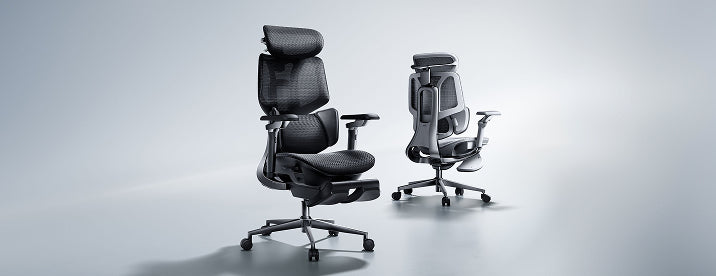
A chair you use every day deserves a place on your Black Friday shortlist. Our 2026 event brings early office chair offers, subscriber savings, and member rewards together in one place.

Selected HBADA Black Friday offers Up to $470 off More room in your budget. More comfort at your desk.
Shop HBADA Black Friday deals →

Start with the chair you want, then check the savings available for that configuration. This guide puts the offers first: where to find an option under $500, how the subscriber offer works, and which benefits to check before placing your order.

Three offers to put on your radar.

Under $500

An E3 Pro starting point

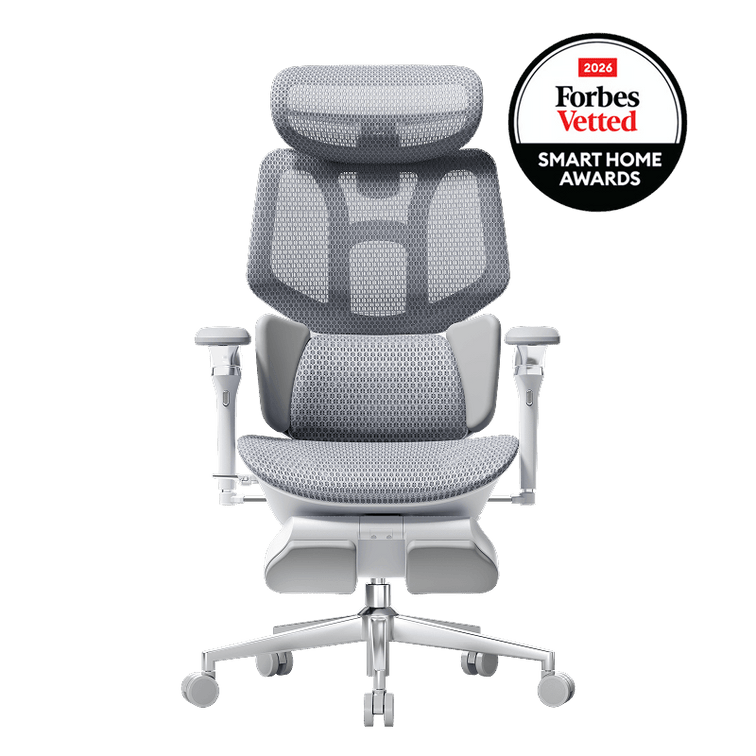
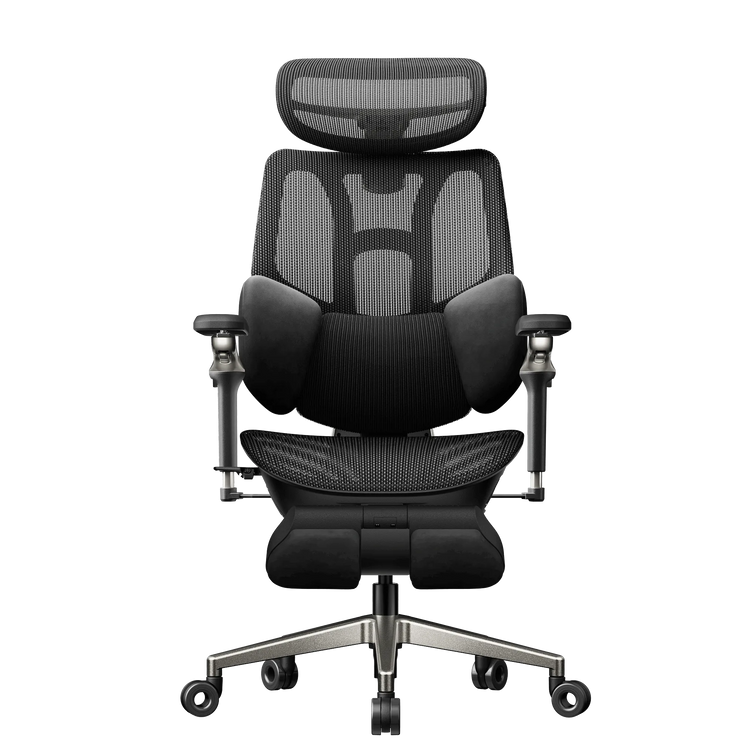
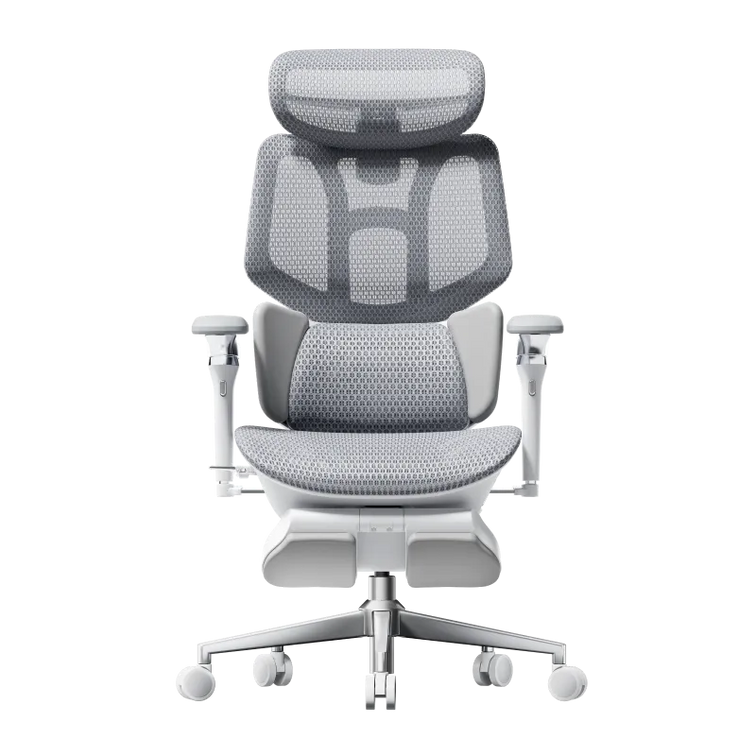
The sale page lists E3 Pro configurations from $469. Choose your color and footrest option to see the applicable price.

5%–7%

Subscriber savings

The subscriber campaign has 5%, 6%, and 7% discount tiers. Higher tiers unlock as sign-ups reach the stated milestones; check which tier is currently available.

2× points

A reason to sign in

Eligible member orders earn double points during the November 6–15 campaign. Member coupons do not stack.

Shopping for an office chair under $500?

Put the HBADA E3 Pro on your shortlist.

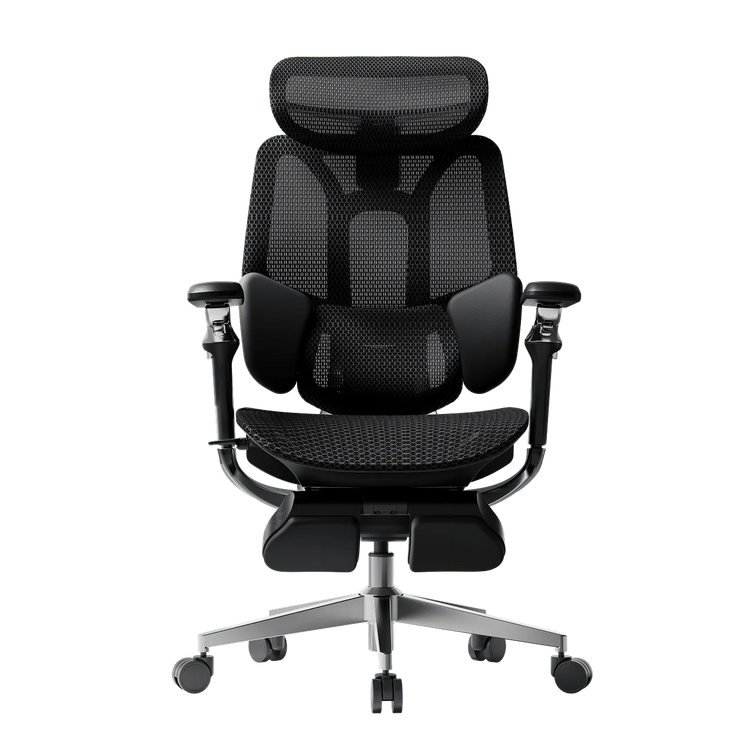
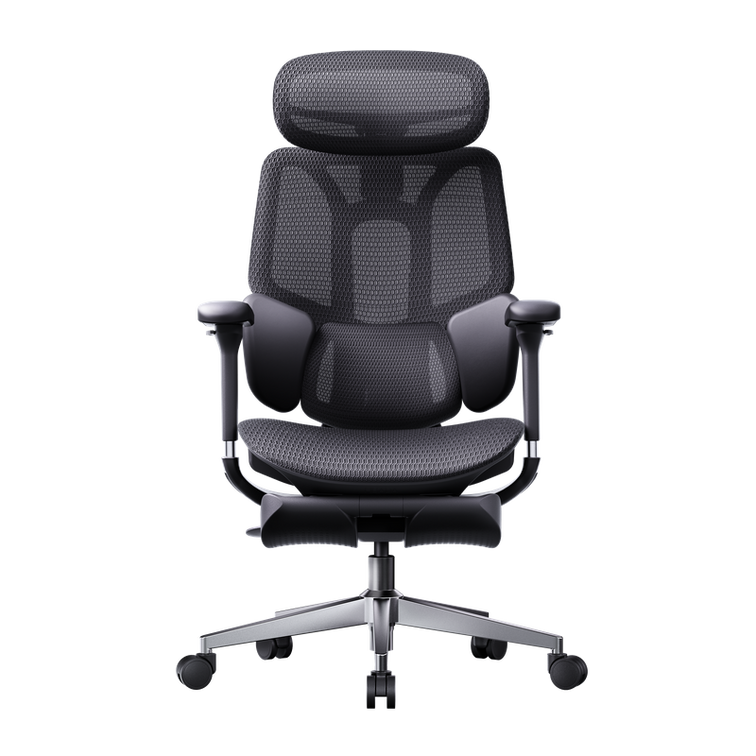
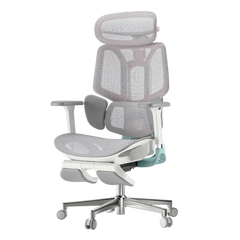
A defined budget makes Black Friday shopping much simpler. Start with our HBADA E3 Pro ergonomic office chair , select the configuration you want, and review the order total.

Think about how you will actually use the chair. If your priority is a desk-work setup, begin there. If you also want a footrest for reclining breaks, compare that configuration before deciding how to spend your budget.

Build your savings before checkout.

01 / Open the live offers page

Keep our Black Friday sale page open while you shop. It is the place to check current campaign benefits and the offer attached to your chosen chair.

02 / Check the subscriber tier

Look at the unlocked discount before applying your code. “Up to” describes the highest campaign tier, not a promise that every shopper can already use it.

03 / Sign in before ordering

If you are using a member offer, shop through your account. Check the points and coupon terms rather than adding every advertised benefit together as one combined discount.

04 / Save your order details

Keep your confirmation and the relevant offer terms. Our early Black Friday selection advertises 30-day price protection; review the applicable policy for eligibility and how to request an adjustment.

Want a bigger upgrade?

Black Friday is also a chance to move beyond your current setup. Take a closer look at the HBADA E3 Ultra if built-in massage and heat are on your wish list, or the HBADA X7 if you are interested in smart lumbar tracking.

Choose the upgrade you will use most often, then head to the sale page for the current offer. A daily-use feature can be a much more satisfying purchase than an extra you rarely touch.

The deal questions worth asking.

Does the maximum discount apply to every HBADA chair?

No. The headline saving applies to selected offers. Check the price for the exact model and configuration you select.

Can I use the highest subscriber discount immediately?

Only if that tier has unlocked and your order meets the offer requirements. Check the live campaign status and the code provided through the subscription offer.

Is a gift card the same as a coupon?

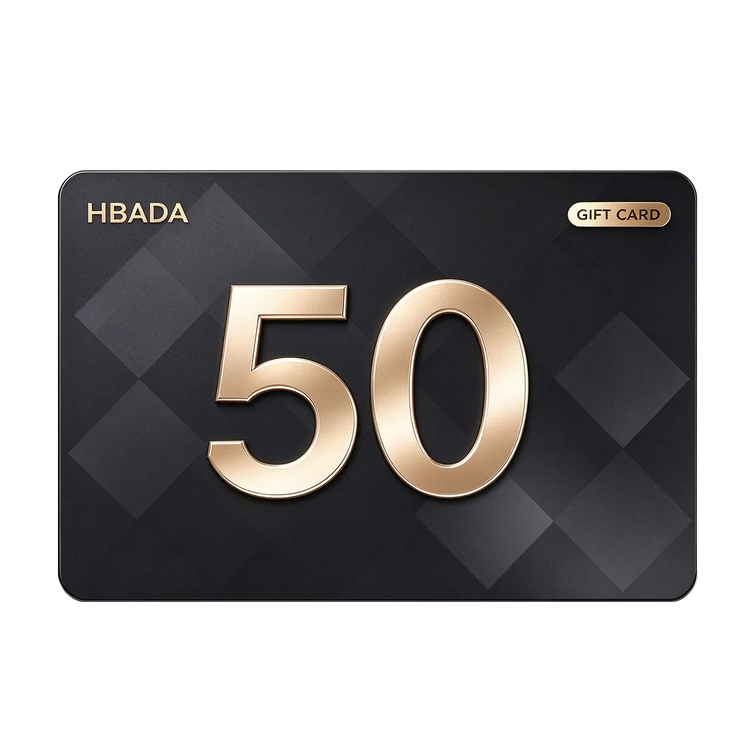
No. A gift card provides spending value, while a coupon changes the price of an eligible purchase. If you are considering both, review the current offer terms for any restrictions before buying.

Where should I check if an offer changes?

Use the live Black Friday page, the selected product page, and your checkout summary. This article introduces the campaign; it is not a live inventory or pricing feed.

Make this the sale that upgrades your workday.

Your desk is ready for a better seat. Browse our Black Friday offers, choose your HBADA chair, and make the available savings count while your preferred offer is running.

Find your Black Friday chair deal →
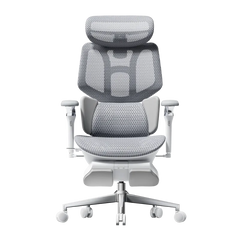
Relevant Product

You May Also Like

3 Home Office Desk Setup Ideas for Your HBADA Chair 3 Home Office Desk Setup Ideas for Your HBADA Chair HBADA / Home Studio One workspace.Three ways to make it yours. Your office chair does not have to disappear when the workday ends. It can help set the direction for the whole room. Here, we build three home office looks around HBADA seating: a light oak corner, a graphic black-and-white setup, and a warm study that belongs beside your bookshelves. Each starts with the chair and ends with a room you can actually use. Which look should you choose? Choose warm oak if your room already has light wood and soft neutrals. Choose black and white if your monitors and accessories dominate the desk. Choose the cozy study if the workspace shares a living area and you want it to feel more like furniture than an equipment station. 01 / Warm oak 02 / Black & white 03 / Cozy study Choosing your HBADA chair Setup questions Look 01 / Warm oak A grey chair, a wood desk, and a softer backdrop. For the home office that shares space with morning light, linen curtains, and the rest of everyday life. Let the desk warm up the grey. Grey mesh and a metallic frame introduce cooler tones. A pale oak desktop gives them a warmer setting without making the room feel heavy. Cream walls work well here because they soften the contrast between the chair and the surrounding furniture. Choose a desk with an open base rather than filling both sides with drawer units. The visible space beneath it gives the chair’s frame room to stand on its own. Keep the desktop quiet: a sage lamp, a matching mat, and one terracotta cup are enough. Put the plant beside the desk or at its far edge so the chair remains the main furniture feature. The styling recipe Chair: your preferred grey HBADA model. Desk: pale oak or a similar warm wood finish. Background: warm white, cream, or light beige. Accent: sage green in one or two accessories. Texture: linen curtains or matte ceramics. Skip this: adding a thick decorative cushion just to match the room. It changes how you sit in the chair. Bring softness into the surroundings instead. Look 02 / Black & white Make the screens part of the composition. For multi-monitor desks, creative workstations, and spaces where technology is always going to be visible. Repeat black instead of fighting it. A black HBADA chair can connect visually with monitor bezels, a microphone arm, or speakers. Use a white or light-toned desktop to separate those shapes rather than placing every dark object against another dark surface. Keep the strongest black elements near the working area: chair, screens, and perhaps a lamp. Let storage boxes and the wall stay lighter. This gives the desk a clear outline without making every accessory compete for attention. If you use a monitor arm, check the desk’s clamp compatibility and load requirements before buying. The goal is to free usable surface space—not simply add another technical detail. The styling recipe Chair: a black HBADA finish where available. Desk: white, light grey, or pale wood. Equipment: group dark devices visually. Storage: closed boxes in a consistent neutral. Accent: one print or object with a stronger color. Skip this: running every cable straight down behind the chair. Route cables along the desk first, then leave a clear path around the chair’s wheels and moving parts. Look 03 / The cozy study A workspace that belongs beside the bookshelves. For a living-room office, a guest-room desk, or a quieter corner where work equipment should not define the entire room. Use furniture-like storage, not more desktop storage. Pair your HBADA chair with a warm wood desk and place a cabinet or bookshelf nearby. Moving paperwork off the desk makes room for a shaded lamp and a small writing area without sacrificing the things you need for work. A grey chair creates a softer contrast with darker wood. A black chair gives the arrangement more definition. Either can work; repeat the chosen finish in a picture frame or lamp base to make the pairing feel deliberate. Consider the view from the sofa or doorway, not only the view from behind the keyboard. Check the rear of the selected chair in its product photographs before deciding how the desk should face. The styling recipe Chair: grey for a softer contrast, black for definition. Desk: walnut-toned or another warm wood finish. Lighting: a shaded task lamp with controllable light. Storage: a nearby cabinet or bookshelf. Finishing detail: artwork that connects to the wider room. Skip this: pushing the desk into the narrowest gap simply because it fits. The chair still needs room to pull out, turn, and let you stand up comfortably. The chair does not need to match everything. It needs a few good connections. Before buying anything else Four decisions a mood board cannot make for you. Once you have chosen a look, check how it will work in your actual room. Product photos show the arrangement; measurements tell you whether you can live with it. Decision What to check Why it changes the setup Desk with drawers or an open base? The clear width and height beneath the desktop. Drawers and support bars can limit legroom or armrest clearance. Chair near a wall or in open space? Room to pull out, turn, and use the selected recline settings. The tucked-in footprint does not represent the space needed during use. Rug, hard floor, or protective mat? Floor-care guidance and compatibility with the chair’s castors. A rug edge or thick pile may interfere with movement. Powered features at this desk? The selected model’s charging or power instructions. You need an accessible connection without cables crossing moving parts. Choose the chair behind the look E3 Ultra or X7? Think about the room’s daily routine. The styling ideas above are not tied to one set of accessories. Choose the chair for the way you want to use it, then adapt the palette to the finish available on that model. HBADA E3 Ultra / A desk that also makes room for breaks Plan the space around changing activities. If the appeal of E3 Ultra is moving between desk work and a seated break, do not place it in a layout that prevents that change. Keep nearby storage outside the chair’s movement area and leave access to its controls. Its massage and heating features can be part of that break routine. In a home setting, a clear cable plan and an uncluttered surrounding area matter more than adding extra decorations around the chair. See E3 Ultra configurations and product details → HBADA X7 / A visible part of a technical workspace Give the chair’s design a clear backdrop. X7 is a natural visual starting point for a workspace with screens and other equipment. Keep the desktop organized and use repeated finishes so the chair’s technical structure feels connected to the setup. Its smart lumbar-tracking system is a functional reason to consider the model. For the room itself, check the overall dimensions and the view from each side—not just the front-facing product image. View X7 and check the selected model’s specifications → If you have not settled on your seating priorities, our 12-question office chair buying guide helps you work through the practical choices before you build a room around them. Keep what already works You do not need to replace the entire setup. If the desk works with your chair and equipment, keep it. The most noticeable change may be removing mismatched storage from the floor, replacing a crowded organizer with one tray, or moving the lamp to a better position. Start by taking a photograph of the room from the doorway. Notice which objects draw your eye. If the chair looks disconnected, repeat its color once elsewhere. If the room looks crowded, remove an item before buying another. One change at a time makes the result easier to judge. Set up your HBADA chair first. Use it at the desk. Then decide whether the room needs a different light, more useful storage, or simply less on the desktop. Your everyday routine will tell you more than a shopping list. Questions from the room, not the specification sheet Home office styling FAQs. Will a grey chair look out of place with a dark wood desk? Not necessarily. Grey can create a softer contrast against dark wood. Repeat a related neutral in a lamp, artwork, or desk accessory, and keep the other finishes restrained. You do not need to replace a useful desk just because it is darker than the chair. My desk is visible from the living room. How do I make it look less like an office? Use nearby closed storage for work materials, choose lighting that relates to the room, and consider how the chair looks from behind. Keep the desk surface easy to clear rather than hiding the chair under a cover or filling the area with decorative objects. Should the chair slide completely under the desk? It can be useful for storage, but it is not the only test of a good pairing. First check whether you can sit at a comfortable working distance. If you also want the chair to tuck away, compare armrest settings with the desk’s underside and any drawer units. Can I place a reclining chair directly against a wall? Only if the available clearance supports the movements you intend to use. Check the selected chair’s instructions and dimensions, then test the layout before placing furniture behind it. Do not rely on the upright footprint alone. How do I choose a rug without making the chair difficult to move? Check the rug thickness, edge placement, and the chair’s floor compatibility. Avoid arranging the rug so the castors repeatedly cross a raised edge. A suitable protective mat may be a more practical option, depending on your flooring and chair guidance. What is the easiest styling change after adding a HBADA chair? Repeat one of the chair’s colors in something you already need, such as a task lamp or desk mat. Then clear the surrounding floor area. Those two changes often make the chair feel more connected to the room without requiring a full redesign. Your chair. Your room. Your routine. Choose the look you want to come back to. Warm oak, graphic contrast, or a quieter study: each starts with a different mood, but the same practical idea. Give your HBADA chair a considered place in the room, and build the rest around the way you use it. Start with E3 Ultra → More ideas for your next room edit. Choose HBADA as a preferred source on Google for workspace inspiration and practical chair guides. Add HBADA on Google ↗ Office Chairs for Scoliosis: Better Support for Back Comfort Office Chairs for Scoliosis: Better Support for Back Comfort The HBADA Comfort Guide Your back is individual.Your chair should adjust. When you have scoliosis, finding a comfortable office chair can take more than choosing a soft seat or a prominent lumbar cushion. The important question is how the chair fits your body—and whether you can adjust its support without feeling pushed into position. At HBADA, we design ergonomic seating around adjustable support and everyday comfort. This guide explains what to look for, what to adjust, and how to build a more comfortable desk setup. Individual fit Lumbar support Seat adjustments Back comfort Quick answer: choose adjustable support, not a corrective promise. An office chair for scoliosis should give you room to adjust seat height, seat depth, back support and arm positioning around your individual needs. A well-fitted chair may help reduce sitting discomfort, but it cannot straighten a spinal curve. Prioritize comfortable contact, supported feet and the freedom to change position rather than forcing your back against a rigid shape. Inside this guide What better support can do Features worth prioritizing How to adjust your chair Finding the right lumbar fit Massage, warmth and comfort Finding your HBADA starting point Your everyday fit checklist Frequently asked questions 01 / Start with comfort What can an ergonomic office chair do for scoliosis? Scoliosis involves a sideways curvature of the spine, and individual support needs can differ. A chair that feels comfortable to one person may create pressure or leave an unsupported area for another. The practical role of an ergonomic office chair is to help you create a more comfortable working position: a seat that fits your legs, a backrest you can rest against, and arm support that does not make you lift your shoulders. Better fit can also make it easier to stop compensating for your furniture—for example, perching at the front of a deep seat or reaching forward because the armrests keep you too far from the desk. That is a useful goal even though a chair is not a treatment for the spinal curve itself. Support should feel like assistance—not a position you have to endure. You do not need to force your body into a perfectly symmetrical silhouette. Look for a setup that feels supported, allows comfortable movement and works with any individual advice from your clinician or physical therapist. 02 / The buying priorities Four features to prioritize before extras. When comparing office chairs for scoliosis and back comfort, start with the adjustments that determine whether the chair actually fits. Added features are most useful after that foundation is right. 01 A seat height that works with your feet and desk You should be able to sit back with your feet supported. Check the chair’s actual height range rather than relying only on a recommended user-height label. A separate footrest may help if your desk requires a higher sitting position. 02 Enough seat-depth adjustment An overly deep seat can make it difficult to reach the backrest without pressure behind your knees. Look for a depth that supports your thighs while leaving comfortable clearance at the knee crease. 03 Back support you can position comfortably Check where the lumbar support contacts your back and whether its available adjustments suit you. More pronounced support is not automatically better: it should not feel like a hard point pushing you forward. 04 Armrests that fit your working position Useful armrests support your forearms without lifting your shoulders or blocking access to the desk. Check height and positioning, along with whether the chair can move close enough to your keyboard. Need to organize your priorities before choosing a model? Our 12-question office chair buying guide helps you work through fit, desk setup and everyday preferences. 03 / Make the chair yours How to adjust an office chair when you have scoliosis. Begin with a comfortable, supported position rather than an idealized posture diagram. Make one adjustment at a time so you can notice whether it improves the way you sit. Adjustment What to look for A reason to readjust Seat height Feet supported, with a comfortable relationship between your legs and the desk. Dangling feet or pressure beneath your thighs. Seat depth You can sit back while leaving space behind your knees. You slide forward to avoid the seat edge. Back and lumbar support Support feels comfortable where it contacts your back. A concentrated pressure point or a feeling of being pushed forward. Armrests Forearms feel supported and shoulders can relax. You shrug your shoulders or reach around the armrests. Recline and tension You can change position with control, using the chair’s intended settings. You brace yourself to avoid tipping back or struggle to move the backrest. Keyboard and screen Frequently used items are within comfortable reach and view. You repeatedly twist or lean forward to work. Try the setup during real tasks—not only while sitting still. Typing, reading and video calls may reveal different fit issues. If an adjustment causes pain, numbness or tingling, stop using that position and seek individual advice. 04 / Support without pressure Is lumbar support good for scoliosis? Lumbar support may make sitting more comfortable when it fits the individual. The important detail is not simply whether the chair has a lumbar feature, but where it contacts your back and how that contact feels. Start with a gentle setting where adjustment is available. Sit back, check your seat depth and notice whether the support feels helpful or intrusive. Avoid assuming that a stronger forward push will provide greater relief. At HBADA, our range includes different approaches to lumbar support, including the three-zone design on the E3 Ultra ergonomic office chair and the responsive lumbar system on the X7 smart ergonomic chair. These are different comfort features to consider—not a prescription for a particular spinal curve. The most useful support is the support that fits you—not the support that pushes hardest. For individual support needs: if your clinician recommends a specific cushion, positioning aid or seating setup, check that the chair can accommodate it. Do not add uneven padding to try to correct your spinal curve without professional guidance. 05 / A more relaxing break Where massage and warmth fit into back comfort. Support and relaxation serve different purposes. Your chair’s fit helps you establish a comfortable working position, while massage and warmth can add a soothing experience during a break. Our HBADA E3 Ultra combines 4D bionic massage and graphene heating with adjustable ergonomic support. These comfort features are designed to help ease everyday lower-back tension and bring a more relaxing pause to desk-based routines. That does not mean massage or heat is appropriate for everyone with scoliosis. If you have a diagnosed spinal condition, previous spinal surgery, altered sensation or instructions about avoiding heat or pressure, check with your healthcare professional before using these functions. For working Prioritize seat fit, comfortable back contact and easy access to your keyboard. Extra features cannot compensate for a chair that is too deep or support that feels uncomfortable. For taking a break Where suitable for you, use massage and warmth according to the product instructions. Keep the experience comfortable, and stop if it aggravates your symptoms. A seated break can feel good, but it should not replace getting up and moving. Build opportunities to change position into your day. 06 / Find your starting point Which HBADA features match your priorities? Start with the kind of support and comfort you want, then check the selected model’s dimensions and adjustments against your own needs. These two options offer different starting points within our range. Support + relaxation HBADA E3 Ultra Consider E3 Ultra if you want ergonomic adjustability alongside built-in lower-back massage and warmth. Its three-zone lumbar support, adjustable seating and arm support let you personalize the setup around work and breaks. Your fit check: confirm that the seat dimensions and lumbar contact suit you, and that massage and heating are appropriate for your individual circumstances. Meet the E3 Ultra → Responsive lumbar support HBADA X7 Consider X7 if responsive lumbar support is a priority in your chair search. Its smart lumbar system offers a different approach to back contact as you change position. Your fit check: evaluate how the support feels during your usual desk tasks. A responsive system still needs to feel comfortable to you; it is not a substitute for individual seating advice. Get to know the X7 → Before ordering, review the current product specifications and purchase terms. If you are unsure which measurements to compare, begin with our guide to choosing an office chair for your body and workspace. 07 / The everyday check Five signs your setup is working with you. You can sit back without the seat edge pressing behind your knees. Your feet have support without needing to perch on the front of the seat. The backrest feels supportive rather than creating a concentrated pressure point. You can reach your keyboard and mouse without repeatedly leaning or twisting. You can change position comfortably and take regular movement breaks. These are practical fit checks, not a test of whether your scoliosis is improving. If discomfort persists despite adjustments, or your symptoms change, speak with a healthcare professional about your individual needs. 08 / Your questions, answered Office chairs and scoliosis: FAQs. What type of office chair is best for scoliosis? There is no single chair that is best for everyone with scoliosis. Start with an adjustable ergonomic chair whose seat dimensions, back support and armrests fit your body and desk. Comfortable support and room to change position matter more than a “corrective” label. Can an ergonomic chair help relieve back discomfort? A well-fitted ergonomic chair may help reduce sitting discomfort by supporting a more comfortable working position. It does not treat every cause of back pain or correct scoliosis. Persistent or worsening pain needs individual assessment. Should I use a lumbar cushion if I have scoliosis? A cushion may feel helpful for some people, but more padding is not always better. It can reduce usable seat depth or create unwanted pressure. Check the chair’s existing adjustments first and seek advice if you need targeted or asymmetric support. Do I need to sit perfectly upright all day? The goal is not to hold one rigid position throughout the day. Find a supported working position, change posture as comfortable, and take movement breaks. Follow any individual positioning guidance given by your healthcare professional. Is a massage office chair suitable for someone with scoliosis? Suitability depends on the individual. Massage is a comfort feature, not a scoliosis treatment. Ask your healthcare professional whether massage and heat are appropriate for you, especially after spinal surgery or if you have altered sensation or specific restrictions. Is a softer office chair always more comfortable? No. A soft first impression does not tell you whether the chair provides a comfortable fit during work. Compare usable seat depth, back contact, adjustability and your ability to move rather than judging the chair only by cushioning. Comfort starts with your fit A chair should support your day.Not ask you to fit its shape. The right starting point is personal: your measurements, your desk and the support that feels comfortable to you. Our ergonomic chairs bring together adjustable seating and thoughtful comfort features to help you create a workspace that works better for your body. Find your chair-fit priorities → Keep good advice within reach. Choose HBADA as a preferred source on Google for chair guides and practical workspace advice. Add HBADA on Google ↗ Desk Posture Checklist: 7 Ergonomic Adjustments for Long Workdays Desk Posture Checklist: 7 Ergonomic Adjustments for Long Workdays Your everyday workspace, thoughtfully adjusted Seven small adjustments.A better place to work. A comfortable desk setup rarely comes from one dramatic fix. It comes from the small details working together: where your feet land, how your back is supported, and how easily you can reach the things you use. Work through this desk posture checklist from the seat up. Then put your findings to work when choosing your next HBADA chair. Quick answer: What should you adjust first? A practical desk posture checklist covers seven adjustments: seat height, seat depth, lumbar support, backrest recline, armrest position, monitor height, and keyboard and mouse placement. Start with your chair, then arrange the screen and input devices around your seated position. A better setup. A better Black Friday price. Save up to $470 on selected HBADA chairs. See the deals → Why a checklist Seat height Seat depth Lumbar support Recline Armrests Monitor Keyboard & mouse Quick checklist Black Friday picks FAQs The starting point Why a Checklist Beats Guesswork Proper desk posture rarely comes from one dramatic fix. Seat height, monitor position and armrest placement all affect how you settle into your workspace. Change one, and you may need to revisit another. That is why a structured ergonomic workstation checklist is useful. Working through each item in order gives you a complete picture instead of adjusting one part of the setup and overlooking the rest. Fit the workspace around you—not the other way around. 01 Seat Height Start here. Your feet should rest securely on the floor or a stable footrest. If you are reaching for the floor with your toes or feeling cramped under the desk, revisit the seat height before moving on. Check the fit while wearing the shoes you normally use at your desk. Once the seat feels right, make sure you can still reach your keyboard without lifting your shoulders. Quick check: Sit back, place both feet down and notice whether you feel balanced without perching on the front edge. 02 Seat Depth Sit fully back against the backrest, then check the space between the front of the seat and the backs of your knees. A small gap—around two to three finger-widths—is a useful starting point rather than a rigid measurement. If the seat is too deep, its front edge may press behind your knees or encourage you to slide forward. If it is too shallow, it may leave more of your thighs unsupported than feels comfortable. Quick check: Can you use the backrest comfortably without the seat edge pressing into your legs? 03 Lumbar Support Position the lumbar support around the natural curve of your lower back. Aim for comfortable contact rather than a strong push that moves you away from the backrest. Make small changes, sit normally and check the result. If the support feels too high, too low or too prominent, use the available adjustments rather than forcing yourself into one position. When choosing your next chair, take a closer look at the HBADA E3 Pro and compare its support and adjustment options with your needs. Quick check: The lumbar area should feel supportive, not like a hard point you need to sit away from. 04 Backrest Recline You do not need to hold one perfectly upright position throughout the day. Try a gentle supported recline, then check that your screen and keyboard remain easy to use. Adjust the tilt tension or lock setting according to your chair’s instructions. For focused typing, avoid leaning so far back that you have to reach forward again. Change the setup when you switch from desk work to a seated break. Quick check: Can you lean into the backrest without losing comfortable access to your work? 05 Armrest Position Set your armrests so your shoulders can relax and your elbows stay near your body. If the pads rotate or move sideways, position them around the way you actually use your keyboard and mouse. Armrests should not stop you from moving close enough to the desk. Recheck their height and position if they collide with the desktop or push your elbows outward. Quick check: Rest your arms, exhale and notice whether your shoulders drop naturally. 06 Monitor Height and Distance Place your main monitor directly in front of you, with the top of the screen at or slightly below eye level. Around an arm’s length away is a practical starting point; adjust the distance and text size so you can read without leaning forward. If you wear bifocals or progressive lenses, you may prefer a lower screen position to avoid tilting your head back. Recheck the screen whenever you change your seat height. Quick check: Read a paragraph on screen. If you move your head toward it, try larger text or a different screen distance. 07 Keyboard and Mouse Placement Keep your keyboard close enough that you do not have to reach, with your wrists in a comfortable, fairly straight position. Start with the keyboard flat and adjust its angle only if that improves your wrist position. Place the mouse at the same level and within easy reach. Check the position during real work—not just while sitting still—because a comfortable setup needs to work while you type, click and switch tasks. Quick check: Type a few lines, then use the mouse. Can you switch between them without stretching your arm or lifting your shoulder? Keep this beside your desk Quick Reference: Desk Posture Checklist Tick each item as you check your setup. These boxes are for your own review; your selections are not submitted and may reset when you leave or reload the page. Seat height: My feet have stable support. Seat depth: I have comfortable clearance behind my knees. Lumbar support: My lower back feels supported without concentrated pressure. Backrest recline: I can use the backrest while keeping my work within reach. Armrests: My shoulders stay relaxed and the pads do not block the desk. Monitor: I can read comfortably without leaning or tilting my head. Keyboard and mouse: Both are close enough for comfortable use. If your current chair cannot accommodate several of these checks together, use the list as your buying checklist. Our 12-question chair buying guide can help you turn those findings into a clearer shortlist. Make your upgrade count Your checklist. Our Black Friday savings. Found the limits of your current chair? This is a great opportunity to upgrade your everyday workspace for less. Our Black Friday event brings substantial savings to selected HBADA ergonomic office chairs. Save up to $470. HBADA E3 Air $339 Featured offer: Black, without footrest. Put E3 Air on your shortlist for an ergonomic workspace upgrade under $350 at the featured sale price. Shop E3 Air → HBADA E3 Pro $469 Featured offer: Black, without footrest. Bring E3 Pro into your workday for under $500 at the featured sale price. Review the fit and choose your configuration. Shop E3 Pro → There is more to unlock: the event includes subscriber discount milestones and 2X points on eligible member orders during November 6–15, 2026. Visit the sale page for the current unlocked offer and participation details. Shop Black Friday savings → Offers apply to selected products and configurations. Prices and availability may change. Member 2X points apply to eligible US/Canada orders November 6–15; returned orders have points deducted. Coupon codes do not stack. Check the event page and checkout for current terms. A useful reset Signs Your Setup Needs a Recheck Even a familiar desk setup benefits from another look. Watch for these signs that your settings or working habits may need attention: You repeatedly lean toward the screen to read. Your shoulders rise while you type or use the mouse. You slide forward rather than using the backrest. Your wrists feel uncomfortable during desk work. You notice new neck, shoulder or lower-back discomfort. Start again with seat height and work through the list. Also make room for regular movement and breaks away from the desk. Persistent or worsening pain deserves individual advice from a healthcare professional. The details that matter Frequently Asked Questions What should be on a basic desk posture checklist? Include seat height, seat depth, lumbar support, backrest recline, armrest position, monitor height, and keyboard and mouse placement. Review them together rather than treating each adjustment as a separate task. What is proper desk posture, in simple terms? Think of a supported, comfortable position that lets you work without unnecessary reaching or leaning. It is not a single pose to hold all day; change position and take movement breaks. How often should I recheck my workstation? Recheck when you change equipment, share a desk, move your chair settings or notice new discomfort. A brief review after setting up for the day can also catch simple issues such as a mouse left too far away. Does posture matter more than the chair itself? They work together. A chair that fits gives you useful options for support, while the arrangement of your screen, desk and input devices helps you use those options comfortably. Why should I check seat depth as well as seat height? Height alone does not tell you whether you can sit back comfortably. Seat depth affects the clearance behind your knees and how easily you can make use of the backrest. Can monitor position affect the way I sit? Yes. If text is difficult to read or the screen is awkwardly placed, you may lean or tilt your head. Review screen position and text size together. A better fit. A Black Friday opportunity. Seven Small Fixes, One Better Workday None of these adjustments has to be complicated. Work through them together, keep what feels supportive and revisit the setup as your tasks change. Ready for a chair that gives you more options? Bring your checklist to our Black Friday sale and find your next HBADA upgrade—with up to $470 off selected chairs. Do not miss the opportunity to make your everyday workspace more comfortable for less. Find my Black Friday chair deal → Good advice belongs in your everyday routine. Keep HBADA close for practical chair guides, workspace inspiration and ideas that help you get more from your setup. Add HBADA to your preferred sources ↗ Opens Google in a new tab. Confirm your selection there if HBADA is available.