

Blog

2026 Workplace Seating Report: How People Use Office Chairs

2026 Workplace Seating Report: How People Use Office Chairs

Better seating starts with understanding how we sit.

A research-led look at workplace sitting habits, ergonomic support and the everyday choices that shape your desk setup.

Quick answer: Research shows that desk-based work can involve substantial sitting, both during working hours and across the day. A well-fitted office chair can support a more comfortable setup, but it should be paired with opportunities to change position and move.

>5.5 hours

Work-time sitting reported in the SITFLEX hybrid-worker study.

Study context and source →
756 people

Office workers included in the SMART Work & Life trial.

Trial context and source →
63.7 minutes

Less daily sitting versus control at 12 months in the program-plus-desk group.

What the result means →
01 / THE METHOD

How This Report Was Built

We compiled published workplace seating research to connect measured sitting habits with practical questions about office chair fit. The sources include a device-measured observational study, a randomized workplace trial, a systematic review and public-health estimates.

Each answers a different question. An observational study describes behavior in a particular sample. A trial tests an intervention. A review evaluates a body of research. None should automatically be treated as proof that a particular chair prevents pain.

Read the context, not just the percentage.

Work-time sitting is different from total daily sitting. Reported discomfort is different from a clinical diagnosis. A result from one country or employer is not a universal workplace benchmark.

02 / SITTING TIME

How Long Desk Workers Actually Sit

In the SITFLEX study, hybrid desk workers accumulated more than 5.5 hours of sitting during work and more than 10.5 hours across their waking day. These findings describe the study sample, not every office worker. [1]

The useful takeaway is the scale of exposure: your chair may be part of your day for hours rather than minutes. That makes everyday fit worth checking, including seat depth, lower-back contact and armrest position.

Start with our office chair fit and measurement guide before comparing adjustment lists or choosing a chair by appearance.

03 / HYBRID WORK

Employee Sitting Habits at Home vs. the Office

SITFLEX also found approximately 46 minutes more sitting during work when participants worked from home. Its observational design does not establish that home working necessarily causes this pattern for everyone. [1]

At home, familiar reasons to leave a desk may disappear: walking to a meeting room, visiting a colleague or moving between shared facilities. Building alternatives into your routine can be more useful than waiting to feel uncomfortable.

Give movement a place in your calendar.

Consider a short walk between calls, standing for a suitable task or stepping away when a block of focused work ends. Choose opportunities that fit your abilities and workload.

04 / THE EQUIPMENT GAP

Office Chair Usage Statistics: What Do They Really Measure?

Sitting research is not automatically chair research. A study measuring sedentary time may not record seat dimensions, lumbar settings, chair models or whether participants knew how to use their adjustments.

Likewise, dissatisfaction with a workplace does not isolate the effect of its chairs. Desk height, screen placement, workload and opportunities for breaks may all be relevant.

For your own setup, ask a more specific question: can I adjust this chair to my body and my desk? Our user manuals and adjustment tutorials help turn available features into settings you can actually use.

05 / HEALTH CONTEXT

Pain and Posture: Keep the Numbers in Context

The World Health Organization reports that low back pain affected an estimated 619 million people globally in 2020, with cases projected to reach 843 million by 2050. These are population-wide figures, not office-worker statistics or estimates of pain caused by chairs. [4]

A comfortable posture and suitable support are practical setup considerations, but pain cannot be explained by chair position alone. Avoid turning a prevalence statistic into a promise that one seating feature will solve the problem.

For practical positioning help, see our guide to adjusting office chair lumbar support . Persistent or worsening pain deserves individual assessment from a qualified healthcare professional.

06 / WHAT THE RESEARCH SUPPORTS

What Ergonomic Chair Research Really Says

HBADA gift cards with gold ribbon and gift boxes

The evidence depends on the intervention and the outcome. A Cochrane review of upper-limb and neck problems among office workers found benefits for certain equipment combinations, while evidence for other approaches was limited or uncertain. It was not a trial of HBADA chairs or proof of universal back-pain prevention. [3]

In the SMART Work & Life trial, 756 workers were assigned to usual practice, a sitting-reduction program, or that program plus a height-adjustable desk. At 12 months, the program-plus-desk group sat 63.7 minutes less per day than the control group; the program-only difference was 22.2 minutes. [2]

Equipment and habits belong together.

The trial tested a workplace program with support for behavior change—not simply the purchase of a standing desk. Its sitting-time result should not be presented as evidence that a desk or chair cures back pain.

07 / THE EVIDENCE SNAPSHOT

Key Statistics at a Glance

Selected findings and their limits
Finding Reported figure How to interpret it
Sitting during work More than 5.5 hours [1] Hybrid-worker study finding; not a universal daily allowance.
Sitting across the waking day More than 10.5 hours [1] Includes time outside work.
Daily sitting difference at 12 months 63.7 minutes less [2] Program plus adjustable desk versus control.
Global low back pain burden 619 million people in 2020 [4] Population-wide estimate, not chair-related cases.
08 / YOUR WORKSPACE

What These Numbers Mean for Your Setup

Use the research as a reason to review your working environment, not as a reason to chase a single perfect posture. These checks provide a practical starting point.

  1. Match the seat to your body.

    Check foot support, space behind your knees and room at your hips. Use our seat height, depth and width checklist to compare fit before buying.

  2. Adjust lower-back contact.

    Aim for support that feels comfortable rather than forceful. Our lumbar support guide explains the role of positioning and contact.

  3. Make the chair and desk work together.

    Keep your keyboard within easy reach and check whether the armrests fit below the desk when needed. An adjustable chair is only useful when its range suits your workspace.

  4. Choose features you will actually adjust.

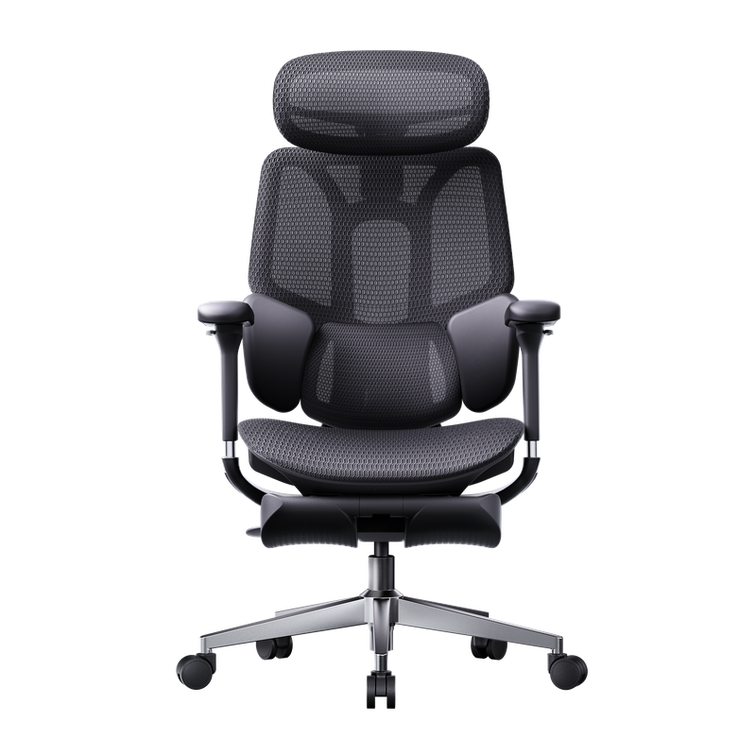
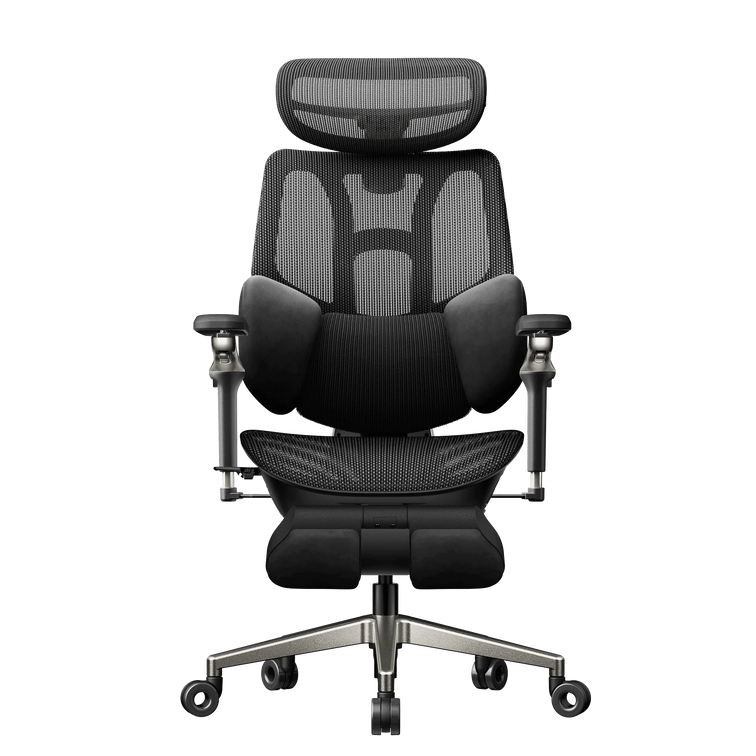
    Explore the HBADA E3 Pro ergonomic office chair if adjustable seating and three-zone lumbar support are priorities. Compare fit and controls rather than assuming a feature count guarantees comfort.

  5. Leave room for movement.

    Build manageable opportunities to change position or step away from the desk. A supportive chair and regular movement serve different purposes; one does not replace the other.

09 / QUESTIONS, ANSWERED

Frequently Asked Questions

How many hours a day do office workers sit?

There is no single figure for every worker. SITFLEX reported more than 5.5 hours during work and more than 10.5 hours across the waking day in its hybrid-worker sample. [1]

Is this an original HBADA workplace survey?

No. We compiled published research for this report. The title identifies the editorial edition, not the year all underlying data were collected.

Does working from home always mean more sitting?

No. The cited study observed more work-time sitting at home, but individual routines differ. Task demands, commuting patterns and movement opportunities can vary. [1]

Can an ergonomic office chair help with comfort?

Suitable adjustments can help you build a more comfortable sitting setup. This is different from a guarantee that a chair will prevent or treat back pain. Fit, how you use the chair and your individual needs all matter.

Do standing desks reduce sitting time?

They can be part of a sitting-reduction strategy. The trial discussed here tested an adjustable desk together with a behavior-change program, not a desk alone. [2]

Which chair adjustments should I check first?

Start with seat height and depth, then lumbar contact, armrest position and desk clearance. Follow the model-specific instructions and reassess after trying the setup during your normal tasks.

Sit better. Make room to move.

Workplace seating research is most useful when it leads to practical changes: a chair that fits, adjustments you understand and a routine that makes movement possible.

Start with your measurements, then choose the support and adjustability that suit your workspace.

Research Sources

  1. SITFLEX: sedentary time and movement in different office environments . Device-measured observational research; data collected in 2021.
  2. SMART Work & Life: a multicomponent intervention to reduce daily sitting . Three-arm cluster randomized trial with 12-month follow-up.
  3. Cochrane: ergonomic interventions for upper-limb and neck disorders . Systematic review; findings vary by intervention and outcome.
  4. World Health Organization: low back pain . Global burden estimates, not an office-chair study.

This article provides general information, not individual medical advice. The cited research does not establish clinical outcomes for HBADA products.
Relevant Product

You May Also Like

HBADA vs Hinomi: How to Compare Office Chair Fit HBADA vs Hinomi: How to Compare Office Chair Fit Start with your measurements.Not a feature count. A practical way to approach HBADA vs Hinomi: compare the exact chair, understand its dimensions, and find out whether the adjustment ranges work for you. Quick answer Compare seat height, usable seat depth, lumbar contact and armrest position. Add seat width and desk clearance before making your choice. A brand name, size label or adjustment count cannot establish fit on its own. Use the same measurement definitions and the exact model, edition and configuration on both sides. Feature lists are easy to compare, but they do not tell the whole story. “5D armrests” or “three-zone lumbar support” describes a design or movement capability. It does not tell you whether the chair will fit your legs, torso or desk. This HBADA vs Hinomi guide starts with your body measurements and works outward. Instead of declaring one brand the winner, it explains how to build a model-specific comparison and where misleading shortcuts can enter the decision. About this comparison: We publish this guide as HBADA. It is a measurement-based buying framework, not an independent review or a head-to-head physical test. Model names, sizes and specifications can vary by edition and market. H1 Pro V2 and H2 Pro should be treated as separate Hinomi models, not interchangeable names. In this guide 01 · Why measurements matter 02 · Measure yourself first 03 · Seat height 04 · Usable seat depth 05 · Backrest and lumbar fit 06 · Armrest clearance 07 · Comparison worksheet 08 · Build your shortlist 09 · FAQs 10 · Final fit checklist 01 / THE RIGHT STARTING POINT Why Measurements Beat Feature Counts A chair can offer adjustable lumbar support and still be a poor match for your proportions. If the seat is too deep, you may slide forward and lose backrest contact. If it is too high, your feet may remain unsupported. If the armrests cannot move out of the way, they may prevent you from reaching your desk. That is why the useful version of “Hinomi vs HBADA” is not simply “which has more adjustments?” It is “which model's adjustment ranges include the positions I need?” Compare like with like Use the same market, exact edition and selected configuration. Do not combine a small-size specification with a larger version's height recommendation or a different model's weight limit. Separate labels from fit Size bands and adjustment counts are starting points. Neither guarantees a match. The seat, backrest and armrests still need to work together for your body. 02 / YOUR PERSONAL FIT PROFILE Measure Yourself Before Comparing Chairs Use a stable seat and your usual work footwear. Keep a note of the measurements below in inches, centimeters or both. The important thing is to use consistent units throughout the comparison. Record seated lower-leg height. Measure from the floor to the underside of your knee with your feet supported. Use this as a starting point for checking seat height, not as an exact purchasing formula. Record hip-to-knee length. Measure from the back of your buttocks to the back of your knee. The usable seat should support your thighs while leaving comfortable clearance behind the knees. Record elbow position and desk clearance separately. Note your relaxed elbow height above the seat. Then measure the available space beneath your desk, including drawers, support rails and trays. Record seated hip width. Compare it with usable seat width and the space between the armrests. Overall chair width is not the same measurement. Also check lumbar contact. Backrest shape is not a single number. During setup or a fitting opportunity, check where the support contacts your lower back and whether it can be positioned comfortably for your torso. 03 / START FROM THE FLOOR Seat Height: Check the Lowest Setting First Seat height should work with both your legs and your workstation. You should be able to support your feet without having to perch at the front of the seat to reach the floor. Check what a specification measures. “Floor to seat base” may not describe the same point as “floor to seating surface.” Mesh deflection and cushion compression can also affect the occupied sitting position. If you need a lower seat Start with the minimum usable seat height. A broad recommended-height range does not replace this check. Consider the desk height at the same time. If you need a higher seat Check the upper setting without ignoring seat depth and backrest position. A chair that rises high enough may still be too shallow for your thighs. For example, the HBADA X7 US listing currently publishes a seat-height range of 17.52–20.87 inches (44.5–53 cm). Use that as a model-specific reference—not proof that every person within the recommended height range will find the same fit. 04 / THE NUMBER PEOPLE MISS Usable Seat Depth: Range Is Not the Same as Travel Seat depth affects whether you can remain in contact with the backrest while keeping clearance behind your knees. Before comparing numbers, distinguish three different measurements. Three measurements that should not be treated as interchangeable. Measurement What it describes What it does not establish Overall chair depth The front-to-back footprint of the chair. The thigh-supporting surface available when seated. Usable seat-depth range The minimum and maximum usable depth, measured from defined reference points. Comfort without considering your body and backrest position. Seat-slide travel How far the seat moves between adjustment endpoints. The absolute minimum or maximum seat depth. Our E3 Pro 2026 and E3 Air 2026 pages describe approximately 1.97 inches (50 mm) of seat-slide adjustment. That travel figure alone does not show which model has the deeper usable seat. A simple consistency check: A published range of 17.7–19.7 inches spans 2 inches, or approximately 50.8 mm. It should not be presented as a 60 mm range without an explanation of different measurement points. For shorter thighs, check the shallowest usable setting. For longer thighs, check the deepest. In either case, the goal is comfortable support while remaining against the backrest—not simply selecting the largest number. 05 / WHERE THE SUPPORT MEETS YOU Backrest Shape and Lumbar Fit Panel counts and support-zone counts describe construction, not a universal comfort ranking. What matters is where the support meets your lower back, how much adjustment is available, and whether the contact feels appropriate during your usual tasks. Within our range, the E3 Pro 2026 offers three-zone lumbar support, while the X7 uses AI-powered lumbar tracking. These are different support approaches; neither description guarantees a particular user's comfort. When evaluating a Hinomi model, keep the exact model and edition in view. Do not transfer a backrest description from H1 Pro V2 to H2 Pro, or from one model family to another. Can you position the support at a comfortable height? Can you sit against the backrest without being pushed forward? Does the support remain comfortable when you change position? Can you use the relevant controls without difficulty? More pressure is not automatically better. Adjust gradually and judge the fit during ordinary sitting and movement. 06 / THE DESK IS PART OF THE FIT Armrest Position: Support and Clearance Are Separate Checks Armrests need to work with your relaxed elbow position and the space beneath your desk. Those are related questions, but they are not the same measurement. Check whether armrest height is measured from the floor or from the seat. A floor-to-armrest figure also depends on the seat-height setting, so record the setup used when measuring. Measure the underside, not the desktop. A 29-inch-high desk does not necessarily provide 29 inches of clearance. Desktop thickness, drawers, aprons and keyboard trays reduce the available space. As a simple example, a desk with 27.5 inches of clear space underneath will not accommodate a 28-inch-high armrest in that position, even if the top surface is 30 inches high. If a specific chair offers flip-up armrests, check how that movement changes access and whether it leaves you with the support you want while working. Labels such as “5D” or “720°” do not establish desk clearance or minimum elbow height. 07 / BUILD A FAIR COMPARISON HBADA vs Hinomi: A Model-Specific Fit Worksheet Use the same checks for both brands. Leave an unconfirmed field unconfirmed rather than filling it with a number from another model, market or retailer. Complete this worksheet for the exact two chairs on your shortlist. Fit check HBADA model Hinomi model Decision rule Identity Record the model, edition and configuration. Record the model, edition and size where applicable. Do not combine specifications across versions. Seat height Check the minimum, maximum and measurement point. Check the same details for the selected version. Look for supported feet and a workable desk position. Usable depth Separate actual depth from slide travel. Separate actual depth from seat-pan dimensions. Keep backrest contact and comfortable knee clearance. Seat width Check usable width and space between armrests. Check the same measurements. Overall chair width is not a substitute. Lumbar fit Check support position and available controls. Check the selected model's support position and controls. Zone or panel count alone does not establish fit. Armrests Check elbow support and height at your seat setting. Check the same, including any folding function. Compare against the desk's lowest obstruction. Weight limit Use the limit for the exact model and market. Use the limit for the exact model and market. Capacity is not a comfort or durability ranking. Swipe horizontally on smaller screens. This worksheet intentionally avoids unsupported brand-wide rankings. 08 / TURN MEASUREMENTS INTO A SHORTLIST Which Measurements Should Guide Your Choice? Shorter lower legs Prioritize the minimum seat height, then verify that the seat is not too deep. Do not rely only on a “small” label or recommended-height range. Longer thighs Check the maximum usable seat depth, not just the amount of slide travel. Confirm that the backrest and lumbar support still contact you comfortably. A low or compact desk Measure the lowest obstruction beneath the desk and the chair's width at the armrests. Test whether you can move close enough to your keyboard. A shared workspace Compare the adjustment ranges with both users' measurements. A wide range helps only if it includes the positions each person needs and is practical to reset. Within our range, use the E3 Air 2026, E3 Pro 2026 and X7 product pages to build your shortlist. Start with fit, then decide which support features matter to your routine. 09 / USEFUL ANSWERS Frequently Asked Questions Is HBADA or Hinomi better for my height? Height alone cannot settle that question. Compare the exact models' seat height, usable depth, lumbar position and armrest settings against your proportions. Neither brand name establishes a universal fit. Is this an independent comparison test? No. We publish this guide as HBADA. It explains how to compare dimensions and adjustment ranges; it does not report a controlled physical test or an independent comfort ranking. Are H1 Pro V2 and H2 Pro specifications interchangeable? No. Treat them as separate models. An updated listing or a similar product name is not a reason to carry dimensions, size bands or features from one to the other. Is a chair offered in multiple sizes automatically a better fit? No. Size labels narrow the options, but each size still has specific dimensions. Likewise, an adjustable chair works only if its usable ranges include the positions your body needs. Does more seat-depth adjustment mean a deeper seat? Not necessarily. Adjustment travel describes how far the seat moves. You need the minimum and maximum usable depth to compare the actual seating space. Will an armrest fit under a standard-height desk? There is no reliable answer from desktop height alone. Measure the lowest obstruction underneath, then compare it with the armrest at the seat-height setting you will use. Does a higher weight capacity mean a chair is more comfortable? No. Weight capacity is a load limit for the specified product. It does not establish comfort, usable seat width or how well the backrest fits a particular person. What if two listings give different dimensions? Check the model, edition, market, size and measurement definition first. Ask for clarification before using a disputed number to make a purchase decision. Do not average conflicting specifications. 10 / BRING IT TOGETHER Fit Is a Match, Not a Feature Count The practical way to approach HBADA vs Hinomi is to compare your measurements with two clearly identified chair models. A longer feature list cannot make up for a seat or armrest position that does not work for you. I know the exact model, edition and configuration. I have checked seat height and usable seat depth. I have compared seat width and armrest spacing. I have measured the actual clearance beneath my desk. I understand the lumbar controls and support position. I have checked the applicable purchase and return terms. Once the dimensions work, explore the controls and refine the setup. A chair that appears suitable on paper still needs to be adjusted for everyday use. Find the HBADA that fits your setup. Compare current models, check their dimensions and choose the adjustments that have a purpose in your working day. Compare HBADA Chairs Explore Setup Resources Enjoyed this guide? Stay connected with HBADA. Choose HBADA as a preferred source on Google where the feature is available. Choose HBADA on Google ↗ Opens Google in a new tab. Confirm your selection there if HBADA is available. HBADA Chair Comparison Guide: E3 Air vs E3 Pro vs E3 Ultra vs X7 HBADA Chair Comparison Guide: E3 Air vs E3 Pro vs E3 Ultra vs X7 Find your fit.Then find your chair. E3 Air, E3 Pro, E3 Ultra, or X7? A practical comparison of how you work, how you sit, and the support you want. Quick answer: The X7 emphasizes AI-powered lumbar tracking. The E3 Pro offers adjustable support for desk work. The new E3 Ultra Gen 5 combines full-body dynamic support with 4D bionic massage and graphene heat. The E3 Air covers everyday office essentials. Start with your priorities, then check seat height and seat depth against your body. With four different models to compare, picking the right one isn't always obvious. This HBADA chair comparison guide breaks the decision into two simple factors: how you actually sit and work, and how your body measures up. This guide compares the E3 Air 2026, E3 Pro 2026, new E3 Ultra Gen 5, and X7. The E3 Ultra discussed here is the new massage-and-heat model, not the earlier edition. In this guide The two questions that decide your chair Where each model fits Seat depth and body fit E3 Air vs E3 Pro E3 Ultra vs X7 Quick reference table Putting the framework into practice Frequently asked questions The Two Questions That Actually Decide Your Chair Most people start comparing chairs by scrolling through feature lists and quickly feel overwhelmed. A simpler starting point is to ask two questions instead: What do I want from my chair? Think about everyday desk support, how often you change position, and whether features such as massage and heat matter to your routine. Does this chair's size range fit my body? Look beyond the model name to seat height, seat depth, armrest position, and desk clearance. Answering those questions first narrows the lineup before you get into individual features. The new E3 Ultra combines support for work with relaxation features, so the choice is no longer simply “office work” versus “recline and rest.” Usage Style: Where Each Model Fits Our chairs offer different combinations of support, adjustment, and comfort. Here is where to start. HBADA X7 AI-powered lumbar tracking The HBADA X7 is worth exploring when you want AI-powered lumbar tracking to respond to changes in your sitting position. That tracking system is its central distinction in this comparison. You still need to adjust the chair to your body and desk. Automatic tracking does not replace a proper initial setup. HBADA E3 Ultra Gen 5 Full-body dynamic support meets bionic massage. The new E3 Ultra combines linked dynamic support with 3-zone lumbar support, 4D bionic massage, and graphene heat. It supports the transition from focused desk work to relaxed breaks, rather than being positioned only as a chair for downtime. Full-body dynamic support Linked support follows changes in posture. 4D bionic massage + graphene heat Integrated massage and warmth for lower-back comfort. 3-zone lumbar support Support across the central and side areas of the lower back. 150° recline + 8D armrests Adjust your position for work and relaxation. Breathable pressure-relief mesh completes the seating setup. Explore the E3 Ultra design for a closer look at how its features work together. HBADA E3 Pro Personalized desk support The E3 Pro 2026 suits people who want to fine-tune their sitting position. Compare its lumbar, armrest, headrest, and seat adjustments with the settings you need for your daily work. HBADA E3 Air Everyday ergonomic essentials The E3 Air 2026 is a practical starting point for everyday desk use. Focus on its adjustable support, breathable mesh, and whether its dimensions fit you before deciding that you need additional features. HBADA Seat Depth Guide: Matching Fit to Your Height Usage style is only half the picture. Fit matters just as much, and seat depth is one of the most overlooked dimensions. Your height is a useful starting point, but it does not determine your ideal seat depth on its own. Two people of the same height can have different thigh and lower-leg lengths. Check whether you can sit back against the backrest with your feet supported and comfortable clearance behind your knees. Fit before features. A seat that is too deep can make you slide forward, away from the lumbar support. A seat that is too shallow may leave more of your thighs unsupported. Look for an adjustment range that works with your proportions. Seat height: Can you support your feet comfortably while working? Seat depth: Can you sit against the backrest without pressure behind your knees? Armrests: Can your arms rest comfortably without pushing your shoulders upward? Desk clearance: Can you move close enough to your keyboard without the armrests getting in the way? Once your chair arrives, our guide to adjusting your chair can help you work through the setup. How you adjust the chair matters alongside the model you choose. E3 Air vs E3 Pro: The Two Most Common Choices For everyday desk use, the decision may come down to these two models. Start with the adjustments you actually use rather than assuming a higher model tier automatically means a better fit. Start with the E3 Air for the essentials If adjustable support and breathable mesh are your main priorities, check whether the E3 Air already meets your needs. A chair that fits your body and workspace well can be a better match than one with extra features you rarely use. Compare the E3 Pro for a more personalized setup If you want to fine-tune your sitting position, compare the E3 Pro's available settings with the E3 Air. Pay particular attention to the adjustments that matter for your arms, lower back, and working height. Review the current E3 Air specifications and E3 Pro specifications side by side. Confirm the exact configuration, including any footrest option, before ordering. When the E3 Ultra or X7 Makes More Sense The new E3 Ultra is worth considering when you want dynamic support during desk work together with integrated massage and heat for moments of relaxation. Its linked support system responds to movement, while 3-zone lumbar support, 8D armrests, and a 150° recline let you personalize your sitting position. The 4D bionic massage and graphene heating functions add another layer of comfort. The X7 makes sense if AI-powered lumbar tracking is the feature you most want. The E3 Ultra's mechanical linkage should not be confused with the X7's AI tracking system: they offer different approaches to responsive support. The useful distinction: X7 emphasizes AI lumbar tracking. E3 Ultra Gen 5 combines full-body dynamic support with massage and heat. Choose by the support approach and features you value—not simply “work” versus “rest.” Compare the X7 with the new E3 Ultra Gen 5, then confirm body fit and desk clearance. Quick Reference Table Compare support priorities first, then check the exact product specifications. Model Main focus Support and adjustment Consider it when… HBADA X7 AI lumbar tracking AI-powered tracking alongside personal setup You want AI tracking at the center of your chair's support system. HBADA E3 Ultra Gen 5 Dynamic support, massage, and heat Linked support, 3-zone lumbar support, 8D armrests, and 150° recline You want desk support with integrated bionic massage and graphene heat. HBADA E3 Pro 2026 Personalized desk support Adjustable lumbar, armrest, headrest, and seat settings You want to fine-tune your sitting position. HBADA E3 Air 2026 Everyday ergonomic essentials Core adjustments and breathable mesh seating You want practical support for everyday desk use. Swipe horizontally on smaller screens. Check the selected product page for current specifications, configurations, prices, and availability. Putting the Framework Into Practice Start with your routine. Decide which matters most: everyday adjustability, AI lumbar tracking, or dynamic support with massage and heat. Narrow the comparison. Pick one or two models based on those priorities, rather than comparing every feature at once. Confirm the fit. Compare seat dimensions, adjustment ranges, and weight capacity with your measurements and workspace. Check the exact version. Confirm the generation and configuration. In particular, do not mix the earlier E3 Ultra with the new Gen 5 massage-and-heat model. That two-step principle—usage first, fit second—is the core of this comparison. All models still need appropriate initial adjustment. Frequently Asked Questions What is the main difference between E3 Air and E3 Pro? Compare their available adjustments and dimensions. The E3 Air focuses on everyday ergonomic essentials, while the E3 Pro is worth exploring if you want more options for personalizing your setup. Check the specific settings you need rather than choosing by model name alone. Which E3 Ultra does this comparison cover? This guide covers the new E3 Ultra Gen 5 with full-body dynamic support, 4D bionic massage, graphene heat, 3-zone lumbar support, 8D armrests, and a 150° recline. It does not describe the earlier E3 Ultra edition. Should I choose the X7 or E3 Ultra for responsive support? Consider the X7 if AI-powered lumbar tracking is your priority. Consider the E3 Ultra Gen 5 if you want linked dynamic support together with massage and heat. Their support approaches differ, so compare the features and fit that matter most to you. Is the new E3 Ultra only for reclining and taking breaks? No. Its dynamic support and adjustable components are designed for desk use as well as relaxation. Massage, heat, and recline add comfort options; they do not define the chair as a rest-only model. Why does seat depth matter so much? Seat depth affects whether you can sit back against the lumbar support without pressure behind your knees. Check the seat's adjustment range against your body proportions, not height alone. Can seat depth alone tell me which chair to buy? No. Check seat height, armrest position, weight capacity, and desk clearance too. Seat depth is one part of a comfortable setup, not the whole decision. One Framework, Four Right Answers There is no single best chair for everyone—only the right match for how you work and how your body fits the chair. Start with the support and comfort features you value. Then compare the actual dimensions and adjustment ranges. The new E3 Ultra belongs in both work and relaxation routines, while the X7, E3 Pro, and E3 Air offer other combinations worth exploring. Find Your HBADA Chair Explore E3 Ultra Gen 5 Keep HBADA in your reading list. Choose HBADA as a preferred source on Google where the feature is available. Choose HBADA on Google ↗ Opens Google in a new tab. Confirm your selection there if HBADA is available. How to Set Up an Ergonomic Office Chair for Better Spinal Support How to Set Up an Ergonomic Office Chair for Better Spinal Support Your chair. Your fit. Better support starts with the setup. A well-designed chair is only part of the picture. The way you adjust it determines how comfortably you can reach your desk, use the backrest, and change position throughout the day. Quick answer: A practical starting sequence is seat height, seat depth, lumbar support, backrest recline, and finally armrests. Then recheck the complete setup at your desk. These adjustments work together, so treat the sequence as a useful guide rather than a rigid rule. 01Seat height 02Seat depth 03Lumbar support 04Backrest recline 05Armrests Buying an adjustable chair does not finish the job. Without a comfortable starting position, you may still find yourself perching forward, reaching for the keyboard, or sitting away from the backrest by mid-afternoon. This guide walks through the adjustments in a practical order so you can make better use of your chair's support. Before starting, check the controls for your exact model in our HBADA user manual and assembly guide hub. Available adjustments differ by model and generation. In this guide Why the adjustment order matters Step 1: Seat height Step 2: Seat depth Step 3: Lumbar support Step 4: Backrest recline Step 5: Armrests Quick adjustment checklist Common setup mistakes When to recheck your setup Frequently asked questions Put your setup into practice Why the Order of Adjustment Actually Matters It is easy to adjust a chair piecemeal: raising the seat here, nudging the lumbar support there, without checking how one change affects the next. Seat height changes your relationship to the floor and desk. Seat depth influences whether you can sit back comfortably. Both affect where your lower back meets the lumbar support. Setting the seat first gives you a more consistent starting point for the rest of your ergonomic office chair setup. Once the other adjustments are in place, return to the seat and check the overall fit again. Think beyond the chair: Desk height, keyboard position, screen placement, and footwear also affect your setup. If one adjustment solves a problem but creates another, review the whole workstation. Step 1: Seat Height Start with your feet supported on the floor and your thighs resting comfortably on the seat. Your knees should be bent comfortably, around a right angle as a starting point, without pressure from the front edge of the seat. If your feet dangle, the seat may be too high for unsupported sitting. If your knees are pushed noticeably upward and your hips feel cramped, the seat may be too low. Adjust gradually rather than chasing an exact angle. Next, check your desk. If lowering the seat makes the keyboard too high, you may need to adjust the desk or use a stable desk footrest while keeping the seat at a workable height. A reclining chair's built-in leg rest is not the same as a footrest used to support your feet during upright desk work. Quick check: Feet supported, no pressure behind the knees, and no need to lift your shoulders to reach the keyboard. Step 2: Seat Depth Once the height is comfortable, sit back against the backrest. Check the space between the front edge of the seat and the back of your knees. Roughly two to three finger-widths is a useful starting check, not a universal measurement. If the seat is too deep, its front edge may press behind your knees and encourage you to slide forward, away from the backrest. If it is too shallow, it may provide less thigh support than you need. If your chair has a sliding seat, adjust it until you can use the backrest comfortably while leaving clearance behind your knees. Follow the model's instructions for operating and securing the seat-depth mechanism. Quick check: You can sit back without the seat edge pressing into your knees or needing to perch on the front of the chair. Step 3: Lumbar Support Setup With seat height and depth established, position the lumbar support around the natural inward curve of your lower back. Use the feel of the support rather than your belt line alone to find a comfortable position. If your chair allows it, adjust lumbar height first, then depth or tension. Aim for gentle contact rather than a hard push that forces you into an exaggerated arch. More pressure is not automatically more support. If the chair has adaptive lumbar support, check how it feels when you shift or lean back, not only while sitting still. An adaptive mechanism still needs an appropriate initial fit. Our E3 Pro 2026 is one option to explore when comparing adjustable ergonomic seating. Use the controls and instructions for your exact chair rather than assuming every lumbar system adjusts in the same way. Quick check: The support meets your lower back comfortably, without making you slide forward to escape the pressure. Step 4: Backrest Recline With lumbar support in place, explore a comfortable backrest position. A modest recline can be useful, but there is no single angle that suits every person, chair, and task. For keyboard work, choose a supported position that lets you reach the desk without stretching your arms or leaning your head forward. A deeper recline may suit a seated break better than typing at a fixed desk. If your chair has adjustable tilt tension, set it so you can lean back and return smoothly without feeling that the backrest is fighting you or dropping away unexpectedly. Use the chair's locking controls as instructed. For example, our E3 Ultra Gen 5 offers several recline positions. The maximum recline is an available feature, not a target posture for desk work. Quick check: Your back remains supported and your keyboard stays within easy reach. Change position during the day rather than holding one angle for hours. Step 5: Armrests Set the armrests after checking your seat and desk position. They should support your forearms lightly without pushing your shoulders upward or forcing your elbows away from your body. If the pads slide or rotate, position them to match your working posture. There is no need to turn them inward if that makes your forearms or wrists uncomfortable. Check that the armrests do not stop the chair from moving close enough to the desk. If they collide with the desk, adjust them within the model's permitted range and recheck your reach to the keyboard and mouse. Quick check: Shoulders relaxed, elbows comfortably close to your sides, and no need to reach forward around the armrests. Quick Reference: Office Chair Adjustments Checklist Use this checklist after the first setup and whenever your desk, footwear, or main task changes. Adjustment Starting point What to check Seat height Feet supported; legs comfortably positioned. No dangling feet or pressure behind the knees. Seat depth A small gap behind the knees. You can sit back while your thighs remain supported. Lumbar support Gentle contact with the lower-back curve. No forced arch or need to move away from the support. Backrest recline A supported angle suited to your task. You can reach the desk without leaning forward. Armrests Light forearm support with relaxed shoulders. The pads do not spread your elbows or block desk access. Common Mistakes That Undermine Spinal Support Adjusting lumbar support without rechecking the seat. Changes to seat height and depth can alter how your back meets the support. Setting maximum lumbar tension. Aim for comfortable contact, not the strongest pressure the chair can produce. Treating one upright position as mandatory. A useful setup allows supported changes in posture. Ignoring seat depth. A backrest cannot do much for you if you are sitting too far forward to use it. Adjusting the chair but ignoring the desk. Keyboard reach and desk clearance can undo an otherwise comfortable seating position. Setting everything once and never rechecking. A different task or pair of shoes may call for a small adjustment. Signs Your Setup Needs Rechecking Even a comfortable setup benefits from an occasional review. Look for these practical signs: You repeatedly slide toward the front of the seat. Your feet lose support when you move into a working position. Your shoulders rise when you use the keyboard or armrests. The lumbar support feels too high, too low, or too firm. You lean forward to reach the screen, keyboard, or mouse. Recheck the five steps, then test the chair during your usual task. Change one setting at a time so you can tell what actually improves the fit. Comfort is not a diagnosis. New or persistent pain should not automatically be blamed on chair settings. Seek professional advice for ongoing symptoms. Chair adjustment does not replace movement breaks or medical care. Frequently Asked Questions What's the correct order for an ergonomic office chair setup? A practical sequence is seat height, seat depth, lumbar support, backrest recline, and armrests. Then recheck the complete setup at your desk. You may need to revisit earlier settings as the overall fit improves. How do I know if my lumbar support setup is correct? It should make comfortable contact with the curve of your lower back without forcing an exaggerated arch. If you slide forward to avoid the pressure, reduce the pressure or adjust its position. What backrest angle is best for spinal support? There is no universal best angle. Choose a supported position that suits your task and lets you reach your desk comfortably. Use the recline settings available on your chair and vary your position during the day. Do office chair adjustments need to be redone regularly? Recheck them when your task, desk arrangement, footwear, or comfort changes, and whenever someone else has used the chair. You do not need a complete reset every day if the setup remains comfortable. Can armrests really affect spinal support? They can affect your overall working posture. Armrests that are too high may lift your shoulders, while pads that block the desk may make you reach forward. Set them for relaxed shoulders and easy desk access. What's a common mistake when setting up a spinal support chair? Focusing on lumbar pressure while overlooking seat fit. Check that your feet are supported and that you can sit back comfortably before fine-tuning the lumbar support. A Chair That Works With Your Spine, Not Against It A useful ergonomic office chair setup is not about choosing the maximum setting on every control. It is about finding a comfortable relationship between the seat, your lower back, the armrests, and your workspace. Start with the five-step sequence, check the result during real desk work, and make small changes when needed. At HBADA, we encourage you to use the adjustments your model provides rather than assume that an adjustable chair arrives already fitted to you. Already have an HBADA chair? Find the controls, assembly instructions, and usage guidance for your model. Check the model name and generation before following a tutorial. Find your chair instructions → Comparing adjustable chairs? Review the E3 Pro 2026's available adjustments and product details alongside your desk and fit requirements. Explore E3 Pro 2026 → Further reading: For general workstation guidance, see OSHA's chair adjustment guidance . These are general setup principles, not a certification or endorsement of any particular chair. Keep practical workspace advice close. Want to see more from HBADA? Open Google's preferred sources settings and look for our site. Choose HBADA on Google ↗ Opens Google in a new tab. If HBADA is available, confirm your selection there.