
Blog

How to Choose the Best Ergonomic Office Chair in the US: 2026 Buyer's Guide

How to Choose the Best Ergonomic Office Chair in the US: 2026 Buyer's Guide

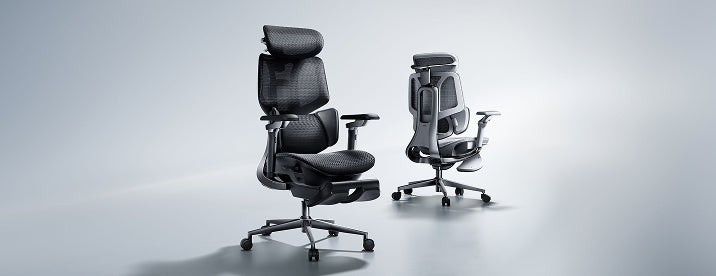
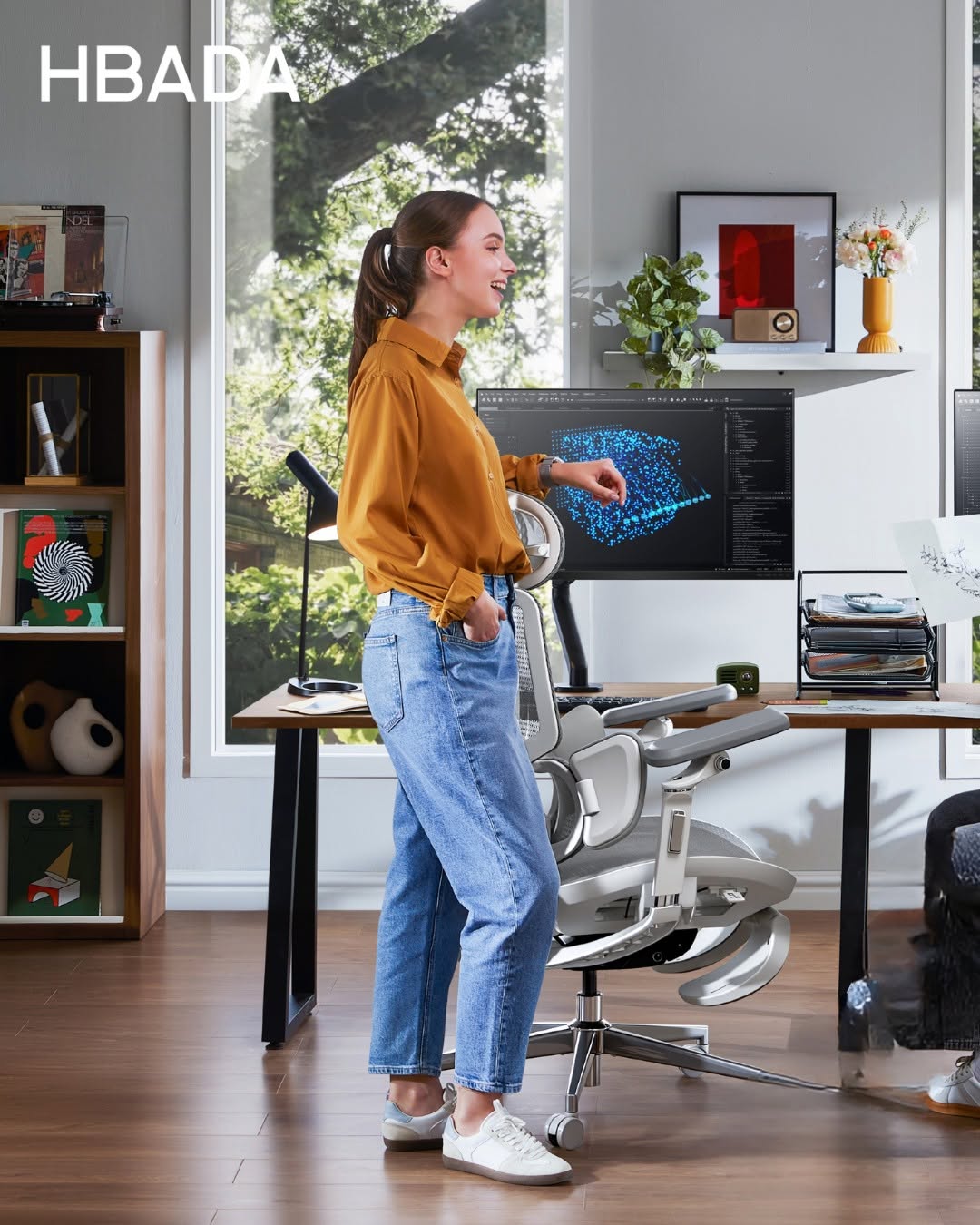
Office work has changed a lot lately, so your chair should keep up too. By 2026, traditional office chairs just aren’t enough. Now, people want office furniture that supports their health, not just a place to sit. When you shop for a new chair, focus less on looks and more on how it supports your body over time. In this guide, I’ll show you the main features to look for in a modern ergonomic chair so you can choose wisely. 

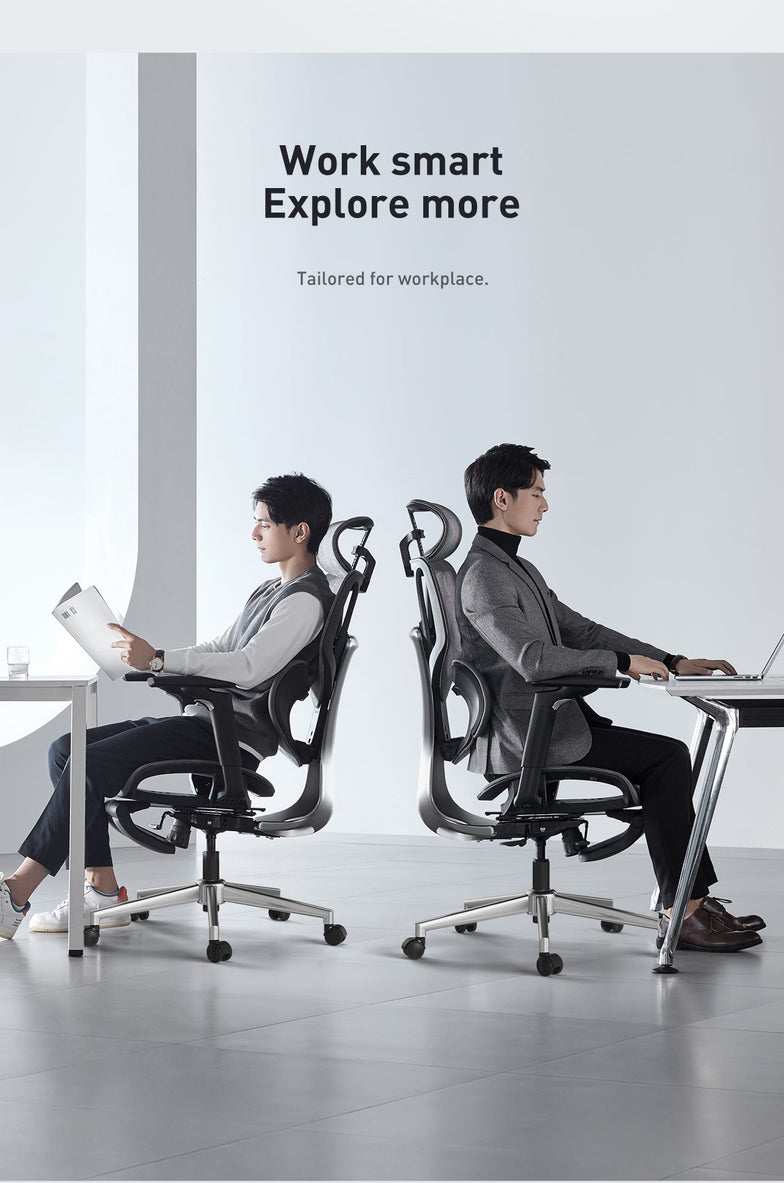
office chairs for bigger guys

Prioritize Dynamic Spinal Alignment

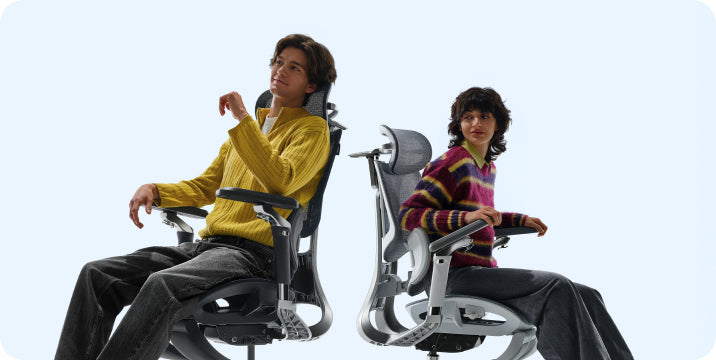
Chairs that keep you in one position often cause that afternoon slump. When shopping for a new office chair, check if it lets you move and shift easily. If a chair keeps you locked in place, your muscles have to work harder, which can lead to the aches and pains you want to avoid.

The Power of an Adaptive Lumbar Tracking Ergonomic Chair

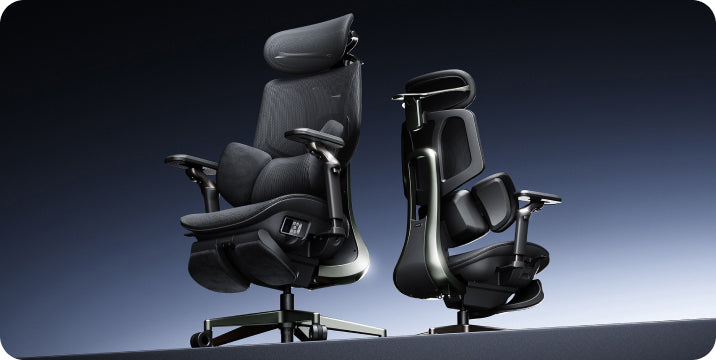
A major upgrade for 2026 is the adaptive lumbar tracking chair. This chair uses sensors to keep the lumbar support in contact with your lower back, no matter how you sit. Whether you’re leaning forward to work or leaning back to think, the support moves with you. This helps prevent the gap at your lower back, sometimes called the 'empty waist,' which often causes back pain for office workers.

Why You Need a 3-Zone Dynamic Lumbar Support Chair

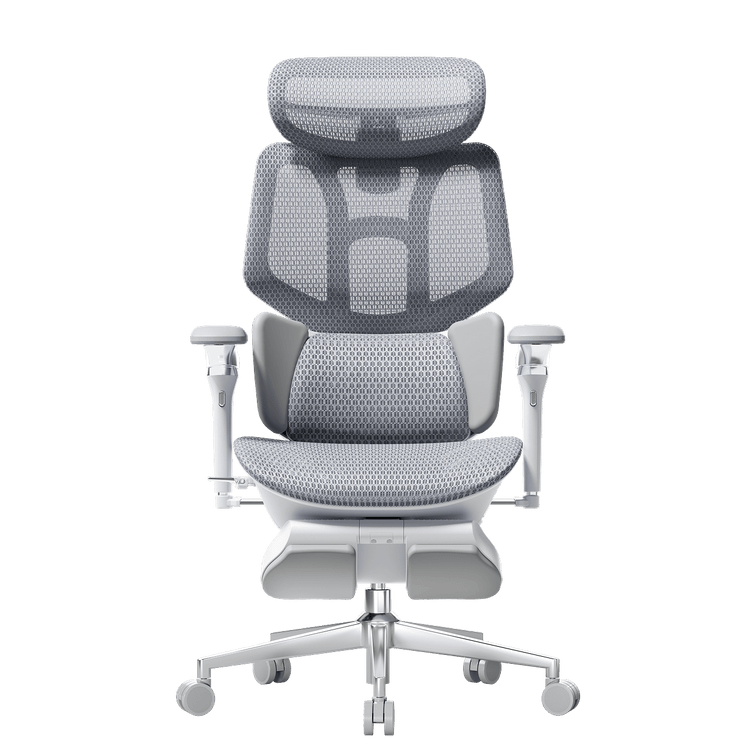
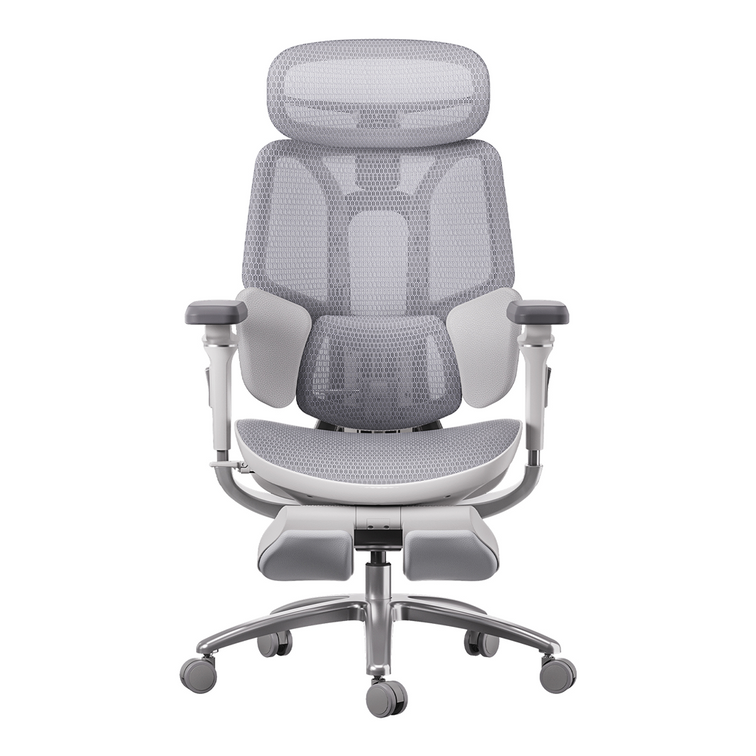
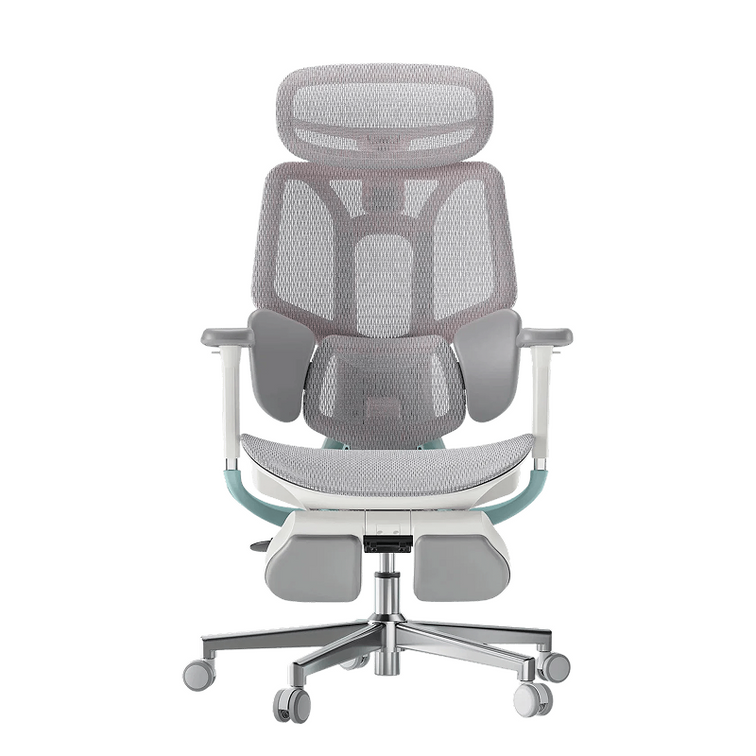
For top ergonomic support, look for a 3-zone lumbar chair with a split-wing design. This dynamic support cushions your spine’s natural curve, while flexible side wings adjust to reduce lower lumbar strain, providing targeted relief for those who sit for over 6 hours daily.

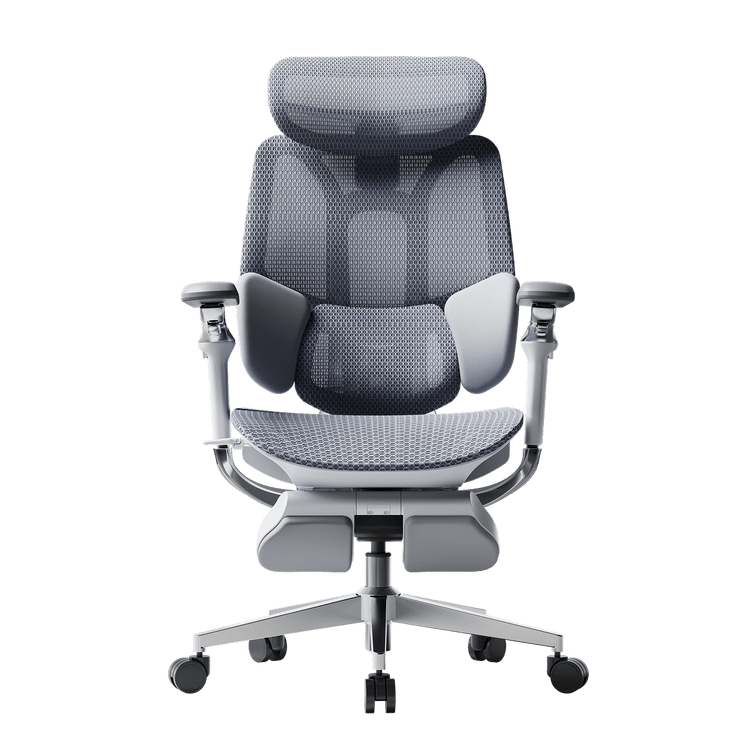
HBADA ergonomic chair for hip pain and sciatica relief

Seek Out “Total Body” Adjustability

A one-size-fits-all chair doesn’t work in today’s diverse workplaces. For a healthy sitting posture, your chair should fit your height and weight.

720° Omni-Mechanical Armrests: Your arms are heavy; without proper support, they pull directly on your neck and shoulders. The latest ergonomic armrests for shoulder relief and posture offer multi-axis rotation. This allows you to anchor your elbows, whether you are typing on a laptop, using a mobile device, or reclining at 140 °.

4D Dual-Axis Headrests: Avoid "tech neck" by choosing a headrest that adjusts in both height and depth. A dual-axis system allows the headrest to "find" your neck, providing a hovering anchor that lets your cervical muscles fully disengage.

Independent Seat Depth & Tilt Tension: A real ergonomic chair for computer work should have a seat slider. Adjusting the seat depth supports your thighs without cutting off blood flow at your knees. With adjustable tilt tension, you can set how much effort it takes to recline, matching the chair to your weight.

Backrest Height Customization: Not all torsos are the same length. A height-adjustable backrest ensures the dynamic lumbar support chair features align perfectly with the small of your back, rather than sitting too high or too low.

Compare the Best Ergonomic Chairs for 2026

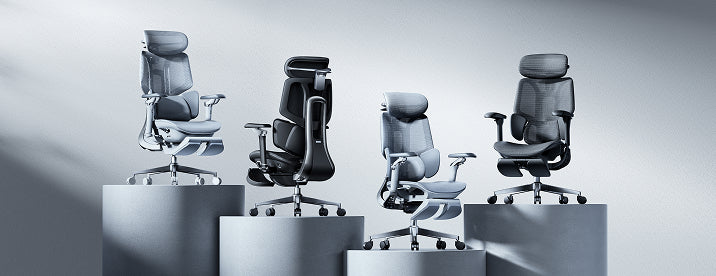
To make your choice easier, we’ve listed the main products in our 2026 lineup. Each one is designed to solve common posture problems in today’s homes and offices.

Model

Primary User Benefit

Core Technology

Best For

Hbada E3 Air

Lightweight Versatility

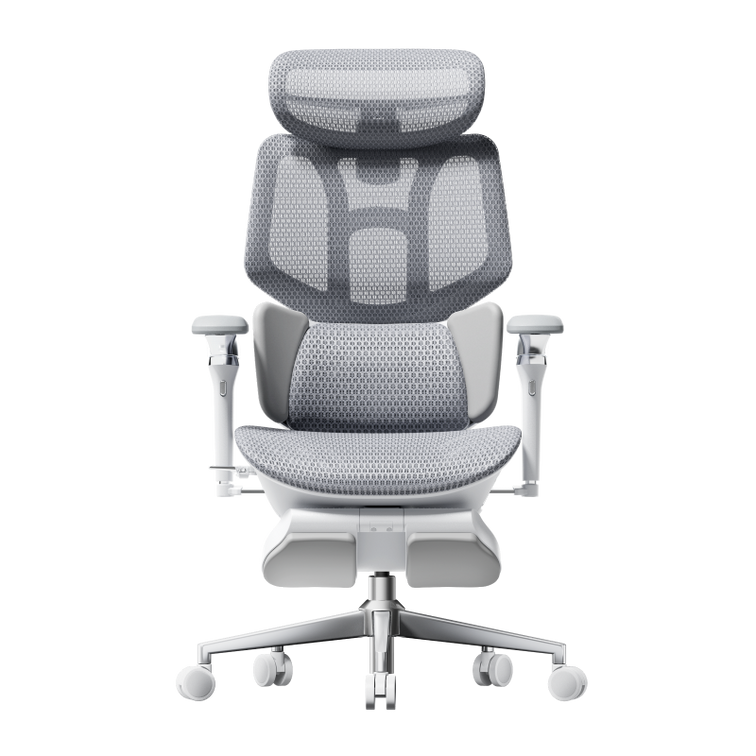
Dynamic lumbar support chair

Home Office / Casual Use

Hbada E3 Pro

Intensive Support

Best ergonomic chair with 3-zone lumbar support

8+ Hour Workdays

Hbada X7 Smart

AI Health Integration

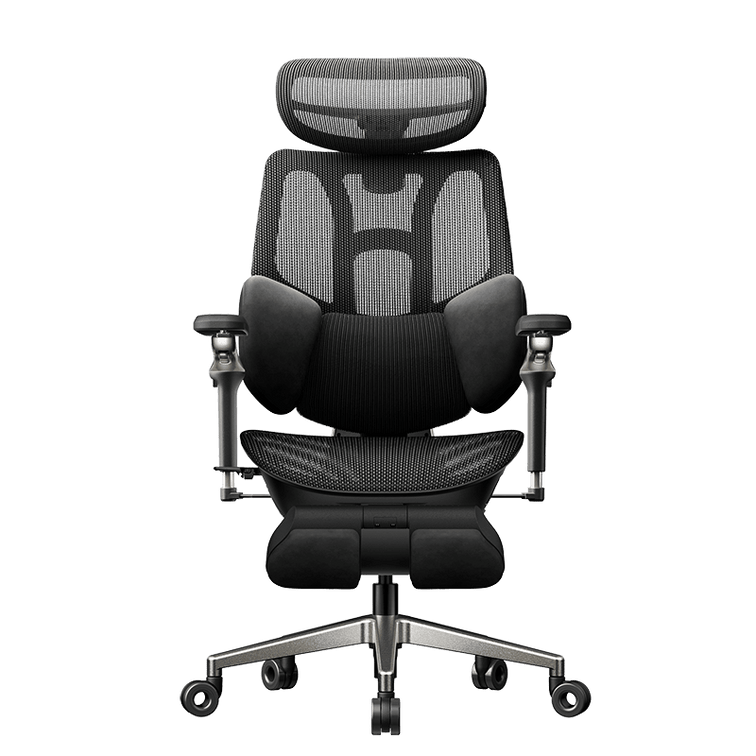
Adaptive lumbar tracking ergonomic chair

Posture Correction / Tech-Forward

If you’re planning to spend long hours at your desk and want a chair that really supports your posture, the E3 Pro and X7 Smart models are worth a look. These go beyond being just a place to sit—they’re designed to support your back and body throughout the day.

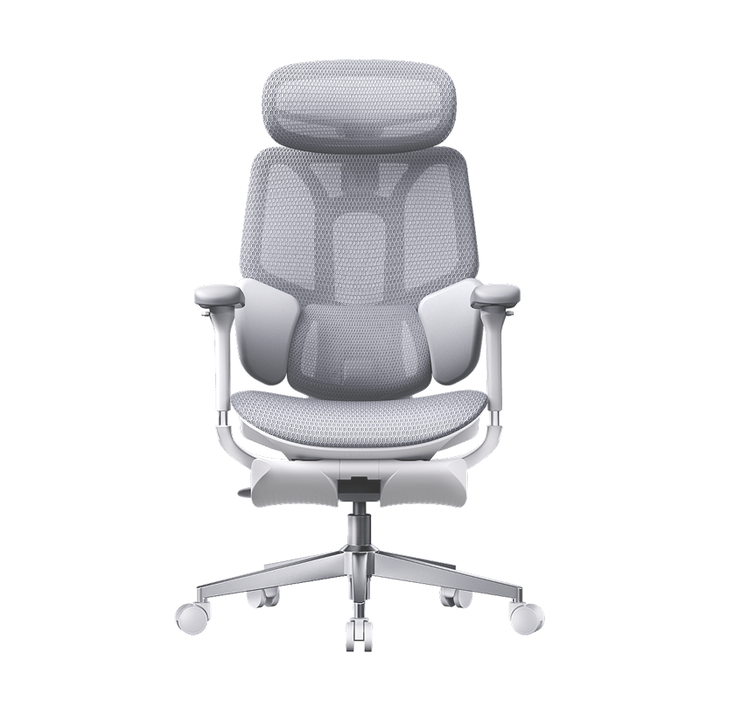
gaming chairs with good back support

Frequently Asked Questions (FAQ)

Q: How do I know if a chair is actually “ergonomic”?
A: A true ergonomic chair must have at least five points of adjustment: seat height, seat depth, lumbar tension, backrest tilt, and armrest position. If a chair lacks these, it cannot be customized to your body’s unique dimensions, which is the core ergonomic posture, meaning, and benefits requirement.

Q: What is the best sitting position for a herniated disc?
A: You should aim for a “neutral spine” position. Keep your feet flat on the floor, knees at 90 degrees, and your lower back pressed firmly against an adaptive lumbar-tracking ergonomic chair. Avoid crossing your legs, as this tilts your pelvis and puts uneven pressure on your spinal discs.

Q: Can a lightweight ergonomic chair for home office use be as good as a corporate one?
A: Absolutely. Modern materials like reinforced steel and high-tensile mesh enable a lightweight, ergonomic chair for home office setups that provides the same level of industrial-grade support as heavy executive models. Look for chairs that meet BIFMA durability standards.

Q: Why are armrests so important for posture?
A: Properly adjusted ergonomic armrests for shoulder relief and posture take the load off your trapezius muscles. When your arms are supported, your shoulders can drop into a relaxed, natural position, which significantly reduces the risk of tension headaches and upper back pain.

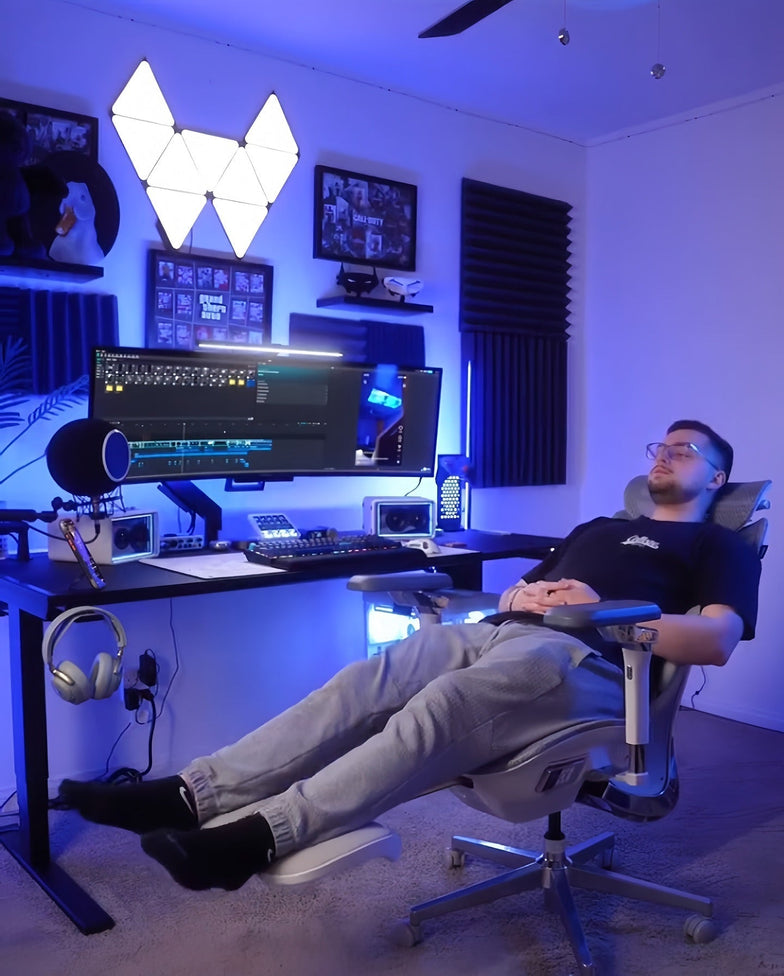
Remote worker using reclining office chair with neck support

Conclusion

Choosing the right office chair is really about looking after your long-term health. The best chairs in 2026 do more than just give you a spot to sit—they help manage your posture and keep you comfortable all day. If you focus on features like 3-zone lumbar support and adaptive tracking, you’ll set yourself up for a workspace that supports both your productivity and your well-being. With that said, don’t settle for a chair that leaves you sore or tired. Take the time to find one that fits your needs, and you’ll notice the difference every day.
Relevant Product

You May Also Like

How to Set Up an Ergonomic Office Chair for Dual Monitors How to Set Up an Ergonomic Office Chair for Dual Monitors Dual monitors can make work faster, but a poorly arranged workstation can leave you repeatedly twisting your neck, leaning toward one screen or reaching across the desk. The solution starts with your chair—not your monitors. Quick answer To set up an ergonomic office chair for dual monitors, adjust the seat height so your forearms are approximately level with the desk, support your lower back and keep your feet flat on the floor or on a footrest. Place your primary monitor directly in front of you. Angle the second monitor inward and swivel your chair to face it, so your body turns together instead of repeatedly twisting your neck. Table of Contents Why dual monitors can strain your neck How to set up your chair first How to position two monitors Common problems and fixes Dual-monitor setup checklist Which HBADA chair suits dual-monitor work? Limitations and when to get help Conclusion Frequently asked questions Sources Why Can Dual Monitors Strain Your Neck? Start with the hidden cost of a second screen. Two monitors create two visual anchors, and your body tends to follow them. When one screen sits too far to the side, you may repeatedly turn your head and torso toward it. Over a long workday, that uneven position can contribute to fatigue and discomfort. The Occupational Safety and Health Administration recommends positioning a primary monitor directly in front of the user. When multiple monitors are used equally, they should sit next to one another within a comfortable viewing angle that requires minimal head movement. The practical fix has two parts. Arrange the monitors to reduce large head turns, and use a chair that allows your whole body to swivel toward the active screen. Keep in mind: An ergonomic setup may help support a more comfortable working position, but it is not a treatment for neck, shoulder or back pain. How Should You Set Up the Chair First? Set the chair before arranging the screens because the chair establishes your working position. 1 Set the seat height Raise or lower the seat until your elbows remain close to your body and your forearms can stay approximately level while typing. 2 Support your feet Keep both feet flat on the floor. If they do not reach comfortably, use a stable footrest instead of lowering the chair too far. 3 Adjust the seat depth Leave roughly two to three fingers of space between the front edge of the seat and the backs of your knees. 4 Position the lumbar support Adjust the lumbar support until it meets the natural curve of your lower back without pushing you uncomfortably forward. 5 Set the armrests Support your forearms while keeping your shoulders relaxed. Avoid armrest positions that force your shoulders upward. 6 Test the swivel Make sure the chair can turn smoothly toward either monitor without the casters catching on cables or nearby furniture. Useful habit: When moving from one monitor to the other, swivel the chair and turn your torso with your head. Avoid leaving your body facing forward while your neck remains turned. How Should You Position Two Monitors? Arrange the screens around your seated working position. The correct layout depends on whether one monitor is primary or both are used equally. One primary monitor Place the main display directly in front of you. Position the secondary monitor immediately beside it and angle it inward. Keep frequently used windows on the main display. Two equally used monitors Place the screens side by side with their inner edges together. Center your body near the point where the screens meet and angle them inward in a shallow V. Match the monitor height Position the top of each screen at or slightly below eye level. Both monitors should be at the same height unless a specific visual need requires a different position. Match the viewing distance OSHA generally recommends a viewing distance of approximately 20–40 inches (50–100 cm). Choose a distance at which you can read the screen while keeping your head and torso upright and your back supported. Center the keyboard and mouse Center the keyboard and mouse on your main task. Keep the mouse close enough that you do not repeatedly reach, lean or pull one shoulder forward. Common Dual-Monitor Problems and Their Fixes Use this table to connect common workstation problems with practical adjustments. Problem Likely cause Adjustment to try Neck turns toward one side The second monitor is positioned too far away from the center Move it closer, angle it inward and swivel the chair toward it Head tilts upward or downward The monitors are at different or unsuitable heights Match their height and keep the tops at or slightly below eye level Eyes repeatedly refocus The screens have different distances, brightness or text sizes Match the viewing distance and adjust brightness and scaling You reach for the mouse The keyboard or mouse is too far to one side Center the input devices on the main task and keep them close You slouch later in the day The lumbar support is misplaced or sitting remains static for too long Readjust the lumbar support and take short movement breaks One shoulder feels tired You are twisting instead of turning your whole body Rotate the chair and torso toward the active monitor Your Dual-Monitor Chair Setup Checklist Complete these adjustments in order, then fine-tune the setup based on how your body feels during normal work. Set the chair height so your elbows stay near your sides and your forearms remain approximately level. Keep your feet flat on the floor or support them with a footrest. Leave roughly two to three fingers of clearance behind your knees. Position the lumbar support against the natural curve of your lower back. Adjust the armrests to support your forearms without raising your shoulders. Place the primary monitor directly in front of your normal seated position. Put the second monitor beside the first and angle it inward. Match the screens’ height and viewing distance where practical. Center the keyboard and mouse on the task you perform most frequently. Swivel toward the active screen and take short, regular movement and eye breaks. Which HBADA Chair Suits Dual-Monitor Work? A dual-monitor chair should offer stable support, adjustable armrests and smooth rotation. The X7 and E3 Pro take different approaches: the X7 emphasizes automatic support, while the E3 Pro emphasizes manual adjustability. Feature HBADA X7 Smart HBADA E3 Pro 2026 Best suited to Users who prefer automatic lumbar adjustment and smart comfort features Users who prefer manually controlled ergonomic adjustment Lumbar support AI-powered lumbar tracking with adjustable intensity Three-zone adaptive lumbar system with manual adjustment Armrests 720° full-range armrest system 720° OmniMechanical armrests Headrest 4D dual-axis headrest 4D dual-axis headrest Recline 105°–140° with four working and resting positions 105°–140° recline range Seat-height information 17.52–20.87 inches (44.5–53 cm) Confirm the current configuration on the product page Recommended user height 4'11"–6'5" (150–195 cm) 5'1"–6'5" (155–195 cm) Maximum stated load 330 lb (150 kg) 330 lb (150 kg) Prefer support that adjusts automatically? The HBADA X7 Smart Ergonomic Office Chair uses AI-powered lumbar tracking to respond as your posture changes. Its adjustable armrests and dual-axis headrest can also support different working positions across a two-screen desk. Explore the complete HBADA X7 Series . Prefer to control each adjustment manually? The HBADA E3 Pro Ergonomic Office Chair 2026 Edition combines three-zone lumbar support, adjustable seat depth, a dual-axis headrest and 720° armrests. You can also compare the HBADA E3 Series 2026 Edition , browse ergonomic office chairs or view all HBADA office chairs . Product note: Features, dimensions, availability and included accessories may vary by model, color and configuration. Check the current product page before ordering. Limitations and When to Get Help A chair can support a more comfortable posture, but it is not a medical treatment. Monitor placement, desk height and input-device position matter as much as the chair. A monitor arm or stand may be necessary when the screens cannot be aligned. People who wear bifocals or progressive lenses may need a lower monitor position. If discomfort is severe, persistent, follows an injury or radiates into the arm, seek guidance from a qualified healthcare professional. Conclusion A comfortable dual-monitor workstation begins with a stable seated position. Adjust your ergonomic office chair so your forearms are supported, your feet are stable and the lumbar support meets your lower back. Then position the main monitor directly in front of you and angle the second display inward. The most important habit is simple: swivel toward the screen you are using instead of repeatedly twisting your neck. If you want automatic lumbar adjustment, consider the HBADA X7 Smart. If you prefer manual ergonomic control, compare the HBADA E3 Pro 2026. Frequently Asked Questions How should dual monitors be positioned ergonomically? If one monitor is used most often, place it directly in front of you and position the second monitor immediately beside it, angled inward. If both are used equally, place their inner edges together, center yourself near the join and angle the screens inward in a shallow V. Should dual monitors be at eye level? The top of each monitor should generally be at or slightly below eye level. Try to keep both screens at the same height so you do not repeatedly tilt your head while moving between them. People who wear bifocals or progressive lenses may need a lower screen position. How far should dual monitors be from your eyes? OSHA recommends a general viewing range of approximately 20–40 inches (50–100 cm). Select a distance that allows you to read the screens while keeping your head and torso upright and your back supported. Does chair position matter when using two monitors? Yes. A properly adjusted chair establishes your working height and gives you a supported base. A smooth swivel also allows you to turn your body toward the active monitor instead of relying on repeated neck rotation. How can you reduce neck discomfort with dual monitors? Place the primary monitor in front of you, keep the second monitor close and angled inward, match the screens’ height and distance, and keep the keyboard and mouse within easy reach. Swivel your chair toward the active screen and take regular movement breaks. Persistent or severe symptoms should be assessed by a healthcare professional. Where should the keyboard sit with two monitors? Center the keyboard on the monitor used for your main task. If you use both screens equally, center the keyboard near the point where the two screens meet. Keep the mouse close to the keyboard to reduce reaching. Sources The workstation guidance and product details in this article were prepared using the following sources: Occupational Safety and Health Administration: Computer Workstation Monitor Guidance Occupational Safety and Health Administration: Computer Workstation Evaluation Checklist HBADA X7 Smart Ergonomic Office Chair HBADA E3 Pro Ergonomic Office Chair 2026 Edition This article provides general workstation information and is not medical advice. Individual needs vary. Product specifications and availability may change; consult the current HBADA product page for the latest information. HBADA ID.me Discount for Military, Teachers & Healthcare HBADA ID.me Discount for Military, Teachers & Healthcare Exclusive Community Savings Exclusive HBADA ergonomic chair discounts for military members, first responders, healthcare professionals, educators and students through ID.me. ✓ Quick Answer Eligible military members, veterans, first responders, hospital employees, medical providers, nurses and teachers can currently receive 6% off HBADA ergonomic chairs through ID.me. Eligible students can receive 5% off. Complete ID.me verification and confirm the discount in your checkout total before placing the order. What this guide covers Better support for demanding workdays Who is eligible How to claim the discount Why HBADA uses ID.me How to choose the right chair Important discount terms Frequently asked questions Verify your status and save Better Support for Demanding Workdays Military members, first responders, healthcare professionals, educators and students support our communities every day. HBADA is proud to recognize their contributions with exclusive savings on ergonomic office chairs through ID.me. Whether you work long shifts, study for extended hours or spend your day supporting others, a properly adjustable chair can help you build a more comfortable workspace. People working in healthcare, public safety, education and military-related roles often face demanding schedules. Some spend long periods completing reports, coordinating teams, studying, attending virtual meetings or handling administrative responsibilities. A suitable ergonomic chair should do more than provide a place to sit. It should allow the user to adjust the chair to their body, desk and daily tasks. ↕ Personalized Adjustment Look for adjustable seat height, seat depth, lumbar support, armrests and recline controls. ◉ Workstation Compatibility The chair should fit the user’s body measurements as well as the height and available space of the desk. ≈ Breathable Materials Breathable seating materials can support greater comfort during extended work or study sessions. ★ Stable Construction Review the five-star base, caster design, adjustment mechanisms and stated weight capacity before purchasing. An ergonomic chair is not a medical treatment, but proper adjustability can help users create a more supportive workstation. Who Is Eligible for the HBADA ID.me Discount? HBADA currently lists exclusive savings for the following verified groups. Eligibility is determined through ID.me, and each status category may have its own verification requirements. Eligible group Current listed discount Military members and veterans 6% OFF First responders 6% OFF Hospital employees 6% OFF Medical providers 6% OFF Nurses 6% OFF Teachers 6% OFF Students 5% OFF How to Claim Your HBADA ID.me Discount 1 Choose Your Ergonomic Chair Visit the HBADA US Store and select the chair that best matches your workspace, body measurements and adjustment requirements. 2 Start ID.me Verification Open the HBADA ID.me Exclusive Discount page or use the ID.me verification option presented during checkout. 3 Sign In or Create an Account Follow the ID.me instructions and select the status you want to verify. ID.me may request documentation depending on the selected eligibility category. 4 Complete Verification Submit the requested information directly through ID.me. You do not need to email identification documents to HBADA for this discount. 5 Review Your Checkout Total After successful verification, the eligible discount will be applied through the HBADA checkout process. Confirm the final total before completing payment. Why Does HBADA Use ID.me? ID.me is an independent identity-verification provider. It helps confirm eligibility without requiring HBADA customer service representatives to manually review identification documents. The HBADA discount is a retailer-funded offer. It is not a federal program, government payment or employment benefit. HBADA determines the discount amount and applicable offer terms, while ID.me handles eligibility verification. Visit the official HBADA ID.me Discount page to begin verification. How to Choose the Right HBADA Chair Before purchasing, compare the chair’s dimensions and adjustment range with your body and workstation. Check the Seat Height Your feet should rest securely on the floor or on a suitable footrest. The desk should allow your shoulders to remain relaxed. Check the Seat Depth The seat should support your thighs without pressing firmly against the backs of your knees. Check the Lumbar Adjustment Lumbar support should align with the natural inward curve of the lower back and suit the user’s torso length. Check the Armrest Range Armrests should support the forearms without forcing the shoulders upward or interfering with the desk. Check Product Specifications Review dimensions, adjustment ranges, stated weight capacity and product configuration before ordering. Check Regional Terms Specifications, prices, available versions and warranty coverage can vary by product and sales region. Important HBADA ID.me Discount Terms Please review these points before ordering Eligibility must be confirmed through ID.me. Discount percentages may differ by eligible group. The offer has no cash value. Multiple promotional codes generally cannot be stacked. Displayed sale pricing and ID.me savings are subject to the checkout rules in effect at the time of purchase. HBADA may update discount amounts, eligible products or program terms. Confirm the final discount in the checkout total before payment. HBADA ID.me Discount: Frequently Asked Questions Does HBADA offer a military discount? Yes. Eligible military members and veterans can currently receive 6% off after verifying their status through ID.me. Does HBADA offer a first-responder discount? Yes. Eligible first responders can currently receive 6% off through ID.me verification. Is there a discount for nurses and healthcare professionals? Yes. HBADA currently lists a 6% discount for eligible hospital employees, medical providers and nurses. Does HBADA offer a teacher discount? Yes. Eligible teachers can currently receive 6% off after completing ID.me verification. Does HBADA offer a student discount? Yes. Eligible students can currently receive 5% off through ID.me. Do I need to email my identification to HBADA? No. Verification is handled through ID.me. Follow the instructions presented on the HBADA ID.me page or during checkout. Can the ID.me discount be combined with another coupon? HBADA’s standard policy does not allow customers to stack multiple promotional codes. Some displayed sale prices may still work with an eligible discount when permitted by checkout. Confirm the final total before placing the order. What should I do if ID.me verification does not work? Check that your ID.me account information matches your eligibility documentation. For an ID.me verification problem, follow ID.me’s support process. For a problem applying the verified discount to an HBADA order, contact service@hbada.com. Honor Your Service. Support Your Workday. Your work supports other people. Your workspace should support you. Verify your eligibility through ID.me and receive the discount available for your eligible group. Verify with ID.me and Save Program References HBADA ID.me Exclusive Discount HBADA Discount & Promo Guide Discount percentages and eligibility information were checked on September 1, 2026. Program terms may change. Confirm the current offer and final order total before purchase. Office Chair Safety Checklist: Gas Lift, Base, Casters, and Fasteners Office Chair Safety Checklist: Gas Lift, Base, Casters, and Fasteners Quarterly Chair Care Guide A practical inspection routine for finding loose, worn, or damaged chair components before they affect everyday stability. ✓ Quick Answer Inspect your office chair every three months and whenever you notice a wobble, sinking seat, unusual noise, or damaged part. Check that the gas lift holds its height, the five-star base has no cracks, the casters roll securely, and all accessible fasteners remain tight. Never puncture, heat, or disassemble a pressurized gas lift. What this guide covers Why quarterly checks matter Inspecting the gas lift Checking the base and casters Checking fasteners and mechanisms Complete safety checklist When to stop using the chair HBADA component information Frequently asked questions Why check your office chair every quarter? An ergonomic office chair contains moving and load-bearing components that experience normal wear. Bolts can loosen, caster stems can collect debris, and a gas lift can eventually lose its ability to hold the selected seat height. A short inspection every three months helps identify these warning signs before they affect the chair’s stability or operation. The UK Health and Safety Executive recommends assessing display-screen workstations and reviewing the setup when equipment, tasks, or user needs change. Your chair should be suitable for the workstation and kept in good working order. Quarterly is a practical schedule for normal home-office use. A chair used intensively across multiple shifts may need more frequent checks. Inspect it immediately after moving or reassembling it, or whenever you notice a new lean, wobble, noise, or change in seat height. How to inspect the office chair gas lift The gas lift is the pressurized cylinder that controls seat height. A basic inspection does not require removing or opening it. 1 Test the seat height Set the chair to a comfortable height and remain seated for several minutes. Check whether the seat stays in position. 2 Test the adjustment Use the height lever normally. The seat should raise and lower without repeated sticking, sudden movement, or unusual resistance. 3 Look for visible damage Check the exposed cylinder area for bending, corrosion, oil residue, or other obvious signs of damage. 4 Act on repeated sinking If the seat continues to sink after checking the lever for obstruction, contact the manufacturer for the correct replacement process. Important gas-lift safety warning Never puncture, cut, heat, clamp, or disassemble a gas lift cylinder. It is a pressurized component. Follow the maintenance and replacement instructions for your exact chair model. What does “Class 4 gas lift” mean? Class 4 is a gas-lift specification used by many office-chair manufacturers. However, construction, testing documentation, and certification claims can differ between suppliers and markets. A Class 4 label alone should not be treated as proof that every cylinder has identical materials or certifications. The current HBADA E3 Pro product page specifies an SGS-certified Class-4 gas lift. If that component requires service, use a replacement approved for the exact model instead of selecting a cylinder based only on its class label. How to check the five-star base and casters The base and casters support the chair during movement, reclining, and everyday position changes. Perform the first part of the inspection with the chair unloaded and placed on a clear, level floor. Inspect the five-star base Look for cracks, splits, bends, or deformation. Pay particular attention to the points where each leg joins the center hub. Confirm that all five points sit evenly on the floor. Check for side-to-side rocking that is not caused by an uneven surface. Stop using the chair if the base is visibly cracked or structurally damaged. Inspect each caster Roll the chair slowly and listen for scraping, sticking, or clicking. Remove accessible hair, thread, dust, and grit from around each wheel. Check that every caster remains seated firmly in its socket. Look for cracked wheels, excessive wobble, or damaged caster stems. Use model-compatible replacement casters when a wheel is damaged. How to check fasteners and moving mechanisms Loose fasteners are a common source of chair wobble, movement, and squeaking. Use the tool and tightening sequence supplied with the chair manual. Tighten fasteners until secure, but do not force or over-tighten them. Check accessible bolts and screws around the seat, backrest, armrests, mechanism, and base connection. Confirm that the armrests move and lock as intended. Test the recline and tilt-lock functions without forcing the mechanism. Investigate a new squeak or clicking sound instead of waiting for it to worsen. Stop if an adjustment mechanism is jammed, bent, or unusually difficult to operate. HBADA’s current maintenance guidance recommends checking and tightening bolts and screws every one to three months, depending on how intensively the chair is used. If hardware is missing, stripped, or damaged, request the correct replacement rather than installing an unverified fastener. The complete quarterly office chair safety checklist Use this table during each inspection. If a load-bearing component is cracked, bent, or unstable, stop using the chair until the correct repair or replacement has been arranged. Chair part What to inspect Action if the check fails Gas lift Holds the selected height, adjusts normally, and has no visible damage or leakage Check the lever for obstruction and contact the manufacturer if the chair continues to sink Five-star base No cracks, bends, deformation, or uneven contact with the floor Stop using the chair if the base is cracked or unstable Casters Roll freely, remain firmly seated, and are clear of debris Clean the wheel or install a model-compatible replacement Seat and base fasteners Secure, correctly seated, and free from stripped threads Tighten according to the manual or request replacement hardware Backrest and armrests Connections remain stable and adjustments move and lock normally Stop using the affected adjustment and arrange service if it remains loose Recline and tilt lock Engages, releases, and holds without sticking or unexpected movement Check for an obstruction and contact support if the mechanism does not operate correctly What should you never do with an office chair? Never puncture, heat, modify, or disassemble the gas cylinder. Never continue using a chair with a cracked or unstable base. Never stand on the chair or use it as a step stool or ladder. Never sit on the armrests or allow more than one person to use the chair. Never force a jammed recline, height, headrest, or armrest mechanism. Never exceed the load limit specified for the exact chair model. Stop using the chair if you find a cracked base, severely loose component, caster that will not remain seated, visibly damaged cylinder, or recline mechanism that cannot hold securely. HBADA chair components and support information When comparing ergonomic office chairs, look beyond comfort features. Review the stated load capacity, gas-lift specification, base material, caster design, warranty terms, and availability of model-specific support. Model Current product specifications Current listed coverage HBADA E3 Pro SGS-certified Class-4 gas lift, steel base, PA+PU casters, and maximum load listed as 330 lb / 150 kg Five-year coverage listed for core load-bearing components, including the base, gas lift, and casters HBADA X7 Five-star base, maximum load listed as 330 lb / 150 kg, and BIFMA X5.1 certification stated on the product page Five-year coverage listed for the five-star base, gas lift, and casters Specifications and warranty terms can vary by model, version, and sales region. Check the product page and documentation supplied with your chair before relying on a specification. When should you contact support? Contact the manufacturer when a gas lift repeatedly sinks, a structural part appears damaged, a mechanism cannot lock, or the required replacement part is unclear. For a chair under warranty, contact support before attempting to replace a safety-related component. For model-specific setup, maintenance, and troubleshooting instructions, visit the HBADA Assembly, Maintenance & Troubleshooting guide. Office chair safety: frequently asked questions How often should I inspect my office chair? For a chair used every day, perform a basic inspection about every three months. Check it sooner if you notice a new wobble, squeak, sinking seat, loose part, or change in how an adjustment works. Chairs used intensively may require monthly fastener checks. Why does my office chair keep sinking? A chair that gradually lowers may have a worn or faulty gas lift. First check that the height lever is fully released and that nothing is obstructing the mechanism. If the seat continues to sink, contact the manufacturer rather than opening the pressurized cylinder. Are office chair gas lifts dangerous? Gas lifts are designed for normal chair operation, but they are pressurized components. Do not puncture, disassemble, modify, or expose one to heat. A visibly damaged or failing gas lift should be handled through the manufacturer’s recommended service process. How do I know if an office chair base is unsafe? A visible crack, bend, uneven stance, persistent wobble, or damaged caster socket is a reason to stop using the chair. Inspect the points where each base leg meets the center hub, as these areas carry significant load. Can I replace office chair parts myself? Follow the manual and warranty terms for your exact model. Casters and some fasteners may be user-serviceable, but replacement parts must be compatible with the chair. Contact support before replacing a gas lift, base, or other safety-related component. Does an ergonomic chair prevent back pain? An adjustable chair can support a better workstation setup, but it is not a medical treatment and cannot guarantee pain prevention. Adjust the complete workstation to your needs, change position regularly, and seek qualified advice for persistent pain or injury. Make chair inspection part of your routine Set a quarterly reminder, act promptly on damage or instability, and use the correct support process for replacement parts. A few minutes of routine inspection can help keep your chair operating as intended. Explore Ergonomic Office Chairs Sources and product references UK Health and Safety Executive: Working with display screen equipment HBADA: Assembly, Maintenance & Troubleshooting HBADA E3 Pro Ergonomic Office Chair specifications HBADA X7 Smart Ergonomic Chair specifications Product specifications and warranty terms referenced in this article were checked on September 1, 2026. Confirm the current product page and regional policy before purchase or service.