
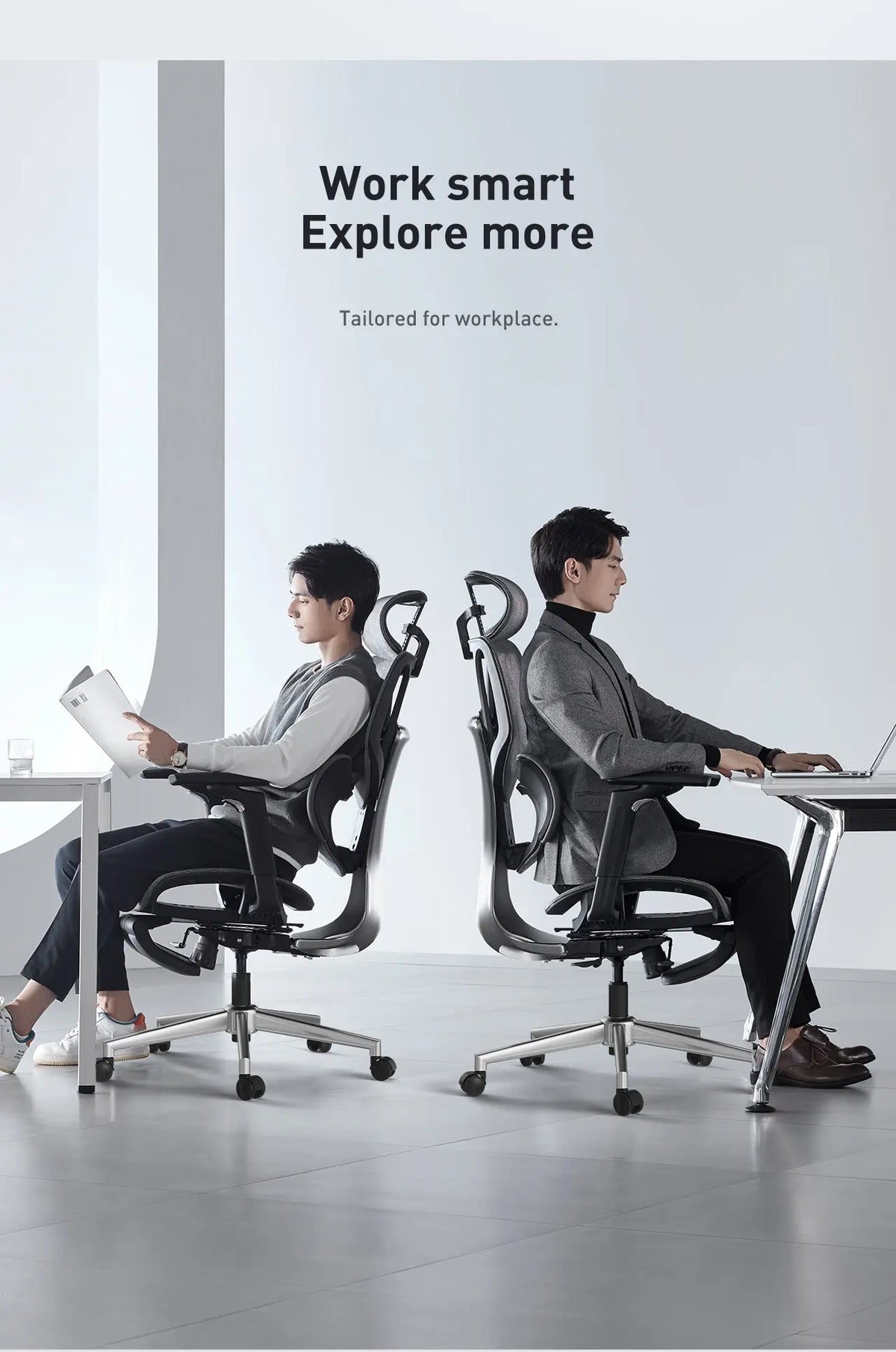
Dual monitors can make work faster, but a poorly arranged workstation can leave you repeatedly twisting your neck, leaning toward one screen or reaching across the desk. The solution starts with your chair—not your monitors.
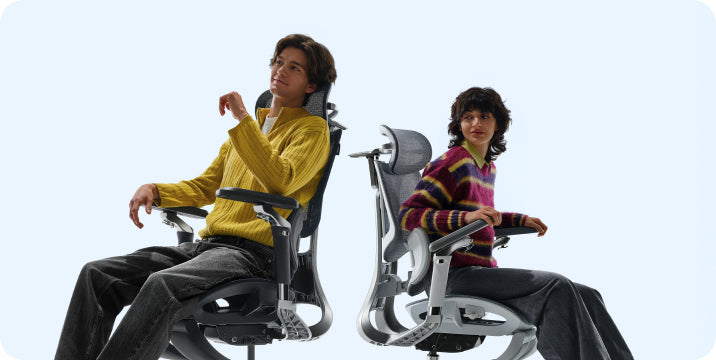
To set up an ergonomic office chair for dual monitors, adjust the seat height so your forearms are approximately level with the desk, support your lower back and keep your feet flat on the floor or on a footrest. Place your primary monitor directly in front of you. Angle the second monitor inward and swivel your chair to face it, so your body turns together instead of repeatedly twisting your neck.
Why Can Dual Monitors Strain Your Neck?
Start with the hidden cost of a second screen.

Two monitors create two visual anchors, and your body tends to follow them. When one screen sits too far to the side, you may repeatedly turn your head and torso toward it. Over a long workday, that uneven position can contribute to fatigue and discomfort.
The Occupational Safety and Health Administration recommends positioning a primary monitor directly in front of the user. When multiple monitors are used equally, they should sit next to one another within a comfortable viewing angle that requires minimal head movement.
The practical fix has two parts. Arrange the monitors to reduce large head turns, and use a chair that allows your whole body to swivel toward the active screen.
Keep in mind: An ergonomic setup may help support a more comfortable working position, but it is not a treatment for neck, shoulder or back pain.
How Should You Set Up the Chair First?
Set the chair before arranging the screens because the chair establishes your working position.
Set the seat height
Raise or lower the seat until your elbows remain close to your body and your forearms can stay approximately level while typing.
Support your feet
Keep both feet flat on the floor. If they do not reach comfortably, use a stable footrest instead of lowering the chair too far.
Adjust the seat depth
Leave roughly two to three fingers of space between the front edge of the seat and the backs of your knees.
Position the lumbar support
Adjust the lumbar support until it meets the natural curve of your lower back without pushing you uncomfortably forward.
Set the armrests
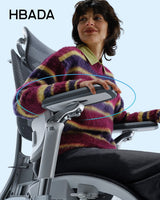
Support your forearms while keeping your shoulders relaxed. Avoid armrest positions that force your shoulders upward.
Test the swivel
Make sure the chair can turn smoothly toward either monitor without the casters catching on cables or nearby furniture.
Useful habit: When moving from one monitor to the other, swivel the chair and turn your torso with your head. Avoid leaving your body facing forward while your neck remains turned.
How Should You Position Two Monitors?

Arrange the screens around your seated working position. The correct layout depends on whether one monitor is primary or both are used equally.
One primary monitor
Place the main display directly in front of you. Position the secondary monitor immediately beside it and angle it inward. Keep frequently used windows on the main display.
Two equally used monitors
Place the screens side by side with their inner edges together. Center your body near the point where the screens meet and angle them inward in a shallow V.
Match the monitor height
Position the top of each screen at or slightly below eye level. Both monitors should be at the same height unless a specific visual need requires a different position.
Match the viewing distance
OSHA generally recommends a viewing distance of approximately 20–40 inches (50–100 cm). Choose a distance at which you can read the screen while keeping your head and torso upright and your back supported.
Center the keyboard and mouse
Center the keyboard and mouse on your main task. Keep the mouse close enough that you do not repeatedly reach, lean or pull one shoulder forward.
Common Dual-Monitor Problems and Their Fixes
Use this table to connect common workstation problems with practical adjustments.
| Problem | Likely cause | Adjustment to try |
|---|---|---|
| Neck turns toward one side | The second monitor is positioned too far away from the center | Move it closer, angle it inward and swivel the chair toward it |
| Head tilts upward or downward | The monitors are at different or unsuitable heights | Match their height and keep the tops at or slightly below eye level |
| Eyes repeatedly refocus | The screens have different distances, brightness or text sizes | Match the viewing distance and adjust brightness and scaling |
| You reach for the mouse | The keyboard or mouse is too far to one side | Center the input devices on the main task and keep them close |
| You slouch later in the day | The lumbar support is misplaced or sitting remains static for too long | Readjust the lumbar support and take short movement breaks |
| One shoulder feels tired | You are twisting instead of turning your whole body | Rotate the chair and torso toward the active monitor |
Your Dual-Monitor Chair Setup Checklist
Complete these adjustments in order, then fine-tune the setup based on how your body feels during normal work.
- Set the chair height so your elbows stay near your sides and your forearms remain approximately level.
- Keep your feet flat on the floor or support them with a footrest.
- Leave roughly two to three fingers of clearance behind your knees.
- Position the lumbar support against the natural curve of your lower back.
- Adjust the armrests to support your forearms without raising your shoulders.
- Place the primary monitor directly in front of your normal seated position.
- Put the second monitor beside the first and angle it inward.
- Match the screens’ height and viewing distance where practical.
- Center the keyboard and mouse on the task you perform most frequently.
- Swivel toward the active screen and take short, regular movement and eye breaks.
Which HBADA Chair Suits Dual-Monitor Work?

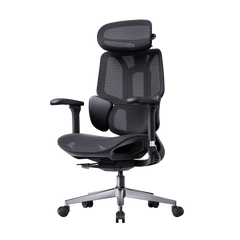
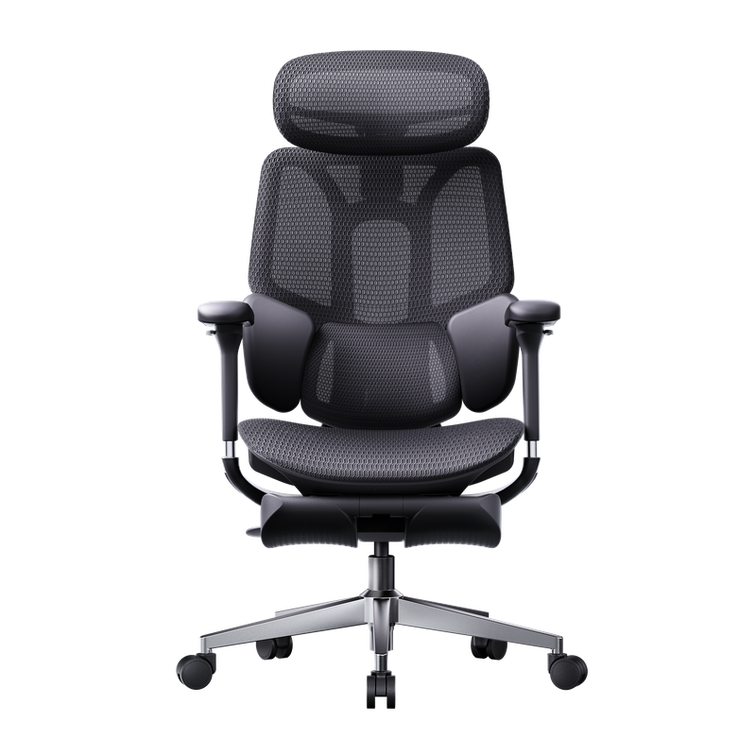
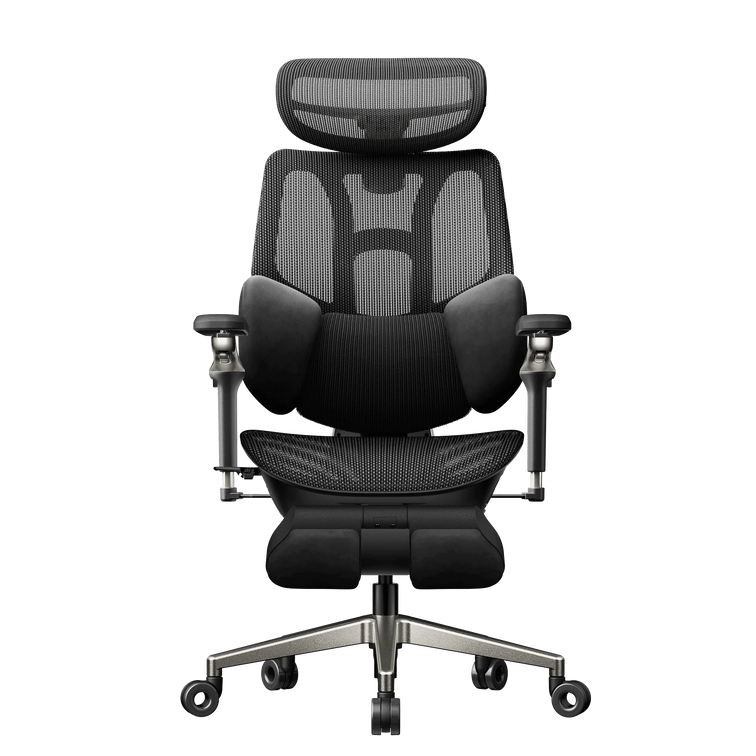
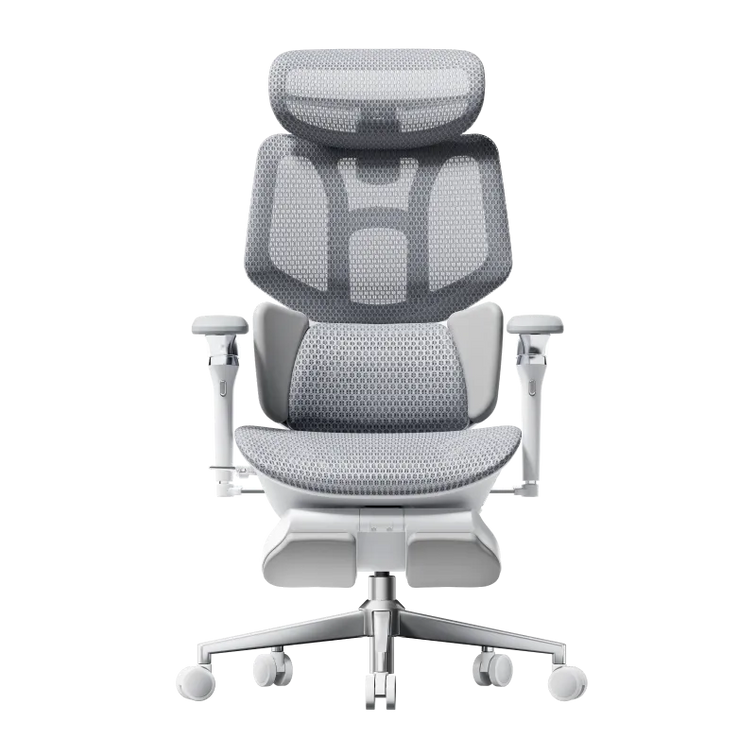
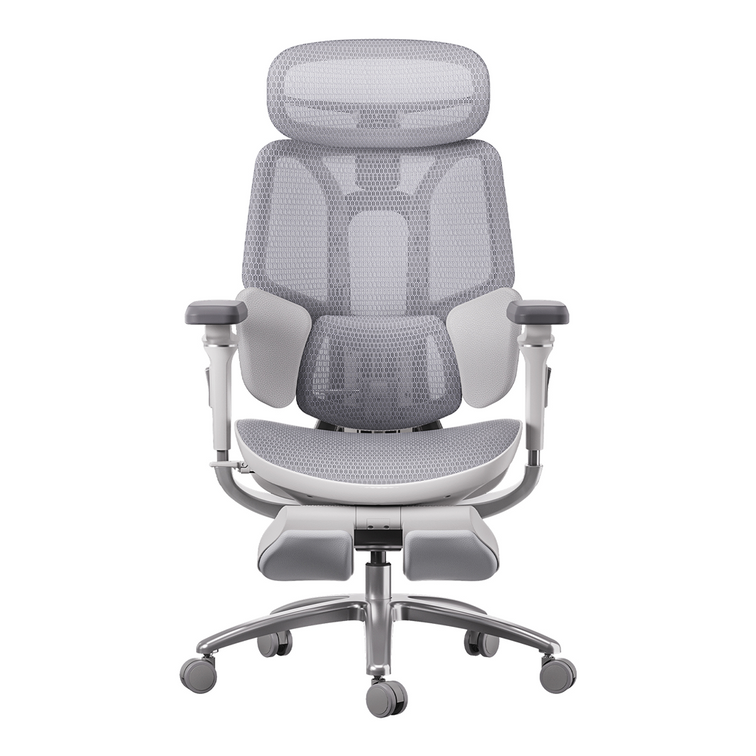
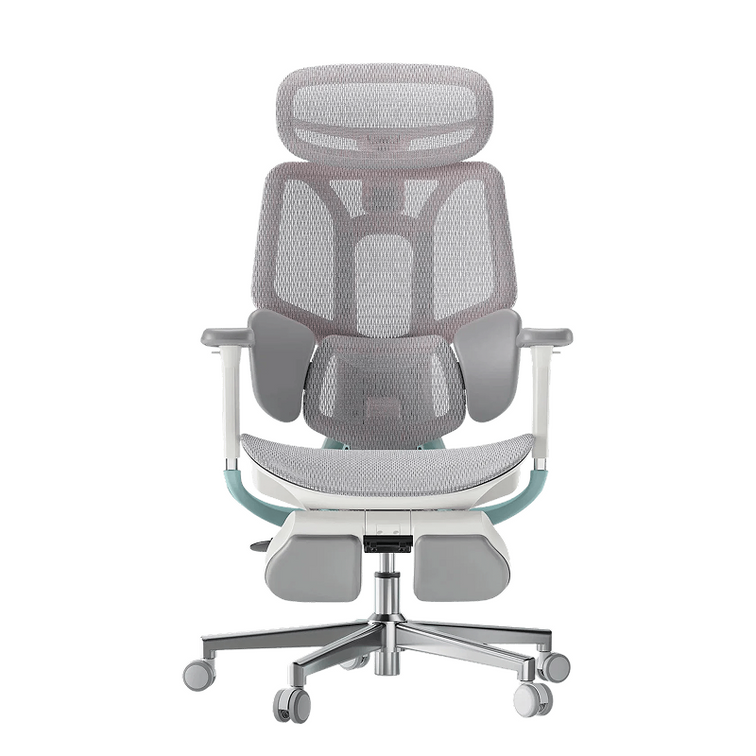
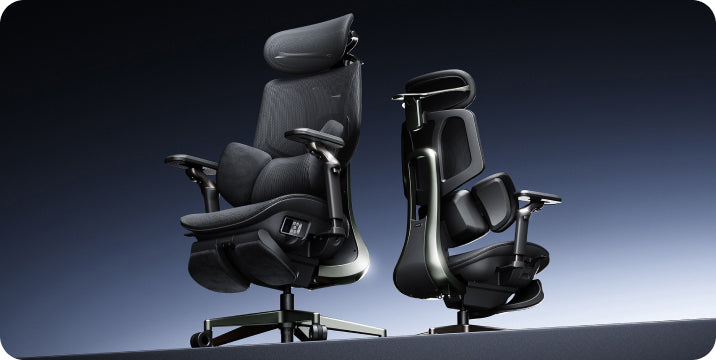
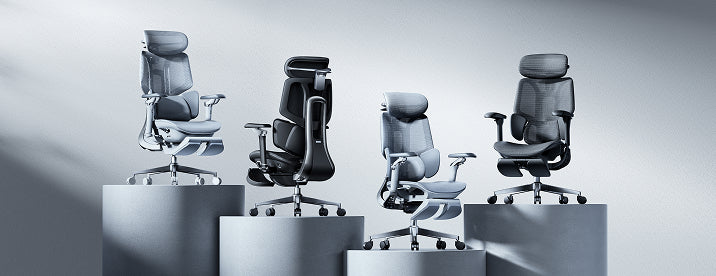
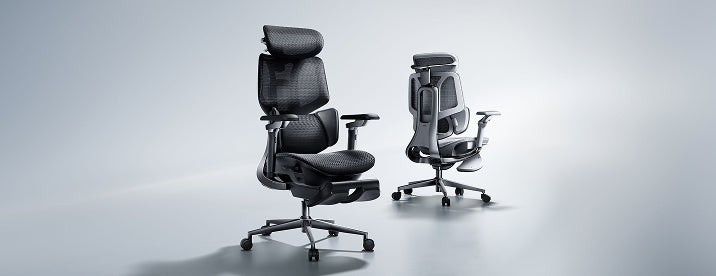
A dual-monitor chair should offer stable support, adjustable armrests and smooth rotation. The X7 and E3 Pro take different approaches: the X7 emphasizes automatic support, while the E3 Pro emphasizes manual adjustability.
| Feature | HBADA X7 Smart | HBADA E3 Pro 2026 |
|---|---|---|
| Best suited to | Users who prefer automatic lumbar adjustment and smart comfort features | Users who prefer manually controlled ergonomic adjustment |
| Lumbar support | AI-powered lumbar tracking with adjustable intensity | Three-zone adaptive lumbar system with manual adjustment |
| Armrests | 720° full-range armrest system | 720° OmniMechanical armrests |
| Headrest | 4D dual-axis headrest | 4D dual-axis headrest |
| Recline | 105°–140° with four working and resting positions | 105°–140° recline range |
| Seat-height information | 17.52–20.87 inches (44.5–53 cm) | Confirm the current configuration on the product page |
| Recommended user height | 4'11"–6'5" (150–195 cm) | 5'1"–6'5" (155–195 cm) |
| Maximum stated load | 330 lb (150 kg) | 330 lb (150 kg) |
Prefer support that adjusts automatically?
The HBADA X7 Smart Ergonomic Office Chair uses AI-powered lumbar tracking to respond as your posture changes. Its adjustable armrests and dual-axis headrest can also support different working positions across a two-screen desk.
Explore the complete HBADA X7 Series .
Prefer to control each adjustment manually?
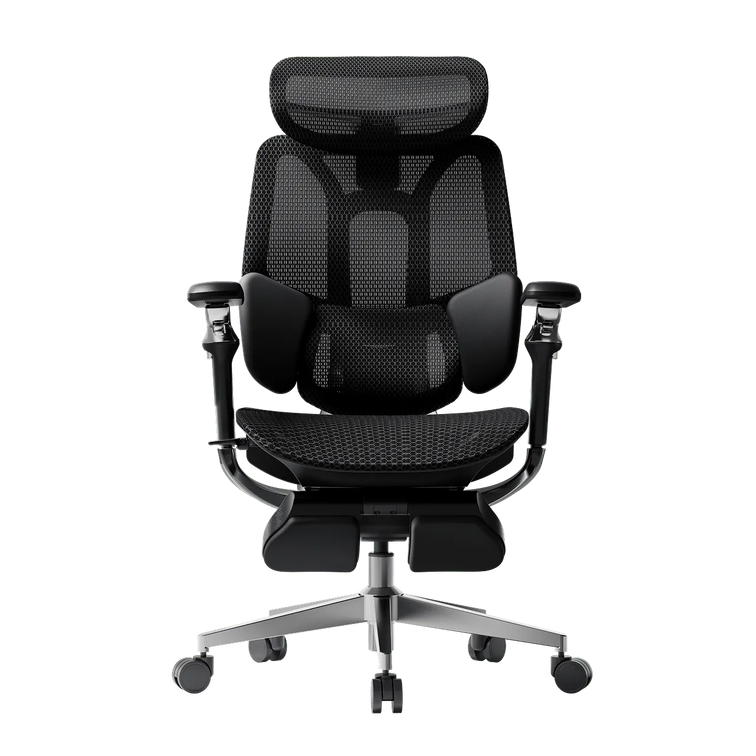
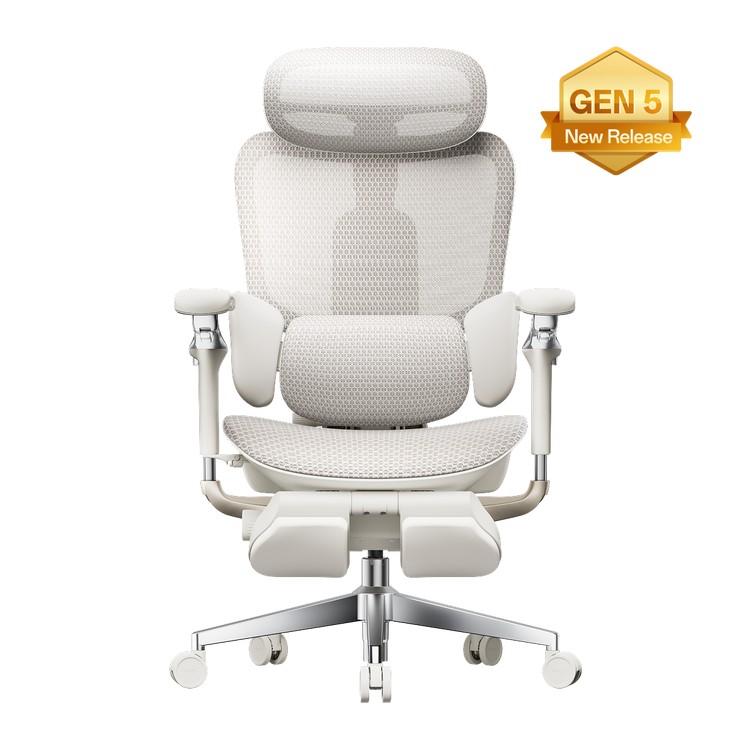
The HBADA E3 Pro Ergonomic Office Chair 2026 Edition combines three-zone lumbar support, adjustable seat depth, a dual-axis headrest and 720° armrests.
You can also compare the HBADA E3 Series 2026 Edition , browse ergonomic office chairs or view all HBADA office chairs .
Product note: Features, dimensions, availability and included accessories may vary by model, color and configuration. Check the current product page before ordering.
Limitations and When to Get Help
- A chair can support a more comfortable posture, but it is not a medical treatment.
- Monitor placement, desk height and input-device position matter as much as the chair.
- A monitor arm or stand may be necessary when the screens cannot be aligned.
- People who wear bifocals or progressive lenses may need a lower monitor position.
- If discomfort is severe, persistent, follows an injury or radiates into the arm, seek guidance from a qualified healthcare professional.
Conclusion
A comfortable dual-monitor workstation begins with a stable seated position. Adjust your ergonomic office chair so your forearms are supported, your feet are stable and the lumbar support meets your lower back. Then position the main monitor directly in front of you and angle the second display inward.
The most important habit is simple: swivel toward the screen you are using instead of repeatedly twisting your neck. If you want automatic lumbar adjustment, consider the HBADA X7 Smart. If you prefer manual ergonomic control, compare the HBADA E3 Pro 2026.
Frequently Asked Questions
How should dual monitors be positioned ergonomically?
If one monitor is used most often, place it directly in front of you and position the second monitor immediately beside it, angled inward. If both are used equally, place their inner edges together, center yourself near the join and angle the screens inward in a shallow V.
Should dual monitors be at eye level?
The top of each monitor should generally be at or slightly below eye level. Try to keep both screens at the same height so you do not repeatedly tilt your head while moving between them. People who wear bifocals or progressive lenses may need a lower screen position.
How far should dual monitors be from your eyes?
OSHA recommends a general viewing range of approximately 20–40 inches (50–100 cm). Select a distance that allows you to read the screens while keeping your head and torso upright and your back supported.
Does chair position matter when using two monitors?
Yes. A properly adjusted chair establishes your working height and gives you a supported base. A smooth swivel also allows you to turn your body toward the active monitor instead of relying on repeated neck rotation.
How can you reduce neck discomfort with dual monitors?
Place the primary monitor in front of you, keep the second monitor close and angled inward, match the screens’ height and distance, and keep the keyboard and mouse within easy reach. Swivel your chair toward the active screen and take regular movement breaks. Persistent or severe symptoms should be assessed by a healthcare professional.
Where should the keyboard sit with two monitors?
Center the keyboard on the monitor used for your main task. If you use both screens equally, center the keyboard near the point where the two screens meet. Keep the mouse close to the keyboard to reduce reaching.
Sources
The workstation guidance and product details in this article were prepared using the following sources:
- Occupational Safety and Health Administration: Computer Workstation Monitor Guidance
- Occupational Safety and Health Administration: Computer Workstation Evaluation Checklist
- HBADA X7 Smart Ergonomic Office Chair
- HBADA E3 Pro Ergonomic Office Chair 2026 Edition
This article provides general workstation information and is not medical advice. Individual needs vary. Product specifications and availability may change; consult the current HBADA product page for the latest information.