

Blog

Can an Office Chair Cause Hip Pain? Causes, Treatment and Prevention

Can an Office Chair Cause Hip Pain? Causes, Treatment and Prevention

Your hips ache by mid-afternoon, and you cannot work out why. The culprit might be sitting right under you. So, can an office chair cause hip pain? Yes, it can. A poorly designed or badly adjusted chair holds your hips in a locked, bent position for hours, and that steady pressure adds up. The good news is that the fix is straightforward. This guide explains the real causes, effective treatments, and simple ways to prevent hip pain from sitting, so you can get through long UK workdays in comfort.

Can an Office Chair Really Cause Hip Pain?

Let us answer the question directly before digging into detail. Yes, office chair hip pain is real when the seat forces your hips into a fixed, flexed position for long periods and offers little support for your lower back.

The Health and Safety Executive states that incorrect use of display screen equipment, including poorly designed chairs, can lead to pain in the back, shoulders and hips as well as fatigue Health and Safety Executive. Under the Health and Safety (Display Screen Equipment) Regulations 1992, your employer must assess your workstation and provide adjustable seating where you use a screen for an hour or more a day. The chair is not always the only cause, but it is usually the part you can fix fastest.

What Causes Hip Pain When You Sit in an Office Chair?

Several mechanical problems stack up across a long sitting day. Here is what actually happens to your hips.

Shortened Hip Flexors From Prolonged Sitting

When you sit, your hips stay bent at roughly 90 degrees, and your hip flexors (the iliopsoas group) sit shortened for hours. Held there day after day, these muscles tighten and lose length, which pulls on the pelvis and creates a deep, aching hip pain from sitting. Your glutes switch off at the same time, so the front and back of your hips fall out of balance. Physiotherapists often call this pattern lower crossed syndrome.

Poor Lumbar Support and Pelvic Tilt

Weak lumbar support is a major driver of hip discomfort. When your lower back is unsupported on a seat that is too deep or too flat, your pelvis rolls backwards into a posterior tilt and your spine rounds into a C shape. That tilt loads the hip joints unevenly and overworks the muscles trying to hold you upright. Firm lumbar support keeps the pelvis neutral, which spreads your weight and eases the strain.

Hard, Worn or Uneven Seat Cushions

A flat or worn seat pushes your body weight onto the two sitting bones and the soft tissue around them. Over a long day, this creates pressure points, reduced circulation and numbness around the hips and buttocks. If a cushion has compressed unevenly, one side of your pelvis carries more load than the other, and that asymmetry can feed hip and lower back pain.

A Sinking or Wrong-Height Chair

A chair that slowly sinks is more than an annoyance. When the seat drops below the correct height, your knees rise above your hips, the hip angle closes further, and joint pressure climbs. A stable gas lift and correct seat height keep your hip and knee angles balanced. Our chairs use a Class 4-certified gas lift to maintain that height reliably, even after years of daily use.

Common Types of Chair-Related Hip Pain

Not all hip pain feels the same. These are the patterns you are most likely to notice at a desk.

Pain pattern

What you feel

Likely chair-related cause

Tight hip flexor pain

Aching or pinching at the front of the hip or groin, worse when you stand

Prolonged 90-degree flexion, no movement breaks

Piriformis-related pain

Deep ache in the buttock, sometimes running down the leg

Hard seat, poor cushioning, crossed legs

Outer hip soreness

Tenderness on the outer hip

Uneven pressure, twisted posture, wrong seat height

Referred lower-back pain

Lower-back ache that spreads into the hips

Weak lumbar support, posterior pelvic tilt

These descriptions are a guide, not a diagnosis. If pain is severe or persistent, see a GP or a chartered physiotherapist.

How to Treat Office Chair Hip Pain

If your hips already hurt, you can ease the load today with a few practical changes.

Set Up Your Chair and Desk Correctly

Start with your seating, because correct setup relieves most mild, chair-related hip pain within days. The Health and Safety Executive recommends a position with your feet flat and roughly a right angle at the knees and elbows, using an adjustable seat height and back support.

● Set the seat height so your feet rest flat and your knees sit level with or just below your hips.

● Adjust the seat so two to three fingers fit between the seat edge and the back of your knees. This is where a seat depth adjustment matters.

● Position lumbar support to fill the natural curve of your lower back.

● Recline the backrest slightly so your hip angle opens past a rigid 90 degrees.

● Keep armrests level so your shoulders relax, and you do not lean to one side.

Stretch and Move Every Hour

Movement is the most effective treatment for tight hip flexors. The Health and Safety Executive is clear that short, frequent breaks beat long, occasional ones Health and Safety Executive. Stand, walk or stretch every 30 to 60 minutes.

● Standing hip flexor stretch: step one foot back, tuck your pelvis, hold for 30 seconds each side.

● Seated figure-four: cross one ankle over the opposite knee and lean gently forward.

● Glute squeezes: reactivate the muscles that sitting switches off.

When to See a Professional

See a GP or a chartered physiotherapist if your hip pain is severe, lasts more than a couple of weeks, wakes you at night or spreads down your leg. These can indicate a problem that requires proper assessment rather than a chair adjustment. A professional can rule out issues such as bursitis or nerve involvement and give you a targeted plan.

How to Prevent Hip Pain From Sitting

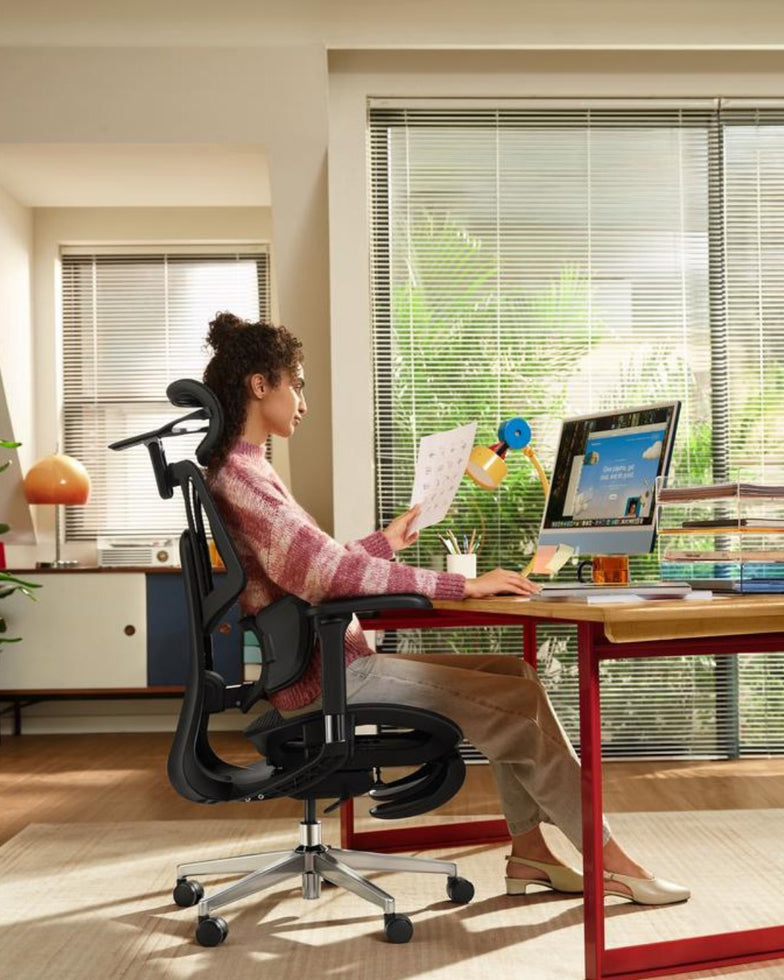
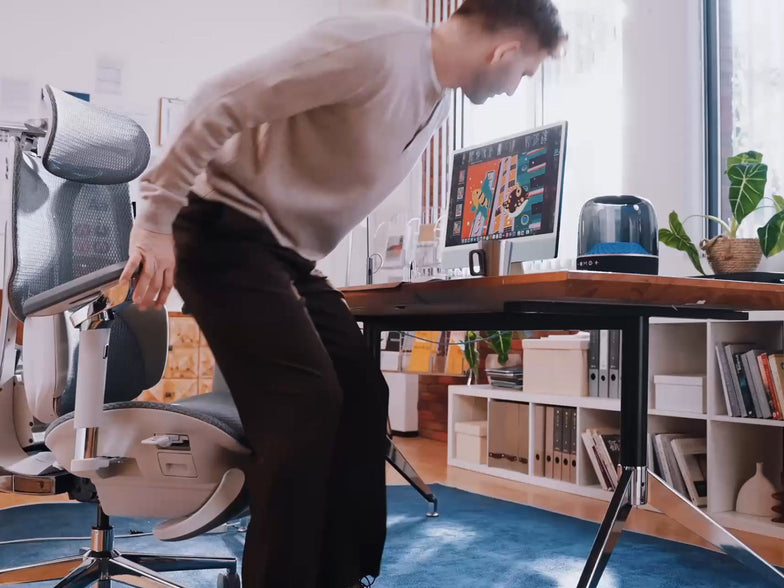
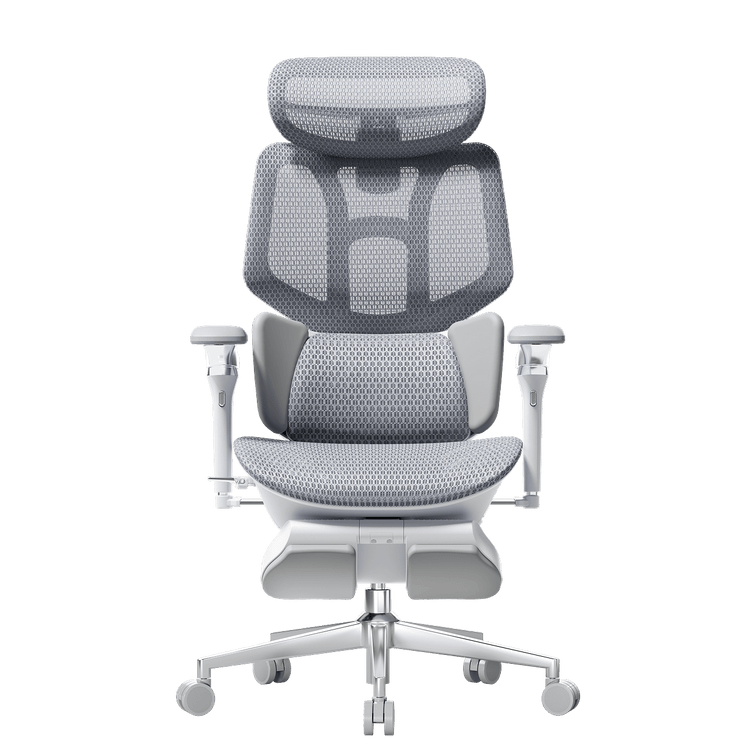
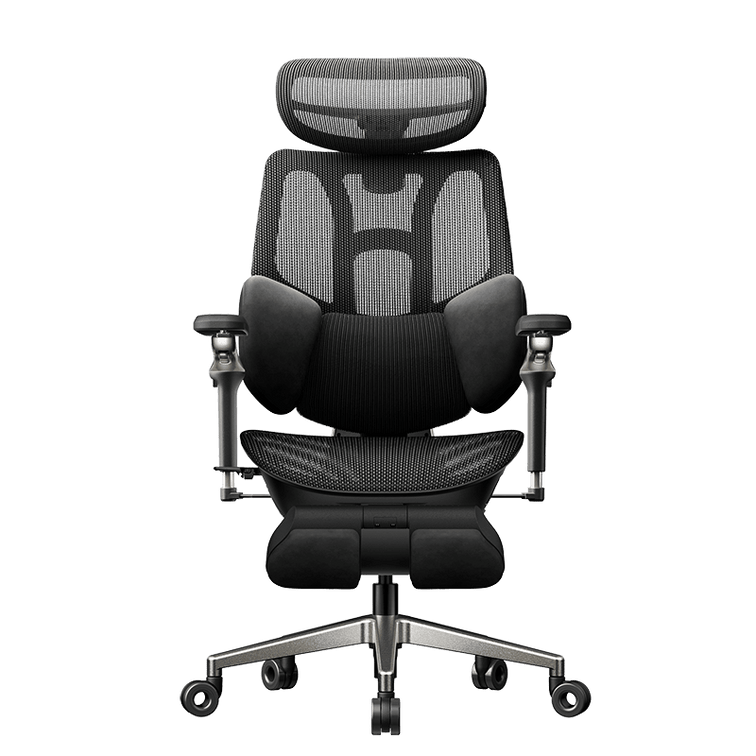
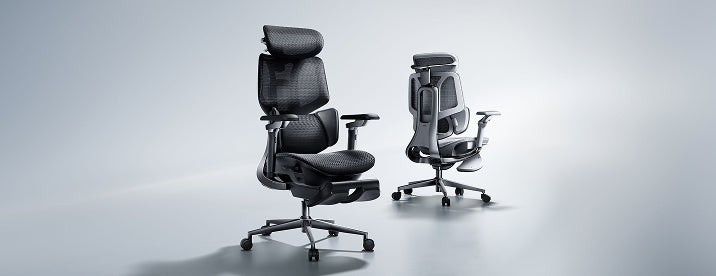
HBADA ergonomic chair with targeted lumbar support technology

Prevention is easier than treatment, and it starts with the surface you sit on for eight hours a day.

● Alternate your posture: sit, recline and stand across the day.

● Keep your feet supported and your weight even on both sides.

● Use a chair that adapts as you move rather than one that locks you into a single shape.

● Book a workstation assessment, which UK employers must provide for regular screen users.

The single biggest lever is a chair with dynamic support. A fixed lumbar pad helps only while you sit still, and you never do for long.

How the Right Ergonomic Chair Protects Your Hips

This is where seating design does the heavy lifting. An ergonomic office chair built for movement keeps your hips in a healthy position without constant fiddling.

A true ergonomic chair for hip pain does four things well: it supports your lumbar curve, adjusts to your body, spreads seat pressure and lets your hips change angle through the day. Many mid-range chairs rely on a single fixed lumbar pad and static armrests, so they support you while you sit still and then leave gaps the moment you move. Upgrading to dynamic support closes that gap, which is why it pays off for anyone sitting long hours.

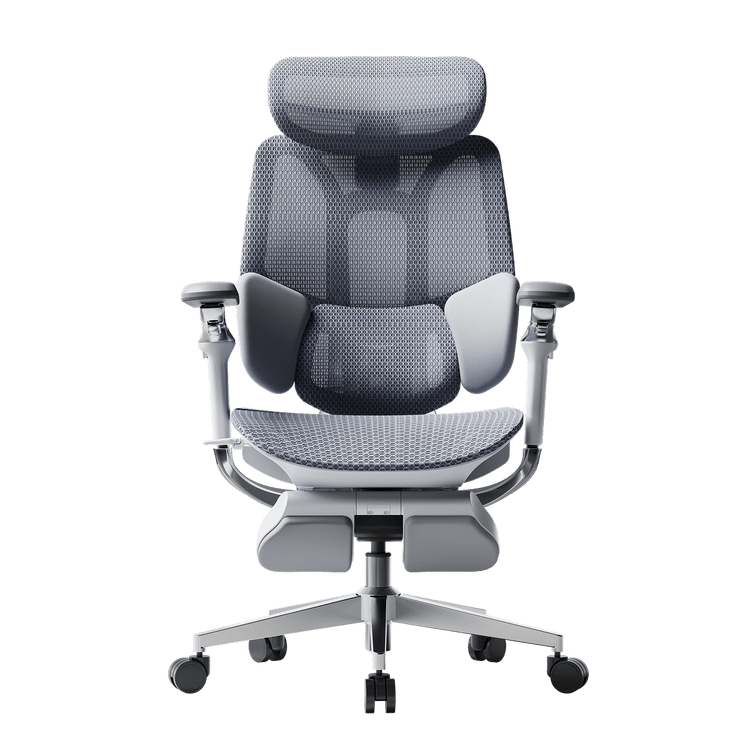
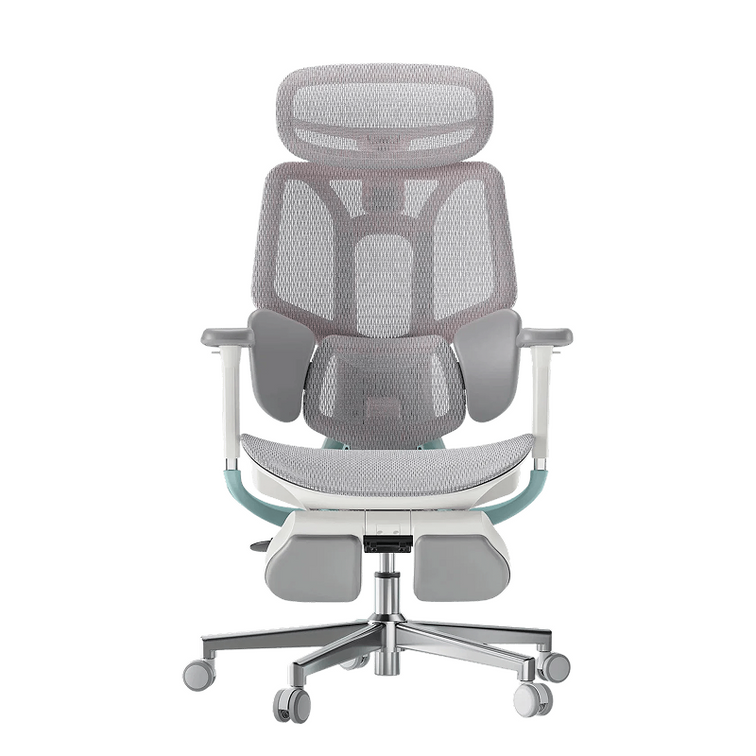
Our range is built around exactly these principles. The HBADA AI-Powered X7 is the world's first AI smart lumbar-tracking chair. Its sensors read your posture up to 1,000 times per second and shift the lumbar module by up to 50 mm in real time, so support follows your spine as you lean, type or recline. Add 3-level massage and heat therapy to boost circulation, a ventilated cushion to cut pressure build-up, and 720-degree armrests, and you have a bio-synchronized ergonomic chair designed for 10-hour days. Explore the adaptive AI lumbar support of the HBADA AI-Powered X7.

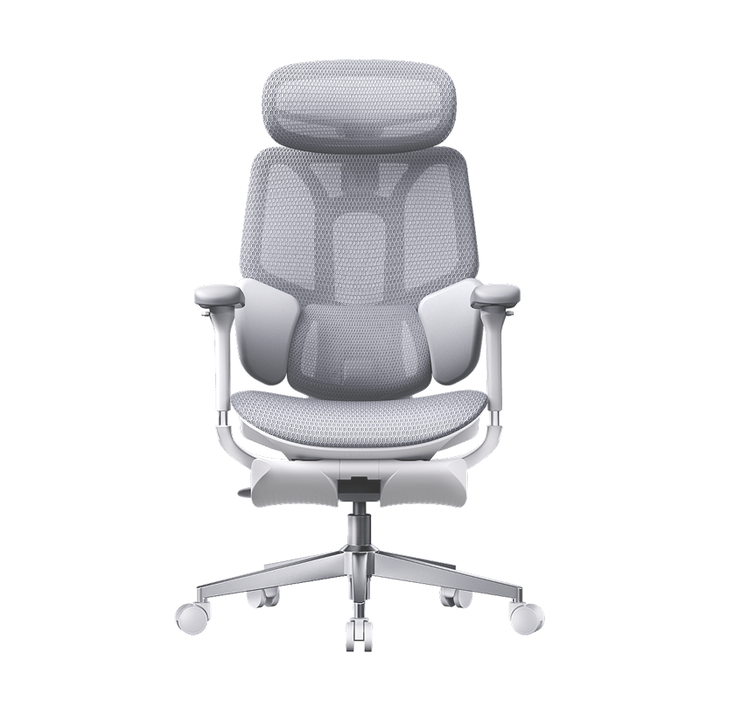
If you prefer precise mechanical control at a friendlier price, discover the heavy-duty engineering of the HBADA E3 Pro 2026 Edition. Its patented 3-Zone Elastic Lumbar Support tracks the L1 to L5 region with 5-degree dynamic movement, plus depth and lift adjustment and gliding sacral support. The CloudMesh backrest and 140-degree recline let your hips open and breathe, while the reinforced chassis and Class 4 gas lift keep everything stable under heavier or taller frames. Both chairs work as a spinal decompression office chair for people who sit through the whole working day.

Feature

HBADA AI-Powered X7

HBADA E3 Pro 2026 Edition

Best for

10+ hour days, chronic hip and back strain

Heavy-duty use, big and tall, value seekers

Lumbar support

World-first AI dynamic tracking, adjusts up to 50 mm in real time

Patented 3-Zone Elastic Lumbar, L1 to L5, 5-degree tracking

Seat depth adjustment

Yes

Yes

Armrests

720-degree omni-adjustable

720-degree multi-dimensional

Recline

Deep recline with auto-balance

140 degrees with auto-balance

Comfort extras

8D massage, 3-level heat, cooling fan, ventilated cushion

CloudMesh backrest, gliding sacral support

Gas lift

Class 4 certified anti-sinking

Class 4 certified anti-sinking

Weight capacity

Up to 150 kg (330 lb)

Reinforced big-and-tall chassis

Control

1.3-inch OLED remote

Omni-mechanical dials

For standard eight-hour workdays or a lighter budget, our E3 Air and P-Series task chairs deliver full-mesh breathability and solid posture support. Full specifications are on our site.

Case Study: The Heavy-Duty Home Worker

Take Daniel O., 35, a senior software engineer in Manchester (6'2", 20 stone). He had worked through three budget chairs in two years. The foam collapsed, and the gas lift kept sinking during his 10-hour shifts, leaving him with chronic lower-back numbness and hip ache. He switched to the HBADA E3 Pro 2026 Edition. The Class 4 gas lift and reinforced chassis held firm, and the 3-Zone Elastic Lumbar adapted whether he leaned in to code or reclined to 140 degrees on a break. Within three weeks the numbness had gone.

Case Study: The Petite Professional

Or consider Amara N., 29, a graphic designer in Bristol (5'1", 8 stone). Standard chairs were built for a larger frame, so the lumbar pad sat too high, her feet dangled, and wide armrests left her elbows unsupported. She chose the HBADA AI-Powered X7. Using the seat depth adjustment, she removed the under-thigh pressure; the AI lumbar tracked her lower seating position automatically, and the 720-degree armrests rotated inward to cradle her arms while she drew on a tablet. Her shoulder tension eased, and the hip ache settled.

Which Chair Should You Choose?

The right pick depends on how long you sit and what your body needs.

● Choose the HBADA AI-Powered X7 if you sit 10 or more hours, manage ongoing hip or back strain, or want support that adjusts on its own.

● Choose the HBADA E3 Pro 2026 Edition if you want precise mechanical control, a sturdier big-and-tall build, or the best value in premium ergonomics.

● Choose a lighter E3 Air or P-Series chair for standard workdays on a smaller budget.

So, can an office chair cause hip pain? Yes, but the same chair, chosen and set up well, is also the fastest way out of it. Adjust your seat today, move every hour, and invest in seating that adapts as you do. Your hips carry you through the day, so give them a chair that supports every hour of it.

Frequently Asked Questions

Can sitting in an office chair cause hip pain?

Yes. Sitting for long periods keeps your hips in a bent position, which shortens the hip flexors and switches off the glutes. A chair with weak lumbar support or a sinking seat makes this worse by tilting your pelvis and loading the joint unevenly. The result is stiffness or aching around the hips and lower back. Adjusting your chair, moving regularly and using proper lumbar support usually relieves mild, chair-related hip pain quickly.

How do I stop my hips hurting when I sit?

Start by fixing your setup. Raise the seat so your feet stay flat, keep your knees level with your hips, and set lumbar support into the curve of your lower back. Then move: stand or stretch every 30 to 60 minutes, since static posture is the main trigger. Simple hip flexor stretches and glute squeezes help reactivate tight muscles. If pain is severe, persistent or spreads down your leg, see a GP or physiotherapist.

What is the best sitting position to avoid hip pain?

There is no single perfect position, because holding any posture too long causes strain. Aim for a neutral, slightly reclined seat where your feet are supported, your knees sit level with your hips and your lower back is cushioned. Let your hip angle open past a rigid 90 degrees when you can. Most importantly, change position often. A chair that adjusts as you move keeps your hips healthier than any fixed posture will.

Can a good ergonomic chair fix hip pain?

A well-designed ergonomic chair can relieve mild posture-related hip pain and help prevent it, though it is not a medical cure. It works by keeping your pelvis neutral, spreading seat pressure and letting your hips change angle through the day. Dynamic lumbar support is the key feature, as fixed pads only help while you sit still. Pair the right chair with regular movement, and see a professional for persistent or severe pain.

Why do my hips hurt after sitting all day?

Aching hips after a full day of sitting usually come from shortened hip flexors, inactive glutes and uneven pressure on the seat. Prolonged flexion tightens the muscles at the front of the hip while the pelvis tilts and the joint compresses. A hard or sinking seat and missing lumbar support speed this up. Breaking up sitting with movement, adjusting your chair and using adaptive lumbar support all reduce that end-of-day soreness considerably.
Relevant Product

You May Also Like

Working and Reclining in a Footrest Office Chair: A Daily Guide Working and Reclining in a Footrest Office Chair: A Daily Guide Everyday Ergonomics · Work & Breaks An ergonomic office chair with a footrest works best when you match your position to the task—not when you stay reclined all day. Quick answer: Use a supported upright or slightly reclined position for typing. Try a gentle recline for audio calls and reading, provided you can still see your screen comfortably. Extend the leg rest for a seated break if your chair is designed for it. Change positions throughout the day, and include time away from the chair. 01 · Focus Keep your keyboard close, shoulders relaxed, and feet supported. 02 · Read & Listen Try a light recline without reaching forward or straining to see. 03 · Take a Break Rest briefly, then make room for standing, walking, or another task. In this guide Why match your posture to the task? Reclining for calls and video Reclining for reading and reviewing Using short recovery breaks Task, recline, and footrest guide Your daily reclining rhythm Which HBADA chair fits this routine? Limitations and safety notes Conclusion Frequently asked questions Sources Why Match Your Posture to the Task? Answering emails, reading a proposal, and listening to a call do not ask the same things of your body. Your chair setup can change with them. For typing, choose a position that lets you reach the keyboard and mouse with relaxed shoulders and without leaning away from the backrest. That may be upright or slightly reclined, depending on your desk and chair. For listening or reading, you may prefer to lean back a little further. The important part is variation. The UK Health and Safety Executive recommends changing position and breaking up screen work rather than holding one posture for long periods. Its guidance on breaks and activity changes is useful here as general workstation advice, not as a prescribed schedule for a particular chair. Two different kinds of foot support: a pull-out chair leg rest supports your legs while reclining. A separate under-desk footrest supports your feet during seated desk work. If your feet cannot reach the floor at the correct working height, do not assume the chair’s pull-out leg rest is a suitable substitute. How Should You Recline for Calls and Video? An audio call is a good opportunity to change position. If you do not need to type or handle documents, try a small recline and let the backrest support you. Use the leg rest if it feels comfortable and is permitted by your chair’s instructions. Adjust the headrest so it supports you without pushing your head forward. If you start taking notes, bring the backrest closer to your working position instead of stretching toward the keyboard. For video calls, check your camera preview after moving the chair. A light recline may work well, but a deeper position can leave you looking up at the screen or sitting too low in the frame. Adjust the chair or camera until you can look ahead comfortably. There is no universal “video-call angle.” Screen height, camera position, and the need to type matter more than matching a number. How Should You Recline for Reading and Reviewing? Reading a long document often gives you more freedom to lean back than writing one. Try a gentle recline while keeping the text easy to see and your back supported. If you find yourself lifting your chin, craning your neck, or leaning forward again, adjust the screen position or reduce the recline. Increasing text size may help you read comfortably without moving your face closer. For a tablet or printed document, use a stand or another suitable support rather than holding it low in your lap for a long period. Return to a position with comfortable keyboard access when reviewing turns into sustained editing. A breathable mesh seat is another feature to consider, but it does not remove the need to change position or take a break. How Should You Use Recovery Breaks? A short reclined pause can be a comfortable way to stop working for a moment. Move away from the desk, check the space behind the chair, and use the recline controls as directed in the manual. Extend the leg rest if your model includes one. You do not need to reach the chair’s maximum angle. Choose a position that feels supported, look away from the screen, and leave the keyboard alone. A few minutes of seated rest can fit into your day, but it is not the same as a movement break. Alternate it with getting up, walking, or switching to a task away from the screen when you can. A break is not another working position. Leaning back while continuing to answer messages may change your posture, but it does not give you the same change of activity as stepping away from screen work. Task, Recline, and Footrest Guide Use these as practical starting points. The right position depends on your fit, workstation, and the adjustment options on your chair. The angle markings on a product page are chair settings—not universal ergonomic targets. On a phone, swipe the table sideways to view all columns. Match the chair setup to what you are doing Task Backrest position Foot or leg support What to check Typing and focused work Supported upright or slight recline Feet on the floor or a suitable under-desk footrest Keyboard and mouse remain close; shoulders stay relaxed Audio calls and thinking A comfortable light recline Optional pull-out leg rest, used as instructed No stretching forward to reach notes or controls Video calls Upright or lightly reclined Stable, comfortable foot support Screen and camera remain at a comfortable viewing position Reading and reviewing A gentle recline that preserves screen visibility Leg rest optional, depending on fit No chin lifting, neck bending, or forward reaching Short seated break A supported recline within the chair’s permitted range Leg rest extended if appropriate for the model Clear space around the chair; include movement breaks too Your Daily Reclining Rhythm You do not need a complicated schedule. Use changes in your work as a reminder to check how you are sitting. Start work Set the seat height, lumbar support, and armrests for comfortable keyboard access. Keep your feet supported. Take a call Try a light recline when listening. Come forward again if the conversation turns into a typing session. Read or review Lean back a little if the screen remains easy to see. Adjust the display rather than holding your neck at an awkward angle. Pause Stop screen work for a short break. A seated recline is one option; standing, walking, or doing another task provides a different kind of change. Return to work Retract the leg rest before moving back to the desk. Reset the backrest and check that the lumbar support still fits comfortably. Which HBADA Footrest Chair Fits This Routine? The HBADA X7 and E3 Pro 2026 both offer recline adjustments. The main distinction for this routine is the support system: the X7 uses powered lumbar tracking, while the E3 Pro combines mechanical adaptive support with manual adjustments. Powered Lumbar Tracking HBADA X7 Consider the X7 if powered lumbar tracking is a feature you want alongside reclining. Check the selected configuration and its leg-rest features before ordering. Explore the HBADA X7 Mechanical Adaptive Support HBADA E3 Pro 2026 Consider the E3 Pro if you prefer adjustable mechanical support. Select the “With Footrest” option if you want a pull-out leg rest; the product page also lists a version without one. Explore the HBADA E3 Pro The following specifications are manufacturer-listed settings, not posture recommendations. HBADA U.S. product comparison Feature HBADA X7 HBADA E3 Pro 2026 Listed recline angles 105°, 116°, 128°, 140° 105°, 115°, 130°, 140° Lumbar support AI-powered lumbar tracking 3-zone mechanical adaptive support with manual adjustments Headrest 4D dual-axis headrest 4D dual-axis headrest Listed chair capacity 330 lb (150 kg) 330 lb (150 kg) Product details checked against the linked U.S. pages on September 8, 2026. Confirm the selected model, configuration, manual, and warranty terms before purchasing. A chair’s maximum user weight is not the load rating of its extended leg rest. Limitations and Safety Notes Use the controls as instructed. Learn how your chair’s recline, tension, and locking mechanism work before leaning back. Do not force a control or move beyond the permitted range. Keep the area clear. Use a stable, level surface and leave enough room behind the backrest and in front of the extended leg rest. Do not sit or stand on the leg rest. Use it only for its intended purpose. Retract it before getting out of the chair. Check fit as well as capacity. Your seat depth, foot support, and reach to the desk matter alongside the chair’s stated maximum user weight. Stop if the chair feels unstable. Do not continue reclining if the mechanism slips, a component is damaged, or the chair develops unusual movement. Do not treat reclining as medical care. If a position causes discomfort, change it. Persistent pain, numbness, or other concerning symptoms warrant advice from a qualified healthcare professional. The Takeaway Let the Task Decide A reclining office chair with a footrest gives you more ways to sit, but you do not need to use every setting for every task. Keep typing comfortable and within reach, lean back when reading or listening allows it, and use the leg rest for supported seated pauses. Choose the X7 if powered lumbar tracking suits your preferences, or the E3 Pro with-footrest variant if you prefer mechanical adaptive support. Whichever chair you use, keep changes of position and time away from the screen in your routine. Frequently Asked Questions Should you recline during video calls? A slight recline is fine if you can see the screen comfortably and remain well framed by the camera. If you need to raise your chin, bend your neck, or reach forward to type, adjust the screen or return to a more upright position. Is reclining useful for reading long documents? A gentle recline can offer a comfortable change from your typing position. Keep the document or screen easy to see, and support a tablet or book rather than holding it low in your lap. Reduce the recline if you find yourself leaning forward again. How long should a reclined recovery break be? Treat it as a brief pause rather than a fixed-duration treatment. You might rest for a few minutes, then change activity. There is no single recline duration that suits everyone, and seated rest should not replace opportunities to stand or move. Does reclining with a footrest help your legs? A leg rest can provide a different supported position that some people find comfortable. It should not press uncomfortably against your legs or leave you feeling numb. Do not rely on a chair leg rest to treat swelling, circulation problems, or persistent pain. Can you use a footrest chair with a sit-stand desk? Yes. For seated work, adjust the desk and chair so your keyboard is within easy reach and your feet are supported. Use a separate under-desk footrest if needed. Retract the chair’s pull-out leg rest and move the chair clear before switching to standing. What recline angle should you use for typing? There is no single angle that fits every workstation. Start upright or slightly reclined, with your back supported and keyboard close. If leaning back makes you reach forward or lift your shoulders, change the chair or desk setup. Product angle markings describe available settings, not required working postures. Sources and Product Notes General workstation guidance and manufacturer specifications serve different purposes. The sources below do not establish that a particular recline angle prevents or treats a medical condition. HSE: Workstation setup and comfortable posture — general guidance from the UK Health and Safety Executive, not a statement of U.S. legal requirements. HSE: Breaks and changes of activity — guidance on varying screen-based work. HBADA U.S.: X7 Smart Ergonomic Chair — manufacturer-listed features and specifications. HBADA U.S.: E3 Pro Ergonomic Office Chair 2026 Edition — manufacturer-listed adjustments and footrest options. What Is a Smart Ergonomic Workspace? Chairs, Desks and Monitor Arms Explained What Is a Smart Ergonomic Workspace? Chairs, Desks and Monitor Arms Explained IFA 2026 · Workspace technology At IFA 2026, Ergonomics Goes Beyond the Office Chair On September 4, 2026, HUANUO announced a workspace portfolio at IFA in Berlin covering chairs, height-adjustable desks and monitor arms. Its announcement included an AI-powered standing desk with height recommendations and a desktop designed to tilt for tasks such as reading and drawing. The manufacturer’s IFA announcement highlights an idea worth considering when upgrading a home office: the chair, work surface and screen all need to fit the person using them. Product announcements describe intended features, rather than independent proof of improved health or comfort. For buyers, the useful question is what each adjustment actually changes during an ordinary working day. You can buy an adjustable chair and still find yourself reaching for the mouse. You can add a standing desk and still look down at a laptop screen. Each piece of equipment solves only part of the setup. A smart ergonomic workspace brings those parts together. Before choosing a feature list, it helps to understand which adjustments you need and how they affect one another. What is a smart ergonomic workspace? In this guide, a smart ergonomic workspace means a setup that combines adjustable seating, a suitable work surface and screen positioning, with features such as powered adjustment, saved settings or reminders where useful. The term does not mean every component uses AI or connects to the same app. In this guide The three parts of the workspace What makes an ergonomic chair smart? Manual, adaptive and powered features compared How to set up the chair, desk and screen Which part should you upgrade first? What to check before buying Where the HBADA X7 fits Frequently asked questions Three Parts, Three Different Jobs Think about your chair, desk and monitor as separate adjustments that need to work together. Buying all three from one brand is not necessary, but checking their dimensions and clearances is. 01 · Seating The Chair Determines your seated height, usable seat depth, back support and arm support. These settings affect how closely and comfortably you can approach the desk. 02 · Work surface The Desk Positions the keyboard, mouse and other tools. A height-adjustable desk can provide separate working heights for sitting and standing. 03 · Viewing The Monitor Arm Lets you reposition a compatible display without changing the keyboard height. Check the mount, weight range and desk attachment before buying. A Common Setup Problem Imagine raising your chair to reach a high keyboard. Your feet then lose contact with the floor. Adding more lumbar support will not change that height mismatch. A suitable footrest or a lower keyboard surface may be the adjustment you need. What Makes an Ergonomic Chair Smart? “Smart” can describe several different features. One chair may offer powered lumbar adjustment. Another may save a preferred setting, respond to changes in position or include controls for additional comfort functions. Ask what the feature does in physical terms. Does it move the lumbar support? Change recline resistance? Recall a saved position? Or simply send a reminder? Automatic Adjustment and Manual Fit Serve Different Purposes An automatic feature may reduce how often you operate a particular control. You still need to check the seat’s dimensions, the adjustment range and whether the support feels appropriate for your body. A chair that adjusts automatically is not necessarily a better fit than a manually adjusted chair. The useful comparison is whether the feature solves something you actually notice while working. Ask for a demonstration: “AI” on a product page does not tell you which parts move, what triggers the movement or how much control you retain. Look for a clear explanation and a model-specific manual. Manual, Adaptive and Powered Features Compared These categories can overlap within one chair. Use the table to understand the controls rather than treating the labels as a ranking from basic to best. Feature type How it works What to check Manual adjustment You move a lever, dial or component to change a setting. Can you reach the control and achieve the position you need? Mechanical adaptive support A mechanism responds to movement or load without necessarily using electronics. Does its movement and resistance suit you? Powered adjustment An electric mechanism moves a component through its available range. What requires power, and what happens when power is unavailable? Memory settings The product stores and recalls supported settings. Which settings are saved, and can different users keep separate preferences? App or reminder features Software provides controls, prompts or other supported functions. Is an account required, and can essential controls be used without the app? AI-labeled features The exact operation depends on the manufacturer’s implementation. What input does the system use, and what adjustment does it make? How to Set Up the Chair, Desk and Monitor Together For a workstation with an adjustable desk, start with the chair, then position the keyboard and screen. This is a practical order because changing your seated height affects everything above it. 1. Establish a Comfortable Seated Position Set the seat so your feet are supported and the front edge does not press into the backs of your knees. Adjust the available back and arm supports to suit you. 2. Bring the Keyboard and Mouse Within Reach Adjust the work surface so you can type with relaxed shoulders. Keep the mouse close enough that you do not have to reach sideways for it. 3. Position the Screen Independently Place your main screen in front of you and adjust its height and distance so you can read comfortably. With a laptop, a separate keyboard and mouse allow the screen to be raised without raising your hands. 4. Save a Separate Standing Setting If your desk has memory controls, save the standing position only after checking the keyboard and screen. Recheck cable slack and clearance through the desk’s full movement. 5. Try the Setup During Your Usual Tasks Write, read and use the mouse as you normally would. Change one setting at a time so you can tell which adjustment helped. Leave room for movement and changes of activity throughout the day. These basic positioning principles are consistent with HSE’s workstation posture guidance . Individual viewing needs and equipment may require different arrangements. Using a fixed desk? You may need to set the chair in relation to the keyboard first, then support your feet. If the mismatch is too large, consider a suitable keyboard tray or a desk with a more appropriate height range. Which Part of Your Workspace Should You Upgrade First? Start with the limitation you cannot solve using the adjustments you already have. That gives each purchase a clear purpose. What you notice Check first Possible next step The seat feels too deep or too high. The chair’s seat-depth and height ranges. A chair with dimensions that better fit you. You lift your shoulders to reach the keyboard. The relationship between the chair and work surface. A lower keyboard surface, appropriate foot support or an adjustable desk. You lean forward to read the screen. Text size, screen distance and placement. A suitable monitor stand or arm if the existing stand cannot position the screen. Switching between sitting and standing is awkward. Desk controls, cable restrictions and available height range. A desk with easier controls or useful memory settings. You frequently readjust one chair feature. Whether the existing setting holds and fits the task. Compare easier manual controls with adaptive or powered alternatives. The workspace fits, but you rarely change position. Your routine and opportunities to take breaks. A practical reminder or change of activity may help without new furniture. What to Check Before Buying Smart Workspace Equipment Physical Compatibility Measure the available space. Check whether the chair’s armrests clear the desktop, whether a keyboard tray leaves enough legroom, and whether a monitor arm can attach securely to the desk. For a monitor arm, confirm the display’s mounting pattern and weight against the arm’s specifications. For a moving desk, account for accessories above and below the surface, including shelves, drawers and cables. Everyday Controls A feature is easier to use when its control is accessible during normal work. Check whether you can make the adjustments you need without reaching underneath the desk, opening an app or interrupting your task. Power and Offline Operation Ask which functions depend on a battery, outlet, internet connection or app. Do not assume every powered chair or desk behaves the same way when disconnected. Check the exact model’s instructions. Accounts and Data If an app is offered, review whether it requires an account, which permissions it requests and how saved profiles can be deleted. A product being described as smart does not, by itself, establish that it collects posture data or sends information to the cloud. Service and Replacement Parts Review the return terms, warranty scope and support for electrical components as well as the frame. Ask how replacement controls, power supplies or other service parts are obtained when relevant to the product. The chair in the setup Where the HBADA X7 Fits HBADA describes the X7 Smart Ergonomic Office Chair as offering AI lumbar tracking. It is an example of applying smart functionality to a specific part of the seated experience. When considering it for your workspace, review the product’s dimensions, controls and adjustment range alongside your desk measurements. Lumbar tracking does not set your keyboard height or position your monitor, so those adjustments remain part of the setup. Compare the exact model and variant before ordering. Do not assume that features, power requirements or operating modes are identical across the X7 family. Explore the HBADA X7 Frequently Asked Questions Is an adaptive lumbar support the same as AI lumbar tracking? Not necessarily. Adaptive support may use a mechanical response to movement or load. An AI-labeled system depends on the manufacturer’s design. Check how the support moves and what controls it. Do the chair and standing desk need to connect electronically? No. They can work together through suitable dimensions and separate adjustments. Only expect electronic coordination if the manufacturers explicitly document compatibility. Is a monitor arm necessary? Only if it solves a positioning or space problem. If the monitor’s existing stand provides the height, distance and angle you need, an arm may be optional. Can I use a smart ergonomic chair with a regular desk? Yes, provided the chair’s dimensions and adjustment range work with the desk. Check keyboard height, armrest clearance and space for your legs before choosing the chair. What happens when a smart chair runs out of power? That depends on the model. Check which functions require power, which adjustments remain available and whether the manual permits normal use while disconnected. Do not assume a universal backup mode. Can smart furniture automatically create perfect posture? No feature label guarantees that outcome. Your equipment still needs to fit your body and tasks. Automatic adjustments also cannot replace changes of position and activity. Should I replace my entire workspace at once? Usually, you can assess one limitation at a time. Identify what cannot be adjusted adequately, measure the available space and upgrade the component that addresses that problem first. Sources and scope: The IFA section summarizes a manufacturer-issued announcement. HBADA feature descriptions are attributed to the official product page. This article is an equipment-selection guide, not a hands-on comparative test. HUANUO workspace portfolio announcement — September 4, 2026 HSE — Workstation posture guidance HBADA X7 — Official product information Office Chair Safety Check: 7 Parts to Inspect Before You Sit Office Chair Safety Check: 7 Parts to Inspect Before You Sit Check seven key office chair parts, recognize warning signs, and know when to stop using your chair. Includes the September 2026 Branch recall context.