


Everyday Ergonomics · Work & Breaks
An ergonomic office chair with a footrest works best when you match your position to the task—not when you stay reclined all day.
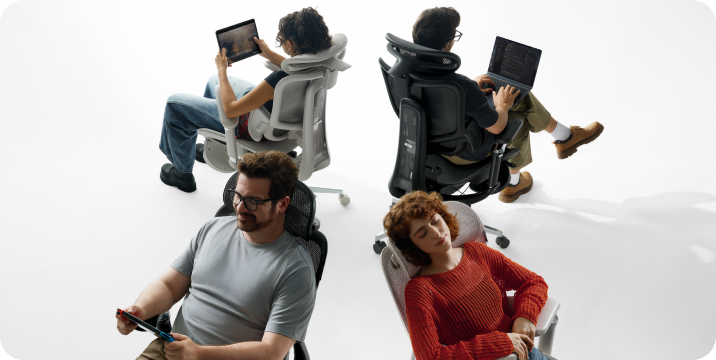
Quick answer: Use a supported upright or slightly reclined position for typing. Try a gentle recline for audio calls and reading, provided you can still see your screen comfortably. Extend the leg rest for a seated break if your chair is designed for it. Change positions throughout the day, and include time away from the chair.
Keep your keyboard close, shoulders relaxed, and feet supported.
Try a light recline without reaching forward or straining to see.
Rest briefly, then make room for standing, walking, or another task.
Why Match Your Posture to the Task?
Answering emails, reading a proposal, and listening to a call do not ask the same things of your body. Your chair setup can change with them.
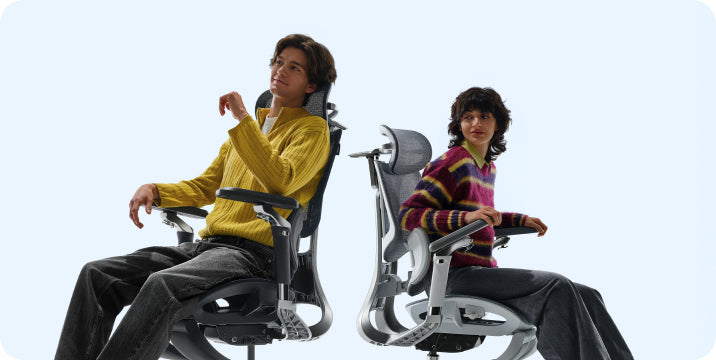
For typing, choose a position that lets you reach the keyboard and mouse with relaxed shoulders and without leaning away from the backrest. That may be upright or slightly reclined, depending on your desk and chair. For listening or reading, you may prefer to lean back a little further.
The important part is variation. The UK Health and Safety Executive recommends changing position and breaking up screen work rather than holding one posture for long periods. Its guidance on breaks and activity changes is useful here as general workstation advice, not as a prescribed schedule for a particular chair.
How Should You Recline for Calls and Video?

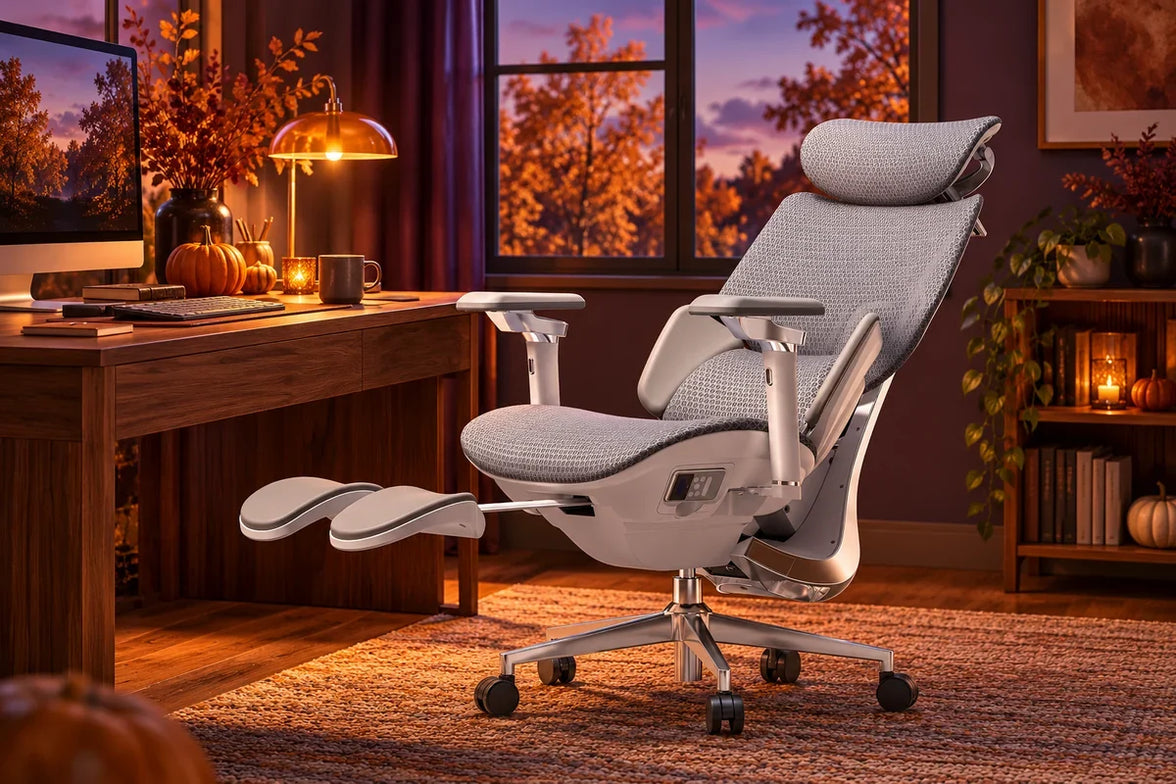
An audio call is a good opportunity to change position. If you do not need to type or handle documents, try a small recline and let the backrest support you. Use the leg rest if it feels comfortable and is permitted by your chair’s instructions.
Adjust the headrest so it supports you without pushing your head forward. If you start taking notes, bring the backrest closer to your working position instead of stretching toward the keyboard.
For video calls, check your camera preview after moving the chair. A light recline may work well, but a deeper position can leave you looking up at the screen or sitting too low in the frame. Adjust the chair or camera until you can look ahead comfortably.
There is no universal “video-call angle.” Screen height, camera position, and the need to type matter more than matching a number.
How Should You Recline for Reading and Reviewing?
Reading a long document often gives you more freedom to lean back than writing one. Try a gentle recline while keeping the text easy to see and your back supported.
If you find yourself lifting your chin, craning your neck, or leaning forward again, adjust the screen position or reduce the recline. Increasing text size may help you read comfortably without moving your face closer.
For a tablet or printed document, use a stand or another suitable support rather than holding it low in your lap for a long period. Return to a position with comfortable keyboard access when reviewing turns into sustained editing.
A breathable mesh seat is another feature to consider, but it does not remove the need to change position or take a break.
How Should You Use Recovery Breaks?
A short reclined pause can be a comfortable way to stop working for a moment. Move away from the desk, check the space behind the chair, and use the recline controls as directed in the manual. Extend the leg rest if your model includes one.
You do not need to reach the chair’s maximum angle. Choose a position that feels supported, look away from the screen, and leave the keyboard alone.
A few minutes of seated rest can fit into your day, but it is not the same as a movement break. Alternate it with getting up, walking, or switching to a task away from the screen when you can.
Task, Recline, and Footrest Guide

Use these as practical starting points. The right position depends on your fit, workstation, and the adjustment options on your chair. The angle markings on a product page are chair settings—not universal ergonomic targets.
On a phone, swipe the table sideways to view all columns.
| Task | Backrest position | Foot or leg support | What to check |
|---|---|---|---|
| Typing and focused work | Supported upright or slight recline | Feet on the floor or a suitable under-desk footrest | Keyboard and mouse remain close; shoulders stay relaxed |
| Audio calls and thinking | A comfortable light recline | Optional pull-out leg rest, used as instructed | No stretching forward to reach notes or controls |
| Video calls | Upright or lightly reclined | Stable, comfortable foot support | Screen and camera remain at a comfortable viewing position |
| Reading and reviewing | A gentle recline that preserves screen visibility | Leg rest optional, depending on fit | No chin lifting, neck bending, or forward reaching |
| Short seated break | A supported recline within the chair’s permitted range | Leg rest extended if appropriate for the model | Clear space around the chair; include movement breaks too |
Your Daily Reclining Rhythm
You do not need a complicated schedule. Use changes in your work as a reminder to check how you are sitting.
-
Start work
Set the seat height, lumbar support, and armrests for comfortable keyboard access. Keep your feet supported.
-
Take a call
Try a light recline when listening. Come forward again if the conversation turns into a typing session.
-
Read or review
Lean back a little if the screen remains easy to see. Adjust the display rather than holding your neck at an awkward angle.
-
Pause
Stop screen work for a short break. A seated recline is one option; standing, walking, or doing another task provides a different kind of change.
-
Return to work
Retract the leg rest before moving back to the desk. Reset the backrest and check that the lumbar support still fits comfortably.
Which HBADA Footrest Chair Fits This Routine?

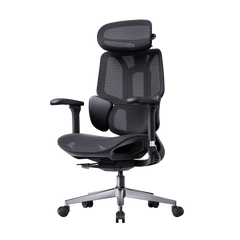
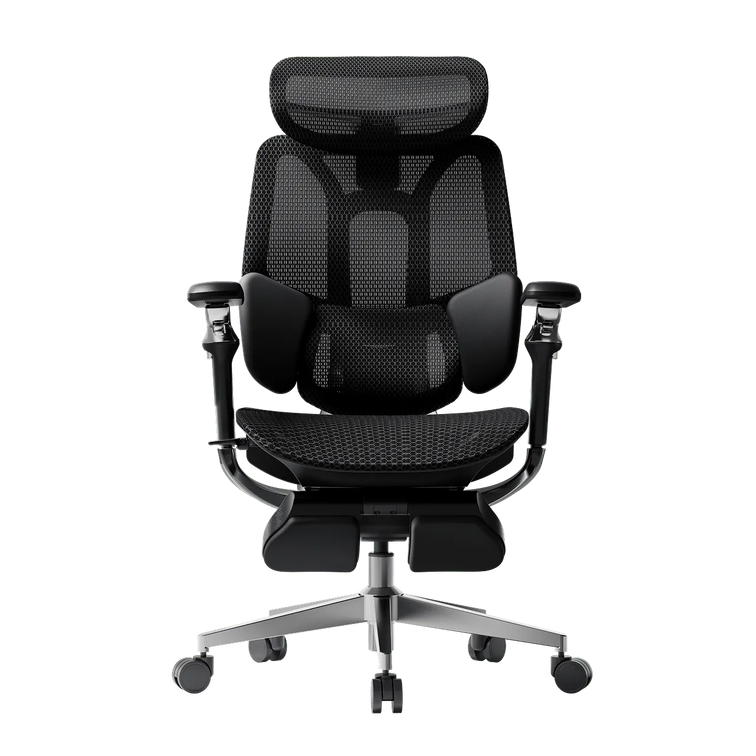
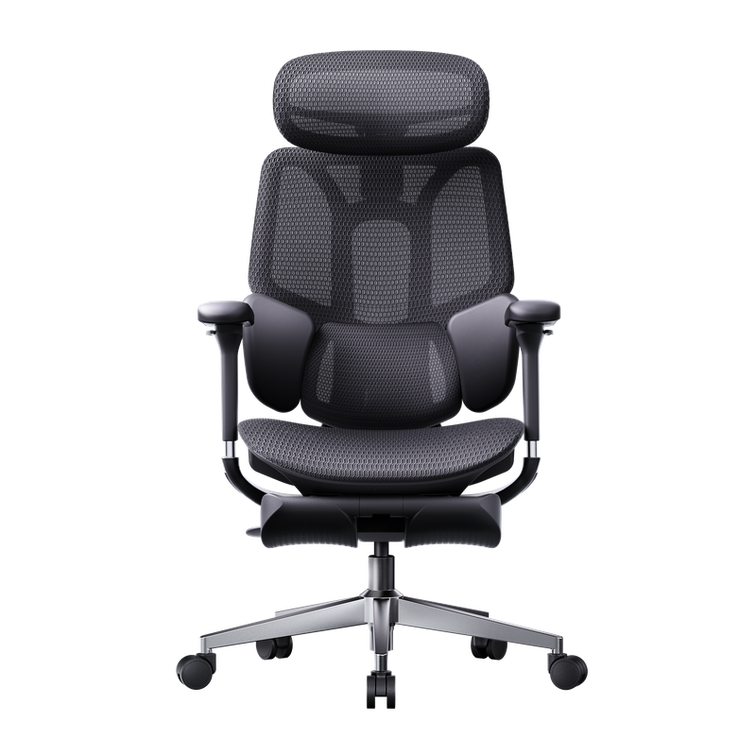
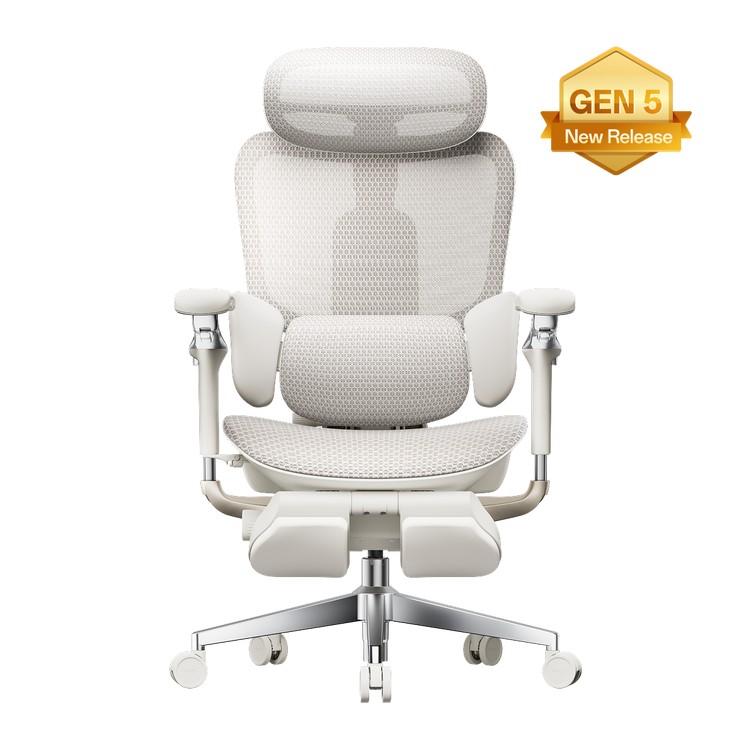
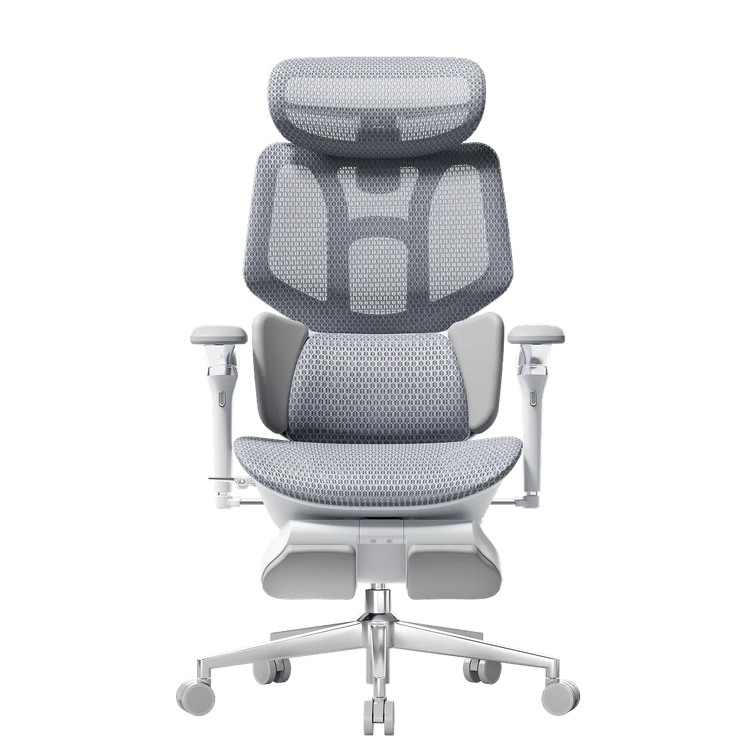
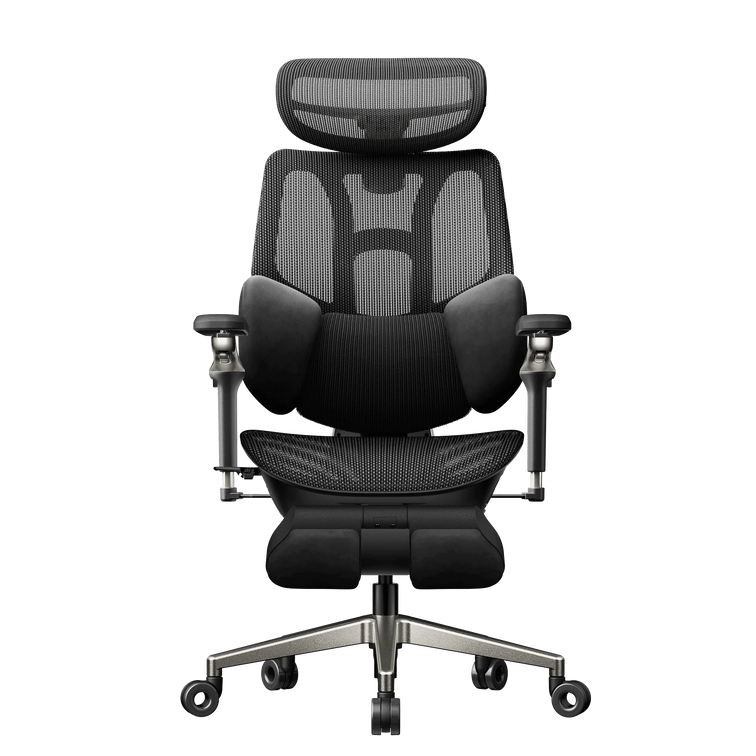
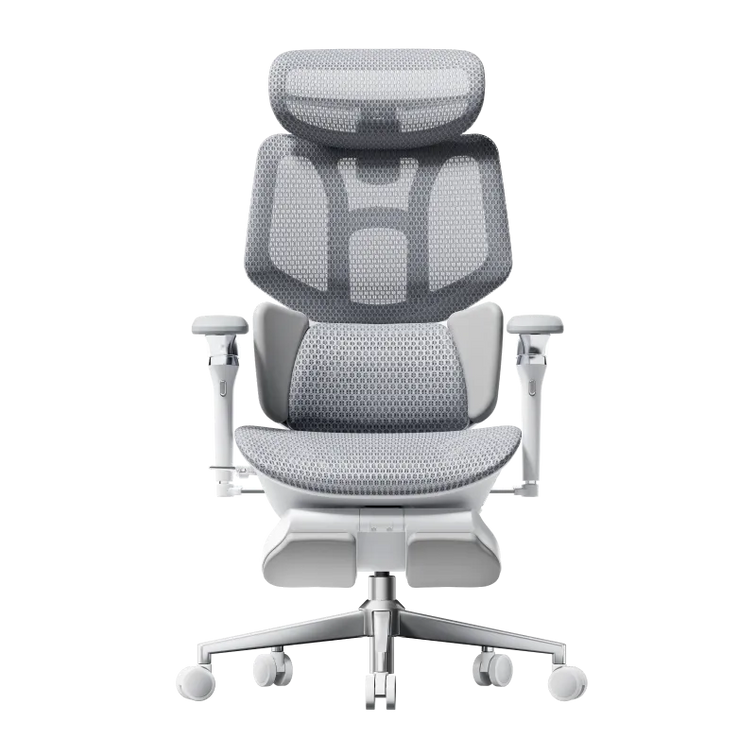
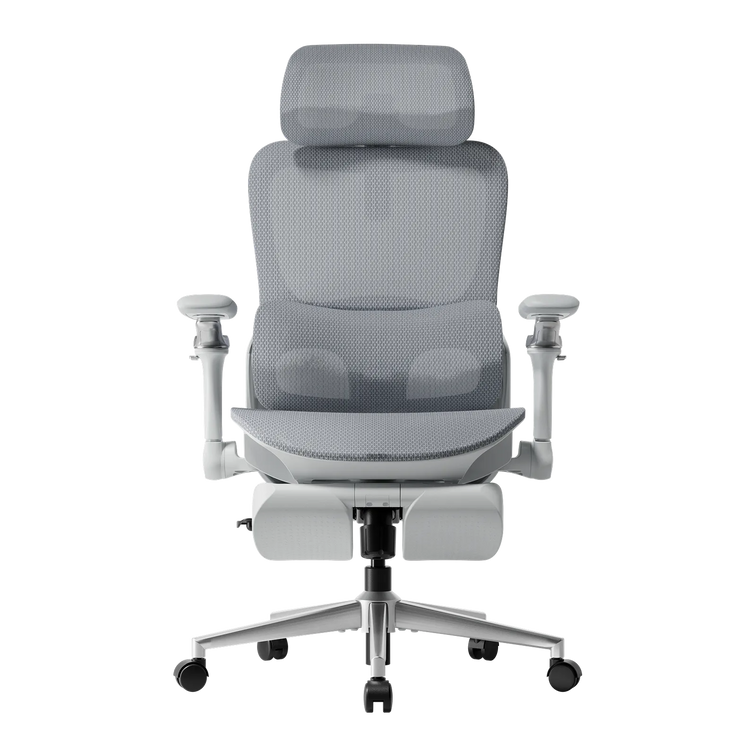
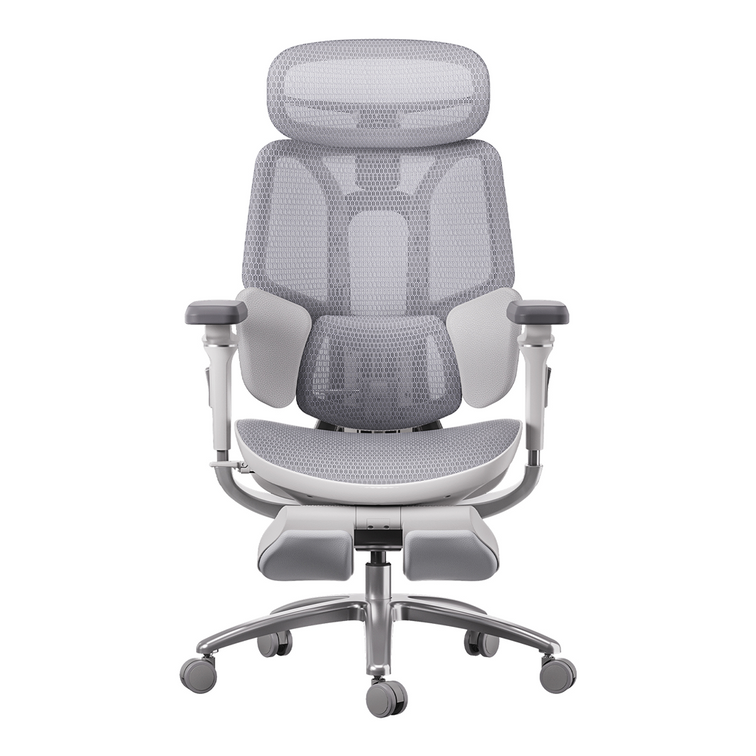
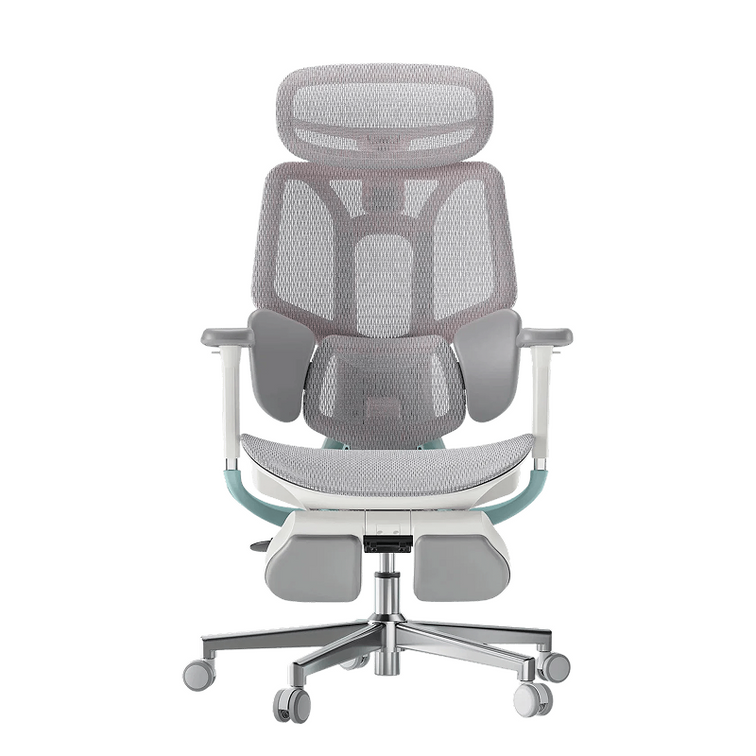
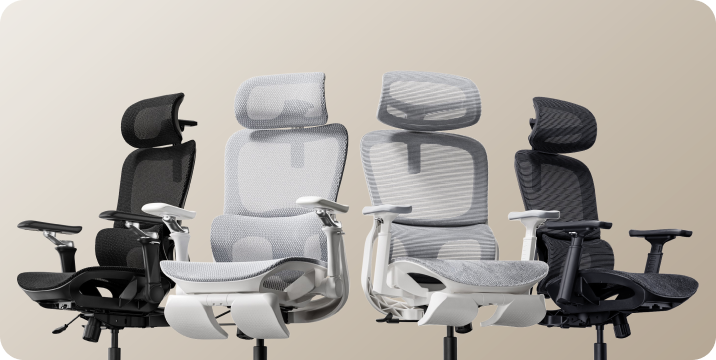
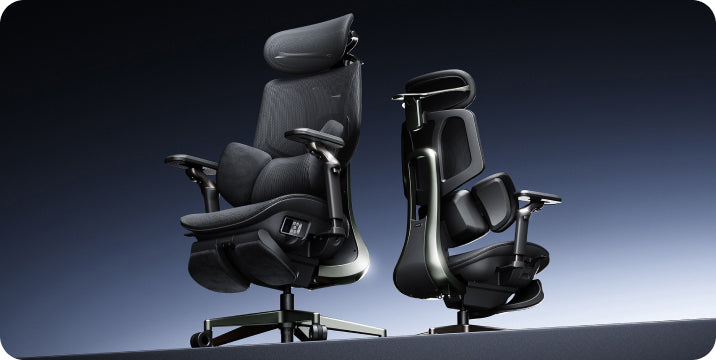
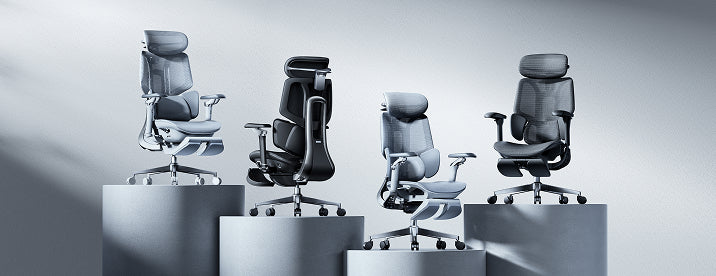
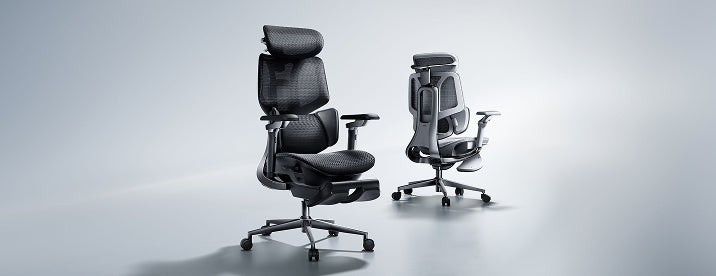
The HBADA X7 and E3 Pro 2026 both offer recline adjustments. The main distinction for this routine is the support system: the X7 uses powered lumbar tracking, while the E3 Pro combines mechanical adaptive support with manual adjustments.
Powered Lumbar Tracking
HBADA X7
Consider the X7 if powered lumbar tracking is a feature you want alongside reclining. Check the selected configuration and its leg-rest features before ordering.
Mechanical Adaptive Support
HBADA E3 Pro 2026
Consider the E3 Pro if you prefer adjustable mechanical support. Select the “With Footrest” option if you want a pull-out leg rest; the product page also lists a version without one.
The following specifications are manufacturer-listed settings, not posture recommendations.
| Feature | HBADA X7 | HBADA E3 Pro 2026 |
|---|---|---|
| Listed recline angles | 105°, 116°, 128°, 140° | 105°, 115°, 130°, 140° |
| Lumbar support | AI-powered lumbar tracking | 3-zone mechanical adaptive support with manual adjustments |
| Headrest | 4D dual-axis headrest | 4D dual-axis headrest |
| Listed chair capacity | 330 lb (150 kg) | 330 lb (150 kg) |
Product details checked against the linked U.S. pages on September 8, 2026. Confirm the selected model, configuration, manual, and warranty terms before purchasing. A chair’s maximum user weight is not the load rating of its extended leg rest.
Limitations and Safety Notes
- Use the controls as instructed. Learn how your chair’s recline, tension, and locking mechanism work before leaning back. Do not force a control or move beyond the permitted range.
- Keep the area clear. Use a stable, level surface and leave enough room behind the backrest and in front of the extended leg rest.
- Do not sit or stand on the leg rest. Use it only for its intended purpose. Retract it before getting out of the chair.
- Check fit as well as capacity. Your seat depth, foot support, and reach to the desk matter alongside the chair’s stated maximum user weight.
- Stop if the chair feels unstable. Do not continue reclining if the mechanism slips, a component is damaged, or the chair develops unusual movement.
- Do not treat reclining as medical care. If a position causes discomfort, change it. Persistent pain, numbness, or other concerning symptoms warrant advice from a qualified healthcare professional.
The Takeaway
Let the Task Decide
A reclining office chair with a footrest gives you more ways to sit, but you do not need to use every setting for every task. Keep typing comfortable and within reach, lean back when reading or listening allows it, and use the leg rest for supported seated pauses.
Choose the X7 if powered lumbar tracking suits your preferences, or the E3 Pro with-footrest variant if you prefer mechanical adaptive support. Whichever chair you use, keep changes of position and time away from the screen in your routine.
Frequently Asked Questions
Should you recline during video calls?
A slight recline is fine if you can see the screen comfortably and remain well framed by the camera. If you need to raise your chin, bend your neck, or reach forward to type, adjust the screen or return to a more upright position.
Is reclining useful for reading long documents?
A gentle recline can offer a comfortable change from your typing position. Keep the document or screen easy to see, and support a tablet or book rather than holding it low in your lap. Reduce the recline if you find yourself leaning forward again.
How long should a reclined recovery break be?
Treat it as a brief pause rather than a fixed-duration treatment. You might rest for a few minutes, then change activity. There is no single recline duration that suits everyone, and seated rest should not replace opportunities to stand or move.
Does reclining with a footrest help your legs?
A leg rest can provide a different supported position that some people find comfortable. It should not press uncomfortably against your legs or leave you feeling numb. Do not rely on a chair leg rest to treat swelling, circulation problems, or persistent pain.
Can you use a footrest chair with a sit-stand desk?
Yes. For seated work, adjust the desk and chair so your keyboard is within easy reach and your feet are supported. Use a separate under-desk footrest if needed. Retract the chair’s pull-out leg rest and move the chair clear before switching to standing.
What recline angle should you use for typing?
There is no single angle that fits every workstation. Start upright or slightly reclined, with your back supported and keyboard close. If leaning back makes you reach forward or lift your shoulders, change the chair or desk setup. Product angle markings describe available settings, not required working postures.
Sources and Product Notes
General workstation guidance and manufacturer specifications serve different purposes. The sources below do not establish that a particular recline angle prevents or treats a medical condition.
- HSE: Workstation setup and comfortable posture — general guidance from the UK Health and Safety Executive, not a statement of U.S. legal requirements.
- HSE: Breaks and changes of activity — guidance on varying screen-based work.
- HBADA U.S.: X7 Smart Ergonomic Chair — manufacturer-listed features and specifications.
- HBADA U.S.: E3 Pro Ergonomic Office Chair 2026 Edition — manufacturer-listed adjustments and footrest options.