


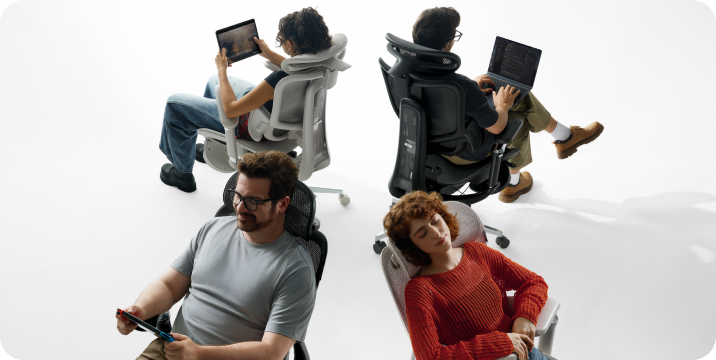
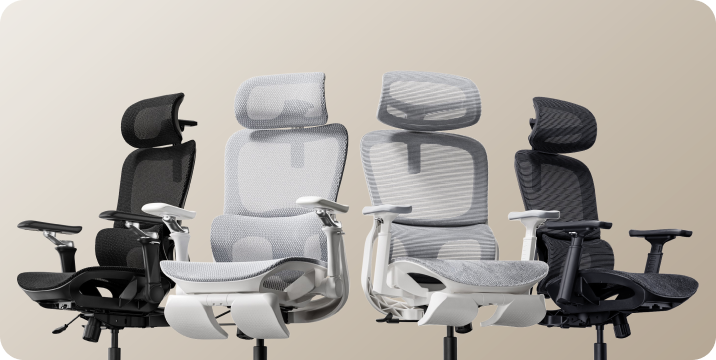
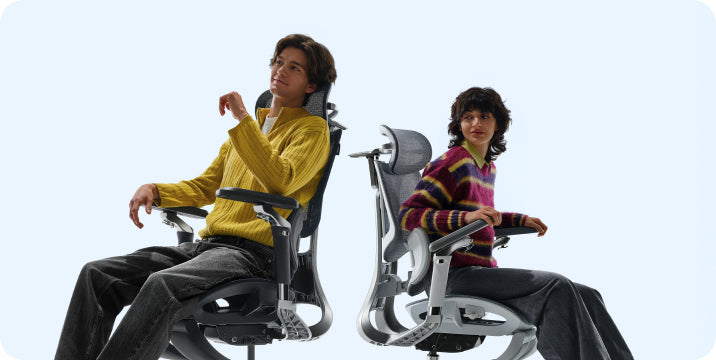
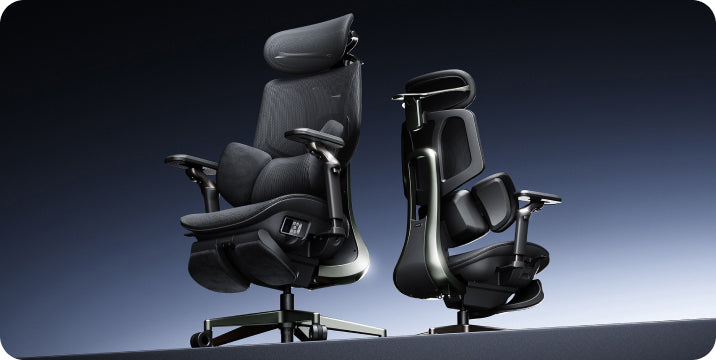

A comfortable laptop setup needs more than the right chair. Adjust the seat so you can reach the keyboard with relaxed shoulders and straight wrists. Support your feet, position the lumbar support against your lower back, and leave space behind your knees. For longer sessions, raise the laptop screen and use a separate keyboard and mouse.
Why Is Laptop Work Hard on Your Body?

A laptop connects the screen and keyboard, which makes it difficult to position both comfortably. Keep the keyboard low and you may bend your neck to look at the screen. Lift the screen and the built-in keyboard can become too high to use comfortably.
Your chair provides a supported base, but it cannot separate the screen from the keyboard. For extended work at a desk, an external keyboard and mouse let you adjust screen height without changing your typing position.
A good setup can support a more comfortable sitting position. It is not a medical treatment, and it does not remove the need to move throughout the day.
How Should You Set Up the Chair First?
Work with your desk height rather than adjusting the chair in isolation. Make one change at a time, then check how it feels while typing.
Set the seat height for your keyboard
Raise or lower the seat so your shoulders stay relaxed and your forearms are roughly level with the keyboard. Keep your elbows near your body and your wrists straight rather than angled upward.
Give your feet a stable base
Keep your feet supported on the floor. If the height needed for your desk leaves them dangling, use a separate under-desk footrest. Do not lower the chair so far that you have to raise your shoulders to type.
Leave room behind your knees
If your chair has seat-depth adjustment, leave roughly two to three fingers of space between the seat edge and the backs of your knees. You should be able to sit against the backrest without the front edge pressing into your legs.
Position the lumbar support
Set the lumbar support against the curve of your lower back. It should feel supportive rather than forceful. Adjust the height or pressure if your model allows it, and check the fit again when you change posture.
Adjust the armrests without lifting your shoulders
Use the armrests for light forearm support. Keep them low enough for relaxed shoulders and positioned so you can move close to the desk. If they push you away from the keyboard, lower or reposition them.
How Do You Fix the Screen and Keyboard Problem?
Once the chair fits your desk, place the laptop on a stable stand. Start with the top of the screen at or slightly below eye level and the display about an arm's length away. Adjust the distance and text size so you can read without leaning forward.
Put a separate keyboard in front of you, with the mouse close beside it. Keep both within easy reach so you do not have to stretch your arms or move away from the backrest.
No external keyboard yet? Do not raise the laptop so high that typing requires lifted shoulders or bent wrists. Use a temporary position that keeps the keyboard manageable, change posture often, and take breaks. For regular desk work, separating the keyboard and screen is the more adaptable option.
Common Laptop Setup Problems and Their Fixes
These are setup checks, not diagnoses. Discomfort can have more than one cause.
| What you notice | What to check | Adjustment to try |
|---|---|---|
| You keep looking down | Screen height and text size | Raise the screen, use an external keyboard, and increase text size if needed. |
| Your wrists bend upward | Keyboard height | Bring the keyboard closer to elbow height and relax your shoulders. |
| Your feet dangle | Seat height relative to the desk | Use a footrest if lowering the seat would make the desk too high. |
| You lean away from the backrest | Screen distance, keyboard reach, and seat depth | Bring your equipment closer and check that you can sit back comfortably. |
| Your shoulders feel tense | Armrest height and mouse position | Lower overly high armrests and keep the mouse close. |
| You feel stiff later in the day | Time spent in one position | Take movement breaks and vary your posture and tasks. |
Your Laptop Chair Setup Checklist
- Set the seat height for relaxed shoulders and comfortable keyboard access.
- Support both feet on the floor or a suitable footrest.
- Leave a small gap between the seat edge and your knees.
- Position the lumbar support against your lower-back curve.
- Adjust the armrests so they do not block access to the desk.
- Raise the laptop screen when using a separate keyboard and mouse.
- Keep the mouse close and the screen easy to read.
- Build short breaks and changes of position into your day.
Which HBADA Chair Suits Laptop Work?

Start with fit, not the number of features. Your chair should work with your desk height, let you sit back comfortably, and keep your arms close to the keyboard.
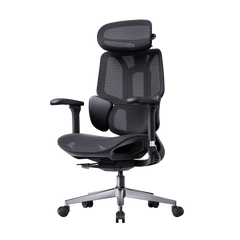
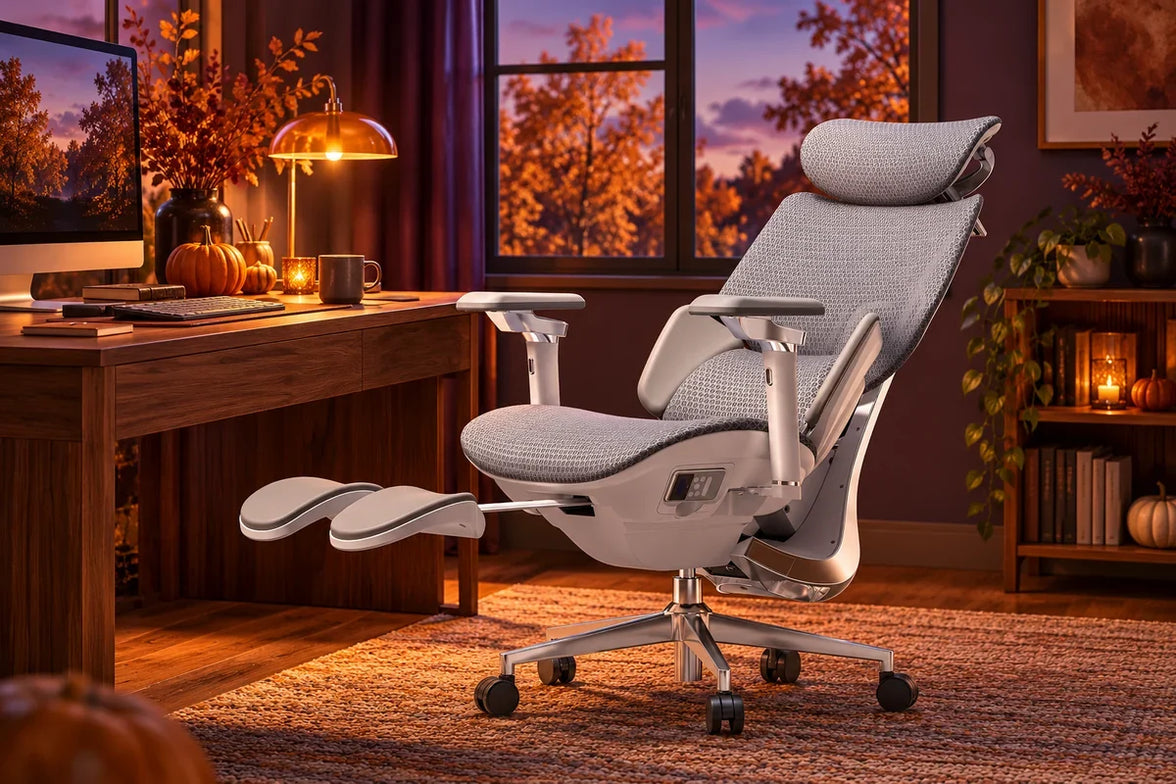
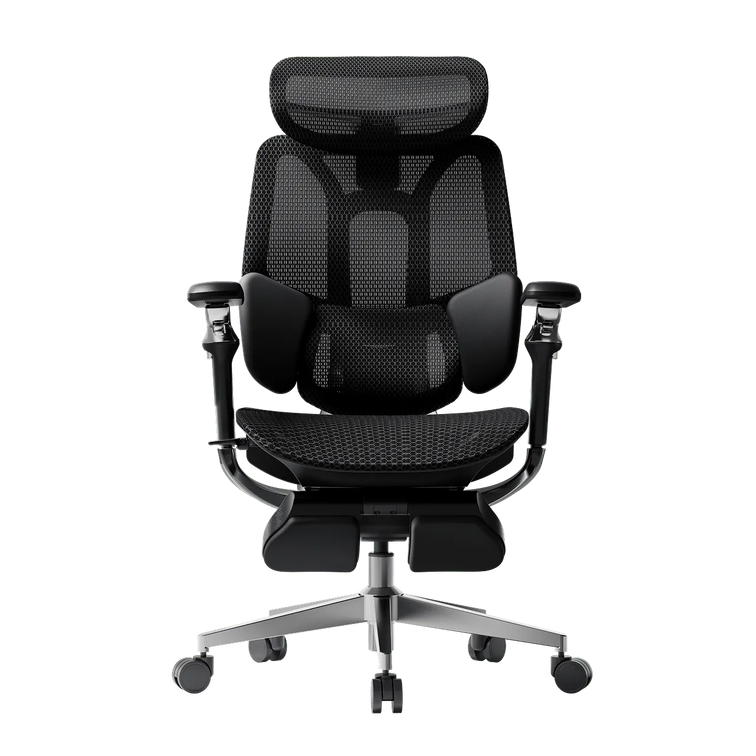
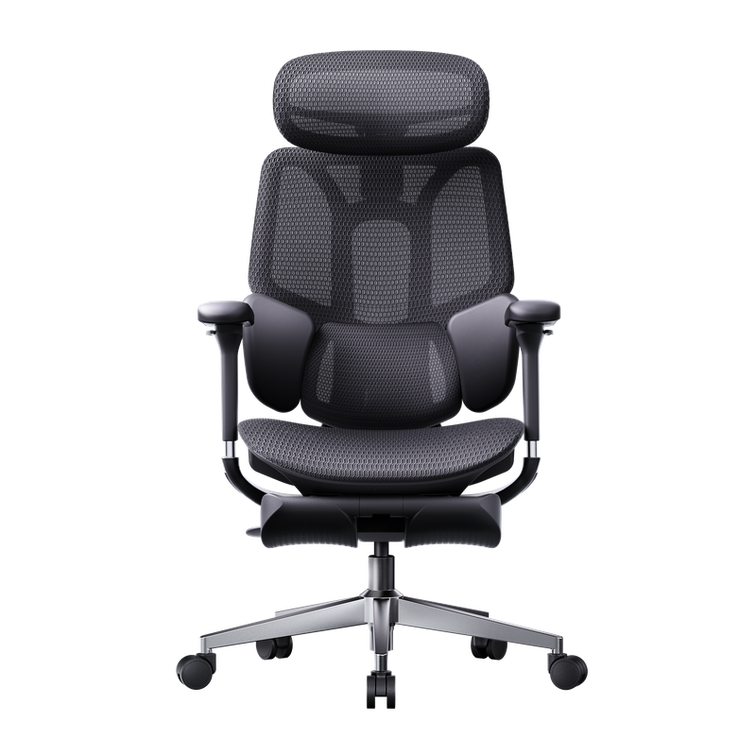
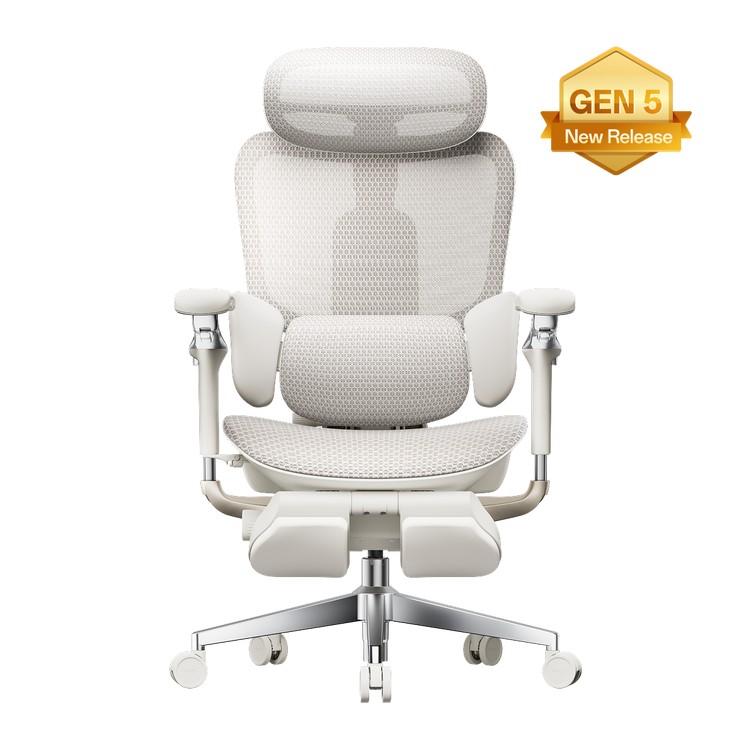
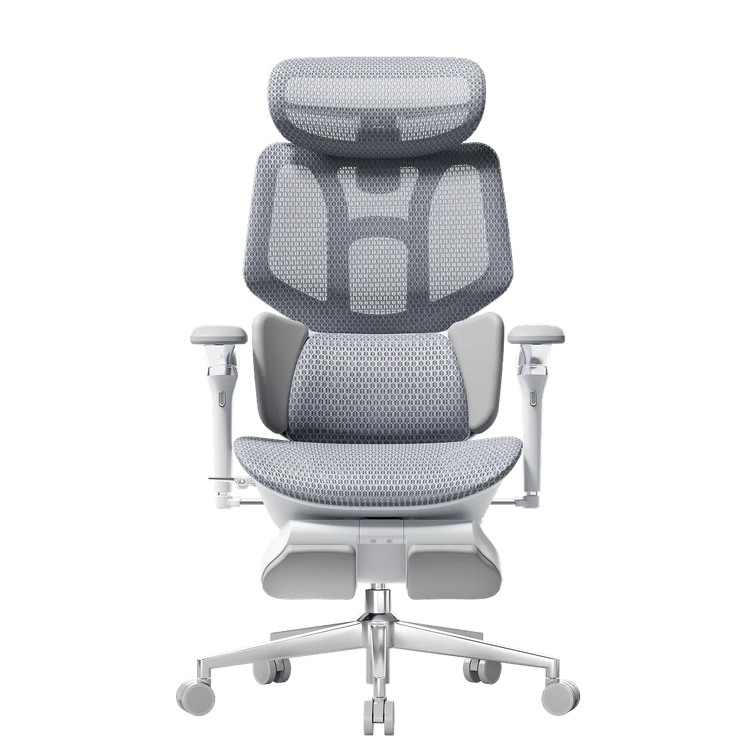
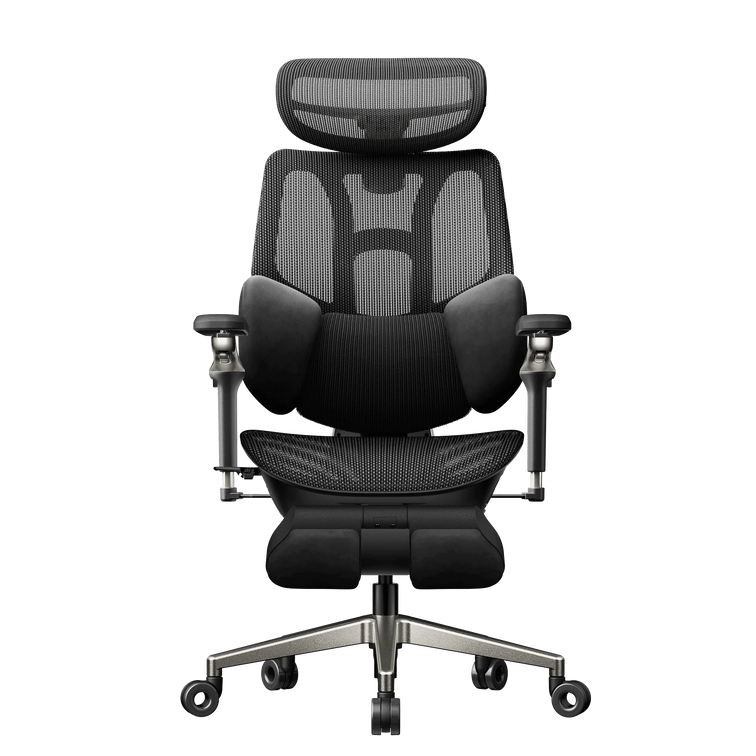
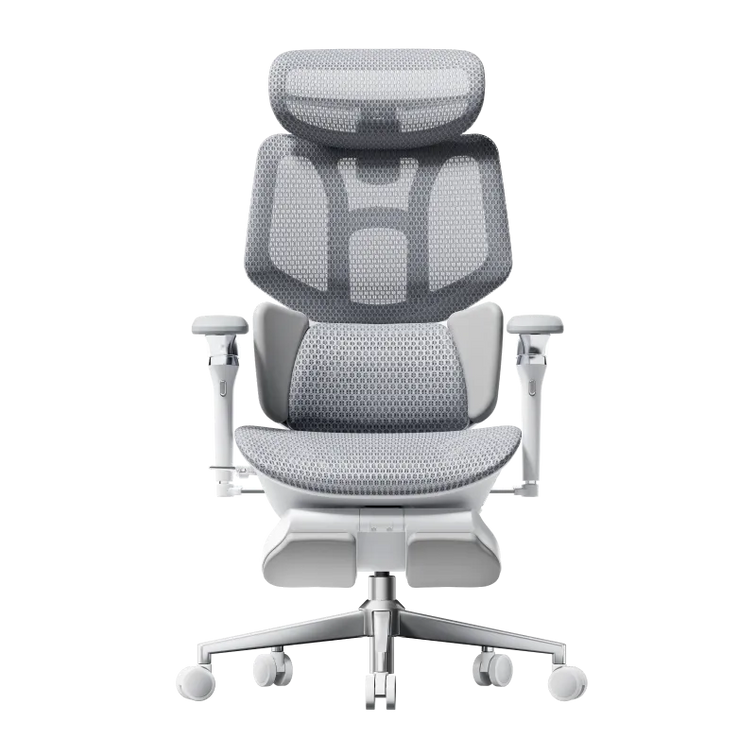
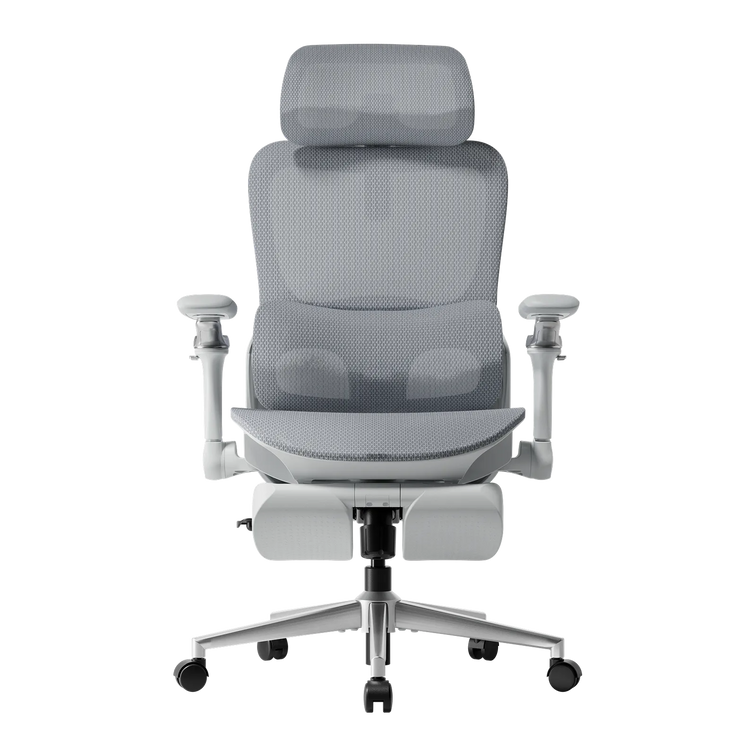
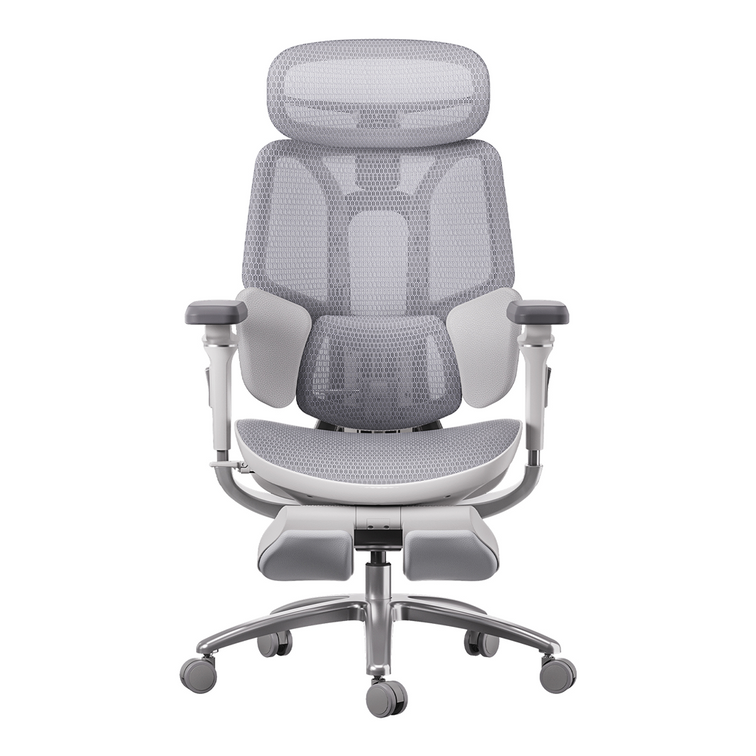
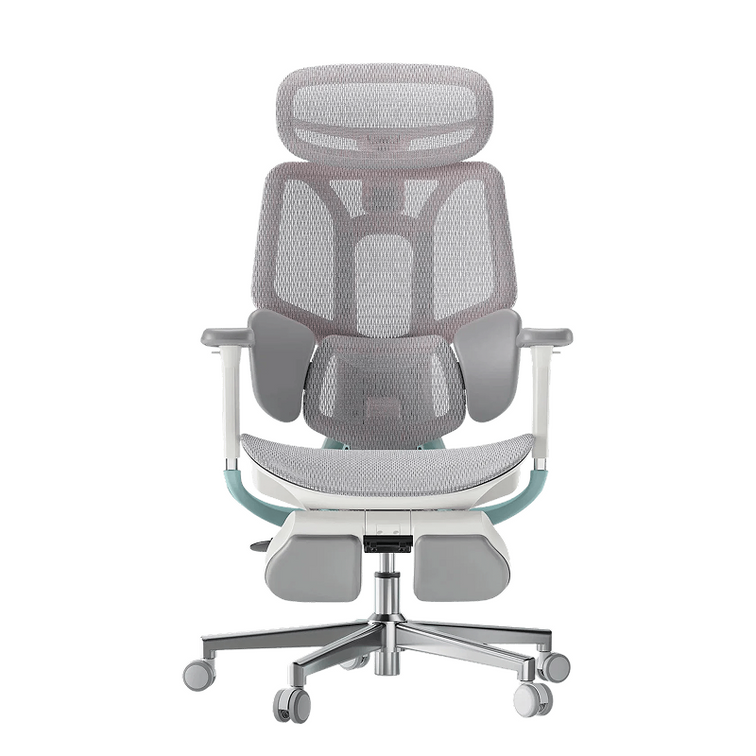
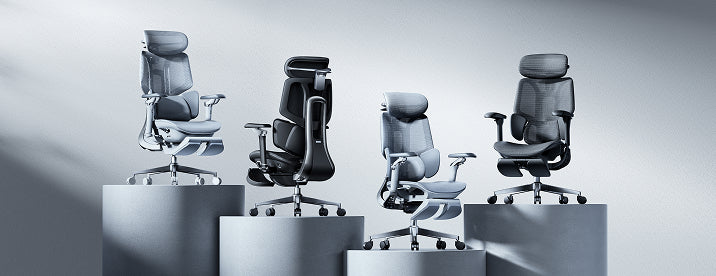
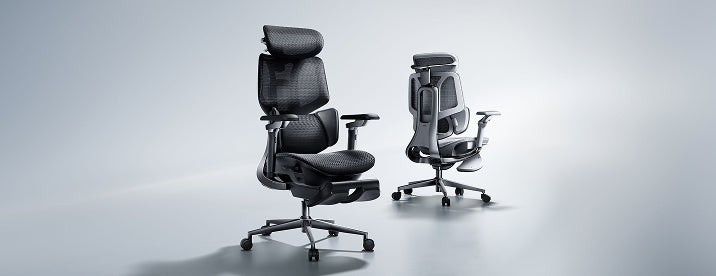
The HBADA E3 Pro Ergonomic Office Chair 2026 Edition is one model to compare. Its product page lists three-zone adaptive lumbar support, adjustable armrests, and mesh seating. Check the selected configuration carefully, including whether a footrest is included.
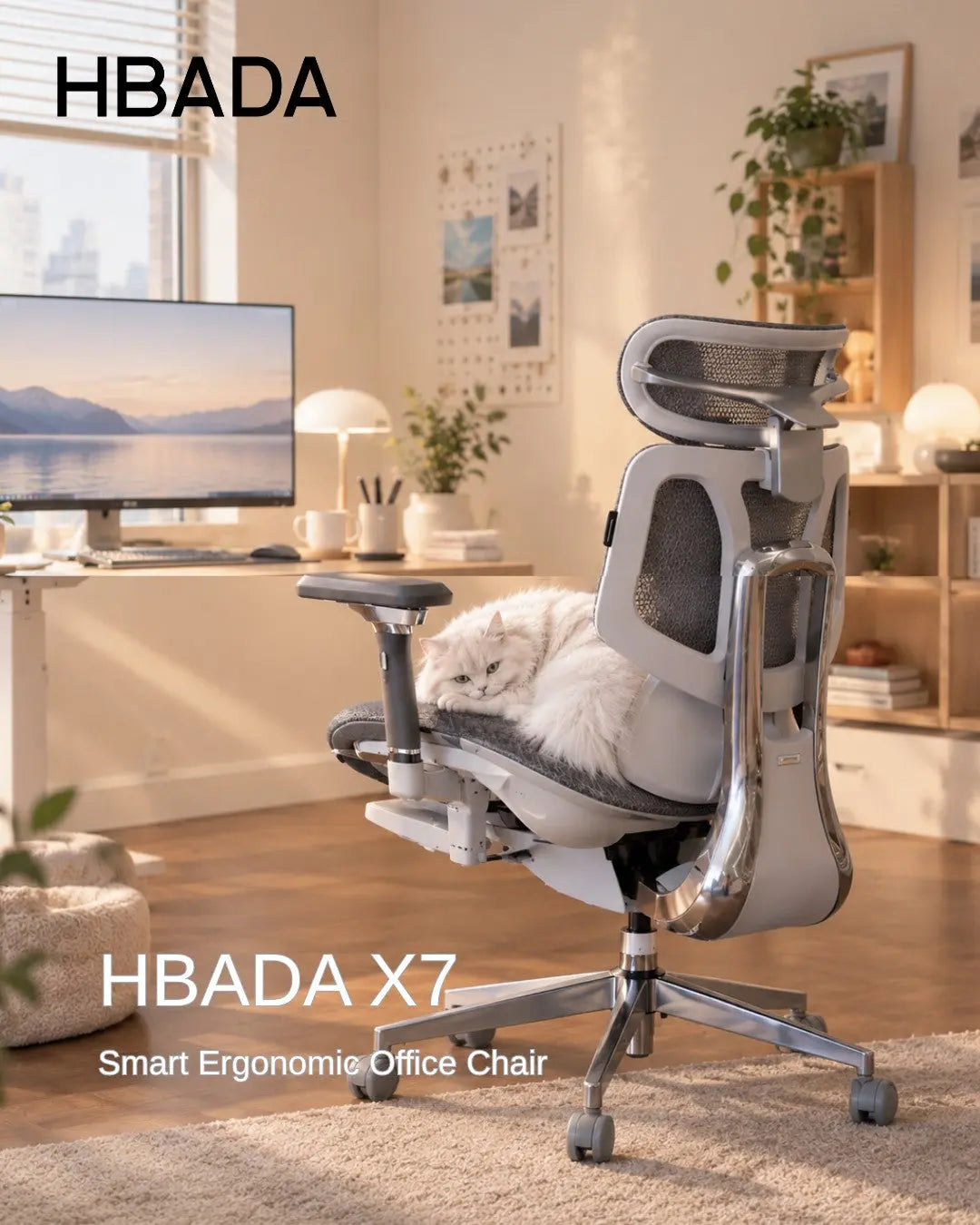
You can also compare X7 models and other options in the HBADA office chair range. Look at the exact model's specifications rather than assuming that all chairs in a series share the same adjustments.
| Feature to check | Why it matters for laptop work |
|---|---|
| Seat-height range | The chair needs to suit your desk while allowing stable foot support. |
| Seat depth and width | You should be able to use the backrest without pressure behind your knees. |
| Lumbar adjustment | Check where the support sits and which adjustments the model provides. |
| Armrest range | The armrests should support your arms without stopping you from reaching the desk. |
| Footrest configuration | A pull-out leg rest for reclining is not the same as an under-desk footrest for upright typing. |
| Fit and capacity | Confirm dimensions, weight capacity, and the selected version before ordering. |
Limitations and When to Get Help
- A chair cannot correct screen height or eliminate prolonged sitting.
- Not every chair provides independent seat-depth, lumbar, and armrest adjustments.
- A headrest or reclining leg rest does not replace a suitable typing position.
- If discomfort persists or becomes severe, seek advice from a qualified healthcare professional.
Final Thoughts
Set the chair for your desk, support your feet and lower back, and keep the keyboard within easy reach. Then adjust the laptop screen independently with a stand and external input devices. Recheck the setup after using it, and make room for movement throughout the day.
Frequently Asked Questions
How should you sit when using a laptop?
Sit back with your lower back supported, feet stable, and shoulders relaxed. Keep the keyboard and mouse close. For longer sessions, use a laptop stand with a separate keyboard and mouse so screen position and typing height can be adjusted independently.
Should your feet be flat when using a laptop?
Your feet should have stable support on the floor or a footrest. If your desk requires a higher seat position, add a footrest rather than leaving your feet dangling.
Can you use a laptop stand without an external keyboard?
You can, but raising the built-in keyboard may make typing uncomfortable. For regular desk work, pair the stand with a separate keyboard and mouse. This lets you position the screen without lifting your arms to reach the keys.
Does a reclining chair footrest work for upright laptop use?
A pull-out chair footrest is generally intended to support the legs while reclining. For upright desk work, a separate under-desk footrest may be more suitable when your feet cannot reach the floor. Check the chair instructions and your working position.
How often should you take breaks during laptop work?
Take short breaks regularly rather than waiting until you feel uncomfortable. Change tasks, stand, or walk when possible. The right pattern depends on the work you do; no chair makes it necessary or desirable to stay still all day.
Sources and Product Information
- HSE: Working with display screen equipment — UK workstation guidance used as a general reference, not a statement of US legal requirements.
- HBADA US: E3 Pro product information
- HBADA US: Current office chair range
Product specifications and availability vary by model and configuration. Confirm the details on the relevant product page before purchasing.