



Blog

Working and Reclining in a Footrest Office Chair: A Daily Guide

Working and Reclining in a Footrest Office Chair: A Daily Guide

Everyday Ergonomics · Work & Breaks

An ergonomic office chair with a footrest works best when you match your position to the task—not when you stay reclined all day.

Quick answer: Use a supported upright or slightly reclined position for typing. Try a gentle recline for audio calls and reading, provided you can still see your screen comfortably. Extend the leg rest for a seated break if your chair is designed for it. Change positions throughout the day, and include time away from the chair.

01 · Focus

Keep your keyboard close, shoulders relaxed, and feet supported.

02 · Read & Listen

Try a light recline without reaching forward or straining to see.

03 · Take a Break

Rest briefly, then make room for standing, walking, or another task.

Why Match Your Posture to the Task?

Answering emails, reading a proposal, and listening to a call do not ask the same things of your body. Your chair setup can change with them.

For typing, choose a position that lets you reach the keyboard and mouse with relaxed shoulders and without leaning away from the backrest. That may be upright or slightly reclined, depending on your desk and chair. For listening or reading, you may prefer to lean back a little further.

The important part is variation. The UK Health and Safety Executive recommends changing position and breaking up screen work rather than holding one posture for long periods. Its guidance on breaks and activity changes is useful here as general workstation advice, not as a prescribed schedule for a particular chair.

How Should You Recline for Calls and Video?

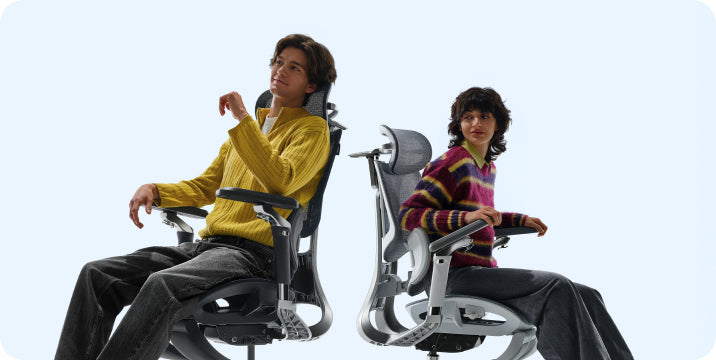
Chiropractor video recommendation review thumbnail explaining benefits of HBADA 3-zone lumbar.

An audio call is a good opportunity to change position. If you do not need to type or handle documents, try a small recline and let the backrest support you. Use the leg rest if it feels comfortable and is permitted by your chair’s instructions.

Adjust the headrest so it supports you without pushing your head forward. If you start taking notes, bring the backrest closer to your working position instead of stretching toward the keyboard.

For video calls, check your camera preview after moving the chair. A light recline may work well, but a deeper position can leave you looking up at the screen or sitting too low in the frame. Adjust the chair or camera until you can look ahead comfortably.

There is no universal “video-call angle.” Screen height, camera position, and the need to type matter more than matching a number.

How Should You Recline for Reading and Reviewing?

Reading a long document often gives you more freedom to lean back than writing one. Try a gentle recline while keeping the text easy to see and your back supported.

If you find yourself lifting your chin, craning your neck, or leaning forward again, adjust the screen position or reduce the recline. Increasing text size may help you read comfortably without moving your face closer.

For a tablet or printed document, use a stand or another suitable support rather than holding it low in your lap for a long period. Return to a position with comfortable keyboard access when reviewing turns into sustained editing.

A breathable mesh seat is another feature to consider, but it does not remove the need to change position or take a break.

How Should You Use Recovery Breaks?

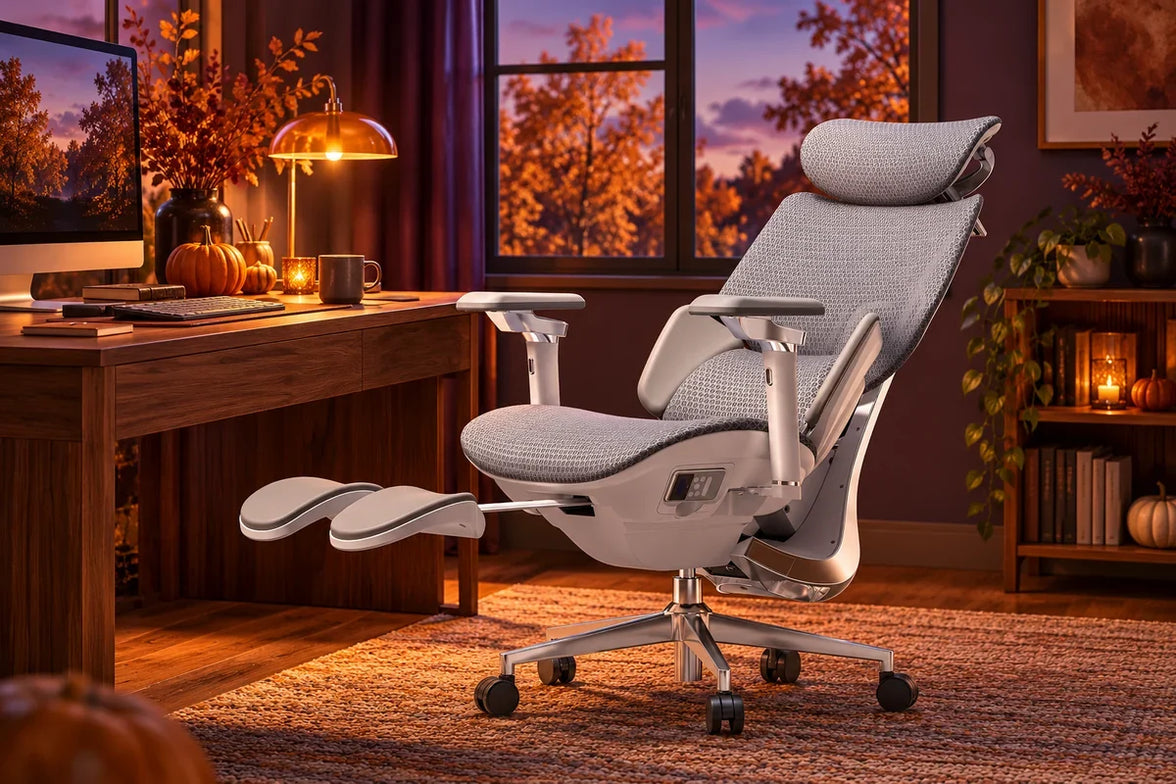
A short reclined pause can be a comfortable way to stop working for a moment. Move away from the desk, check the space behind the chair, and use the recline controls as directed in the manual. Extend the leg rest if your model includes one.

You do not need to reach the chair’s maximum angle. Choose a position that feels supported, look away from the screen, and leave the keyboard alone.

A few minutes of seated rest can fit into your day, but it is not the same as a movement break. Alternate it with getting up, walking, or switching to a task away from the screen when you can.

Task, Recline, and Footrest Guide

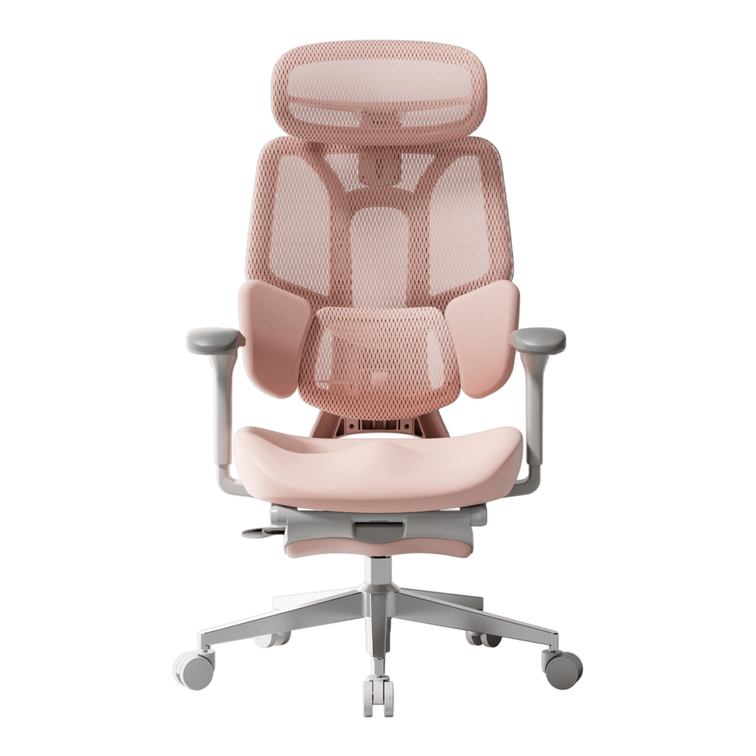
Breathable ergonomic office chair for a modern workspace

Use these as practical starting points. The right position depends on your fit, workstation, and the adjustment options on your chair. The angle markings on a product page are chair settings—not universal ergonomic targets.

On a phone, swipe the table sideways to view all columns.

Match the chair setup to what you are doing
Task Backrest position Foot or leg support What to check
Typing and focused work Supported upright or slight recline Feet on the floor or a suitable under-desk footrest Keyboard and mouse remain close; shoulders stay relaxed
Audio calls and thinking A comfortable light recline Optional pull-out leg rest, used as instructed No stretching forward to reach notes or controls
Video calls Upright or lightly reclined Stable, comfortable foot support Screen and camera remain at a comfortable viewing position
Reading and reviewing A gentle recline that preserves screen visibility Leg rest optional, depending on fit No chin lifting, neck bending, or forward reaching
Short seated break A supported recline within the chair’s permitted range Leg rest extended if appropriate for the model Clear space around the chair; include movement breaks too

Your Daily Reclining Rhythm

You do not need a complicated schedule. Use changes in your work as a reminder to check how you are sitting.

  1. Start work

    Set the seat height, lumbar support, and armrests for comfortable keyboard access. Keep your feet supported.

  2. Take a call

    Try a light recline when listening. Come forward again if the conversation turns into a typing session.

  3. Read or review

    Lean back a little if the screen remains easy to see. Adjust the display rather than holding your neck at an awkward angle.

  4. Pause

    Stop screen work for a short break. A seated recline is one option; standing, walking, or doing another task provides a different kind of change.

  5. Return to work

    Retract the leg rest before moving back to the desk. Reset the backrest and check that the lumbar support still fits comfortably.

Which HBADA Footrest Chair Fits This Routine?

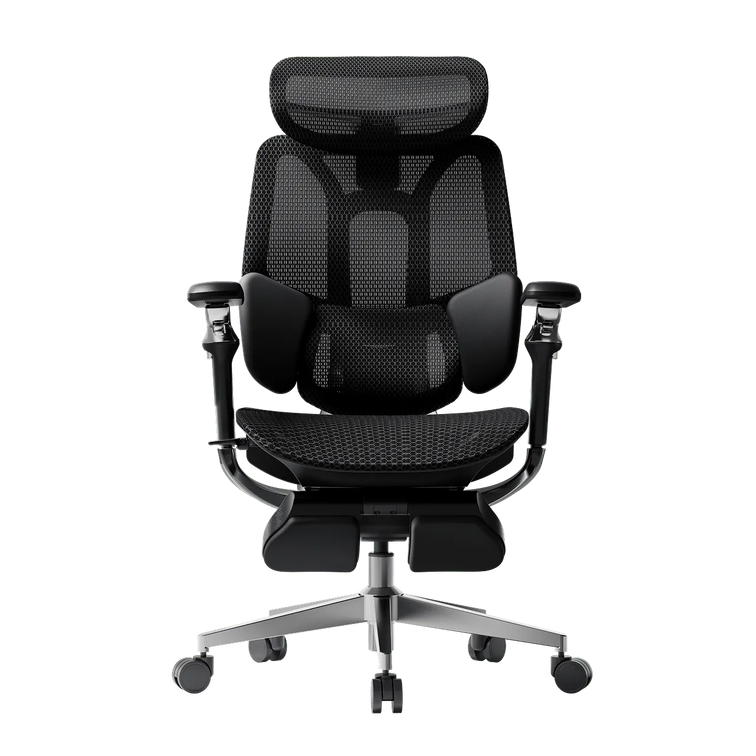
Breathable office chair for work, study and gaming

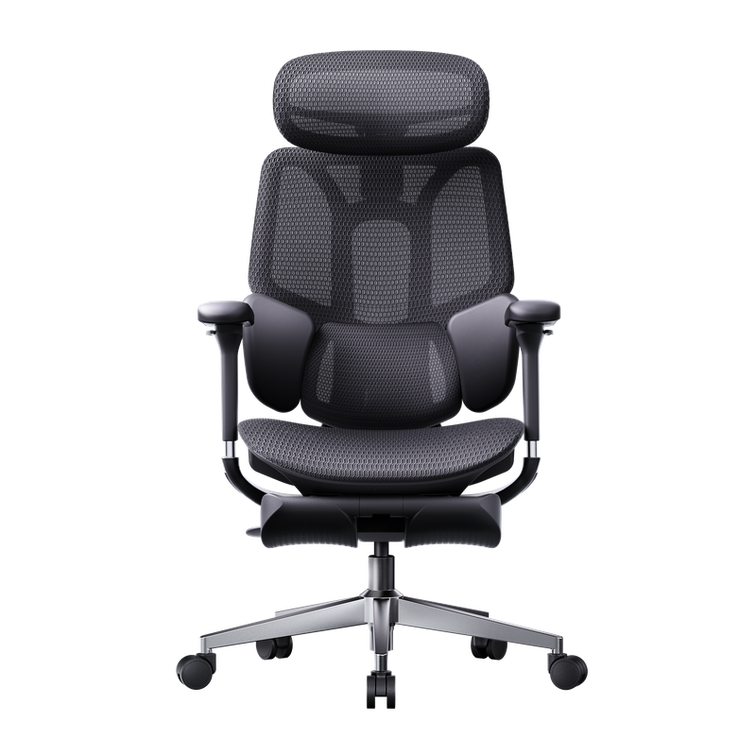
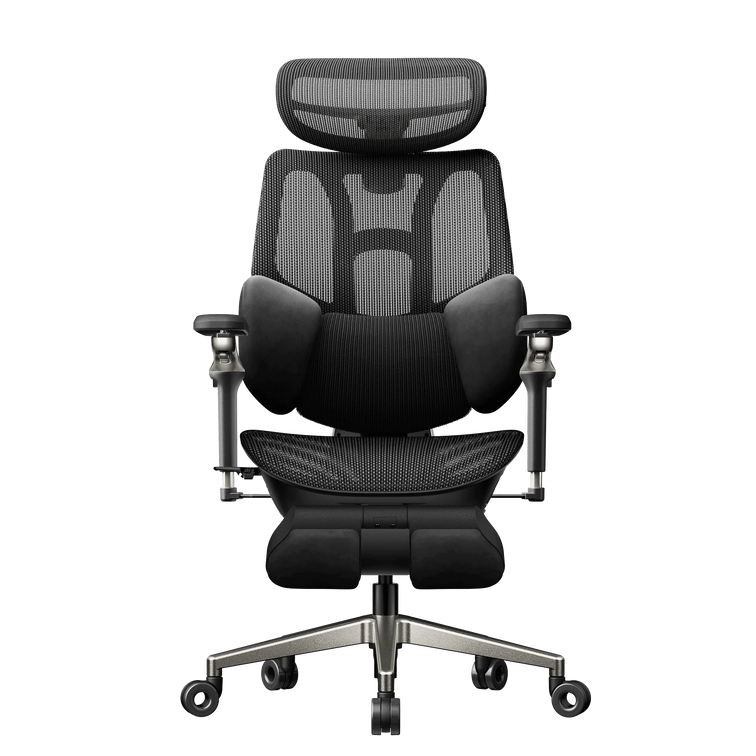
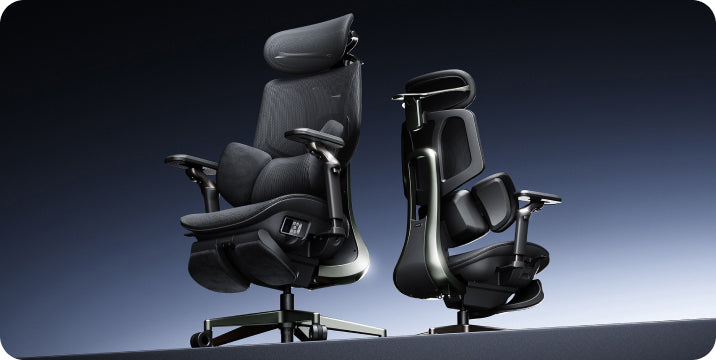
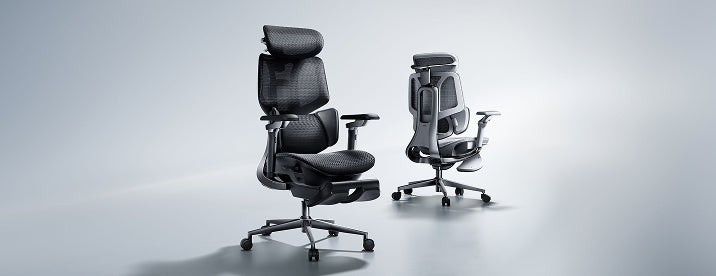
The HBADA X7 and E3 Pro 2026 both offer recline adjustments. The main distinction for this routine is the support system: the X7 uses powered lumbar tracking, while the E3 Pro combines mechanical adaptive support with manual adjustments.

Powered Lumbar Tracking

HBADA X7

Consider the X7 if powered lumbar tracking is a feature you want alongside reclining. Check the selected configuration and its leg-rest features before ordering.

Explore the HBADA X7

Mechanical Adaptive Support

HBADA E3 Pro 2026

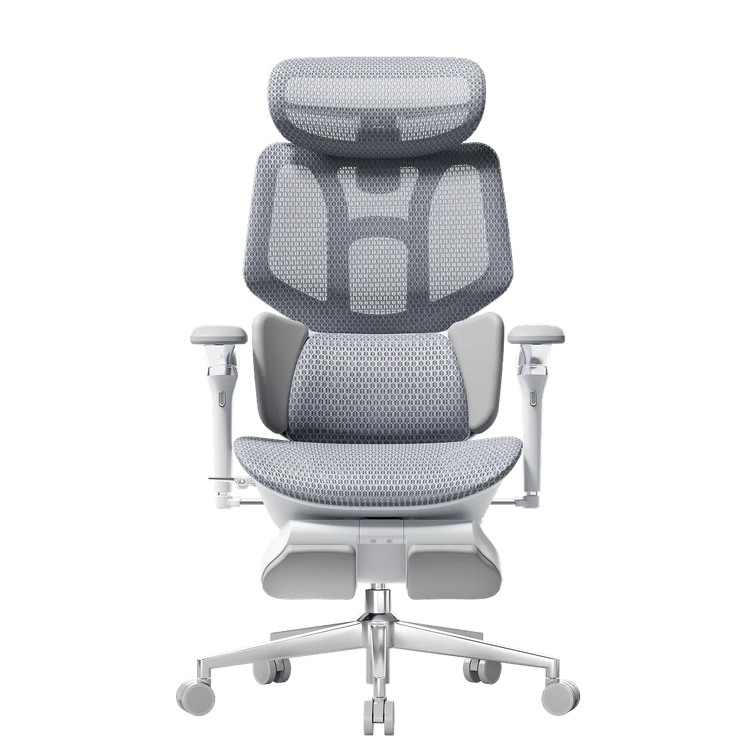
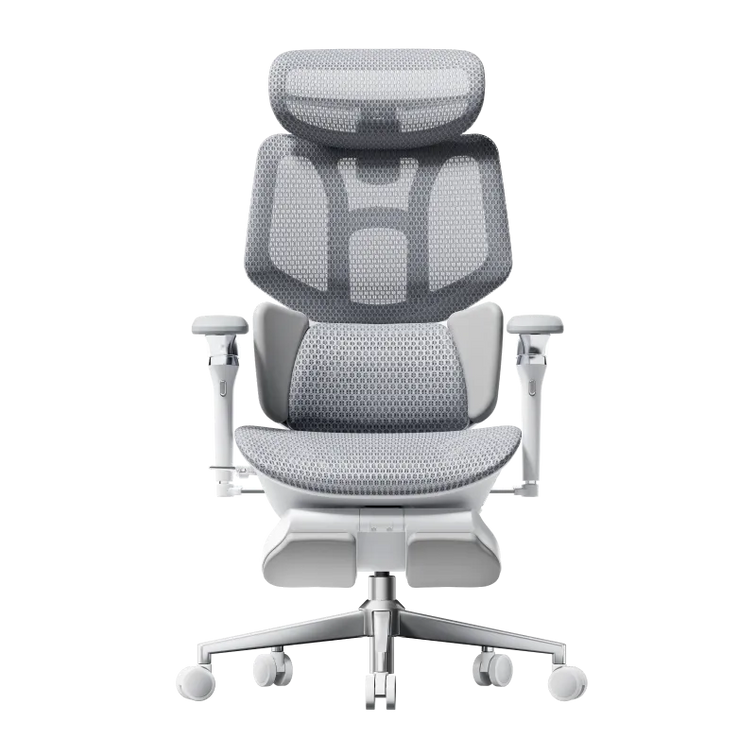
Consider the E3 Pro if you prefer adjustable mechanical support. Select the “With Footrest” option if you want a pull-out leg rest; the product page also lists a version without one.

Explore the HBADA E3 Pro

The following specifications are manufacturer-listed settings, not posture recommendations.

HBADA U.S. product comparison
Feature HBADA X7 HBADA E3 Pro 2026
Listed recline angles 105°, 116°, 128°, 140° 105°, 115°, 130°, 140°
Lumbar support AI-powered lumbar tracking 3-zone mechanical adaptive support with manual adjustments
Headrest 4D dual-axis headrest 4D dual-axis headrest
Listed chair capacity 330 lb (150 kg) 330 lb (150 kg)

Product details checked against the linked U.S. pages on September 8, 2026. Confirm the selected model, configuration, manual, and warranty terms before purchasing. A chair’s maximum user weight is not the load rating of its extended leg rest.

Limitations and Safety Notes

  • Use the controls as instructed. Learn how your chair’s recline, tension, and locking mechanism work before leaning back. Do not force a control or move beyond the permitted range.
  • Keep the area clear. Use a stable, level surface and leave enough room behind the backrest and in front of the extended leg rest.
  • Do not sit or stand on the leg rest. Use it only for its intended purpose. Retract it before getting out of the chair.
  • Check fit as well as capacity. Your seat depth, foot support, and reach to the desk matter alongside the chair’s stated maximum user weight.
  • Stop if the chair feels unstable. Do not continue reclining if the mechanism slips, a component is damaged, or the chair develops unusual movement.
  • Do not treat reclining as medical care. If a position causes discomfort, change it. Persistent pain, numbness, or other concerning symptoms warrant advice from a qualified healthcare professional.

The Takeaway

Let the Task Decide

A reclining office chair with a footrest gives you more ways to sit, but you do not need to use every setting for every task. Keep typing comfortable and within reach, lean back when reading or listening allows it, and use the leg rest for supported seated pauses.

Choose the X7 if powered lumbar tracking suits your preferences, or the E3 Pro with-footrest variant if you prefer mechanical adaptive support. Whichever chair you use, keep changes of position and time away from the screen in your routine.

Frequently Asked Questions

Should you recline during video calls?

A slight recline is fine if you can see the screen comfortably and remain well framed by the camera. If you need to raise your chin, bend your neck, or reach forward to type, adjust the screen or return to a more upright position.

Is reclining useful for reading long documents?

A gentle recline can offer a comfortable change from your typing position. Keep the document or screen easy to see, and support a tablet or book rather than holding it low in your lap. Reduce the recline if you find yourself leaning forward again.

How long should a reclined recovery break be?

Treat it as a brief pause rather than a fixed-duration treatment. You might rest for a few minutes, then change activity. There is no single recline duration that suits everyone, and seated rest should not replace opportunities to stand or move.

Does reclining with a footrest help your legs?

A leg rest can provide a different supported position that some people find comfortable. It should not press uncomfortably against your legs or leave you feeling numb. Do not rely on a chair leg rest to treat swelling, circulation problems, or persistent pain.

Can you use a footrest chair with a sit-stand desk?

Yes. For seated work, adjust the desk and chair so your keyboard is within easy reach and your feet are supported. Use a separate under-desk footrest if needed. Retract the chair’s pull-out leg rest and move the chair clear before switching to standing.

What recline angle should you use for typing?

There is no single angle that fits every workstation. Start upright or slightly reclined, with your back supported and keyboard close. If leaning back makes you reach forward or lift your shoulders, change the chair or desk setup. Product angle markings describe available settings, not required working postures.

Sources and Product Notes

General workstation guidance and manufacturer specifications serve different purposes. The sources below do not establish that a particular recline angle prevents or treats a medical condition.

Relevant Product

You May Also Like

HBADA E3 Ultra Gen 5 at Its Lowest Price Ever: $607.05 for New Customers HBADA E3 Ultra Gen 5 at Its Lowest Price Ever: $607.05 for New Customers Gen 5 New Release · Our Lowest Price Ever HBADA E3 Ultra Gen 5 New-generation comfort.Our lowest-ever price. $607.05 Your price with the eligible 5% new-customer discount on the $639 configuration. Yes—the discount stacks with our early-bird offer. $639 early-bird price − $31.95 new-customer savings = $607.05 GET THE EARLY-BIRD PRICE → Through November 15, 2026 · USD · Before applicable tax and shipping. Starting prices vary by configuration. Your Black Friday Price Guarantee Black Friday won’t be lower. If it is, we’ll refund the difference. Buy now with confidence. If our Black Friday 2026 offer on hbada.com is lower than what you paid for the same E3 Ultra Gen 5 configuration under equivalent discount eligibility, we’ll refund the price difference. Our lowest-ever E3 Ultra Gen 5 price. No need to wait for Black Friday. A serious upgrade. An exceptional early-bird price. Meet the new HBADA E3 Ultra Gen 5 ergonomic office chair, combining 4D bionic massage, graphene heat and full-body dynamic support. Three-zone lumbar support, a 150° recline and 8D armrests help you move from focused work to a relaxing break. Shop from $639, or $607.05 for eligible new customers. Select your configuration and apply your eligible 5% discount before checkout. Choose your E3 Ultra Gen 5 → Offer details: Early-bird pricing is available through November 15, 2026 on hbada.com. Prices start at $639 and vary by configuration. The $607.05 price applies to an eligible $639 configuration after the stackable 5% new-customer discount, before applicable tax and shipping. Existing customers can shop the early-bird price without the new-customer discount. The Black Friday price guarantee compares the same configuration on hbada.com under equivalent discount eligibility. To request an eligible price-difference refund, contact service@hbada.com with your order details and the lower qualifying offer. Keep up with HBADA launches and workspace guides. Add HBADA on Google ↗ Opens Google in a new tab. Confirm your selection there if HBADA is available. How Long Does Office Chair Assembly Take? A Guide to Three HBADA Models How Long Does Office Chair Assembly Take? A Guide to Three HBADA Models HBADA / The Workspace Journal Assembly & Setup From the boxto your better workspace. Your first experience with a new office chair starts before you sit down. Here is how to plan the build, avoid unnecessary delays, and get your HBADA chair ready for everyday use. Three models. One useful principle: follow the right guide, not the clock. The quick answer Office chair assembly time depends on the model, the parts already assembled, and how comfortable you are handling the build. For a first-time setup, reserve an uninterrupted hour for unpacking, assembly, checks, and adjustments. That is a practical scheduling suggestion—not a measured installation time or a promise that every chair takes an hour. Use the instructions supplied with your exact chair. Product generations and configurations can have different parts, connections, and assembly sequences. Inside this guide 01 / What changes assembly time 02 / E3 Pro, X7, and E3 Air 03 / A smoother setup 04 / Mistakes to avoid 05 / Assembly questions 01 / Set realistic expectations Assembly time is more than tightening bolts. Two people can assemble the same chair and record different times without either doing anything wrong. One may start the clock after unpacking; another may include sorting hardware, watching the instructions, and adjusting the finished chair. Give yourself time to identify the parts and understand the sequence before you begin. Optional accessories, electronic connections, and the need to support a large component can all change the pace. A note on timing This is a preparation guide, not a timed comparison test. We do not assign a stopwatch result to the E3 Pro, X7, or E3 Air here, or apply an older model’s reported time to a newer version. Before opening the hardware pack, find your model in our user manual and assembly guide library . Keep the relevant instructions open beside your workspace. 02 / The model-by-model edit What to check before building your chair. 01 Check the edition HBADA E3 Pro Match your instructions to the chair in the box. Start by checking the model identification on your packaging and manual. The current E3 Pro 2026 should not automatically be treated as identical to an earlier E3 Pro shown in a review or installation video. Confirm whether your configuration includes a footrest and identify the instructions for any included accessories. Check the hardware labels before fitting components; similar-looking bolts may serve different purposes. If a component is awkward to hold in alignment, ask another person to support it rather than balancing it while trying to tighten a fastener. 02 Allow room for the details HBADA X7 Take a deliberate approach to handling and connections. With the HBADA X7 smart ergonomic chair , review the instructions for any electrical connections before joining the relevant components. Follow the specified cable route and connector orientation. Do not pull components together by their cables, trap wiring between parts, or force a connector that does not align. Follow the manual’s instructions on when to connect power. Arrange help if you cannot comfortably lift or stabilize a component. A second pair of hands is more useful than trying to finish quickly. The best shortcut is knowing the next step before you lift the next part. 03 Start with your configuration HBADA E3 Air Do not borrow an installation time from another model. For the E3 Air , check the exact edition and accessory configuration before selecting an assembly video. A similar appearance does not establish an identical assembly sequence. Nor does a simpler feature list prove that one chair will take less time to build. Lay out the components, match them to the parts list, and work through the supplied guide in order. Treat fit adjustments as a separate step after assembly. Assembly preparation at a glance Model First check Where to allow extra attention E3 Pro Edition and accessory configuration Hardware identification and component alignment X7 Model-specific connection instructions Safe handling, cable routing, and connectors E3 Air Exact model and included parts Following its own guide rather than another model’s On smaller screens, swipe the comparison horizontally. This table compares preparation needs, not measured build times. 03 / A smoother setup Prepare once. Build without the backtracking. These habits help organize your assembly session. They do not replace the model-specific sequence, tightening instructions, or safety guidance included with your chair. Choose a clear, protected work area. Leave enough space to lay out the parts and move around them. Use a clean protective surface where the instructions call for placing components down. Keep children and pets away from loose hardware and the build area. Check every part before starting. Match the components, fasteners, and tools to the parts list. Keep different hardware types separated. If something is missing or damaged, contact support before improvising a replacement. Read the complete sequence once. Identify the steps where a part needs support, an accessory is fitted, or a cable must be routed. Watch the matching installation video if one is provided. Align components before applying force. Use the specified fastener in the correct location. Where instructed, start bolts loosely to establish alignment before tightening. Follow each step’s tightening direction; do not leave every connection loose until the end. Check connections and clearances. On models with electrical components, follow the manual’s connection instructions. Keep cables clear of pinch points and moving parts. Stop if a connector appears damaged or does not fit as shown. Complete the final inspection. Confirm that components and fasteners are secured as instructed before use. Do not bounce on the seat to force a joint into position. If the chair feels unstable, stop and check the guide or contact support. Adjust the chair to your workspace. Once assembly checks are complete, set the seat height, seat depth where adjustable, back support, and armrests. Keep the manual and tools together for future reference. Need the instructions alongside you? Open our HBADA assembly and installation guides before you begin. 04 / Avoid the unnecessary delays Small mistakes that create extra work. Using a video for a different generation Check the model name and edition before following the steps. Similar product names do not guarantee matching hardware or connection points. Tightening before the parts are aligned If a hole does not line up, check orientation and the previous step. Do not use extra force to make an incorrect fit work. Follow the manual’s specified tightening sequence. Forcing a connector or substituting a bolt A part that looks almost right may still be the wrong one. Stop and verify the label, orientation, and instructions. Contact us if the supplied parts do not match the guide. Handling an awkward component alone Ask for help when lifting or holding a part securely is difficult. Do not use the headrest, armrests, or cables as improvised lifting handles. Throwing away the packaging and tools too soon Keep the tools, instructions, and packaging while you complete the setup and check that everything is present and functioning. Review the applicable return instructions before discarding packaging. 05 / Questions before your first sit Office chair assembly, explained. How much time should I set aside? Reserve an uninterrupted hour as a scheduling buffer for unpacking, assembly, inspection, and initial adjustments. It is not a tested build time. You may finish sooner, or need more time if you are unfamiliar with the process or need assistance. Can I assemble an office chair by myself? Follow the handling guidance for your model. If you cannot comfortably lift or stabilize a component, get help. Being able to tighten the bolts alone does not mean every lifting step is suitable for one person. What tools do I need? Check your model’s parts and tool list before starting. Use the specified tools and fasteners. Avoid power tools unless the instructions expressly permit them. Should I follow the same steps for every HBADA chair? No. Use the guide for your exact model, generation, and configuration. Our assembly guide library is the starting point for finding the relevant instructions. What if the chair squeaks or feels unstable after assembly? Stop using it if it feels unstable. Review the assembly checks in your manual and look for incorrectly fitted components or unsecured fasteners. Do not assume every noise comes from the same cause, or disassemble the gas cylinder. Contact our support team if the issue continues. Who should I contact if a part is missing? Email service@hbada.com with your order number, model identification, and clear photos of the parts or issue. Include the part label from your manual when possible. Ready for the first workday A good build starts before the first bolt. Clear the space, identify your model, and read the sequence. Give yourself room to work carefully, then spend a few minutes adjusting the finished chair to your desk. Assembly is the beginning—not a race to the seat. Find your assembly guide → Make your next workspace decision easier. Add HBADA as a preferred source on Google for more of our ergonomic chair guides, setup advice, and workspace ideas. Add HBADA on Google ↗ Opens Google in a new tab. Confirm your selection there if HBADA is available. Best HBADA Office Chair Deals for Halloween 2026: Find Your Fit Best HBADA Office Chair Deals for Halloween 2026: Find Your Fit HBADA · The Halloween Edit October 29–November 1, 2026 Less trick.More chair. A seasonal treat for the place you spend your day. Explore our Halloween office chair picks, qualifying extra savings, and an X7 battery gift. Explore the Halloween Sale → Find your fit. Six picks for different workspaces. Pick your treat. Choose the offer that suits your basket. QUALIFYING EXTRA DISCOUNTS · MULTI-ITEM OFFERS · ELIGIBLE X7 BATTERY GIFTS A note before you shop Your decorations are seasonal. Your desk chair is an everyday decision. Halloween is a good excuse to refresh your setup. But a worthwhile upgrade starts with how you sit, the space around your desk, and the features you will actually use. We’ve selected our best HBADA Halloween office chair deals by use case, from a smaller-budget upgrade to massage, heat, and AI lumbar tracking. These are picks within our own range—not a ranking of every chair on the market. The offers Price shortlist Find your chair Before checkout Looking ahead The offer desk Your Halloween treats, explained. Our Halloween Flash Sale runs October 29–November 1. Alongside the displayed product offers, the campaign includes extra savings for qualifying orders and a battery gift with selected X7 purchases. Qualifying extra discount 5% Orders over $300 Your code:SPOOKY5 Check your order summary first. If the eligible discount is not already applied, use SPOOKY5 at checkout. This offer can accompany eligible product discounts. It cannot be combined with More6 or More7. Two workspaces. One order. The campaign advertises 6% off two eligible pieces with More6. Compare the applicable basket offer rather than adding it to SPOOKY5. Buying three or more? Explore 7% off three or more eligible pieces with More7. For larger orders, contact service@hbada.com for a quote. A battery treat for selected X7 chairs Buy an eligible X7 or X7 Prestige during the event and receive a free battery gift. The campaign states that it is automatically added to the cart or order. Check the gift before completing payment. The published offer names X7 and X7 Prestige, not X7 Air. Review the live Halloween offers and terms for current eligibility and availability. The shopping index Six chairs.Different reasons to choose. These are the displayed campaign prices for the configurations below, before any additional qualifying checkout discount. P2 Ultra Gray · Budget pick · Pre-order $299 E3 Air 2026 Black, without footrest · Everyday mesh $379 E3 Pro 2026 Black, without footrest · Adjustable setup $519 E3 Ultra Gen 5 Pearl White · Massage and heat $639 X7 Gray · AI lumbar tracking $1,169 X7 Prestige Premium finish · Eligible battery gift $1,699 Color, generation, footrest options, and availability can affect pricing. Confirm your chosen variant, taxes, and final total at checkout. The chair edit Choose by your day,not just your budget. Best budget pick Start withthe essentials. $299 P2 Ultra · Gray · Pre-order HBADA P2 Ultra A first home office does not need to begin with the most expensive chair. The P2 Ultra is the lowest-priced option in this shortlist, pairing sacral-lumbar support with an adjustable headrest and 6D armrests. Consider it if you are replacing a basic desk chair and want more ways to adjust your position. Check the dimensions and pre-order timing first. At $299 on its own, it does not meet SPOOKY5’s “orders over $300” threshold. Explore the P2 Ultra → Best everyday mesh option Your everydaydesk companion. $379 E3 Air · Black · Without footrest HBADA E3 Air 2026 If breathable mesh and lower-back support lead your shopping list, start here. The E3 Air 2026 combines 3-zone adaptive lumbar support with adjustable armrests for everyday desk use. Compare it for studying, working from home, and general screen time. Decide whether you want a footrest before comparing totals: the featured $379 version does not include one. Take a closer look at E3 Air → A smaller price is a nice surprise.A chair that fits is the real treat. Best for an adjustable work setup Fine-tuneyour focus. $519 E3 Pro · Black · Without footrest HBADA E3 Pro 2026 Typing, calls, and reading do not keep your arms and head in the same position. The featured E3 Pro 2026 combines 3-zone lumbar support, a 4D biaxial headrest, and 6D armrests. Explore it if you want to fine-tune your chair around your desk tasks. Check armrest clearance and whether you can sit comfortably against the backrest. The pink E3 Pro on the sale page has different armrest specifications. Compare that listing separately rather than treating it as the same configuration. Compare E3 Pro Halloween options → New arrival · Best for massage and heat A new chapterin everyday comfort. Meet our new HBADA E3 Ultra Gen 5. Full-body dynamic tracking, 4D bionic massage, graphene heat, and 3-zone lumbar support come together in our latest E3 Ultra. $639 Pearl White · Featured on the Halloween page Explore it if you want support for focused work alongside massage and warming comfort during a break. A 150° recline and 8D armrests let you adapt your position, while breathable pressure-relief mesh completes the seating surface. Discover E3 Ultra Gen 5 → Massage and heat are comfort features, not treatments for a medical condition. Keep regular movement breaks part of your day. Two E3 Ultra prices? Check the generation. The gray E3 Ultra listed at $499 is separate from the new Pearl White Gen 5 listed at $639. Do not assume the older listing includes the new model’s massage, heat, or adjustment features. Best for AI lumbar tracking A smarterseating setup. $1,169 X7 · Gray · Eligible battery gift HBADA X7 If AI lumbar tracking is the feature you want to explore, put the X7 on your shortlist. It takes a different approach from a manually adjusted office chair. The campaign lists gray at $1,169 and black at $1,329. Both are featured with the extra battery gift, so select the color you want before comparing totals. Explore the HBADA X7 → Best for a premium finish A differentfinishing touch. $1,699 X7 Prestige · Eligible battery gift HBADA X7 Prestige For an executive-style workspace, compare the X7 Prestige. Its leather finish and foldable lumbar wings distinguish it from the standard X7. It is also named in the Halloween battery-gift offer. Check the complete specification and configuration before deciding which model suits your room and routine. View the X7 Prestige offer → Before the final click The five-point shopping check. A few details make the difference between an attractive offer and the right order. Confirm the configuration. Check the model, generation, color, and footrest option. Measure your space. Check desk clearance and leave room behind the chair if you plan to recline. Choose the applicable offer. Do not add SPOOKY5, More6, and More7 together. Review gifts and availability. Confirm any eligible battery gift and whether your selected chair is a pre-order. Read the final total. Review the discount, taxes, and order summary before completing payment. The campaign also advertises subscriber savings of up to $80. Check the offer you receive for qualifying spend, expiry, and exclusions; do not assume it combines with other discounts. Return to the Halloween Sale for current product options and full offer details. Looking ahead Already thinking about Black Friday? Use Halloween to build a better shortlist. Work out your preferred fit, decide which features you will use, and compare exact configurations rather than headline prices alone. Our Halloween campaign page also includes a gift-card section for shoppers planning ahead. Review the specific purchase and redemption conditions before choosing one. Halloween and Black Friday are separate events. Do not assume today’s codes, gifts, or prices will continue or combine with future promotions. If a chair fits your needs and the current offer works for your budget, you have a clear basis for deciding. If you are still comparing, keep your shortlist and measurements close. October 29–November 1 A Halloween treat.An everyday upgrade. Find the chair that suits your day, select your configuration, and explore the offer that works for your basket. Shop the Halloween Sale → Keep the good ideas coming. Choose HBADA as a preferred source on Google to follow our workspace guides and product stories where the feature is available. Add HBADA on Google ↗ Opens Google in a new tab. Confirm your selection there if HBADA is available.