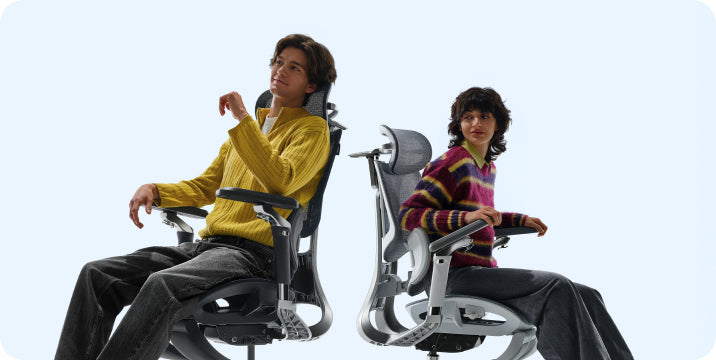

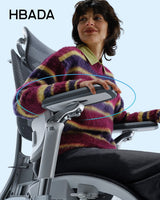
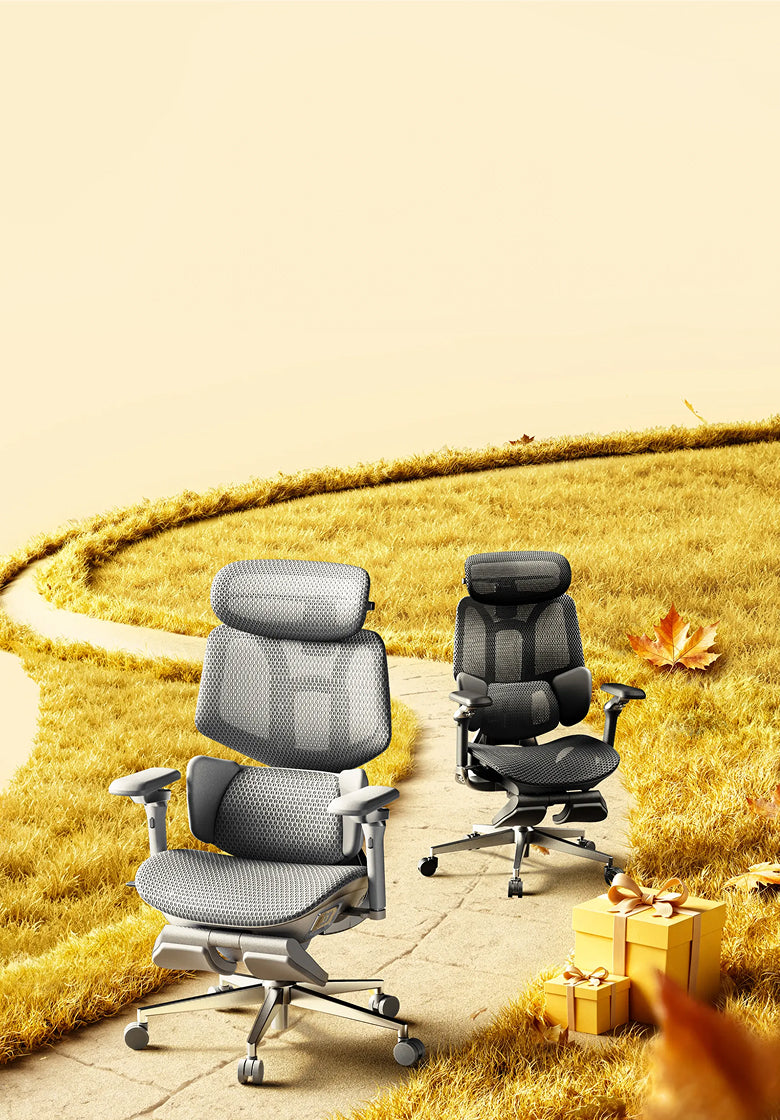
A longer shift.
A better way to sit.
How to choose an ergonomic office chair for 12-hour shifts: start with fit, make room for movement, and choose the features you will actually use.
What should you look for in a chair for 12-hour shifts?
Prioritize a seat that fits your body, adjustable lumbar and arm support, usable recline, and materials that feel comfortable to you. Check the manufacturer's intended-use and warranty terms, especially for shared or intensive workplaces. Treat ventilation, massage and a pull-out leg rest as optional extras—not substitutes for fit or regular movement.
What matters most for a long-shift chair?

During a long workday, a small mismatch can become hard to ignore: a seat edge behind your knees, armrests that prevent you from moving close to the desk, or lumbar support that feels too high. Start with those practical details before comparing extra features.
An ergonomic office chair should work with your body and your workstation. Test whether you can reach the keyboard comfortably, use the backrest and keep your feet supported.
Start with three fit checks
- Seat height: your feet should be supported by the floor or a stable footrest.
- Seat depth: you should be able to use the backrest without the front edge pressing behind your knees.
- Armrest position: your forearms should be supported without lifting your shoulders or pushing you away from the desk.
Why consider dynamic lumbar support?

You do not remain in exactly the same position throughout a shift. You may lean toward a task, return to the backrest or recline between activities. Dynamic lumbar mechanisms are designed to respond to some of that movement.
What matters is how the support feels on your body—not simply whether it is called dynamic, adaptive or smart. It should feel supportive rather than forceful, and you should be able to find a suitable position.
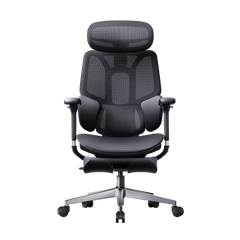
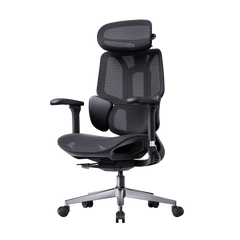
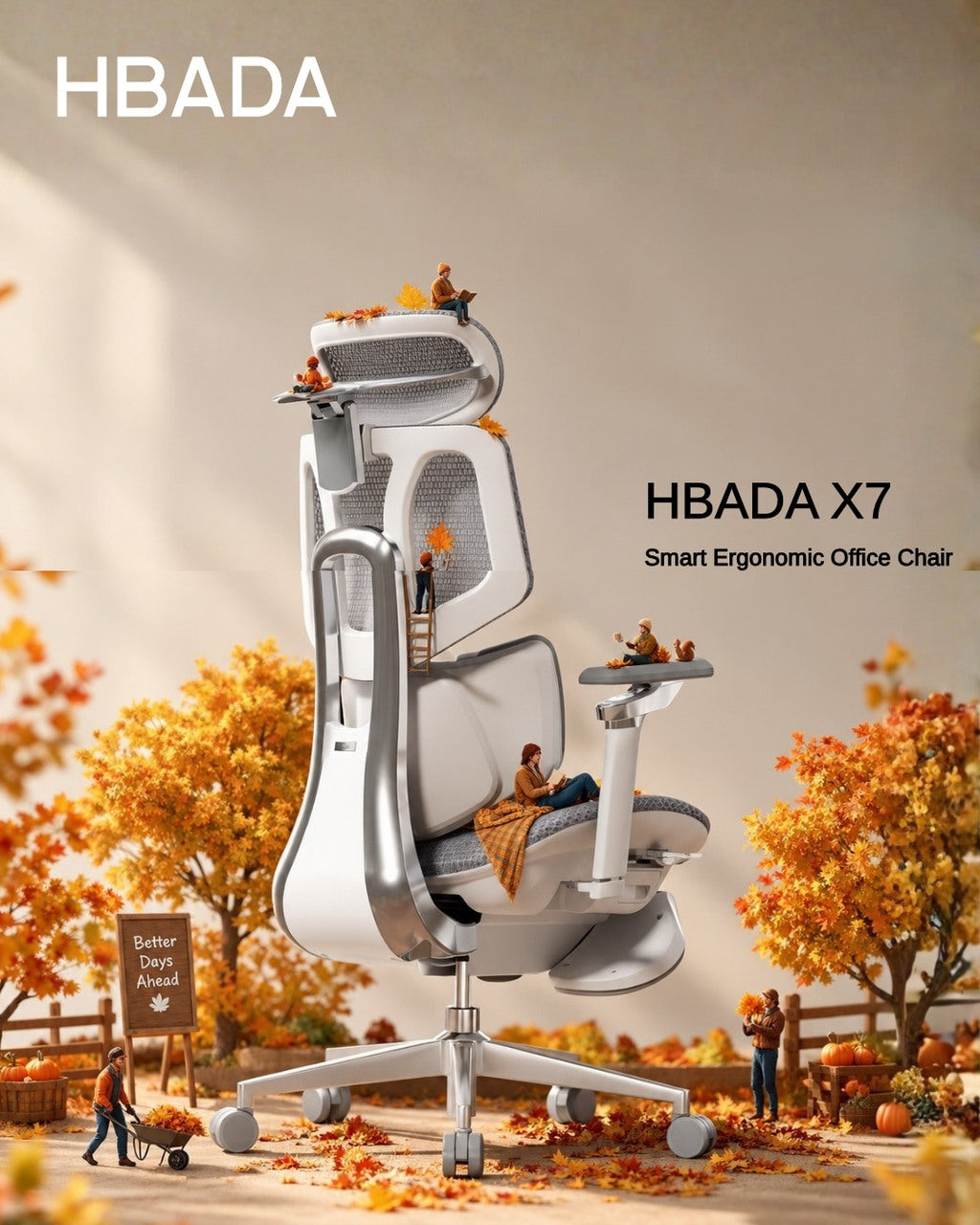
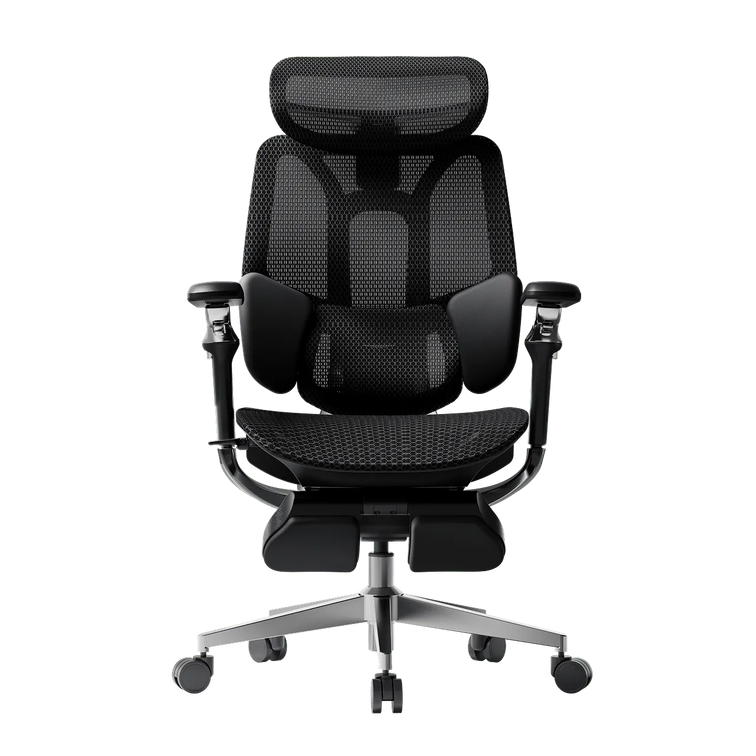
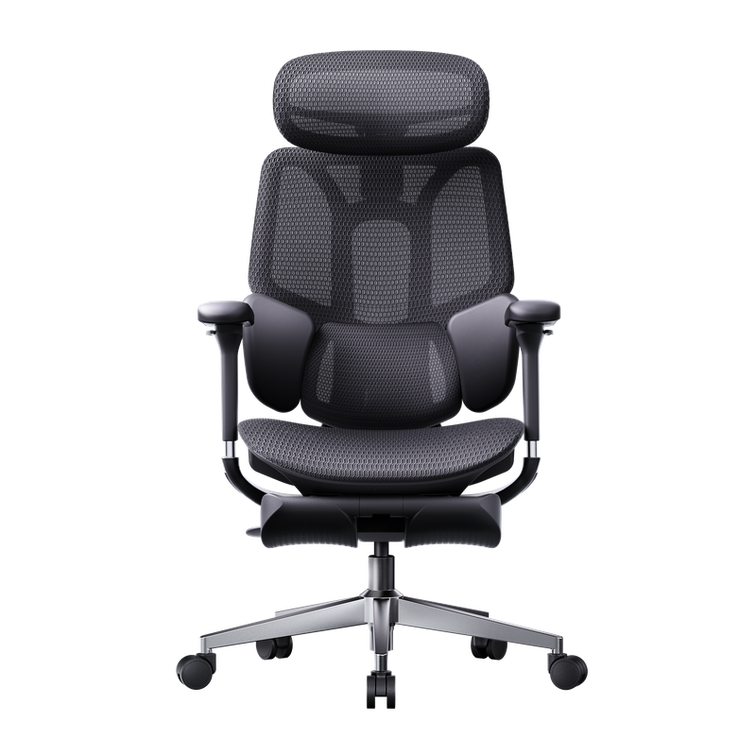
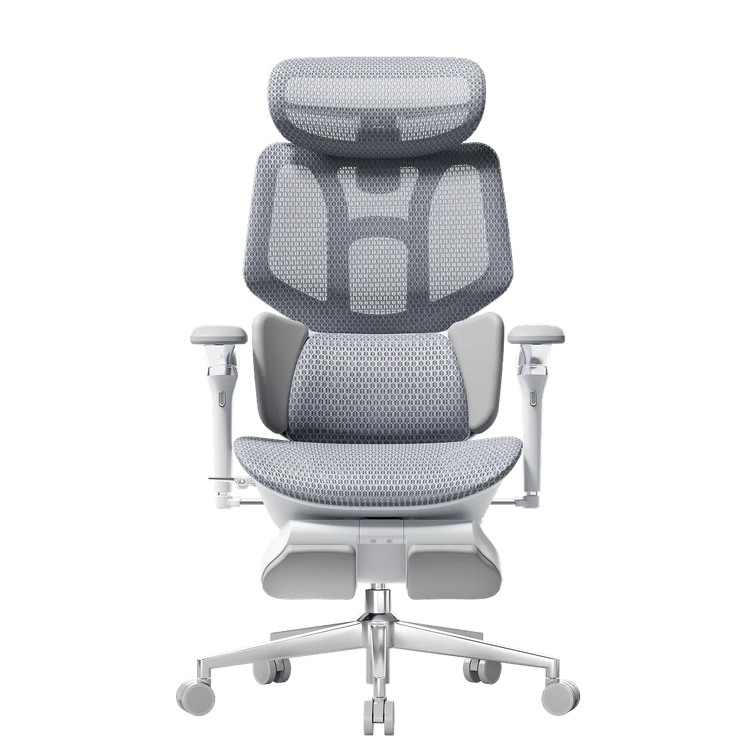
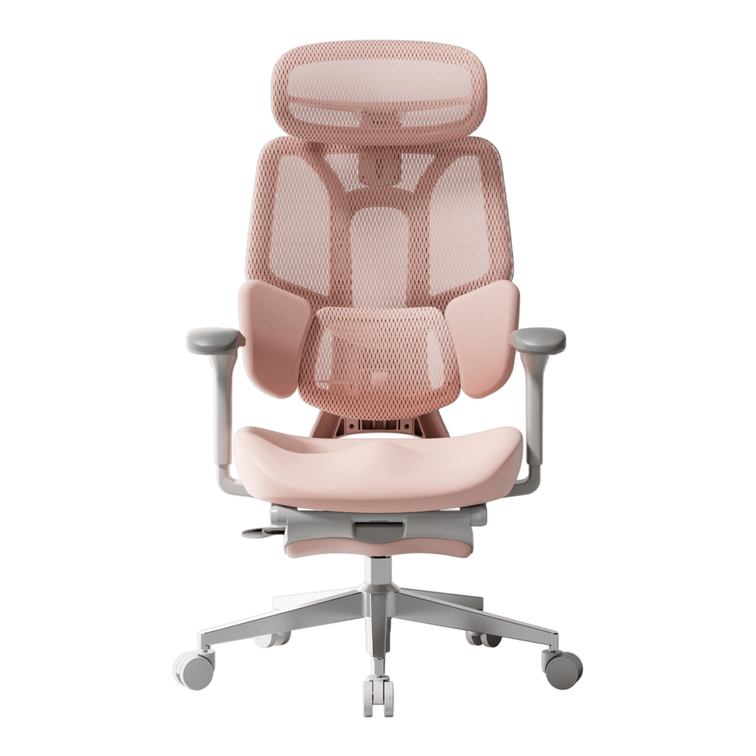
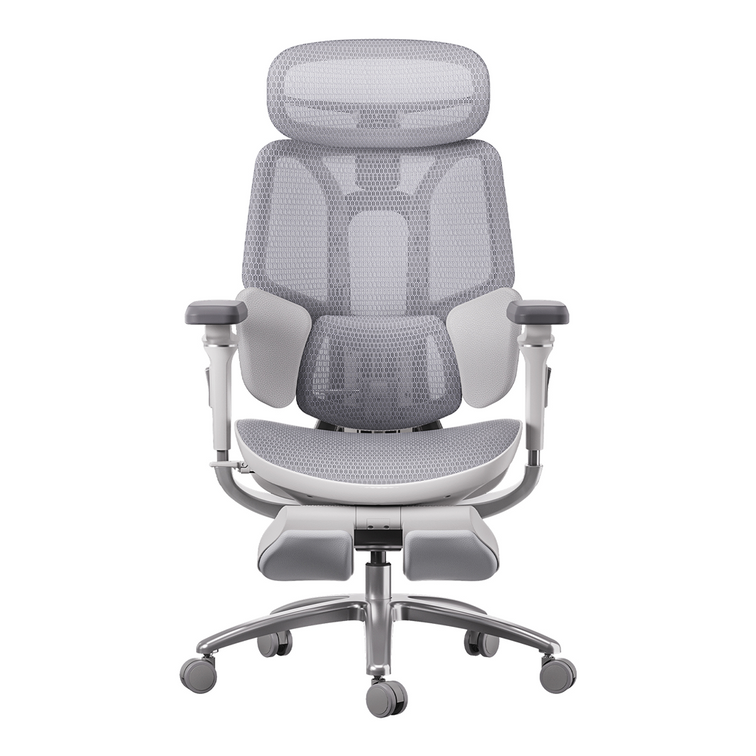
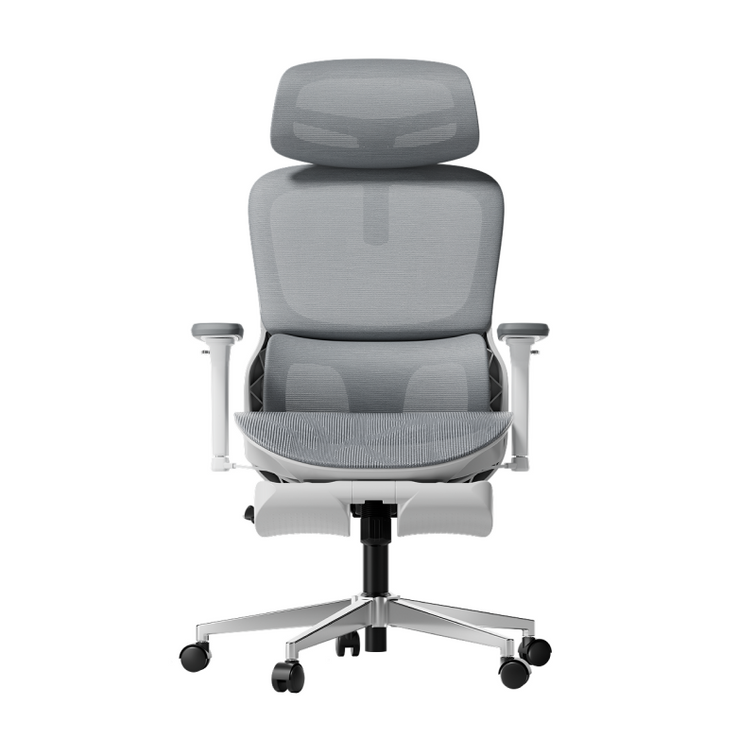
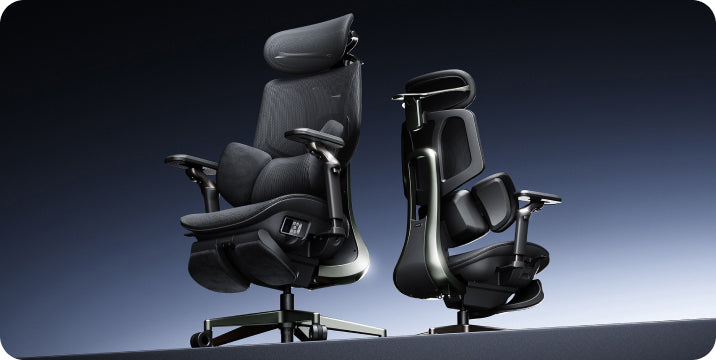
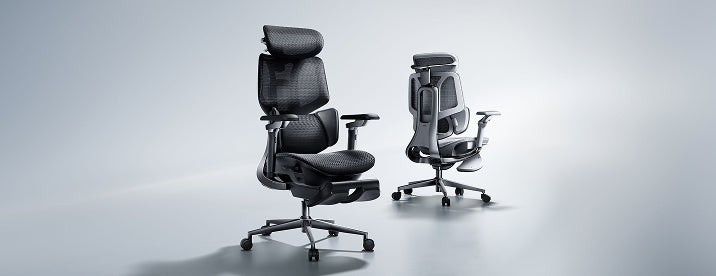
The HBADA E3 Pro 2026 uses mechanical adaptive lumbar support. The HBADA X7 offers powered lumbar tracking. These are different approaches to adjustment, not a guarantee that one will suit every user better.
A well-fitted manually adjustable backrest may still be a good choice. Do not accept uncomfortable pressure just because a mechanism is more complex.
How does posture variety help during a long shift?
Choose recline controls that are easy to use and allow changes of position without making the chair feel unstable. Check the tension and locking options rather than judging the chair only by its maximum recline angle.
A reclined break is different from keyboard work. When typing, keep the screen and input devices within a comfortable reach; do not recline so far that you must lean your head forward or stretch your arms to continue working.
A footrest and a pull-out leg rest serve different purposes
A stable floor footrest can support your feet when the chair height needed for the desk leaves them unsupported. A chair's pull-out leg rest is generally intended for supported reclining. Do not assume it replaces a floor footrest for upright desk work.
Why do heat and seat comfort matter?
Seat comfort depends on more than the material name. Consider the room temperature, your clothing, the seat shape and whether you notice pressure at the front edge or around the seat frame.
Open mesh can allow airflow, while a cushioned seat offers a different feel. Neither is automatically best for every body or every workplace. If possible, assess the chair during representative tasks rather than a quick sit-down.
Seat-depth adjustment can help position the seat for your leg length. It does not guarantee even pressure distribution, so check how it actually feels with your back supported.
Fan ventilation is an additional comfort feature on some smart chairs. It moves air; it should not be confused with refrigerated cooling. Consider the sound level and whether you would use it in your work environment.
The 12-hour shift chair checklist
Use this checklist when comparing an office chair for long hours. Passing it does not establish a 12-hour or 24/7-use rating.
Scroll sideways on smaller screens.
| Feature | What to check | Why it matters |
|---|---|---|
| Seat fit | Height, usable width and depth fit your body and desk. | Extra features cannot compensate for the wrong size. |
| Lumbar support | Position and pressure feel comfortable during your tasks. | Support should suit the individual user. |
| Armrests | They support your arms and clear the desk. | You should not have to reach around the chair. |
| Recline | Controls and tension are easy to use. | Usable adjustment matters more than maximum angle alone. |
| Seat material | Evaluate airflow, surface feel and edge pressure. | Mesh and cushioning feel different to different users. |
| Foot support | Distinguish a floor footrest from a reclining leg rest. | They address different sitting positions. |
| Load and intended use | Check the rated load and workplace-use conditions. | A load limit alone does not establish intensive-use suitability. |
| Service and warranty | Confirm coverage, exclusions and replacement-part options. | These matter for equipment used frequently or by multiple people. |
How to build movement into a long shift
Workstation adjustment and work habits belong together. OSHA's computer-workstation guidance encourages brief recovery pauses and task variation, including a five-minute break from computer tasks each hour. This is guidance, not a promise that one schedule makes prolonged sitting risk-free. Read OSHA's work-process guidance .
- Set up before the shift. Adjust the chair for your body and check its relationship to the desk, keyboard and screen.
- Use natural task changes. Where your duties allow, alternate computer work with tasks that let you change position.
- Plan brief movement opportunities. Coordinate breaks with workplace procedures, especially where continuous coverage is required.
- Recheck comfort during the shift. If something feels wrong, review the setup rather than repeatedly adding more lumbar pressure or recline.
- Record recurring problems. Note which tasks or settings cause difficulty so you can discuss them with an ergonomics or occupational-health professional.
Which HBADA chair should you consider?
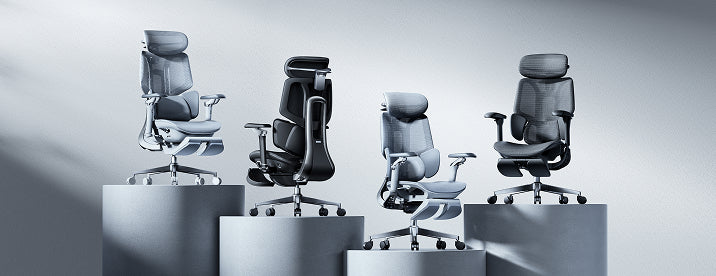
If both models fit your measurements and intended use, the practical distinction is mechanical adjustment versus added powered features. This is a feature comparison, not the result of a 12-hour endurance test.
| Consideration | HBADA X7 | E3 Pro 2026 |
|---|---|---|
| Lumbar approach | Powered lumbar tracking | Mechanical 3-zone adaptive support |
| Seat ventilation | Fan-assisted ventilation | Breathable mesh |
| Additional functions | Massage and heating | Focus on mechanical ergonomic adjustment |
| Before ordering | Check size, selected configuration and powered-feature instructions. | Check size and the with-footrest or without-footrest option. |
| For intensive workplace use | Confirm intended-use conditions and warranty coverage with the seller before purchase. | |
Consider the X7 if…
You want powered support and would use its additional comfort functions. Check the controls and operating instructions before deciding.
Explore HBADA X7 →Consider the E3 Pro if…
You prefer mechanical adjustment and do not need integrated powered comfort functions. Confirm that its dimensions suit your workspace.
Explore E3 Pro 2026 →Product configurations and terms can change. Check the linked US product page and selected variant before ordering.
Limitations and when to get help
A supportive chair is one part of a workstation. It is not a medical treatment, and it cannot make an unsuitable desk, excessive reaching or uninterrupted sitting disappear.
- Check dimensions rather than relying only on a suggested height range or maximum load.
- For shared, continuous or specialist work, confirm that the model is appropriate for the intended environment.
- Follow the instructions for heating, massage, recline and leg-rest use.
- If discomfort persists or you develop pain, numbness, tingling or weakness, seek advice from a qualified healthcare professional rather than relying on chair changes alone.
Choose for the shift—not just the feature list
Start with body fit and workstation compatibility. Then compare lumbar adjustment, recline, material comfort and service terms. Powered features may be useful extras, but they should not decide the purchase before those basics.
Find support that fits.
Leave room in the day to move.
Frequently asked questions
What kind of office chair is best for a 12-hour shift?
There is no single best chair for everyone. Look for dimensions that fit, accessible adjustments and suitability for your intended use. Compare optional features only after checking those basics, and build movement into the shift.
Does “ergonomic” mean a chair is rated for 12-hour use?
No. The word does not establish a particular shift-length or continuous-use rating. Ask the manufacturer about the specific model's intended use, testing and warranty terms.
Can a good chair make it safe to sit for 12 hours without breaks?
Do not treat any chair as permission to sit without breaks. A better setup does not remove the need for changes of activity and position. Follow workplace procedures and seek individual advice when needed.
Do I need a footrest for a long shift?
You may need a stable floor footrest if your feet cannot reach the floor at the seat height required by your desk. A pull-out chair leg rest serves a different purpose: supporting a reclined break.
Is mesh better than a cushioned seat?
Neither is universally better. Compare airflow, shape, support and how the edges feel. If possible, evaluate the chair during tasks that resemble your normal work.
How often should I take breaks during computer work?
OSHA suggests frequent short pauses, including a five-minute break from computer tasks each hour. Coordinate this with your duties and individual needs; it is not a substitute for a workplace-specific assessment.
Should I choose the HBADA X7 or E3 Pro 2026?
Compare fit first. If both are suitable, decide whether you prefer the X7's powered features or the E3 Pro's mechanical approach. Confirm workplace-use conditions separately if the chair will see intensive or shared use.
Sources and product information
- OSHA: Computer Workstations eTool — general workstation guidance.
- OSHA: Work Process and Recognition — task variation and recovery pauses.
- HBADA X7: US product information .
- HBADA E3 Pro 2026: US product information .
This article provides general buying and workstation guidance, not medical advice or a certification of suitability for a particular shift pattern.
Back to top ↑