
Blog

Best Ergonomic Chairs for Small Apartments in 2026

Best Ergonomic Chairs for Small Apartments in 2026

Introduction

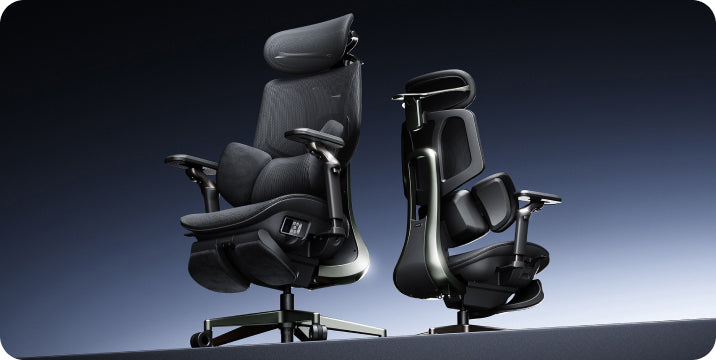
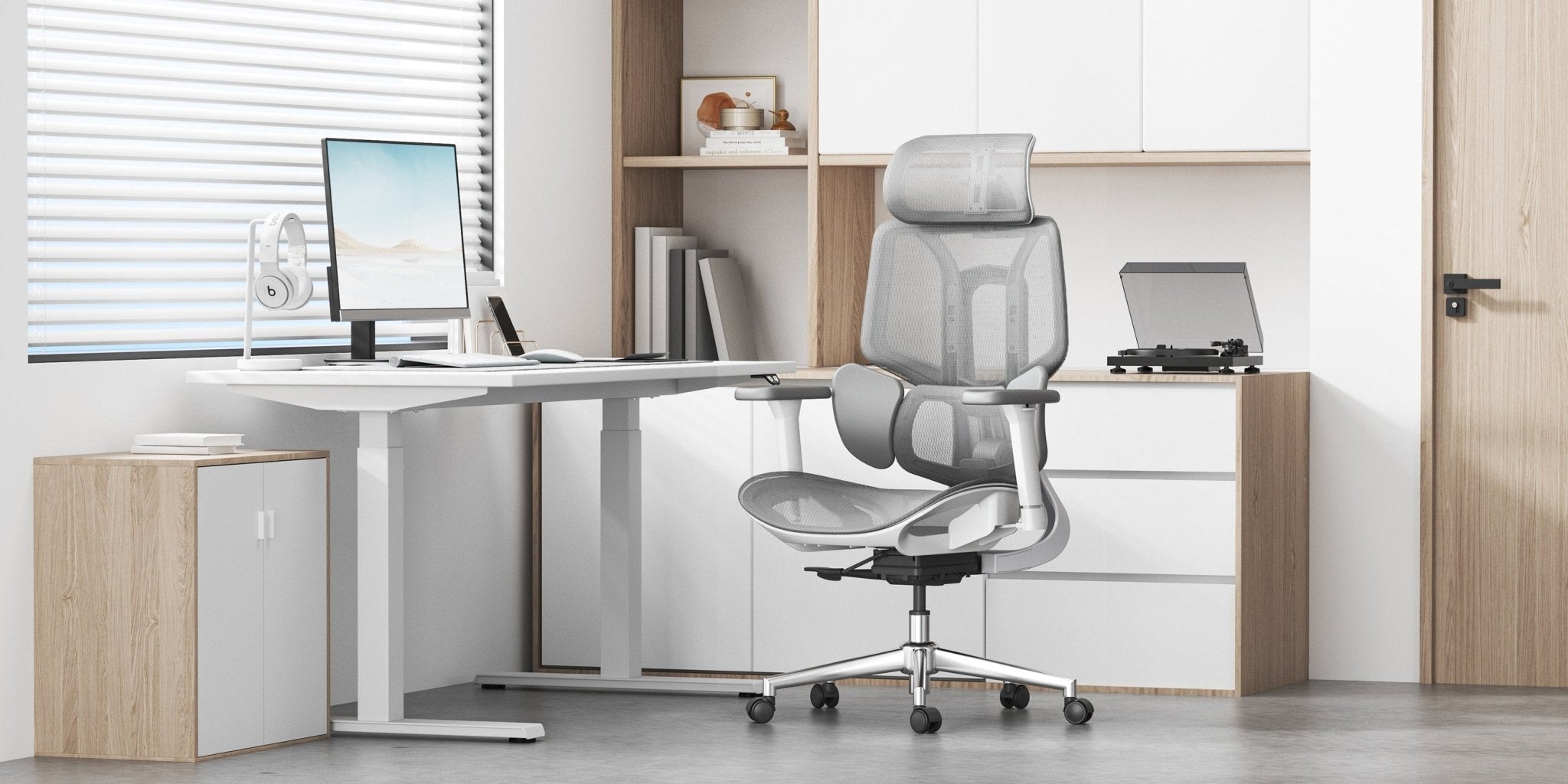
Limited space doesn’t mean compromising posture. Compact ergonomic chairs offer complete support without crowding your room. In 2026, leading chairs feature smart design, space-saving profiles, and strong posture support, so you can work efficiently and protect your spine.

scene 

What Makes a Chair Ideal for Small Apartments

Compact Footprint Without Compromising Ergonomics

Choose a chair that balances small size and comfort. Look for these features:

· Slim backrests and space-saving bases

· Foldable or flip-up armrests

· Lightweight frames for easy repositioning

Your chair should fit under your desk and support good posture, even for long hours.

Multi-Functional Adjustability

In a small space, versatility is key. Pick a chair that adjusts as you move between tasks.

· Sitting position in front of the computer

· Relaxed reclining for reading

· Upright posture for focused work

These chairs adjust for any activity, reducing the need for extra furniture.


Ergonomic Posture Meaning and Why It Matters

Ergonomic posture means keeping your spine aligned while sitting. This reduces strain on muscles, joints, and spinal discs.

Poor posture leads to:

· Lower back compression

· Shoulder tension

· Neck fatigue

Modern ergonomic chairs guide your body into proper posture for students and professionals.

HBADA chairs are engineered to adapt to your body instead of forcing a fixed position, improving long-term spinal health.


Key Features to Look for in the Best Ergonomic Chair

Intelligent Lumbar Support

Your lumbar region bears the most pressure when you sit. That's why top chairs now offer:

· Automatic waist tracking

· Bio-synchronized support systems

· 3-zone lumbar structures

HBADA's latest models use adaptive lumbar systems that adjust as you move, ensuring support.

Ergonomic Armrests for Shoulder Relief

Arm support affects shoulder and back comfort. Seek chairs with height-adjustable armrests.

· Forward/backwards sliding.

· Rotation and tilt functions.

Set your chair’s armrests so your elbows are at 90 degrees. This small change can ease shoulder tension and make typing easier.

Breathable and Space-Efficient Materials

Mesh-backed chairs are very popular in 2026, and there are good reasons for that:

· High airflow for long sitting sessions

· Reduced bulk compared to foam chairs

· Even pressure distribution

Advanced mesh materials let air flow much better than traditional chair fabrics.

Smart Adjustment Technology

AI-powered chairs are redefining ergonomics:

· Real-time posture tracking

· Automatic lumbar positioning

· Minimal manual adjustments

Some models have built-in sensors that monitor how you sit and adjust the support to keep you in good alignment without any extra effort.

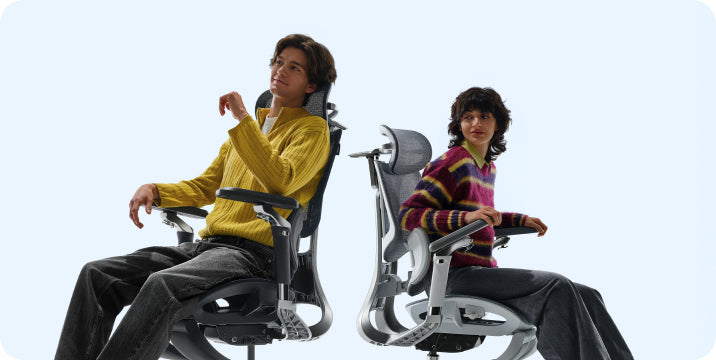
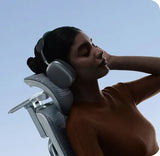
 Person sitting leaning back in HBADA 4d dual axis headrest ergonomic chair for maximum comfort

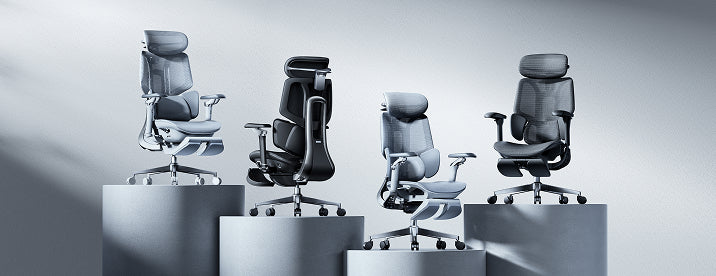
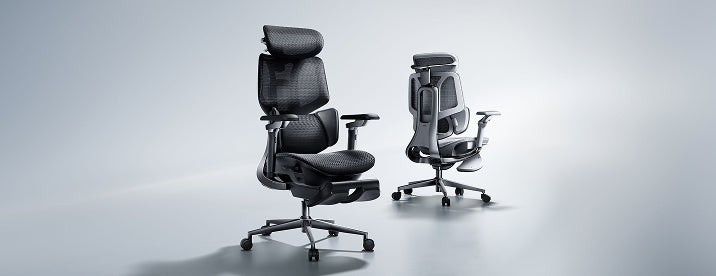
Best HBADA Ergonomic Chairs for Small Apartments (2026)

Product Comparison Table

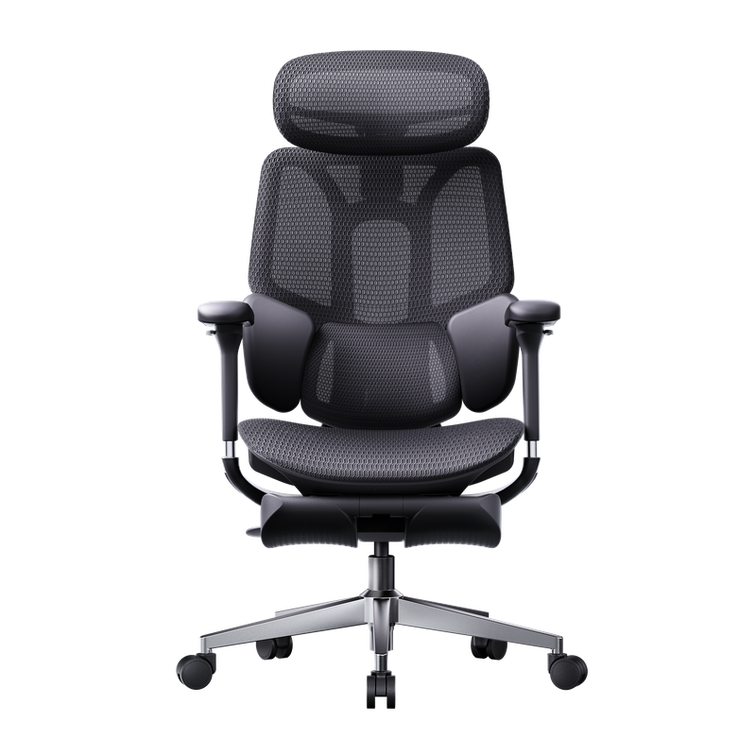
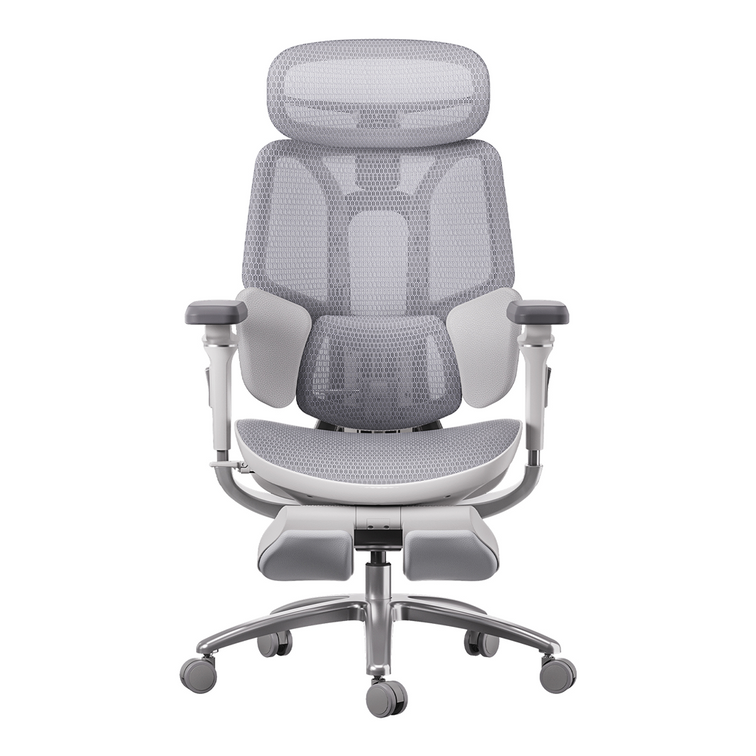
HBADA E3 Pro 2026

Long work hours

3-zone lumbar, 6D armrests, headrest

Medium footprint

Adaptive support

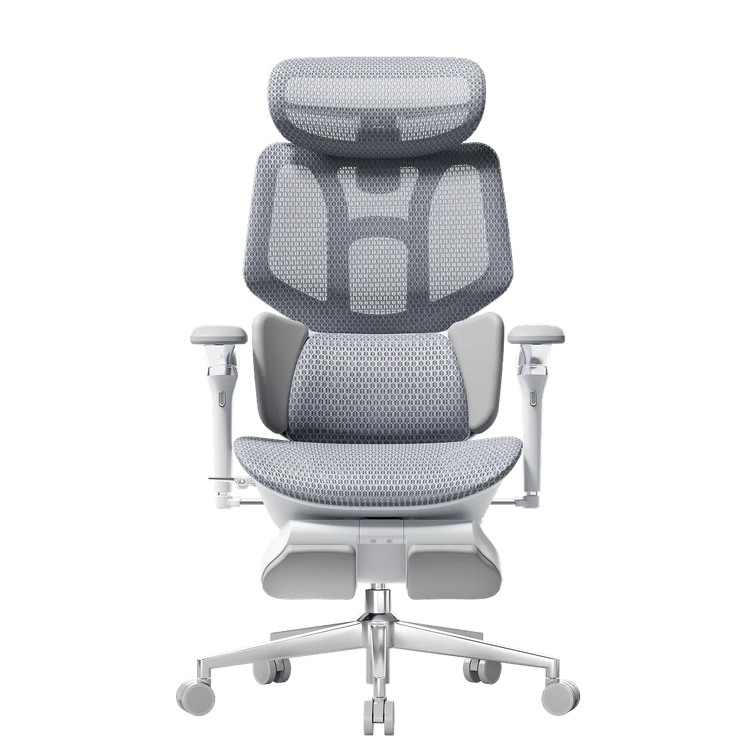
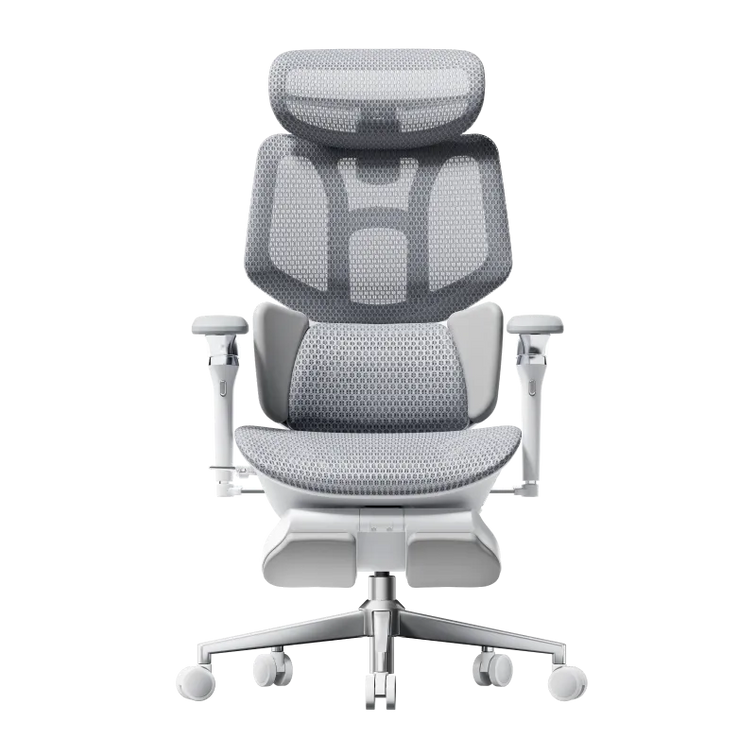
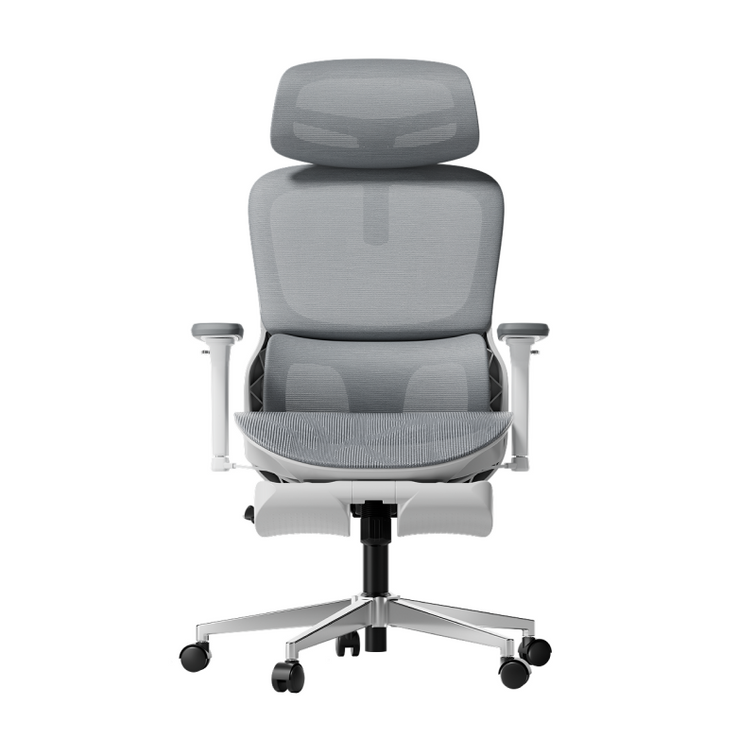
HBADA E3 Air 2026

Compact spaces

Lightweight mesh, slim design

High

Manual + adaptive

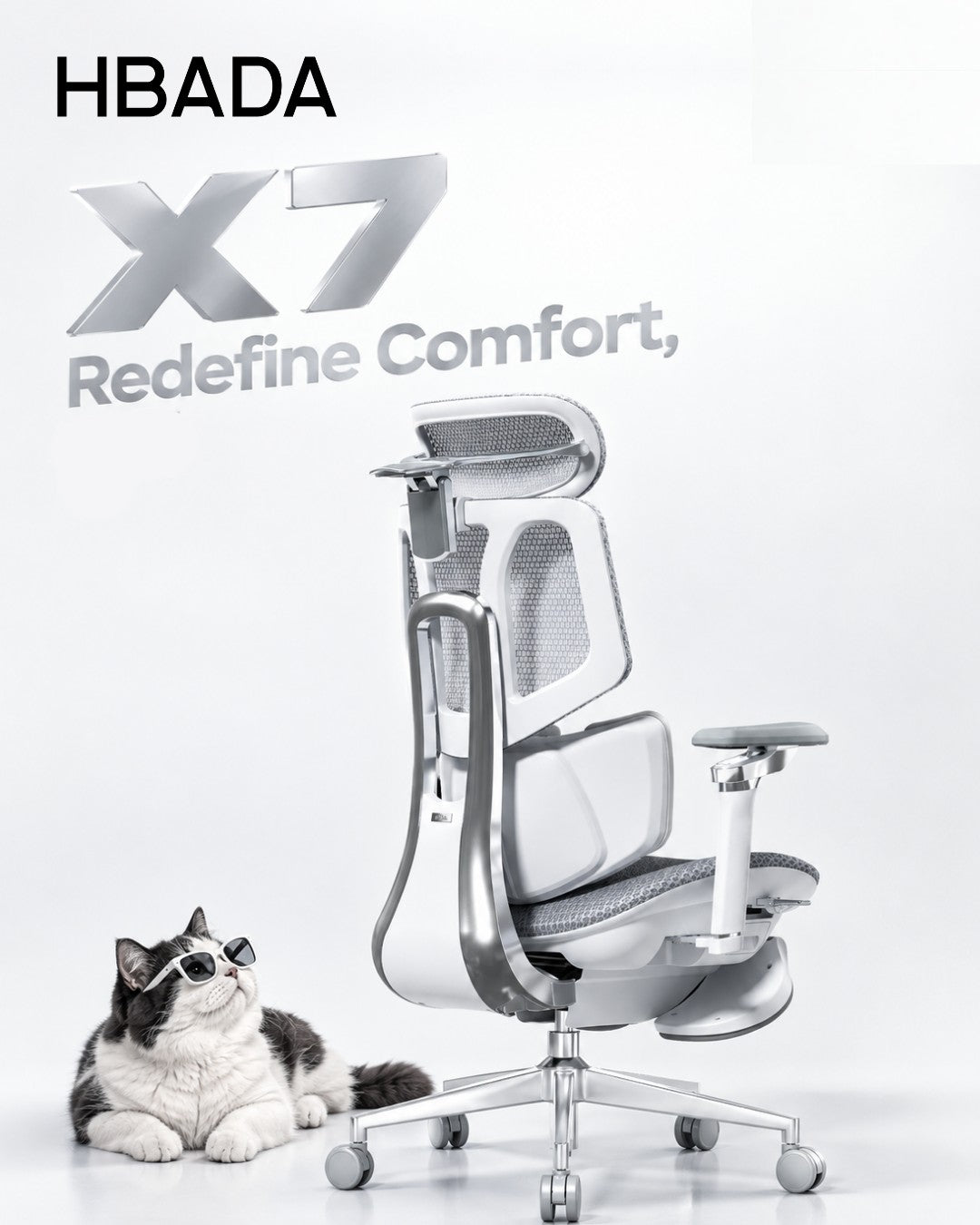
HBADA X7 AI Chair

Premium users

AI lumbar tracking, massage, sensors

Medium

Fully automated

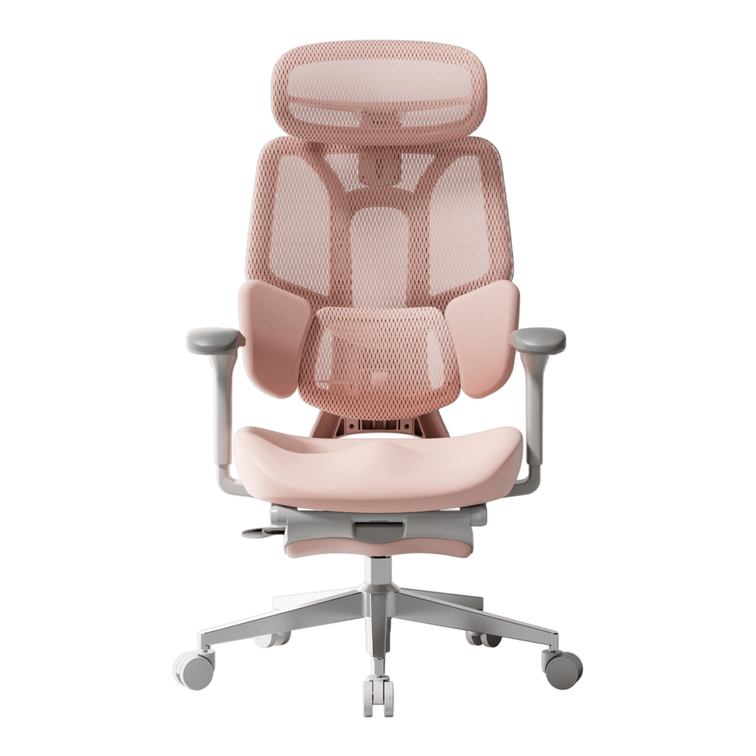
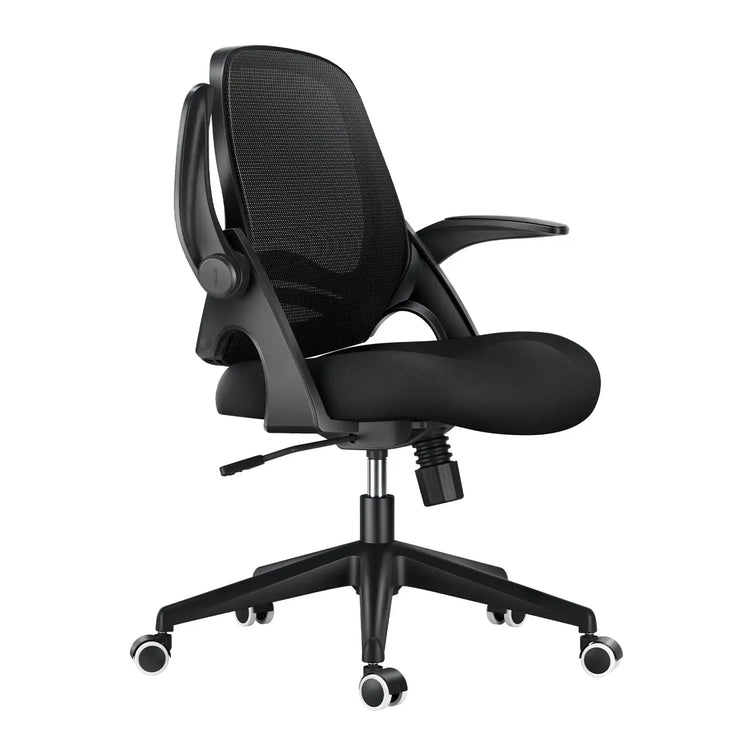
HBADA P2 Ergonomic Chair

Budget-friendly

Basic lumbar support, foldable arms

High

Manual


How to Choose the Right Chair for Your Space.

Measure Your Workspace First

Before choosing a chair, take a few quick measurements:

· Check desk height

· Measure floor clearance

· Ensure room for reclining.

Your chair should let you move and lean back easily, without hitting walls or furniture. This matters even more in small rooms.

Match Features to Usage

Consider how you’ll use your chair most of the time, and let that help you decide:

· Students: prioritize proper sitting posture for students and adjustable height

· Remote workers: focus on lumbar support and armrests

· Gamers: look for reclining and headrest support

Prioritize Adjustability Over Size Alone

A small chair without adjustable features can harm your posture. Always make sure your chair has:

· Seat height adjustment

· Lumbar positioning

· Armrest flexibility


Correct Sitting Posture on Chair (Step-by-Step)

Ideal Sitting Position in Front of the Computer

Follow this structure:

1. Feet flat on the floor

2. Knees at hip level

3. Back fully supported

4. Screen at eye level

5. Elbows close to the body

Maintaining this alignment helps your spine stay in its natural curve, which can significantly reduce tiredness and discomfort throughout the day.


Common Sitting Posture Types (and What to Avoid)

· Slouching: increases spinal pressure

· Leaning forward: strains neck and shoulders

· Crossing legs: affects circulation

A good ergonomic chair can help you avoid these habits by guiding your body into a healthier sitting position.


Why HBADA Chairs Stand Out in 2026

HBADA combines ergonomic research with advanced engineering:

· Multi-dimensional precision adjustments for all body types

· Certified ergonomic design supporting spinal alignment

· Over 100 durability and safety tests per chair

The newest models stand out because they focus on adaptive sitting. Instead of locking you into one position, these chairs move with you and support your body as you shift throughout the day.


Common Mistakes to Avoid

· Choosing style over ergonomics

· Ignoring armrest adjustability

· Buying oversized chairs for small rooms

· Skipping lumbar support features

· Not adjusting the chair after purchase.

Even the best chair only works well if you adjust it to fit your body and maintain good posture throughout the day.


FAQ

What is the best ergonomic chair for small apartments?

The best ergonomic chair combines compact design with full adjustability. Look for slim profiles, foldable armrests, and strong lumbar support. Models with adaptive features provide better long-term comfort without requiring extra space.

How do I maintain correct sitting posture on a chair daily?

Keep your back aligned with the backrest, feet flat, and screen at eye level. Adjust armrests to support your elbows. A well-designed ergonomic chair helps maintain this posture naturally throughout the day.

Are ergonomic chairs worth it for students?

Yes. Proper sitting posture for students reduces fatigue and improves focus. Ergonomic chairs support spinal alignment during long study sessions, preventing discomfort and long-term posture issues.

What features matter most in a compact ergonomic chair?

Prioritize lumbar support, adjustable armrests, breathable materials, and space-saving design. Smart adjustment features are a bonus but not essential for effective ergonomic support.


Conclusion

Picking the right ergonomic chair can really improve how you work and feel in a small apartment. I suggest looking for a chair that adapts to you, supports your posture, and fits your space, instead of just choosing the smallest one.

Find a chair that fits your space and your body. When your chair supports your posture, you’ll notice comfort and productivity come more easily.
Relevant Product

You May Also Like

Why Lumbar Support Matters: HBADA's Guide to Better Back Health (2026) Why Lumbar Support Matters: HBADA's Guide to Better Back Health (2026) Updated for 2026 If you sit for work, you have probably heard the phrase “lumbar support” many times. But what does lumbar support actually do, and how can you tell whether it is correctly positioned? Lumbar support is designed to meet the natural inward curve of the lower back. When it fits your body and is adjusted correctly, it can support a more neutral sitting position and may reduce discomfort associated with prolonged, unsupported sitting. It is not simply extra cushioning, and it is not a medical treatment. Quick Answer Properly positioned lumbar support helps maintain contact between the backrest and the natural curve of the lower spine. It may reduce slouching, muscular effort and sitting-related discomfort. Dynamic lumbar support can maintain more consistent contact as the user leans or reclines, while static support remains in one fixed position. Table of Contents What Lumbar Support Actually Does Practical Lumbar Support Benefits Static vs. Dynamic Lumbar Support How HBADA Lumbar Systems Work How to Adjust Lumbar Support What Lumbar Support Cannot Do Frequently Asked Questions Final Thoughts What Lumbar Support Actually Does The human spine is not completely straight. The lumbar region has a natural inward curve that helps distribute load through the lower back. During prolonged sitting, some people gradually move away from the backrest, rotate the pelvis backwards or begin to slouch. When the lumbar area is left unsupported, the muscles around the lower back may have to work harder to maintain the sitting position. A correctly positioned lumbar support fills the space between the lower back and the chair, helping the backrest support more of the body’s weight. The US Occupational Safety and Health Administration recommends a backrest that conforms to the natural curvature of the spine and provides adequate lumbar support. It also notes that adjustability helps a chair support different users and different seated positions. See the OSHA computer workstation chair guidance for further information. Practical Lumbar Support Benefits 1. Supports a More Neutral Sitting Position Lumbar support can make it easier to keep the lower back in contact with the backrest. This does not mean that you must hold one rigid posture all day. Instead, the goal is to begin from a balanced position while retaining the ability to move, recline and change posture. 2. May Reduce Sitting-Related Lower-Back Discomfort A chair cannot treat an underlying spinal condition. However, correctly positioned support may reduce the discomfort associated with prolonged sitting in an unsupported or awkward position. If lower-back discomfort is an important consideration, review this guide to choosing an office chair for lower-back support . The article discusses chair features and sitting adjustments, but it should not replace advice from a qualified healthcare professional. 3. Reduces the Need for Constant Posture Correction Without suitable back support, some users repeatedly sit forward, slouch or shift position in search of comfort. An appropriately adjusted lumbar system can provide a stable reference point for the lower back, reducing the need to make the same manual correction again and again. 4. May Reduce Muscular Fatigue When a backrest supports the body effectively, the muscles of the lower back do not have to carry the entire postural load. This may make extended desk sessions feel less physically demanding, although individual results depend on body dimensions, chair fit, working habits and existing health conditions. 5. Supports More Than One Sitting Position A useful ergonomic chair should support posture changes instead of forcing the user to remain completely still. Adjustable or dynamic lumbar systems can be especially useful for people who alternate between typing, reading, video meetings and a slightly reclined position. The main lumbar support benefits are: More consistent contact with the lower back Support for the spine’s natural lumbar curve Less reliance on muscular effort to remain upright Reduced slouching during prolonged desk work Greater comfort when changing between supported sitting positions Static vs. Dynamic Lumbar Support Support Type How It Works Potential Advantage What to Check Static lumbar support Remains in one position after it has been adjusted. Simple, predictable support for a preferred upright position. Make sure its height and depth fit the curve of your lower back. Dynamic lumbar support Moves or flexes as the user changes position. Can maintain more consistent contact while leaning or reclining. The movement should feel supportive without pushing you forward. Powered lumbar tracking Uses sensors and powered adjustment to respond to posture changes. Reduces the need for repeated manual readjustment. Confirm the adjustment range, controls and power requirements. Static lumbar support can work well when it is correctly positioned and the user remains in a relatively consistent working posture. Dynamic systems may be more suitable for users who move frequently or use several recline positions during the day. Neither system is automatically better for everyone. The most important factors are fit, adjustability and whether the support remains comfortable during the positions you actually use. How HBADA Lumbar Systems Work HBADA uses different lumbar-support approaches across its chair ranges. Buyers should compare the specifications of the exact model and variant rather than assuming that every HBADA chair uses the same mechanism. HBADA E3 Pro: Mechanical 3-Zone Support The HBADA E3 Pro uses a mechanical three-zone lumbar design intended to support the centre and sides of the lower back. Its moving sections are designed to maintain contact as the user changes position or reclines. This approach may suit users who prefer targeted lower-back contact and manual adjustment rather than a powered system. View the HBADA E3 Pro ergonomic office chair for current specifications, available configurations and regional stock. HBADA X7: Powered Lumbar Tracking The HBADA X7 Smart Ergonomic Office Chair uses pressure sensing and powered adjustment to respond as the user changes posture. According to the current HBADA product specifications, the system is designed to adjust lumbar-support depth automatically instead of requiring repeated manual changes. The X7 also includes adjustable seat depth, a 4D dual-axis headrest, adjustable arm support and controlled recline. These features allow the lumbar system to work as part of a more complete chair setup rather than as an isolated cushion. Automatic tracking may be useful for users who move regularly between upright and reclined positions. It does not guarantee relief from back pain, and the chair still needs to fit the user’s height, seat-depth requirements and preferred working position. How to Adjust Lumbar Support Correctly   Even an advanced lumbar system can feel ineffective when the rest of the chair is not properly adjusted. Use this sequence: Sit fully against the backrest. Position your hips towards the rear of the seat before changing the lumbar support. Set the seat height. Keep your feet supported by the floor or a suitable footrest, with your knees close to hip level. Check the seat depth. Leave a small, comfortable space between the seat edge and the backs of your knees. Position the lumbar support. It should meet the inward curve of your lower back rather than pressing into the pelvis or upper back. Begin with moderate pressure. Increase the depth gradually. More pressure does not automatically mean better support. Relax your shoulders. Adjust the armrests so that they support your forearms without forcing your shoulders upwards. Test more than one position. Type, read and recline briefly to confirm that the support remains comfortable during normal movement. Recheck the setup. Small adjustments may be necessary after several working sessions. For a broader setup process, read how to adjust an ergonomic chair for better comfort . What Lumbar Support Cannot Do Important: Lumbar support may improve sitting comfort and reduce strain associated with unsupported posture, but it cannot diagnose, treat or cure a herniated disc, sciatica, chronic back pain or another medical condition. A chair also cannot replace movement. Remaining in any single position for an extended period can become uncomfortable, even when the chair is properly adjusted. Combine supportive seating with regular standing, walking and gentle movement breaks. If you have persistent, severe or worsening pain, numbness, weakness or symptoms that travel into the leg, consult a qualified doctor or physiotherapist. Product information should not be used as a substitute for individual medical advice. Frequently Asked Questions What are the main lumbar support benefits? Proper lumbar support helps maintain contact with the natural curve of the lower back. It may reduce slouching, muscular fatigue and discomfort associated with prolonged unsupported sitting. Where should lumbar support touch my back? It should meet the inward curve of your lower back, generally above the belt line. It should not press primarily into the pelvis or feel as though it is forcing the entire torso forward. Is dynamic lumbar support better than a static cushion? Dynamic support can maintain more consistent contact when you lean or recline. Static support may still work well when it fits your body and is correctly positioned. The better choice depends on your movement, preferred adjustments and daily working routine. Can lumbar support help with sitting-related back discomfort? Correctly adjusted lumbar support may reduce discomfort associated with prolonged sitting and inadequate back support. It cannot treat an underlying injury or medical condition. Can lumbar support fix a herniated disc? No. A chair cannot repair or cure a herniated disc. It may help create a more comfortable supported sitting position, but diagnosed spinal conditions require guidance from a qualified healthcare professional. How firm should lumbar support feel? It should feel supportive without creating a concentrated pressure point or pushing you away from the backrest. Begin with a moderate setting and make small adjustments based on comfort. Do I need to adjust lumbar support more than once? Yes. Recheck the position after changing the seat height, seat depth or recline setting. Different tasks may also make a small adjustment more comfortable. Does lumbar support replace movement breaks? No. Supportive seating and regular movement serve different purposes. Continue standing, walking and changing position during the working day. Final Thoughts Lumbar support is more than an extra pad on a chair. Its purpose is to support the natural curve of the lower back and help the backrest maintain useful contact as you work. Static support may be sufficient for a consistent upright position, while dynamic or powered lumbar tracking may suit people who change position frequently. Whichever system you choose, correct chair fit and adjustment remain essential. Set the seat height and depth first, position the lumbar support carefully, and test it during the tasks you perform every day. Combine the chair with regular movement and seek professional guidance when back symptoms are persistent or severe. How to Choose the Right HBADA Task Chair for Your Office How to Choose the Right HBADA Task Chair for Your Office Updated August 20, 2026 A task chair is not just a place to sit. It is the piece of furniture your body depends on through meetings, focused work and everyday desk tasks. Choosing the right chair means matching its adjustments, materials and support system to your body and the way you work. Quick Answer The best task chair depends on your daily sitting time, preferred adjustments, body dimensions and budget. Choose the HBADA X7 for automatic lumbar tracking, ventilation and smart comfort features. The E3 Pro is designed for targeted lower-back support and may help ease sitting-related back discomfort when properly adjusted. The E3 Air provides breathable everyday support at a more accessible price, while the E3 Ultra adds deeper recline and an integrated footrest. Table of Contents What Is a Task Chair? Features to Look For HBADA Task Chair Comparison HBADA X7 HBADA E3 Pro HBADA E3 Air HBADA E3 Ultra HBADA P2 Choose by Work Style Task Chair Setup Tips Frequently Asked Questions Final Thoughts What Is a Task Chair? A task chair is an office chair designed for focused work at a desk. Unlike a basic dining chair or lounge chair, it normally includes adjustable seat height, lumbar support, armrests and recline so it can accommodate different users and working positions. The term covers a broad range of chairs. A basic model may only allow you to change the seat height, while a more advanced ergonomic task chair can adjust around the lumbar area, neck, arms and seat position. This is why it is important to compare actual adjustments instead of choosing by appearance alone. If you already own an ergonomic chair, follow this guide on how to adjust an ergonomic chair for better comfort . Key Features to Look for in a Task Chair 1. Adjustable lumbar support Lumbar support should meet the natural inward curve of your lower back without creating an uncomfortable pressure point. Height, depth or adaptive movement can help different users position the support more accurately. Correctly positioned lumbar support may help reduce the discomfort associated with sitting for long periods without adequate lower-back support. However, the adjustment should feel supportive rather than forceful. 2. Suitable seat height and depth Your feet should rest securely on the floor or a footrest, with your knees close to hip level. The front edge of the seat should not press firmly into the backs of your knees. Check the product dimensions rather than assuming one chair fits every body. 3. Breathable upholstery Mesh can improve airflow during long working sessions. The material should also provide stable support and retain its shape through normal daily use. 4. A usable recline range A slightly reclined position can be comfortable for desk work, while a deeper recline may suit reading or short breaks. What matters most is controlled movement and stable back support throughout the available range. 5. Adjustable armrests Armrests should support the forearms without forcing the shoulders upward. Height, width, depth and rotation adjustments make it easier to position the arms for typing, reading and other tasks. 6. Stable construction Look for a stable base, suitable weight capacity and clearly stated product specifications. Warranty and replacement-part support should also be considered when the chair will be used every day. Quick HBADA Task Chair Comparison Chair Support System Recline Positioning Best Suited To HBADA X7 AI lumbar tracking with automatic adjustment Up to 140° Premium Long workdays and automated support HBADA E3 Pro 3-zone adaptive lumbar support Up to 140° Mid-to-premium Targeted lower-back support and mechanical adjustment HBADA E3 Air 3-zone adaptive lumbar support Up to 140° Value-focused Breathable support for everyday office work HBADA E3 Ultra 3-zone elastic lumbar support Up to 140° with footrest Mid-to-premium Recline, relaxation and a built-in footrest HBADA P2 Adjustable zoned lumbar support, depending on variant Up to 140° Entry-to-mid range Value-focused or occasional workspaces Availability note: Prices, colours, specifications and stock can vary by product configuration. Some E3 Ultra and P2 variants may be clearance items or temporarily unavailable. Check the live product page before making a decision. HBADA X7: For Demanding, All-Day Work The HBADA X7 Smart Ergonomic Chair is designed for users who want their chair to respond as their posture changes. Its lumbar-tracking system uses pressure sensing and powered adjustment to maintain support as the user moves. The X7 also combines adjustable arm support, seat ventilation and massage functions. These features make it the most technology-focused option in this comparison. It may be a practical fit for users who sit for long periods and do not want to stop repeatedly to readjust a manual lumbar mechanism. Consider the X7 if: You regularly work long hours at a desk. You prefer automatic rather than manual lumbar adjustment. Seat ventilation is important in a warm workspace. You want a premium chair with smart comfort features. HBADA E3 Pro: Best for Targeted Lower-Back Support For people who experience lower-back pain or discomfort during prolonged sitting, the HBADA E3 Pro Ergonomic Office Chair provides targeted, adjustable support through its 3-zone adaptive lumbar system. Its independently adjustable lumbar zones are designed to maintain more consistent contact with the lower back as the user changes position. When correctly adjusted, this support may help ease sitting-related lower-back discomfort and reduce pressure associated with an unsupported posture. The E3 Pro is therefore a strong option for users looking for an ergonomic office chair for back pain support without relying on powered controls. However, an ergonomic chair is not a medical treatment and results can vary between individuals. Consider the E3 Pro if: You experience lower-back discomfort during long sitting sessions. Targeted and adjustable lumbar contact is a priority. You want to fine-tune several parts of the chair manually. You switch regularly between upright and reclined positions. HBADA E3 Air: A Value-Focused Everyday Task Chair The HBADA E3 Air Ergonomic Office Chair combines 3-zone adaptive lumbar support, breathable mesh, adjustable armrests and a recline of up to 140 degrees. It does not include the X7's powered lumbar tracking, ventilation and massage systems. Instead, it focuses on the ergonomic adjustments most people use during ordinary office work. That balance makes it suitable for home offices, shared workspaces and buyers seeking a more accessible entry into the E3 range. Consider the E3 Air if: You want breathable support for everyday desk work. You prefer manual controls and straightforward adjustment. You need a lower-priced alternative to HBADA's smart chairs. You still want lumbar, headrest and armrest adjustment. HBADA E3 Ultra: For Recline and Short Breaks The HBADA E3 Ultra Ergonomic Office Chair combines a 3-zone lumbar system with a recline of up to 140 degrees and an integrated footrest. This configuration is useful for people who want one chair for focused work, reading and short seated breaks. Its lumbar support can also help maintain lower-back contact as the sitting position changes. The footrest should be treated as an occasional relaxation feature rather than a substitute for standing up and moving during the day. Consider the E3 Ultra if: A built-in footrest is important to you. You regularly use a deeper reclined position. You want extensive mechanical adjustment. The required variant is currently available in your region. HBADA P2: A Value Option When Available The HBADA P2 Ergonomic Office Chair offers adjustable lumbar support, a headrest, rotating arm support and a recline of up to 140 degrees, depending on the selected configuration. Different P2 variants may have different lumbar, armrest and footrest features. Buyers should therefore compare the specifications of the exact variant instead of relying on the series name alone. Consider the P2 if: You are building an occasional or secondary workspace. You want meaningful adjustment at a lower price point. You have checked the specifications of the selected variant. The required colour and configuration are in stock. How to Choose a Task Chair Based on Your Workday If Your Workday Includes Model to Consider Why Long, intensive desk sessions HBADA X7 Automatic lumbar tracking and active comfort features Lower-back discomfort during prolonged sitting HBADA E3 Pro Targeted, adjustable 3-zone lumbar support Frequent posture changes and manual adjustment HBADA E3 Pro Extensive mechanical adjustment Everyday work on a tighter budget HBADA E3 Air Breathable mesh and essential ergonomic adjustments Reading or short reclined breaks HBADA E3 Ultra Deeper recline and integrated footrest Occasional work or a secondary desk HBADA P2 Value-focused adjustability, subject to availability There is no single best task chair for every office. The right choice depends on how long you sit, which adjustments you will actually use, your body dimensions and the amount you want to invest. Setup Tips for Any Task Chair Sit fully against the backrest. Adjust the lumbar support only after your back is positioned against the chair. Set the seat height. Keep your feet supported and your knees around hip level. Check the seat depth. Leave a small gap between the front edge of the seat and the backs of your knees. Position the lumbar support. It should support the inward curve of the lower back without creating excessive pressure. Relax your shoulders. Raise or lower the armrests until your forearms are supported without lifting your shoulders. Position the screen correctly. Keep the main part of the display close to eye level to avoid repeatedly bending the neck. Change position regularly. Even a well-adjusted chair should be combined with standing, walking and movement breaks. Frequently Asked Questions What is the best HBADA task chair for long workdays? The HBADA X7 is the most technology-focused option for long desk sessions because it combines automatic lumbar tracking, ventilation and adjustable support. The best choice still depends on your dimensions, preferred controls and budget. Which HBADA chair may help with sitting-related back discomfort? The HBADA E3 Pro is a strong option for targeted lower-back support. Its 3-zone adaptive lumbar system can be adjusted to maintain contact with the lower back and may help ease discomfort associated with prolonged, unsupported sitting. It does not treat an underlying back condition, and persistent, severe or worsening pain should be assessed by a healthcare professional. Which HBADA task chair offers the most manual adjustment? The E3 Pro is a strong option for users who want extensive mechanical adjustment, including its 3-zone lumbar system, adjustable headrest, armrests and recline controls. Which HBADA task chair is best for a limited budget? The E3 Air is designed as a value-focused everyday chair with breathable mesh and essential ergonomic adjustments. P2 variants may also offer a lower-cost option when the required configuration is available. Should a task chair have a footrest? A built-in footrest is optional. It can be useful during a short reclined break, but it is not necessary for focused desk work. During active work, your feet should be supported by the floor or a properly positioned external footrest. How much recline should a task chair provide? A modest recline is generally useful for desk work, while a deeper position can support reading or short breaks. Controlled movement, stable support and suitable recline tension are more important than the maximum angle alone. Can an ergonomic task chair treat back pain? No. A properly adjusted task chair may help ease sitting-related discomfort and support a more comfortable posture, but it is not a medical treatment and cannot correct an underlying condition. Persistent or severe back pain should be discussed with a qualified healthcare professional. Final Thoughts Choosing the right task chair is not about selecting the model with the longest feature list. It is about finding the chair whose adjustments match your body, working style and daily sitting time. Choose the X7 for automated support and smart comfort features. The E3 Pro is the stronger option for targeted lumbar adjustment and users seeking relief from sitting-related lower-back discomfort. Choose the E3 Air for value-focused everyday use or the E3 Ultra for deeper recline and a footrest. The P2 can suit a lighter-use workspace when the appropriate variant is available. Before ordering, compare the live specifications, dimensions, warranty, price and availability. After delivery, take time to adjust the chair correctly and continue changing position throughout the working day. How a HBADA Ergonomic Chair Can Improve Your Work-From-Home Productivity How a HBADA Ergonomic Chair Can Improve Your Work-From-Home Productivity Working from home can remove the commute and many office distractions, but it can introduce a different problem: a workspace that was never designed for a full working day. If you regularly shift position, feel too warm, or struggle to find comfortable support, part of your attention may be going to your chair instead of your work. Quick answer: An ergonomic chair does not automatically make someone more productive. However, a properly adjusted chair can reduce physical distractions by supporting a more comfortable working position, accommodating movement and limiting heat buildup. That can make it easier to remain focused during meetings, writing, analysis and other desk-based work. Below, we explain the practical connection between ergonomic chair productivity and everyday work-from-home performance—and how to choose and adjust a chair for your routine. Table of Contents Why Your Chair Can Affect Focus The Hidden Cost of an Uncomfortable Chair How Lumbar Support Can Reduce Distractions Why Staying Cool Matters Posture, Movement and Working Energy Features That Support Productive Work Matching an HBADA Chair to Your Work Style Setting Up Your Chair for Better Focus A Chair Is Only Part of a Healthy Work Routine Frequently Asked Questions Why Your Chair Can Affect Focus More Than You Think Focus is easier to maintain when you are not repeatedly thinking about your seating position. If your back feels unsupported, your shoulders are raised or your legs feel uncomfortable while sitting, you may begin shifting, leaning or leaving your desk more often than the task requires. These small interruptions do not always feel significant in isolation. Over a long working day, however, repeatedly adjusting your position can break the rhythm of focused work and make long meetings feel more demanding. This is the realistic connection between an ergonomic chair and productivity: the chair supports the conditions for focused work by reducing avoidable physical friction. It cannot create motivation, organise your schedule or complete a task for you. The Hidden Cost of an Uncomfortable Chair An uncomfortable chair can affect how you approach the working day. You may postpone a task that requires extended concentration, leave the desk during an important workflow or adopt an awkward position simply because it feels better for a few minutes. A suitable ergonomic chair gives you more ways to adapt the workspace to your body. Depending on the model, adjustable seat height, seat depth, armrests, recline and lumbar support can help you create a position that feels more natural for typing, reading and video calls. The goal is not to hold one supposedly perfect posture all day. A productive setup should support comfortable alignment while still allowing you to change position and take regular movement breaks. How Lumbar Support Can Reduce Physical Distractions The lumbar region is the inward curve of the lower back. When the backrest does not meet this area comfortably, some people compensate by slouching, sitting on the edge of the seat or repeatedly changing position. Adjustable lumbar support lets you position the support closer to your natural lower-back curve. Dynamic systems go a step further by allowing the support to respond as you lean, recline or shift position. For example, the HBADA X7 Smart Ergonomic Chair uses sensors and a motorised system that HBADA describes as AI Smart Lumbar Tracking. It is designed to adjust the depth of lumbar support as the user’s position changes. The HBADA E3 Series takes a mechanical approach. Its three-zone lumbar design combines central support with side sections intended to adapt around the waist. These different approaches share one objective: maintaining more consistent contact between the chair and the lower back. A well-fitted lumbar system may reduce the need for constant manual adjustment, leaving fewer physical distractions competing with the work on your screen. If lumbar support feels overly firm or pushes you forward, however, reduce its depth or reposition it. More pressure is not automatically better support. Why Staying Cool Matters During Focused Work Heat buildup can become another source of distraction during long calls or deep-work sessions. A warm seat or backrest may lead to more shifting, especially in summer or in rooms with limited airflow. Many ergonomic chairs use breathable mesh to improve passive airflow. The HBADA X7 also includes a ventilated seat with three airflow settings powered by dual fans, according to the current product specifications. Cooling does not directly increase productivity, but it can remove one more reason to interrupt a task. Room temperature, clothing and individual preferences still influence how comfortable the seating surface feels. Posture, Movement and Working Energy Ergonomics is not about remaining completely still. Even a well-supported sitting position can become uncomfortable when held for too long. A better strategy is to begin from a balanced working position and change posture regularly. For keyboard work, aim to keep your feet supported, elbows close to your sides and shoulders relaxed. The screen should be positioned so you can view it without repeatedly bending your neck forward. Your chair should let you recline slightly when appropriate instead of forcing your torso into a rigid vertical position. Movement remains essential. The US National Institute for Occupational Safety and Health notes that workers should avoid sitting or standing for too long and reports that short hourly breaks can help reduce discomfort among computer users. In practice, productive home working usually combines supportive equipment with brief standing, walking and stretching breaks. These pauses can be attached to natural transitions such as finishing a meeting, sending a report or refilling a drink. Quick Reference: Chair Features That Support Productive Work Feature Practical Benefit What to Check Adjustable lumbar support Supports the lower-back curve and may reduce repeated repositioning. The support should meet your lower back without forcing you forward. Seat-height adjustment Helps align the chair with the desk and keep the feet supported. Confirm that the adjustment range suits your height and desk. Adjustable seat depth Helps support the thighs without pressing into the backs of the knees. Leave a small, comfortable space behind the knees. Adjustable armrests Provide somewhere to rest the forearms during typing or mouse use. Armrests should not raise the shoulders or prevent access to the desk. Controlled recline Allows posture changes during reading, calls and short breaks. Choose a work angle that still keeps the keyboard and screen accessible. Breathable or ventilated materials May limit distracting heat buildup during extended sitting. Consider the temperature and ventilation of your home office. Matching an HBADA Chair to Your Work-From-Home Style The most feature-rich chair is not automatically the best choice for every person. Start with your working hours, preferred adjustments, climate and budget, then compare those needs with the chair’s current specifications. Work-From-Home Need Model to Consider Relevant Features Long workdays and frequent position changes HBADA X7 AI Smart Lumbar Tracking, ventilated seat, adjustable seat depth and multi-directional armrests. Detailed mechanical adjustment and targeted lumbar support HBADA E3 Pro Three-zone lumbar system, adjustable headrest, armrests and seat depth. Everyday desk work with a simpler feature set HBADA E3 Air Three-zone dynamic lumbar support, breathable mesh and practical adjustments. Work sessions combined with deeper recline during breaks HBADA E3 Ultra Three-zone lumbar support, extended armrest adjustment and footrest configuration. Product note: Features, configurations, prices and availability may change. Check the current product page and selected variant before purchasing. How to Set Up Your Chair for Better Focus Even a highly adjustable chair will not provide its intended support if the settings do not match the user and workstation. Use this sequence as a practical starting point: Sit fully against the backrest. Avoid perching on the front edge while completing long periods of keyboard work. Set the seat height. Keep your feet supported by the floor or a footrest, with the knees in a comfortable, open position. Adjust the seat depth. Support most of the thighs without placing pressure directly behind the knees. Position the lumbar support. Align it with the inward curve of your lower back and reduce the depth if it feels intrusive. Lower the shoulders. Bring the armrests under the forearms without pushing the shoulders upward. Bring work closer. Position the keyboard, mouse and screen so you do not repeatedly reach or lean forward. Test and readjust. Use the chair for a normal task, then make small changes instead of changing several settings at once. For more detailed instructions, see our guide on how to adjust an ergonomic chair for better comfort. A Chair Is Only Part of a Healthy Work Routine A supportive chair can reduce physical distractions, but it cannot replace movement, rest, task planning or sensible working hours. Hydration, sleep, workload and the way you organise focused work also influence productivity. Avoid treating any chair as permission to remain seated without interruption. Change position regularly and take brief movement breaks throughout the day. If possible, alternate between sitting, standing and walking rather than looking for one posture to maintain continuously. Health note: An ergonomic chair is not a treatment for back pain, numbness or another medical condition. Persistent, severe or worsening symptoms should be discussed with a qualified healthcare professional or physiotherapist. Frequently Asked Questions Does an ergonomic chair really improve productivity? It can support productivity indirectly. A properly adjusted chair may reduce discomfort, heat buildup and repeated repositioning, making it easier to concentrate. Research does not support treating a chair as a guaranteed or stand-alone productivity booster. Which HBADA chair is suitable for long work-from-home days? The HBADA X7 is designed for users who want automatic lumbar adjustment and an actively ventilated seat. The E3 Pro and E3 Ultra offer extensive mechanical adjustment, while the E3 Air provides a simpler configuration for everyday desk work. The best option depends on your body dimensions, preferred support, workspace and budget. Can a chair fix a lack of focus? No. A chair can reduce some physical distractions, but focus also depends on workload, sleep, breaks, noise, digital interruptions and how tasks are organised. How should lumbar support feel? Lumbar support should make comfortable contact with the inward curve of the lower back. It should not feel like a hard object forcing the torso forward. Adjust its height and depth gradually until it supports you without creating a new pressure point. Does a breathable chair help with focus? Breathable mesh or an actively ventilated seat can help limit heat buildup, which may reduce one source of distraction. Its effect will depend on room temperature, clothing, sitting time and personal preference. How long does it take to adjust to a new ergonomic chair? There is no universal adjustment period. Some people find suitable settings quickly, while others need several work sessions to refine the seat, armrest, recline and lumbar positions. Change one setting at a time and do not continue using a position that causes pain or numbness. Should I still take breaks when using an ergonomic chair? Yes. An ergonomic chair is designed to support sitting, not eliminate the need to move. Stand, walk or change position regularly during the working day. Final Thoughts The connection between an ergonomic chair and productivity is practical rather than magical. When your chair fits your body, supports movement and reduces avoidable discomfort, you have fewer physical distractions competing for attention. Whether you prefer the X7’s automatic lumbar tracking and ventilated seat, the E3 Pro’s adjustable three-zone support or the more streamlined E3 Air, choose according to fit and working habits—not the longest feature list. Set the chair up carefully, continue moving throughout the day and let your workspace support the work instead of interrupting it. Product features referenced in this article are based on HBADA product information available at the time of writing. Specifications, configurations and availability may change.