

Blog

HBADA E3 Series 2026: A "Bio-Synchronized" Revolution Reviewed by Les Numériques

HBADA E3 Series 2026: A "Bio-Synchronized" Revolution Reviewed by Les Numériques

The Context: A Silent Health Crisis in the Modern Office

As noted in the latest review from the well-known Les Numériques tech giant, our sedentary lifestyle is now causing us health problems. From Ifop survey data for Percko, shows that nearly half of teleworkers have back pain at least once a week. In addition, the INRS reminds us that two out of three workers profess to having suffered lumbago.
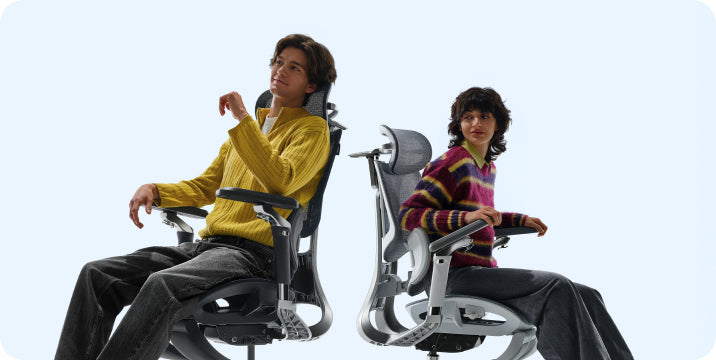
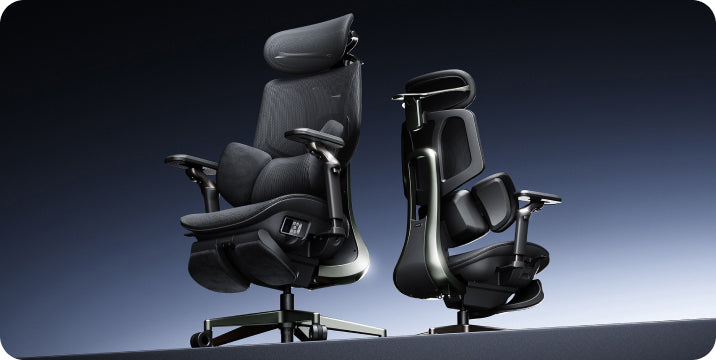
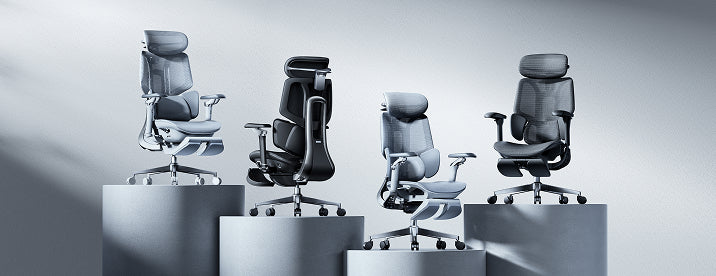
That is the background for HBADA's 2026 E3 Series. Instead of being just another office chair, HBADA introduces a concept known as "Bio-Synchronized Ergonomics" - a mechanical ideology that doesn't try to make users adopt a "perfect" posture, but rather moves with the user's real-time movements.

The Flagship Choice: HBADA E3 Pro — "A Masterpiece for Tech Optimizers"

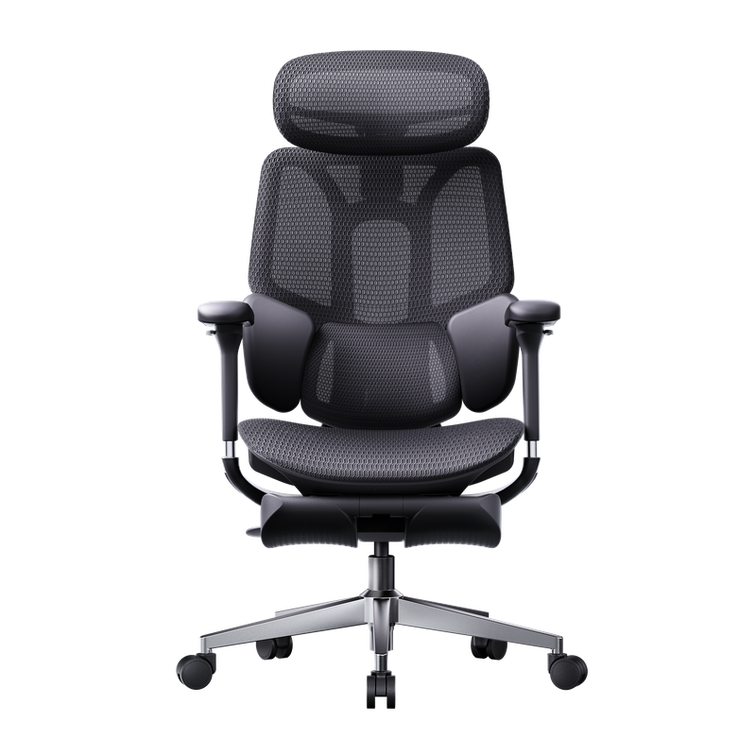
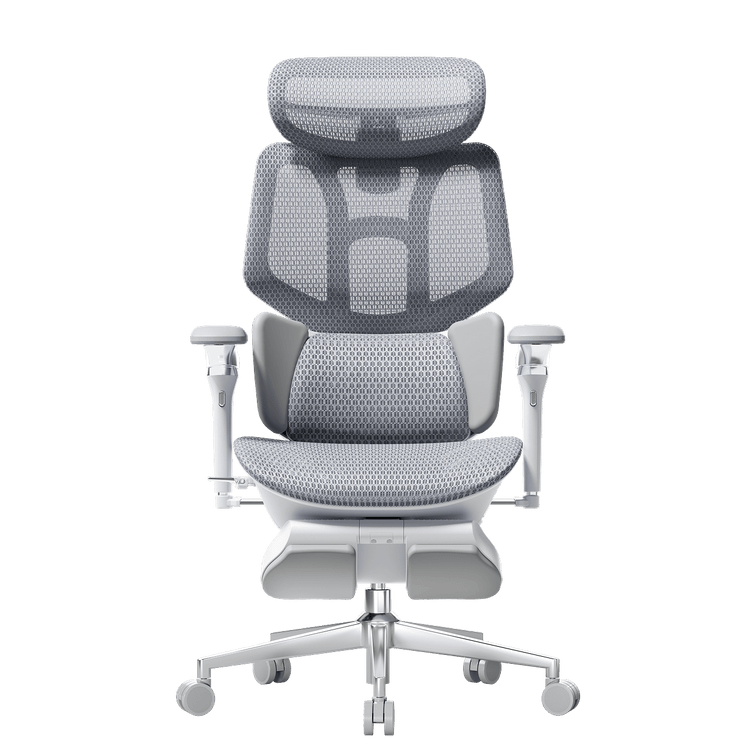
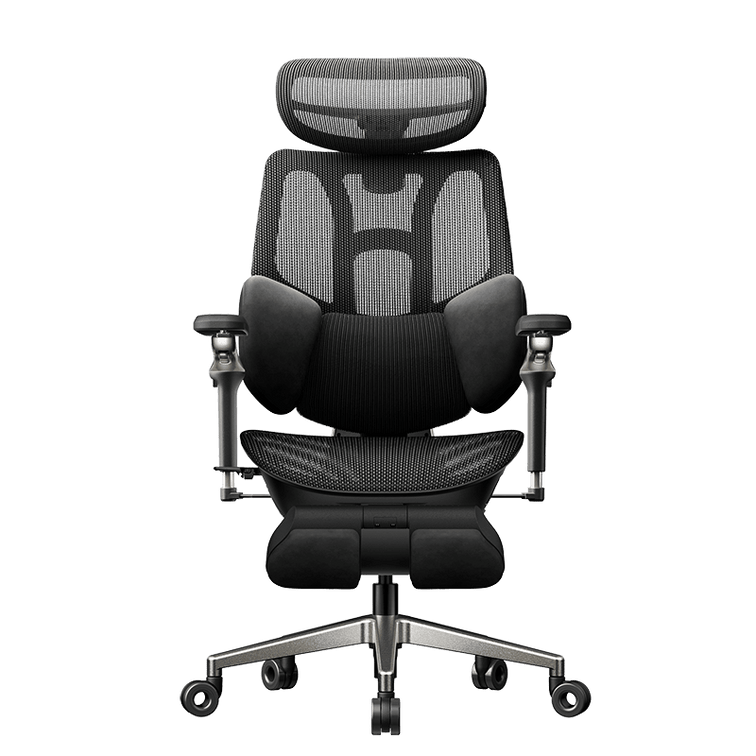
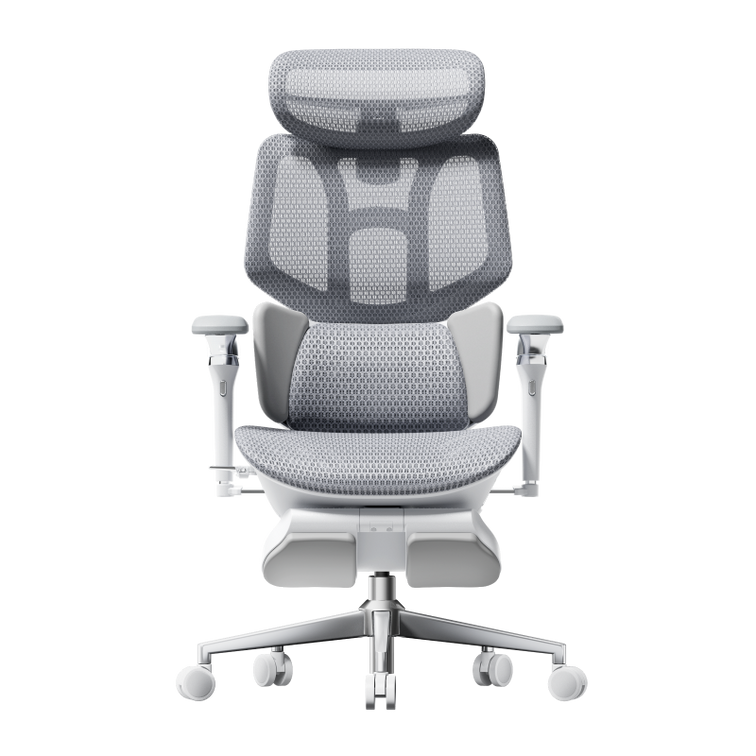
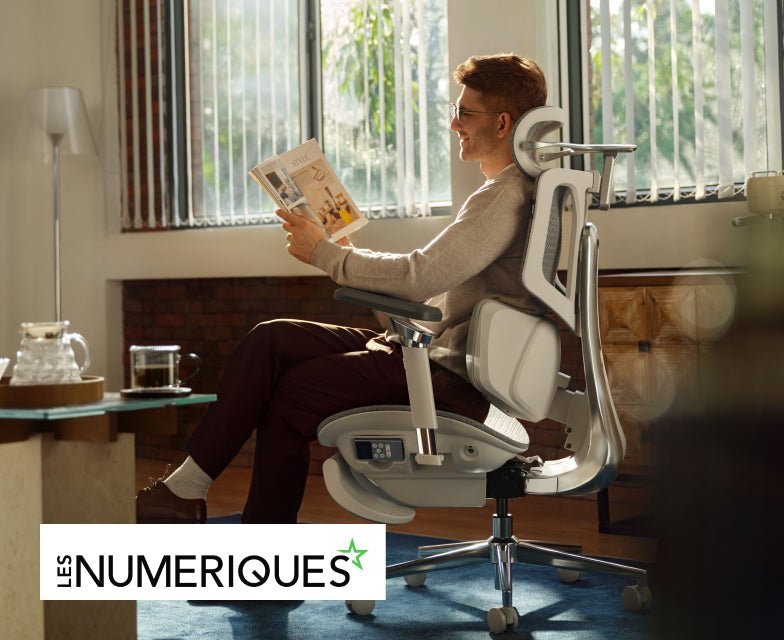
Hbada E3 Series 2026 Ergonomic Chair — Mobile Home Page Section

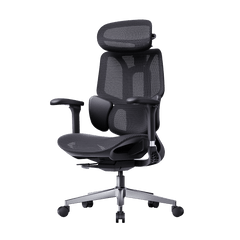
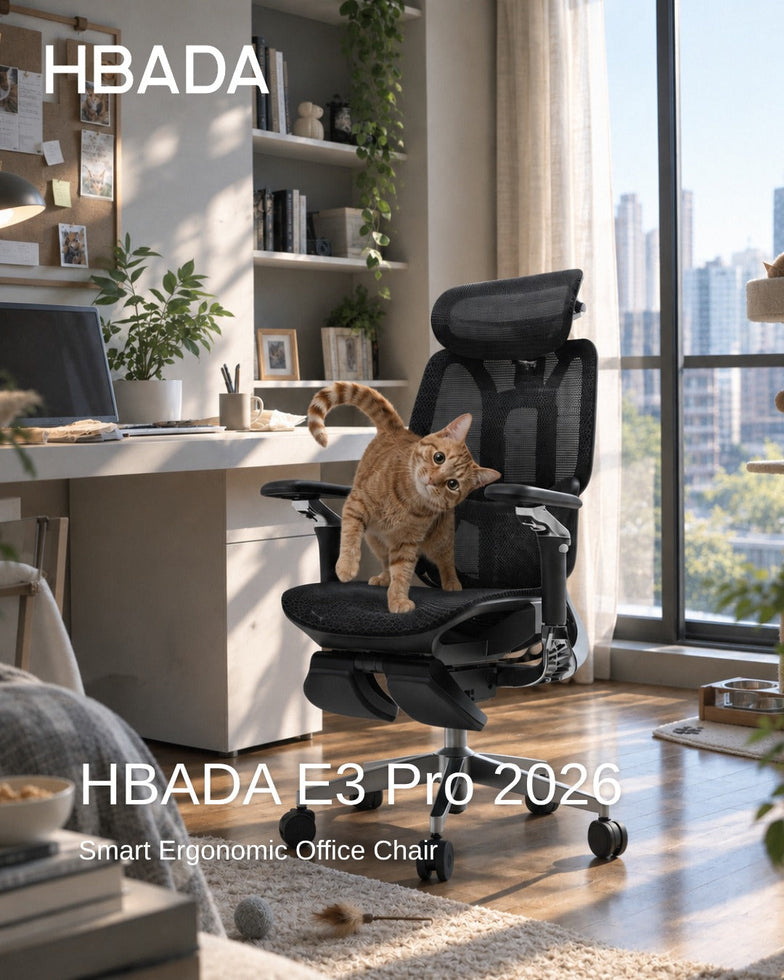
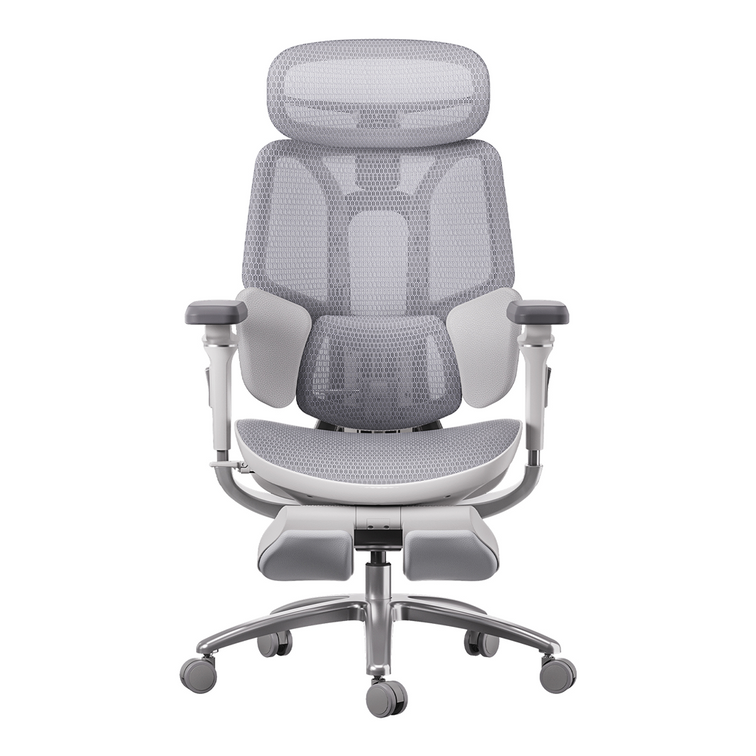
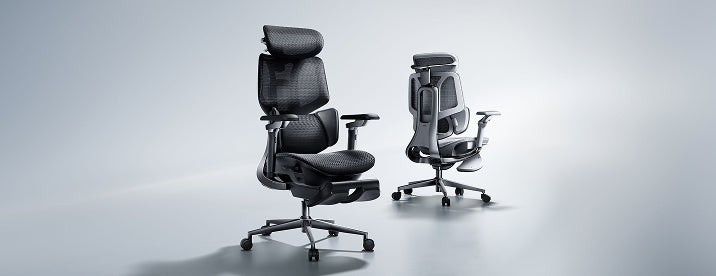
Les Numériques identifies the E3 Pro (2026 Edition) as a pioneer in the industry. As the manufacturer claims, it is the first chair in the world equipped with a three-zone “Floating Wing” lumbar support system.

Key Technical Insights from the Review:

  • Dynamic Lumbar Tracking: The "Floating Wings" allow for an 80° rotation and a 5° dynamic tracking range. This ensures that whether you are leaning forward or shifting sideways, the lumbar region remains enveloped. Internal tests cited by HBADA show a significant 25% reduction in spinal pressure compared to conventional ergonomic chairs.
  • The 720° "Robotic" Armrests: A standout feature for Les Numériques is the dual 360° rotation (totaling 720°) and a 39° vertical articulation. These armrests are mechanically synchronized with the backrest's inclination, maintaining a precise support point for your elbows at all times—a crucial feature for mobile gamers and heavy typists.
  • Universal Adaptability: The dual-axis headrest offers 70mm of depth adjustment, making the chair perfectly suited for individuals ranging from 1.55m (5'1") to 1.95m (6'5").
  • Certified Durability: The E3 Pro isn't just about comfort; it's about safety. It features an SGS Class 4 gas lift and meets the BIFMA standards, the American reference for furniture resistance and security.

The Premium trade-off: HBADA E3 Air — “Smart vs Breathable”

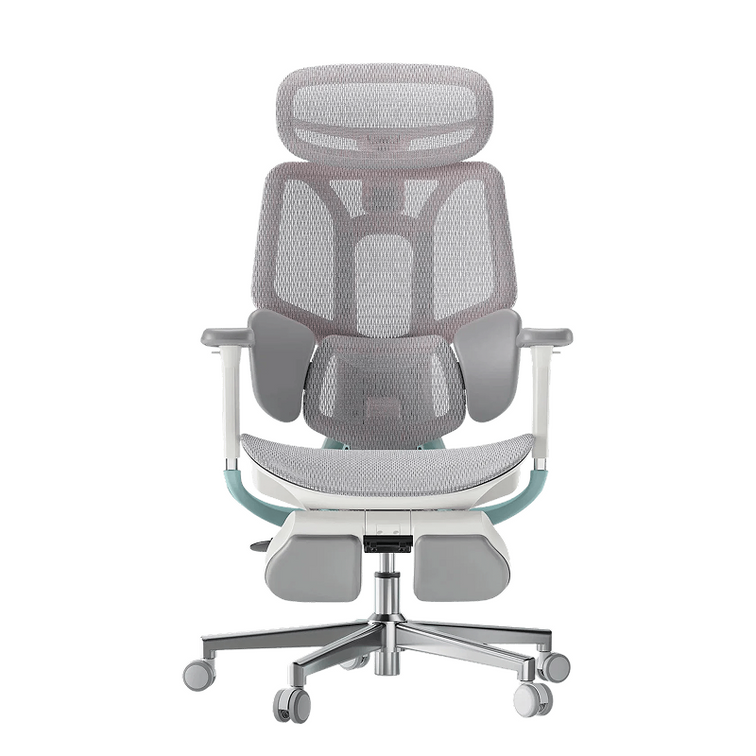
If you want high-end mechanics but balanced in other aspects, Les Numériques suggests the E3 Air. It has the same "Bio-Synchronized" DNA but it is designed for a different user.
  • Weight-Sensing Intelligence: The E3 Air is equipped with a chassis that senses your weight and posture. It changes the backrest tension automatically with no need for user intervention, and gives a "set it and forget it" experience.
The most eye–catching figures here are delivered by CloudMesh 4-way elastic mesh. HBADA states this is 83% more breathable than regular mesh, allowing you to stay cool even on long, intense sessions.
  • 140° Ultimate Recline: It specifically mentions the 140-degree recline as a “real recovery spot” where you can decompress between intense work sessions, or rounds of gaming.

Our Recommendation: Which 2026 Model is for You?

  • The E3 Pro : Best for power users who demand total control. If you struggle with chronic back fatigue and need precision-tuned support (and love the "robotic" aesthetic of the 720° arms), this is the definitive investment.
  • The E3 Air: Best for users who prioritize ease of use and thermal comfort. Its automatic adjustments and ultra-breathable mesh make it the "smart" choice for modern home offices.

Comprehensive FAQ: Everything You Need to Know

Q1: What exactly is "Bio-Synchronized Ergonomics"? A: As detailed in the Les Numériques report, it is a design philosophy where the chair acts as a dynamic extension of the body. Instead of a static backrest, the E3 series uses mechanical linkages to mirror your micro-movements, ensuring support is never lost during posture shifts.
Q2: How does the 720° armrest benefit me daily? A: Traditional 4D armrests often lose alignment when you recline. The E3 Pro’s 720° arms are synchronized with the backrest. This means whether you are sitting upright typing or reclined watching a video/gaming on a phone, your arms are always supported at the correct height and angle.
Q3: Is the E3 Series certified for safety? A: Absolutely. Both models utilize SGS Class 4 gas cylinders (the highest standard for safety) and are fully compliant with BIFMA durability standards, ensuring the chair can withstand years of heavy use.
Q4: Can I use the Early Bird discount on both the Official Site and Amazon? A: The $50 Early Bird discount (Code: 50OFF) is exclusive to the HBADA Official Site for those who register before April 2nd. However, the product will be available on both the Official Site and Amazon Europe starting April 2nd at the standard price. (Post-launch code HBADANO5 can also be used on the official site for a €50 discount).
Q5: How does the CloudMesh fabric compare to traditional leather or mesh? A: Unlike leather which traps heat, or low-quality mesh which can sag, the CloudMesh in the E3 Air is 4-way elastic. It offers 83% better airflow, making it ideal for warmer climates or users who sit for 8+ hours a day.

Final Verdict & Launch Details

The HBADA E3 Series (2026) successfully bridges the gap between medical-grade support and high-tech furniture.
  • Official Launch: April 2, 2026.
  • Early Bird Offer: Register now to receive your $50 voucher.
  • Where to buy: Exclusive offers at hbada.com.
 

Relevant Product

You May Also Like

HBADA E3 Pro vs. Hinomi H1 Pro V2: Which Ergonomic Chair Fits You Better HBADA E3 Pro vs. Hinomi H1 Pro V2: Which Ergonomic Chair Fits You Better Ergonomic Chair Comparison Put the feature lists aside for a moment. Before comparing adjustment counts, measure your desk height, the seat depth you actually need, and the range of sitting positions you use during a normal workday. More adjustments do not automatically mean a better fit. Comparison note: This article compares publicly available manufacturer information for the HBADA E3 Pro 2026 Edition and Hinomi H1 Pro V2. Product configurations, prices, delivery, warranty terms and regional availability may change. Check the current product page and policy for your location before ordering. Contents Start with fit, not feature count How the support systems differ Published specifications compared Which chair should you investigate first? What to measure before buying Frequently asked questions Start With Fit, Not Feature Count An ergonomic chair only works when its useful adjustment range matches your body and workspace. A chair can have a long list of features, but that list matters less if the seat sits too high, the lumbar support reaches the wrong area, or the armrests cannot work with your desk. The key question is not “Which chair has more adjustments?” It is “Which chair gives me the adjustments I will actually use?” More adjustment points do not automatically equal a better fit. The useful range matters more than the feature count. That distinction is especially relevant here. Hinomi markets the H1 Pro V2 around 16 adjustable points and multiple size options. HBADA publishes detailed adjustment ranges for the E3 Pro 2026 Edition, including seat depth, backrest height, lumbar position, headrest and armrest adjustments. How the Support Systems Differ HBADA E3 Pro 2026 Edition   The HBADA E3 Pro 2026 Edition uses a three-zone adaptive lumbar-support design. HBADA lists a 50 mm seat-depth slide, 80 mm backrest-height adjustment, 60 mm independent lumbar lift, 40 mm headrest-height adjustment and 70 mm headrest depth adjustment. HBADA also lists a recommended user-height range of approximately 5'1"–6'5" (155–195 cm). Those figures are not a promise of fit for every person, but they give shoppers useful dimensions to compare with their own measurements. Hinomi H1 Pro V2 The Hinomi H1 Pro V2 product page lists 16 adjustable points, 3D lumbar support, flip-up 5D armrests, a 3D headrest, a retractable leg rest and a foldable frame. Its lumbar system is described as having five height levels and four forward-support levels. Hinomi offers S, M and L height guidance. Its current product page states that the primary difference between those sizes is the seat-height adjustment range, while the other listed dimensions remain the same. That is useful for shoppers who prefer to begin with a height-based size recommendation. HBADA E3 Pro 2026 vs. Hinomi H1 Pro V2: Published Information Compared Comparison Area HBADA E3 Pro 2026 Edition Hinomi H1 Pro V2 Primary fit approach Published adjustment ranges across seat depth, backrest, lumbar support, headrest and armrests. Published S, M and L height guidance, with seat-height range identified as the main size difference. Lumbar support Three-zone adaptive lumbar-support system with independent lift adjustment listed by HBADA. Lumbar support with five height levels and four forward-support levels listed by Hinomi. Seat-depth information HBADA lists a 50 mm / approximately 2-inch seat-depth slide. Review current product specifications and fit guidance for the selected H1 Pro V2 configuration. Head and arm support HBADA lists a dual-axis headrest and 720° OmniMechanical armrests. Hinomi lists a 3D headrest and flip-up 5D armrests. Recline and space-saving features HBADA lists four recline positions: 105°, 115°, 130° and 140°. Hinomi lists a maximum 136° recline, retractable leg rest and foldable frame. Published warranty terms E3 Series core load-bearing components are covered for 5 years; other covered components are covered for 3 years under HBADA's current policy. Subject to its current terms and regional policy. These features are not one-to-one equivalents. For example, a published count of adjustment points cannot be directly compared with a specific seat-depth or lumbar-travel measurement. Use the table as a starting point, then compare the features that affect your own work setup. Which Chair Should You Investigate First? Start with HBADA E3 Pro if: You want to compare specific adjustment ranges before purchasing. Seat depth, backrest height, lumbar position and headrest position are important to you. You move between focused work and reclined breaks during the day. Your height falls within HBADA’s published 5'1"–6'5" guidance and the chair dimensions suit your desk setup. Start with Hinomi H1 Pro V2 if: You prefer to narrow options first through S, M and L height guidance. A foldable frame, retractable leg rest or flip-up armrests are priorities for your space. Hinomi’s seat-height range and support adjustments match your body measurements. You have reviewed the current policy and product configuration for your market. This is not a winner-and-loser comparison. It is a practical way to decide which product page you should study first. The final decision should come after checking current dimensions, configuration, delivery, return eligibility and warranty terms. What to Measure Before Buying Measure your desk height and check whether the armrests can sit at a useful working height. Check seat depth against your leg length; you should be able to sit back without the front edge pressing into the back of your knees. Compare the chair's minimum and maximum seat height with your ability to place your feet flat on the floor. Consider whether you need a headrest, flip-up armrests, recline support or a footrest for your normal routine. Read the current return and warranty terms for the exact model and market where you will purchase. Frequently Asked Questions Is HBADA better than Hinomi? There is no universal answer. The better chair depends on your body measurements, desk setup, preferred adjustments, available configuration, delivered price and the current purchase terms in your location. How should I compare lumbar support between ergonomic chairs? Look beyond the feature name. Compare where the support contacts your lower back, how it adjusts, whether the seat depth and backrest height fit you, and whether you can comfortably use the controls during your workday. Sources and Disclosure HBADA E3 Pro Ergonomic Office Chair 2026 Edition HBADA Warranty & Service Policy Hinomi H1 Pro V2 Product Page Last reviewed: September 14, 2026. Hinomi is a trademark of its respective owner. This article is an independent comparison based on publicly available manufacturer information. HBADA is not affiliated with or endorsed by Hinomi. How to Clean a Mesh Ergonomic Office Chair Without Damaging the Material How to Clean a Mesh Ergonomic Office Chair Without Damaging the Material A practical guide to removing dust, spills and stains while protecting mesh, moving parts and smart-chair components. Quick answer: Dust mesh with a soft dry cloth or a vacuum on a low setting. Blot spills with a well-wrung cloth and mild soapy water, then let the chair air-dry. Avoid bleach, hot water, solvents, abrasive cleaners and hard scrubbing. Contents What can damage mesh? How to remove everyday dust How to clean spills and stains Frame, armrests and casters Cleaning methods at a glance How to clean a smart chair Safe deep-clean routine HBADA chair care FAQs What Can Damage a Mesh Chair? Mesh is durable, but the weave can be weakened by unsuitable cleaning methods. Bleach, strong solvents, hot water and abrasive cleaners can discolor or break down the fibres. Stiff brushes and heavy scrubbing can also snag or stretch the mesh. Keep the chair out of prolonged direct sunlight, do not soak the mesh, and avoid spraying cleaner directly onto the chair. Gentle, regular cleaning is safer than occasional aggressive cleaning. How Do You Clean Everyday Dust? Use a soft dry cloth Wipe the mesh with a dry microfiber cloth to remove surface dust, lint and light debris. Vacuum on a low setting If dust is caught in the weave, use a vacuum with gentle suction and move across the surface without pressing into it. A quick weekly clean helps prevent dust and skin oils from building up, especially on a chair used for long workdays. How Do You Clean Spills and Stains? For a fresh spill, act quickly. Dampen a soft cloth with mild soapy water and wring it out thoroughly. Blot from the outside of the mark toward the center so the stain does not spread. Do not soak the mesh or rub hard. If a mark remains, test an alcohol wipe on a hidden area first, then dab the stain gently. Let the chair air-dry fully in a ventilated room before use. How Do You Care for the Frame, Armrests and Casters? Use a separate soft, damp cloth for the frame, armrests and base. Keep water away from the gas lift, recline mechanism and other moving parts. Never attempt to open the gas cylinder. Casters collect hair, dust and debris over time. Remove anything wrapped around the wheels, then wipe them clean so the chair can roll smoothly. Cleaning Methods at a Glance What to Clean Safe Method What to Avoid Everyday dust Soft dry cloth or low-suction vacuum Hard brushing or scratching the mesh Fresh spills Blot with mild soapy water Soaking or rubbing the mesh Stubborn marks Spot-test, then dab gently Bleach, hot water or solvents Frame and armrests Soft damp cloth Abrasive or harsh cleaners Casters Remove hair and debris, then wipe Forcing debris deeper into the wheel How Do You Clean a Smart Chair With Electronics? Important: Switch the chair off and follow its product manual before cleaning around powered components. Use a dry cloth around controls, sensors, fans, batteries and powered adjustment areas. Never spray liquid directly onto the chair. Clean the mesh and non-electronic surfaces with the same gentle method, then allow the chair to dry completely before use. Step by Step: A Safe Deep Clean Switch off a smart or powered chair before cleaning. Vacuum or dry-dust the mesh to remove loose debris. Mix a small amount of mild soap with lukewarm water. Dampen and thoroughly wring out a soft cloth. Blot the mesh without soaking it. Spot-test before treating stubborn marks. Wipe the frame, armrests and base separately. Remove hair and dust from the casters. Let the chair air-dry away from direct sunlight. Which HBADA Chairs Does This Apply To? These steps work for HBADA mesh chairs, including the E3 Pro and X7 Smart. For a mechanical chair such as the E3 Pro, focus on keeping the mesh clean and moisture away from the gas lift and mechanism. For a powered model such as the X7 Smart, use the same gentle mesh-cleaning routine while taking additional care around electrical and control components. Frequently Asked Questions Can you wash a mesh office chair? You can clean it, but you should not soak it. Remove loose dust first, blot the mesh with mild soapy water, and allow it to air-dry completely. What should you not use to clean mesh? Avoid bleach, hot water, solvents, abrasive cleaners, stiff brushes and hard scrubbing. These can weaken, discolor or snag the mesh. How often should you clean a mesh office chair? Dust or vacuum the mesh once a week, clean spills as soon as they happen, and deep-clean the chair whenever visible dirt builds up. Does cleaning damage mesh over time? Gentle cleaning should not damage quality mesh. The main risks are soaking, hot water, harsh chemicals and excessive scrubbing. Sources HBADA Assembly, Maintenance and Troubleshooting HBADA E3 Pro Ergonomic Office Chair HBADA X7 Smart Ergonomic Office Chair How to Set Up an Ergonomic Office Chair for Laptop Work How to Set Up an Ergonomic Office Chair for Laptop Work Laptop workspace guide A comfortable laptop setup needs more than the right chair. Adjust the seat so you can reach the keyboard with relaxed shoulders and straight wrists. Support your feet, position the lumbar support against your lower back, and leave space behind your knees. For longer sessions, raise the laptop screen and use a separate keyboard and mouse. In this guide Why laptop work can feel uncomfortable Set up your chair first Position the screen and keyboard Common problems and fixes Your setup checklist Choosing an HBADA chair Limitations and when to get help Final thoughts Frequently asked questions Sources Why Is Laptop Work Hard on Your Body? A laptop connects the screen and keyboard, which makes it difficult to position both comfortably. Keep the keyboard low and you may bend your neck to look at the screen. Lift the screen and the built-in keyboard can become too high to use comfortably. Your chair provides a supported base, but it cannot separate the screen from the keyboard. For extended work at a desk, an external keyboard and mouse let you adjust screen height without changing your typing position. A good setup can support a more comfortable sitting position. It is not a medical treatment, and it does not remove the need to move throughout the day. How Should You Set Up the Chair First? Work with your desk height rather than adjusting the chair in isolation. Make one change at a time, then check how it feels while typing. Step 01 Set the seat height for your keyboard Raise or lower the seat so your shoulders stay relaxed and your forearms are roughly level with the keyboard. Keep your elbows near your body and your wrists straight rather than angled upward. Step 02 Give your feet a stable base Keep your feet supported on the floor. If the height needed for your desk leaves them dangling, use a separate under-desk footrest. Do not lower the chair so far that you have to raise your shoulders to type. Step 03 Leave room behind your knees If your chair has seat-depth adjustment, leave roughly two to three fingers of space between the seat edge and the backs of your knees. You should be able to sit against the backrest without the front edge pressing into your legs. Step 04 Position the lumbar support Set the lumbar support against the curve of your lower back. It should feel supportive rather than forceful. Adjust the height or pressure if your model allows it, and check the fit again when you change posture. Step 05 Adjust the armrests without lifting your shoulders Use the armrests for light forearm support. Keep them low enough for relaxed shoulders and positioned so you can move close to the desk. If they push you away from the keyboard, lower or reposition them. How Do You Fix the Screen and Keyboard Problem? Once the chair fits your desk, place the laptop on a stable stand. Start with the top of the screen at or slightly below eye level and the display about an arm's length away. Adjust the distance and text size so you can read without leaning forward. Put a separate keyboard in front of you, with the mouse close beside it. Keep both within easy reach so you do not have to stretch your arms or move away from the backrest. No external keyboard yet? Do not raise the laptop so high that typing requires lifted shoulders or bent wrists. Use a temporary position that keeps the keyboard manageable, change posture often, and take breaks. For regular desk work, separating the keyboard and screen is the more adaptable option. Common Laptop Setup Problems and Their Fixes These are setup checks, not diagnoses. Discomfort can have more than one cause. What you notice What to check Adjustment to try You keep looking down Screen height and text size Raise the screen, use an external keyboard, and increase text size if needed. Your wrists bend upward Keyboard height Bring the keyboard closer to elbow height and relax your shoulders. Your feet dangle Seat height relative to the desk Use a footrest if lowering the seat would make the desk too high. You lean away from the backrest Screen distance, keyboard reach, and seat depth Bring your equipment closer and check that you can sit back comfortably. Your shoulders feel tense Armrest height and mouse position Lower overly high armrests and keep the mouse close. You feel stiff later in the day Time spent in one position Take movement breaks and vary your posture and tasks. Your Laptop Chair Setup Checklist Set the seat height for relaxed shoulders and comfortable keyboard access. Support both feet on the floor or a suitable footrest. Leave a small gap between the seat edge and your knees. Position the lumbar support against your lower-back curve. Adjust the armrests so they do not block access to the desk. Raise the laptop screen when using a separate keyboard and mouse. Keep the mouse close and the screen easy to read. Build short breaks and changes of position into your day. Which HBADA Chair Suits Laptop Work? Start with fit, not the number of features. Your chair should work with your desk height, let you sit back comfortably, and keep your arms close to the keyboard. The HBADA E3 Pro Ergonomic Office Chair 2026 Edition is one model to compare. Its product page lists three-zone adaptive lumbar support, adjustable armrests, and mesh seating. Check the selected configuration carefully, including whether a footrest is included. You can also compare X7 models and other options in the HBADA office chair range. Look at the exact model's specifications rather than assuming that all chairs in a series share the same adjustments. Feature to check Why it matters for laptop work Seat-height range The chair needs to suit your desk while allowing stable foot support. Seat depth and width You should be able to use the backrest without pressure behind your knees. Lumbar adjustment Check where the support sits and which adjustments the model provides. Armrest range The armrests should support your arms without stopping you from reaching the desk. Footrest configuration A pull-out leg rest for reclining is not the same as an under-desk footrest for upright typing. Fit and capacity Confirm dimensions, weight capacity, and the selected version before ordering. Limitations and When to Get Help A chair cannot correct screen height or eliminate prolonged sitting. Not every chair provides independent seat-depth, lumbar, and armrest adjustments. A headrest or reclining leg rest does not replace a suitable typing position. If discomfort persists or becomes severe, seek advice from a qualified healthcare professional. Final Thoughts Set the chair for your desk, support your feet and lower back, and keep the keyboard within easy reach. Then adjust the laptop screen independently with a stand and external input devices. Recheck the setup after using it, and make room for movement throughout the day. Frequently Asked Questions How should you sit when using a laptop? Sit back with your lower back supported, feet stable, and shoulders relaxed. Keep the keyboard and mouse close. For longer sessions, use a laptop stand with a separate keyboard and mouse so screen position and typing height can be adjusted independently. Should your feet be flat when using a laptop? Your feet should have stable support on the floor or a footrest. If your desk requires a higher seat position, add a footrest rather than leaving your feet dangling. Can you use a laptop stand without an external keyboard? You can, but raising the built-in keyboard may make typing uncomfortable. For regular desk work, pair the stand with a separate keyboard and mouse. This lets you position the screen without lifting your arms to reach the keys. Does a reclining chair footrest work for upright laptop use? A pull-out chair footrest is generally intended to support the legs while reclining. For upright desk work, a separate under-desk footrest may be more suitable when your feet cannot reach the floor. Check the chair instructions and your working position. How often should you take breaks during laptop work? Take short breaks regularly rather than waiting until you feel uncomfortable. Change tasks, stand, or walk when possible. The right pattern depends on the work you do; no chair makes it necessary or desirable to stay still all day. Sources and Product Information HSE: Working with display screen equipment — UK workstation guidance used as a general reference, not a statement of US legal requirements. HBADA US: E3 Pro product information HBADA US: Current office chair range Product specifications and availability vary by model and configuration. Confirm the details on the relevant product page before purchasing.