



Updated August 2026
If you experience tingling, numbness or wrist discomfort while working at a computer, your chair and workstation setup may be contributing to awkward wrist and arm positions. However, an office chair cannot diagnose, prevent or treat carpal tunnel syndrome.
The most useful chair features for wrist comfort are adjustable armrests, an appropriate seat height and reliable back support. Together, these features can help support your forearms, relax your shoulders and keep your hands and wrists closer to a neutral typing position.
Quick answer: The HBADA X7 offers the broadest combination of smart lumbar support and multidirectional armrest adjustment. The E3 Pro is a strong mechanical alternative, while the E3 Air provides a simpler adjustable setup. The best choice depends on your desk height, body size, preferred adjustments and budget.
What Is Carpal Tunnel Syndrome?
Carpal tunnel syndrome occurs when the median nerve is compressed as it passes through the carpal tunnel in the wrist. Common symptoms can include tingling, numbness, pain, thumb weakness or difficulty gripping objects.
These symptoms can have several causes and should not be diagnosed from workstation discomfort alone. A healthcare professional can assess whether your symptoms are caused by carpal tunnel syndrome or another condition.
What Causes Wrist Strain at a Desk?

A poorly arranged workstation may require you to bend your wrists upward, downward or sideways while typing. Reaching for a keyboard or mouse can also move your elbows away from your body and cause the shoulders to tense.
Chair height, desk height, keyboard position and armrest placement work together. Changing only the chair may not solve an uncomfortable setup if the keyboard and mouse remain too high, too far away or poorly positioned.
OSHA recommends keeping the hands, wrists and forearms straight, aligned and approximately parallel to the floor. The shoulders should remain relaxed, with the elbows close to the body and generally bent between 90 and 120 degrees.
Why Adjustable Armrests Matter
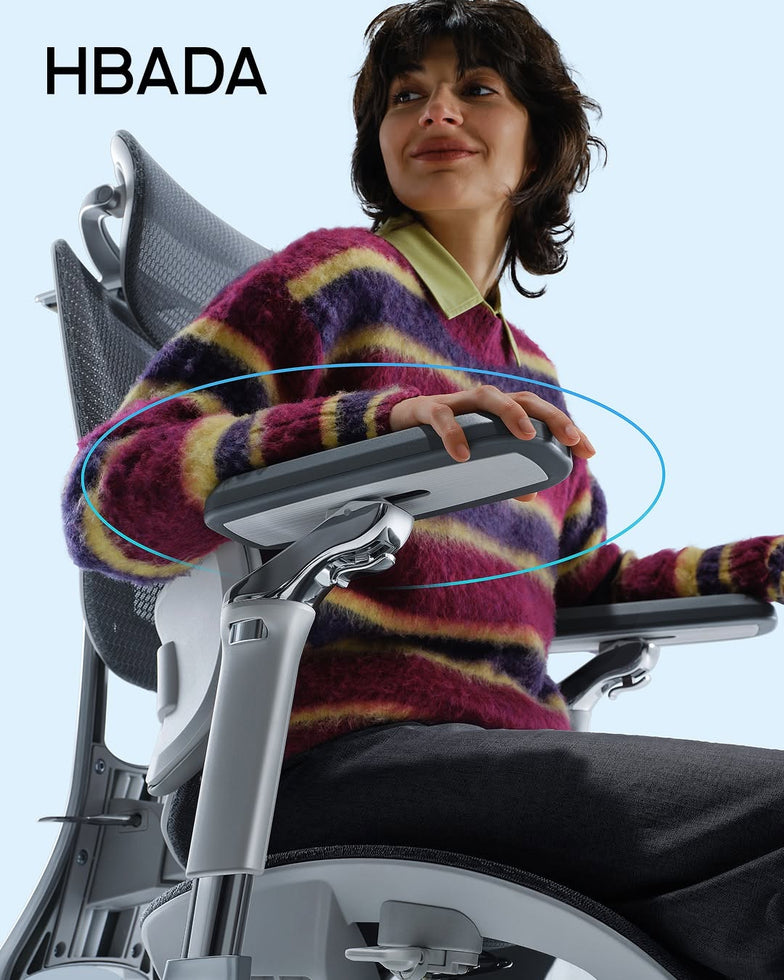
Properly adjusted armrests can support part of the forearm without lifting the shoulders or pushing the elbows away from the torso. This may make it easier to keep the keyboard and mouse close while maintaining a neutral wrist position.
Useful armrest adjustments include:
- Height adjustment: Helps align the forearms with the desk and keyboard while allowing the shoulders to remain relaxed.
- Front-to-back adjustment: Helps support the forearms without forcing you to reach forward.
- Inward or outward rotation: Helps position the elbows closer to the body when typing or using a mouse.
- Recline-linked support: Can help maintain arm support when changing sitting positions.
Armrests should not prevent the chair from moving close to the desk. If an armrest forces you to reach forward or raise your shoulders, lower it, reposition it or stop using it until the workstation can be adjusted.
For more setup guidance, read how to adjust an ergonomic chair for better comfort .
Comparing HBADA Armrest Systems

HBADA models offer different levels of armrest adjustment. The following comparison is intended to help you evaluate workstation fit. It is not a comparison of medical effectiveness.
| Model | Armrest system | Main adjustment benefit | Best suited for |
|---|---|---|---|
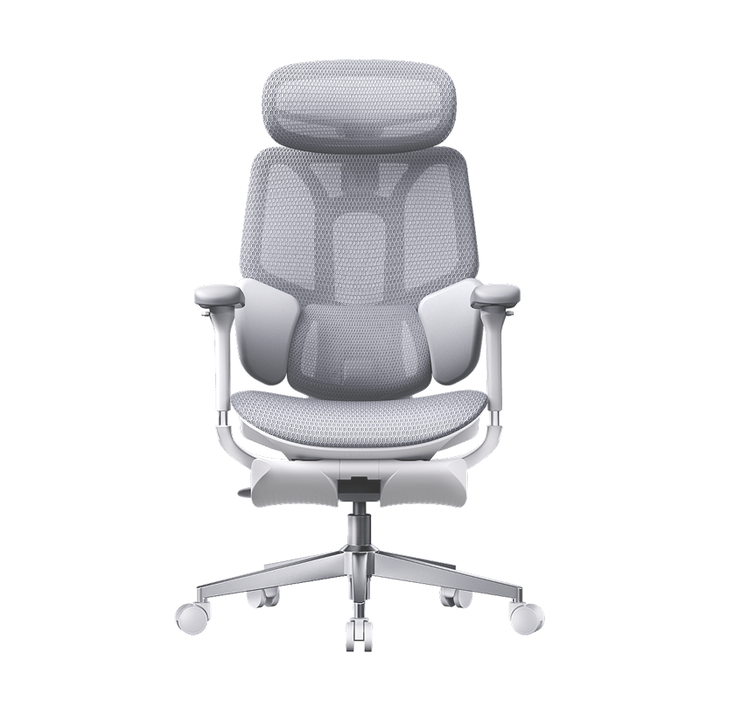
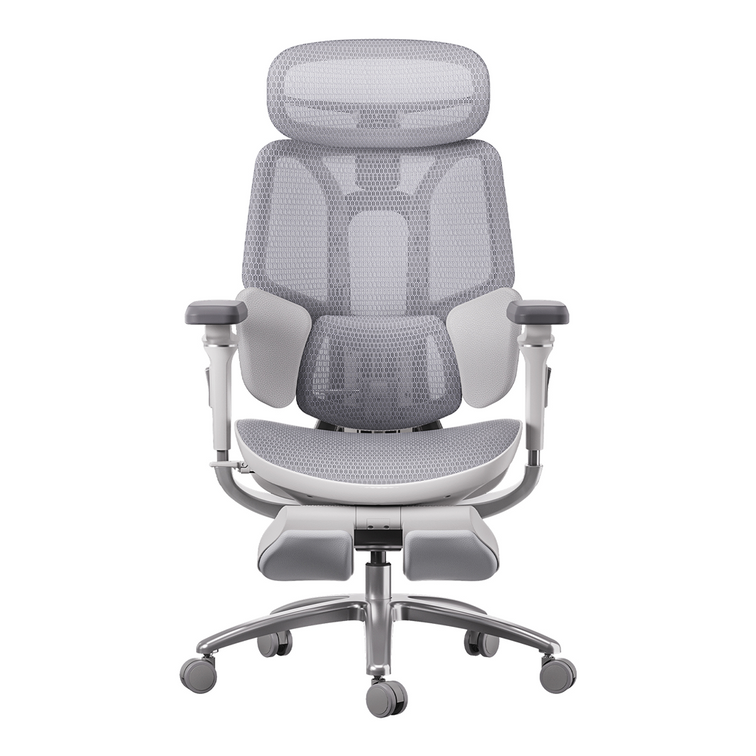
| HBADA X7 | 720° multidirectional armrest system | Broad positioning range for typing, mouse use, reading and reclining | Users who want extensive adjustment plus electronic lumbar, heating, ventilation and massage functions |
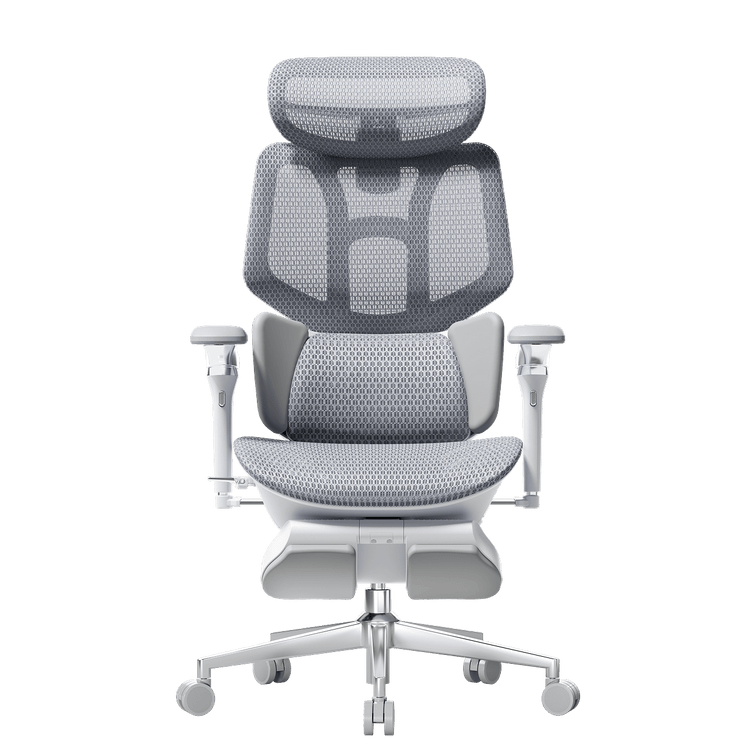
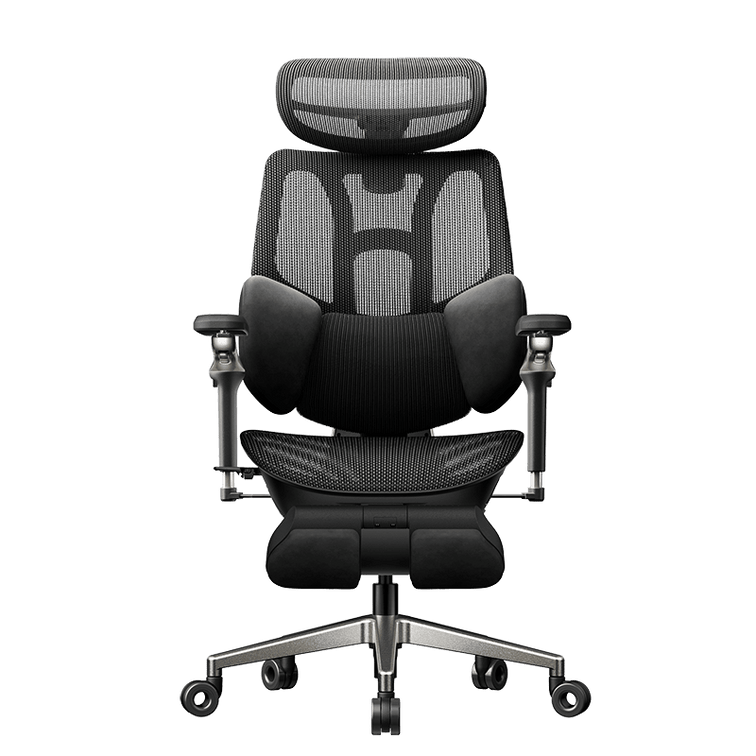
| HBADA E3 Pro | 720° Omni-Mechanical armrests | Wide mechanical adjustment range for changing arm and working positions | Users who prefer extensive mechanical adjustment without relying on smart electronic support |
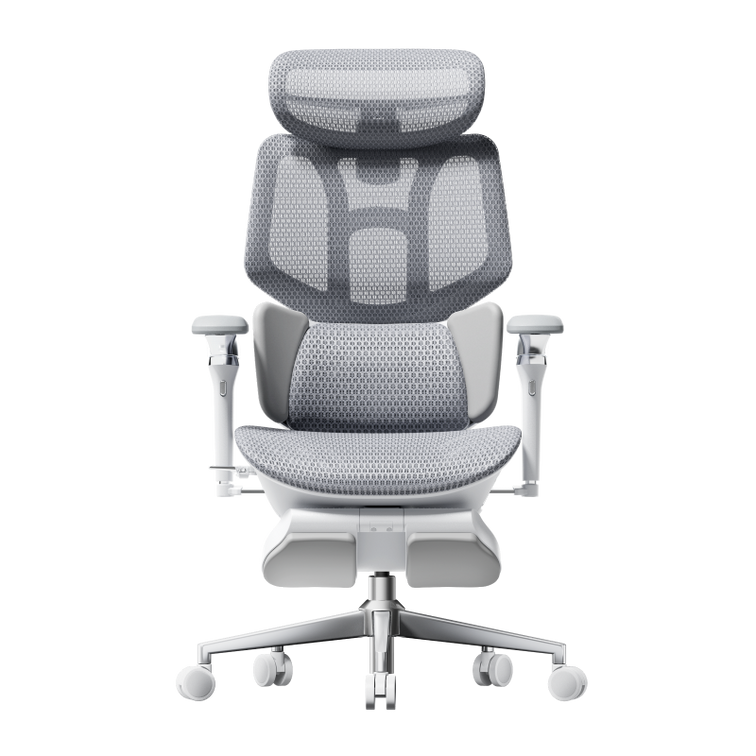
| HBADA E3 Air | 4D adjustable armrests | Practical height, depth and angle adjustment for everyday desk work | Users seeking a simpler ergonomic office chair setup |
Which HBADA Chair Should You Choose?
HBADA X7: Most Complete Smart Adjustment System
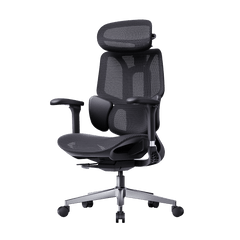
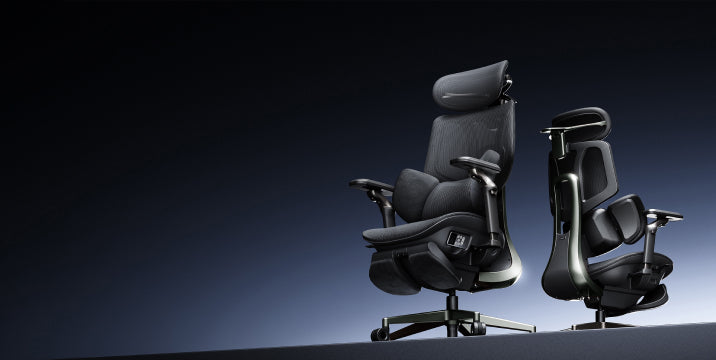
The HBADA X7 Smart Ergonomic Chair combines a 720° armrest system with smart lumbar tracking, adjustable support intensity, heating, ventilation and massage functions.
It is the strongest option in this comparison for users who want a highly adjustable chair with smart comfort features. These functions support workstation customization, but they do not treat carpal tunnel syndrome or other medical conditions.
HBADA E3 Pro: Extensive Mechanical Adjustment

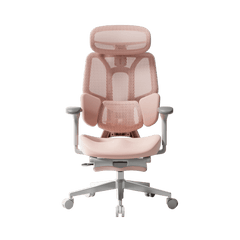
The HBADA E3 Pro Ergonomic Office Chair is a suitable alternative for users who want wide-ranging mechanical armrest and lumbar adjustments without the X7’s electronic functions.
Its Omni-Mechanical armrests can be repositioned for different tasks, including keyboard work, mouse use, reading and reclining.
HBADA E3 Air: Practical Everyday Adjustability
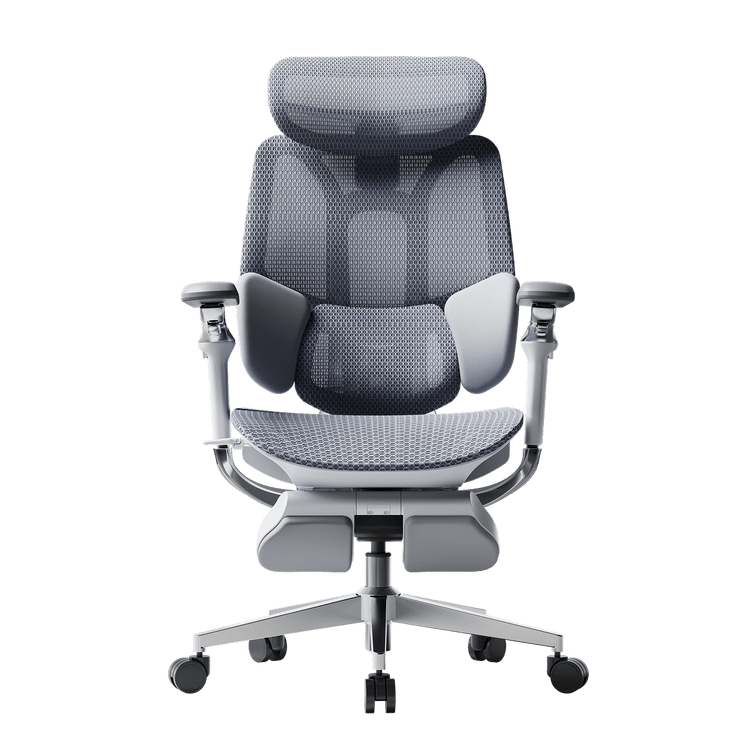
The HBADA E3 Air Ergonomic Office Chair provides 4D adjustable armrests in a simpler configuration. It may be appropriate for users who primarily need height, depth and angle adjustment for everyday desk work.
Before choosing, compare the chair’s measurements with your body dimensions, desk height and available workspace. Our ergonomic office chair buying guide explains the other measurements worth checking.
How to Set Up Your Chair and Desk
- Adjust the seat height. Keep your feet supported on the floor or a footrest. Your thighs should feel supported without excessive pressure behind the knees.
- Move close to the desk. Position the chair so you do not have to lean or reach forward to use the keyboard.
- Relax your shoulders. Raise or lower the armrests until they lightly support your forearms without lifting your shoulders.
- Position your elbows. Keep the upper arms close to the torso and the elbows generally between 90 and 120 degrees.
- Adjust armrest depth. Support the forearms while leaving enough space to move the hands freely.
- Align the keyboard and mouse. Keep both close enough that you can use them without extending your elbows or reaching forward.
- Check your wrists. Keep the hands and wrists straight and aligned with the forearms rather than bent upward, downward or sideways.
- Adjust the backrest. Use the lumbar support to maintain a comfortable upright posture without forcing the lower back into an uncomfortable curve.
- Recheck every position. Confirm that your shoulders, elbows and wrists remain comfortable after reclining or changing tasks.
| Setup area | What to check |
|---|---|
| Seat height | Feet supported and thighs approximately parallel to the floor |
| Shoulders | Relaxed rather than raised |
| Elbows | Close to the body and generally between 90° and 120° |
| Forearms | Supported without pressing against a hard edge |
| Wrists | Straight and aligned with the forearms |
| Keyboard and mouse | Close enough to use without reaching |
| Backrest | Supports a comfortable posture without forcing your position |
Additional Wrist-Friendly Work Habits
- Take regular short breaks from repetitive keyboard and mouse use.
- Change positions instead of holding one posture for long periods.
- Keep frequently used devices within easy reach.
- Avoid pressing the wrist or forearm against a hard desk edge.
- Use a light grip on the mouse and avoid unnecessary force while typing.
- If you use a palm rest, rest the heel of the palm on it during pauses rather than planting the wrist on it while actively typing.
- Reassess your workstation whenever you change chairs, desks, keyboards or pointing devices.
When to Seek Medical Advice
Important: HBADA chairs are consumer furniture, not medical devices. They are not designed to diagnose, prevent, cure or treat carpal tunnel syndrome.
Consult a qualified healthcare professional if you experience persistent or worsening pain, numbness, tingling, nighttime symptoms, thumb weakness, difficulty gripping objects or loss of hand function.
A clinician may need to determine whether your symptoms are caused by carpal tunnel syndrome or another condition. Appropriate treatment may include activity modification, splinting, therapy, medication or other medical options depending on the diagnosis.
Frequently Asked Questions
What is the best HBADA chair for wrist comfort?
The HBADA X7 provides the broadest combination of multidirectional armrest adjustment and smart lumbar support. The E3 Pro is a strong mechanical alternative, while the E3 Air offers a simpler 4D armrest system. The best choice depends on how well the chair fits your body and desk.
Can an office chair treat carpal tunnel syndrome?
No. An office chair cannot treat carpal tunnel syndrome. A properly adjusted chair and workstation may help reduce awkward arm and wrist positions, but diagnosed or persistent symptoms require advice from a qualified healthcare professional.
Which armrest adjustments are most useful for typing?
Height, front-to-back movement and inward rotation are particularly useful. They help support the forearms, keep the elbows close to the body and align the hands with the keyboard.
How high should my armrests be?
Position the armrests so they lightly support your forearms while your shoulders remain relaxed. Your elbows should generally stay close to your body and between approximately 90 and 120 degrees.
Should my wrists rest on the desk while typing?
Avoid pressing the wrists against a hard desk edge. While typing, the hands should move freely and remain aligned with the forearms. A palm rest should generally support the heel of the palm during pauses rather than placing pressure directly on the wrist.
When should I contact a healthcare professional?
Seek professional advice if numbness, tingling or pain is persistent, worsening, affects sleep or is accompanied by weakness, reduced grip or difficulty using the hand.
Final Thoughts
When evaluating the best office chair setup for carpal tunnel comfort, focus on workstation fit rather than medical promises. Adjustable armrests, correct seat height, relaxed shoulders and a nearby keyboard and mouse can make it easier to maintain a neutral wrist position.
The HBADA X7 offers the most complete smart adjustment package, the E3 Pro provides extensive mechanical adjustability, and the E3 Air offers practical everyday arm support. Whichever chair you select, take time to adjust the entire workstation rather than relying on the chair alone.
Sources and further reading
- OSHA: Good Working Positions for Computer Workstations
- OSHA: Computer Workstation Chair and Armrest Guidance
- OSHA: Wrist and Palm Support Guidance
- NHS: Carpal Tunnel Syndrome